

Choose how people claim a hot desk
Five ways to claim a desk — the app with GPS, a printed sticker, a desk kiosk, an e-paper tag, a desk panel — cheapest first, compared on what they cost to buy, what they cost to run, what each one gives you, and what actually stops a check-in from home.
A hot-desk floor works when a desk nobody sat at goes back in the pool. Every setup below does that, ends in the same booking record, and obeys the same rules. What they differ on is what you buy, what you look after afterwards, and what a check-in actually proves.
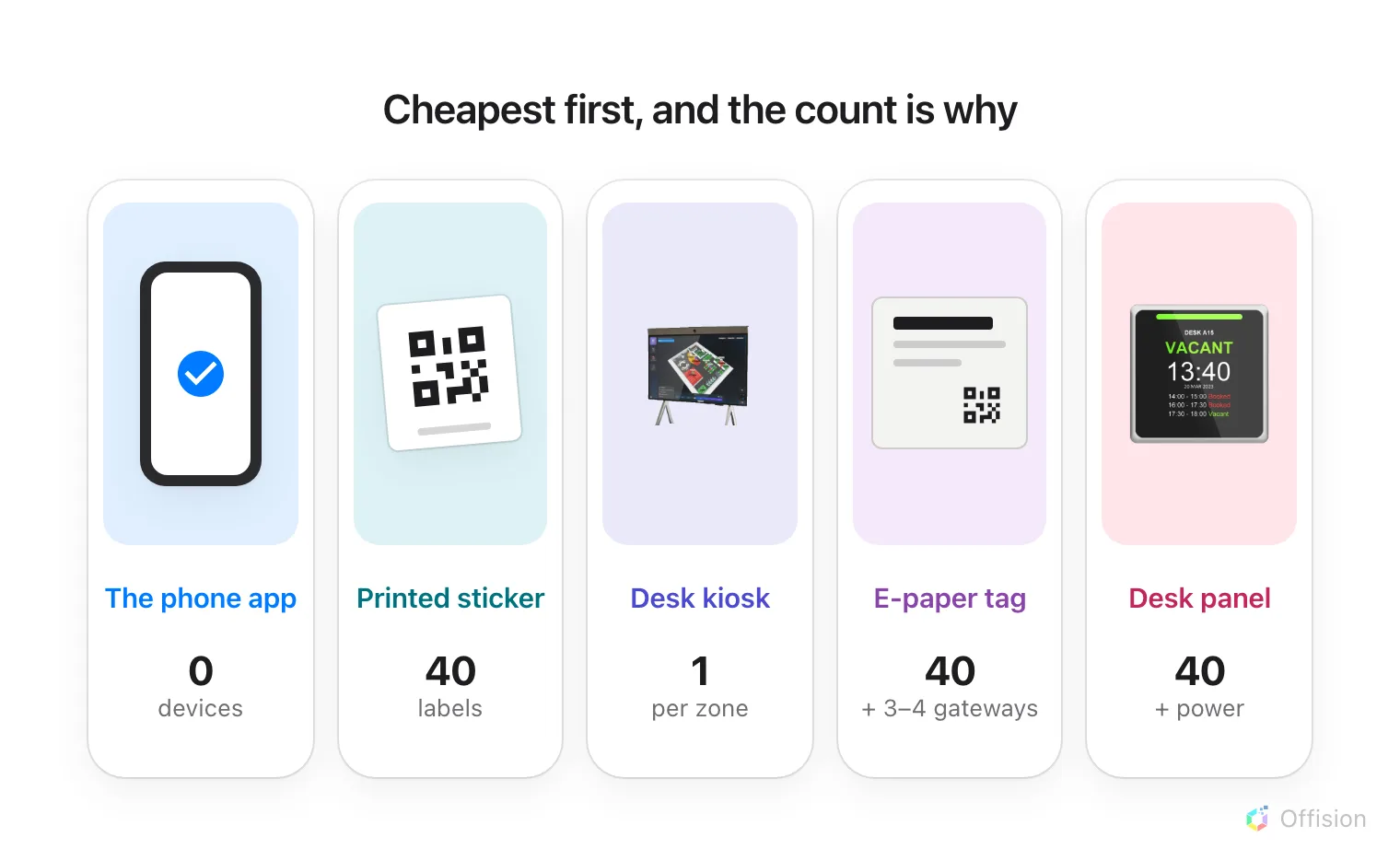
The count under each option is for the same forty desks, and it is most of the difference in price.
The five setups
| Setup | What you buy for forty desks | To buy | To run |
|---|---|---|---|
| The phone app | nothing | ||
| Printed sticker | forty printed labels | ||
| Desk kiosk | one screen for the zone | ||
| E-paper tag | forty tags, three or four gateways | ||
| Desk panel | forty panels, and power to each |
Three dollars is the most; a dash is nothing at all. Paper counts as free to buy — you already own the printer — but not free to keep up.
The phone app

No hardware anywhere: the desk stays bare and the interface is the phone people already carry.
Nothing on the desk, nothing to buy, and it works on the first morning: people book and check in from the app they already have. How far its location test goes is in Checking in by QR code, and proving you are there.
Pros
- Nothing to buy, ever
- Works from the first morning
- Has a location test of its own
Cons
- A free desk looks like a taken one
- Nothing to read without a phone in hand
Printed sticker

A label and a printer. That is the entire product, and it does everything the app does.
A sticker is the whole booking interface for one desk — take it, confirm it, add time, hand it back — for the price of a label. Nothing on the floor needs power, a network or a battery, and the only upkeep is a reprint when a desk is renamed. Print and put up resource stickers covers producing them.
Pros
- A label and a printer, nothing else
- No power, network or battery
- Books, extends and releases a desk
Cons
- The code never changes, so GPS or fixed IP has to cover it
- Nothing on the desk to read
- Reprint when a desk is renamed
Desk kiosk
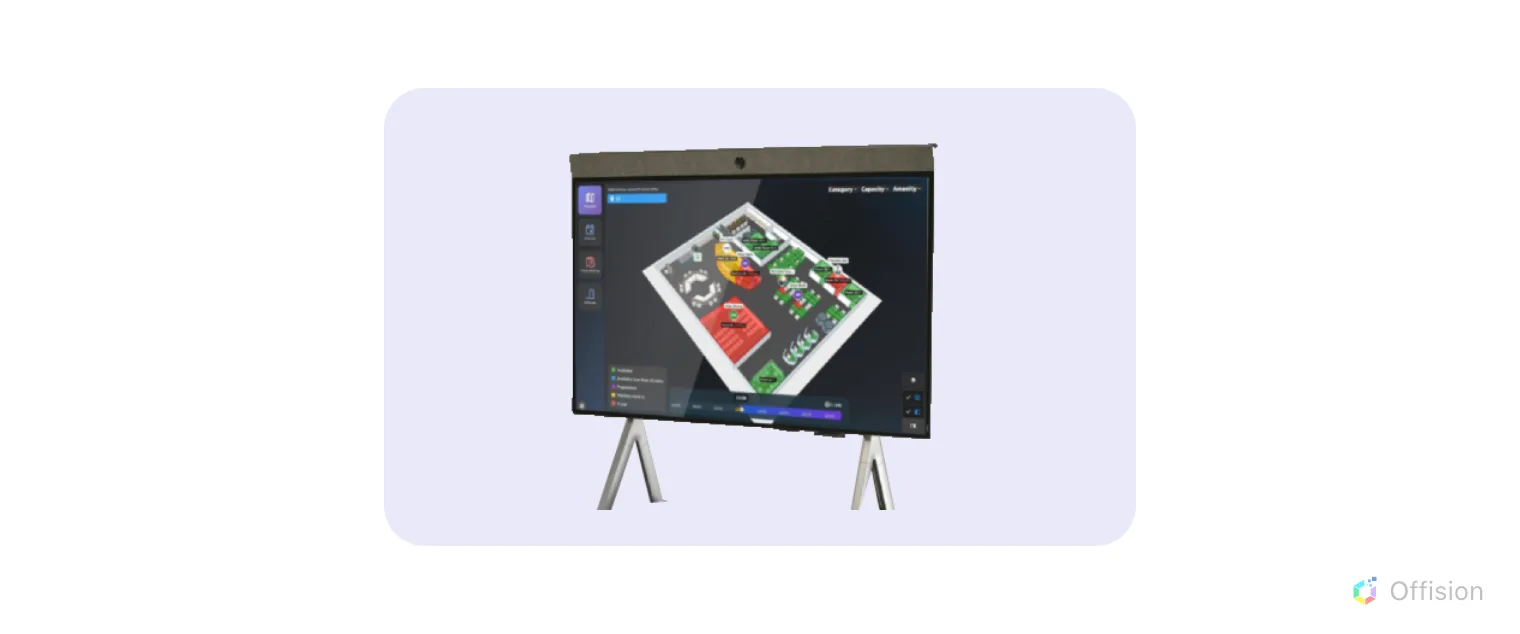
One screen where people arrive, serving every desk in the zone behind it.
One screen standing where people arrive, serving a whole zone — the Desk booking kiosk panel configuration. Somebody identifies themselves once, picks their booking and sees the desk on the floor plan, which answers the commonest hot-desk question: which desk did I book? One device for forty desks makes it the cheapest hardware here, and it is set up like any other panel — How a panel gets its settings.
Pros
- One device for the whole zone
- Shows the desk on the floor plan
- The cheapest hardware on this page
Cons
- Proves the zone, not the desk
- Somebody has to walk to it
E-paper tag
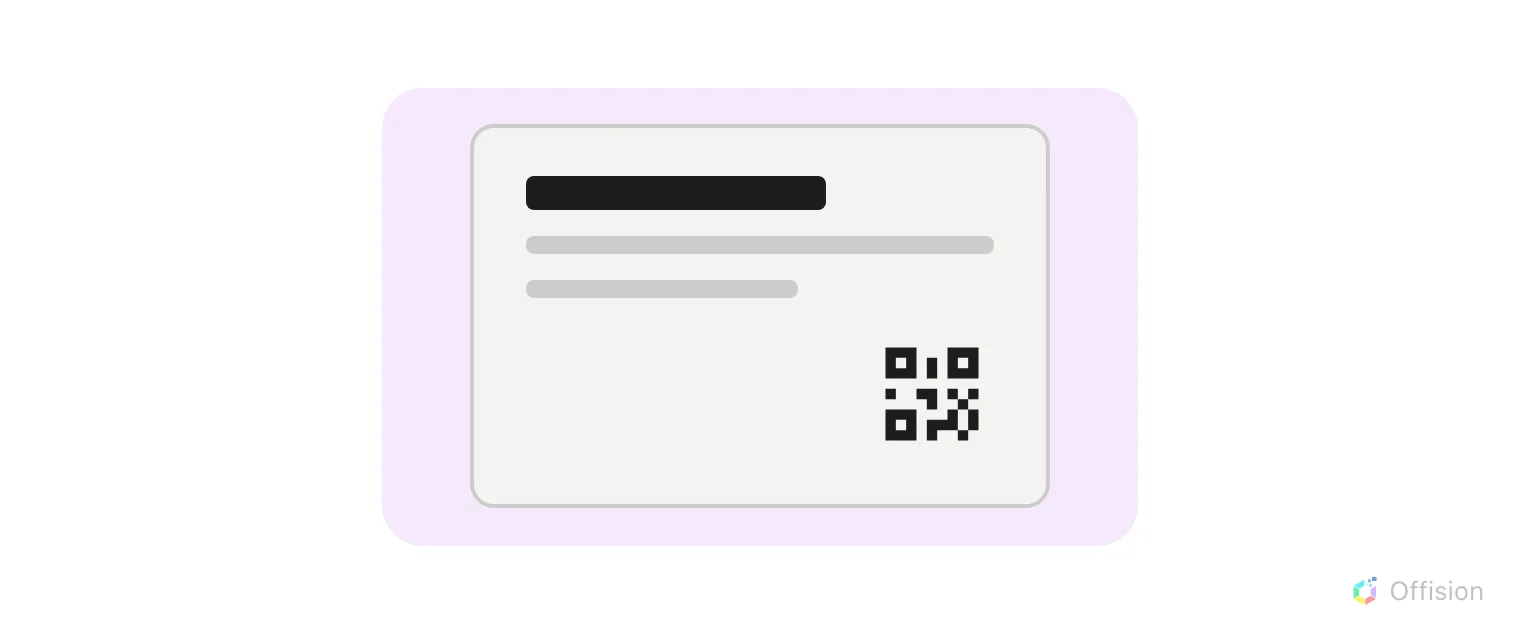
A battery label that shows the desk's state and a code to scan. It displays; it reads nothing back.
A label on the desk showing who has it and until when, so a free desk reads as free from the aisle. That is the sticker’s job plus the status a sticker cannot give — and the code it shows is a daily one, regenerated overnight and repainted, so a photograph of it is worth a day where a photograph of a sticker is worth for ever.
The cost is the radio and the wait. Forty tags need three or four gateways, not one, and a label takes about a minute to change — so a floor that all badges in between 08:55 and 09:05 queues, and the last desk still shows yesterday. Why an e-paper tag takes a minute to change is how you size it.
Pros
- Status readable from the aisle
- A new code every day
- Nothing cabled to the desk
Cons
- Three or four gateways, not one
- About a minute to change
- A whole floor arriving at once queues
- Batteries to replace
Desk panel

A lit screen at the desk itself, readable from across the room and reachable from nowhere else.
A lit screen at the desk: tap a card or type a passcode to check in, extend or hand it back, with no phone involved. It is the only option a passer-by can read from across the room, and the only one that cannot be satisfied from anywhere but the desk — so it is what you buy when the record has to stand up.
It is also the most expensive line here, twice over. Forty panels, then power to forty desks: a network drop each, or a USB feed from the dock, depending on the model — which booking panel hardware Offision supports says which. Forty cable runs cost more than forty panels; Wi-Fi only avoids the data run, and buys access points instead.
Pros
- Readable from across the room
- Tap an NFC staff card, on models with a reader
- Cannot be satisfied from anywhere else
- Looks the part on a floor you show people
Cons
- Forty panels, and power to forty desks
- Cabling costs more than the panels
- Wi-Fi instead means more access points
- Firmware, and forty devices to watch
What stops a check-in from home
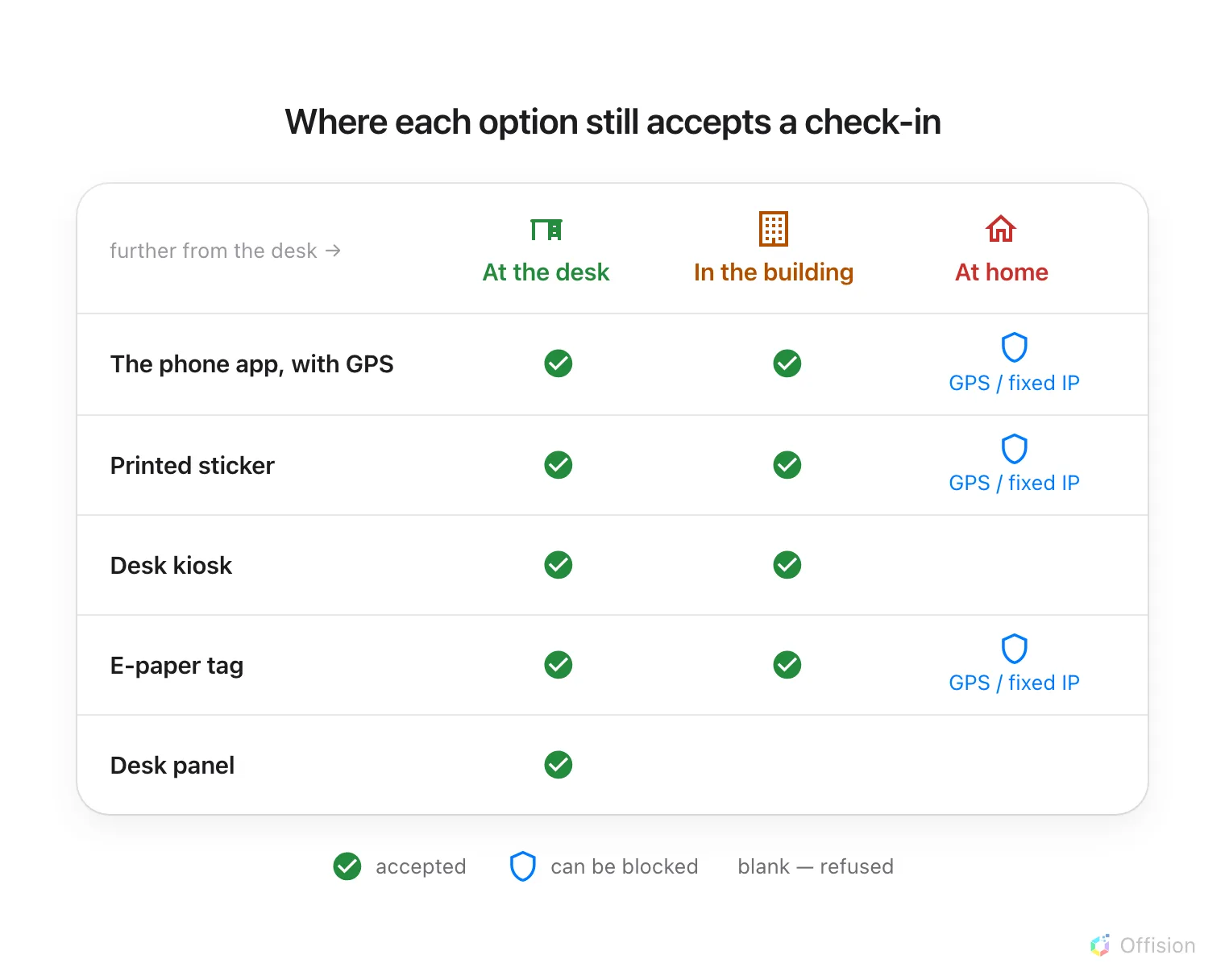
Only the kiosk and the panel are stopped by where somebody is standing. The other three are stopped by a setting — which has to be switched on.
| Setup | Hard to cheat | What stops a check-in from home |
|---|---|---|
| The phone app | Normal | the geofence, the IP restriction, or both |
| Printed sticker | Normal | the same two — but a printed code never changes |
| Desk kiosk | Hard | standing at the kiosk, which proves the zone rather than the desk |
| E-paper tag | Normal | the same two — and the code is a new one every day |
| Desk panel | Very hard | standing at the desk |
A scan is the app. Scanning a sticker or a tag opens the User Portal on the phone, so it takes the same path as the app’s own check-in and the same two conditions close it — Require GPS check-in and User Portal check-in IP restriction, both on the booking policy.
Open Booking policyMost floors buy two
The usual answer is not one of the five. It is stickers on every desk, because they cost nothing and do the whole job, plus a kiosk where people arrive, so somebody who has forgotten their desk can find it without walking the zone. Panels then go on the desks that need to look the part, not on all forty.
The setup where nobody checks in
Auto check-in by the occupancy sensor claims the desk when somebody sits at it and releases it when they leave. It is the only option here that removes the check-in instead of relocating it, and it is priced like a panel — a sensor per desk. It is also the only one that answers “was this desk used” honestly; see Check whether the room was actually full.
What this does not decide
- The rules. The check-in window, the all-day deadline and early check-out are the same settings whichever you buy — see Set the rules a hot-desk floor needs.
- Which credential a kiosk or panel asks for. Card, passcode, booking pin or face is a separate choice, made in How somebody proves who they are at the panel.
When claiming a desk also records attendance
Where your working schedule enables it, checking in to a desk booking or walking up and claiming a desk also records an attendance sign-in. Making a future reservation alone does not. Separate schedule rules can record sign-out when you check out (including sensor release) or when the desk booking ends. These rules apply to desks, not rooms, and can be limited to selected buildings and floors.
Check Working schedule settings before treating a desk claim as proof of attendance. If two equally suitable schedules match, Offision records neither rather than choosing one arbitrarily.