

Both maps
Add a desk
Creating a hot desk, and the five places it behaves differently from a room — no capacity, its own category list, a floor-plan point that matters more than a name, the sticker instead of a panel, and the separate page for a desk that belongs to one person — then what booking one looks like in the user app.
A desk is a bookable resource like a room, made on the same form, held to the same rules and photographed by the same screens. So this article is short on purpose: it is the handful of places a desk is not a room, and Add a room is everything else.
1. Open Hot desks
Desks have their own page in the console — Hot desks, Manage desks and their settings — sitting beside Standard Rooms under Resources.
Open Hot desksIt is the same list you already know, minus one column: there is no Capacity here, because a desk does not have one. Add, Import, the QR code manager and the columns chooser are all where they are on the room list.
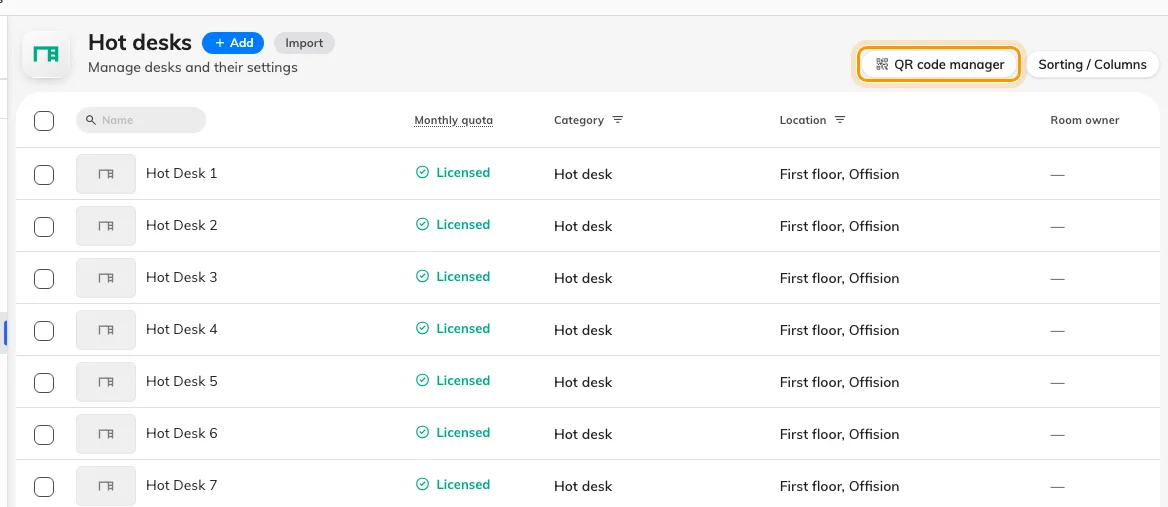
The Hot desks list — no Capacity column, and the QR code manager top right.
2. Add it — one field, as on the room list
Add opens the same small panel with a single Name field, pre-filled with the next number in the list — Desk 38. Change it or accept it.
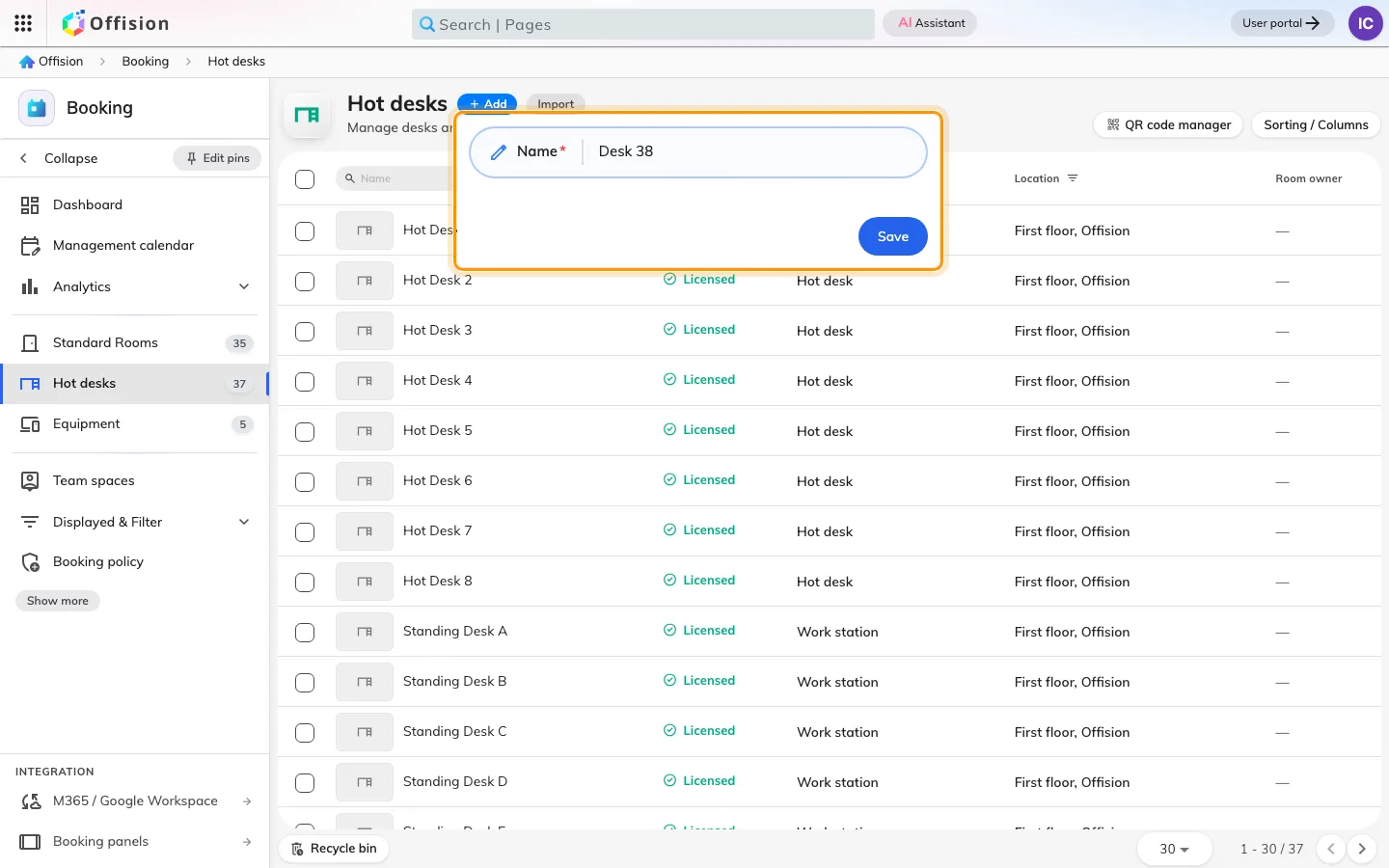
Add asks for a name and nothing else, and the number it offers counts every desk on the tenant.
Save creates the desk and closes the panel — no settings open, nothing announces success but a new row. Check the list before clicking Add again.
The offered number counts the whole list rather than the floor you are working on, so on an estate of any size it is a placeholder, not a suggestion. Desks are found by name far more often than rooms are — a floor of Desk 38, Desk 39, Desk 40 is unusable on a map — so this is the moment to name it something a person could say out loud.
3. A desk has no capacity, and its own list of categories
Open the row, choose Edit, and the form is the room’s form with two differences on the Basic page:
- There is no Capacity field. Not hidden from you — absent from the record. A desk is saved with no capacity at all, which is why nothing searches desks by how many people they seat, and why the booking form never warns a desk booker about numbers.
- Category offers the desk categories only. A category is tied to one resource type, so a desk can never be given a room’s category and a room can never be given a desk’s — the picker here holds whatever your administrator made for desks, which on a new tenant is Hot desk, Workspace, Work station, Phone booth and Other desk type. An empty list means nobody has made any yet; see Set up categories and amenities. It is worth filling in: the category is what people filter a floor of eighty desks down by.
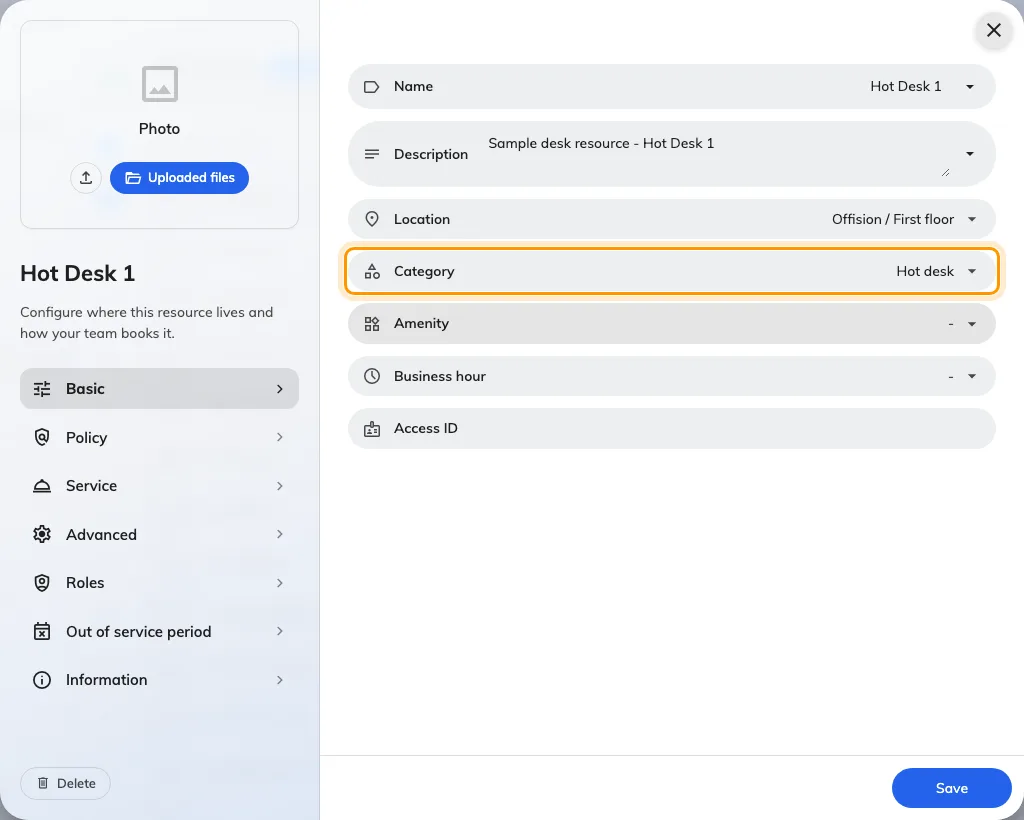
Basic on a desk. Category has the row to itself — on a room it shares it with Capacity.
Everything else on the page — name and description per language, amenity, business hour, organization unit, Access ID — works exactly as Add a room describes it.
4. Place the desk on the map people use
Set the desk’s building and floor in Location. A floor alone is not a drawing assignment. On Classic, place the desk at its point on the floor plan. On Map 2.0, assign it to a compatible desk object or a numbered seat of a multi-seat desk; the eligible object picker appears when that floor uses Map 2.0. The designer’s Assign action is another way to make or change that link.
Check the family people use before placing it. A Classic point does not automatically bind a Map 2.0 object, and drawing furniture does not create a bookable desk. Use Classic assignments for the existing Classic map. Then open the user map and confirm the desk appears at the intended seat.
5. Give it a sticker, because it will never have a panel
A meeting room gets a screen by the door. A floor of eighty desks does not: a panel per desk costs more than the desk is worth, which is why almost every hot-desk floor runs on printed QR stickers instead.
One goes on each desk, and it is the whole booking interface for it — take the desk, confirm the booking you already made, add half an hour, or hand it back on the way out, from an ordinary phone with nothing installed.
Three things are worth knowing while you are still on this page:
- Every desk already has its code. There is nothing to switch on; the sticker exists from the moment the desk does.
- The dialog opens on the right size for you. A desk starts on Small — a square sticker carrying Scan to book — where a room starts on the large portrait door poster.
- A whole floor is one operation. The QR code manager at the top of the list produces every sticker as a single archive, which is what you hand to a print shop.
The rest — the sizes, the print resolutions, where on the desk to stick it, and the settings that decide what a scan is then allowed to do — is Print and put up resource stickers.
6. Do a whole floor from a spreadsheet
Import, beside Add, creates and updates desks in one pass, and a desk sheet is the simplest one Offision has: an ID column and a name column per language, and nothing else. Capacity is a room column and Has EV Charger is a parking one, so neither appears on a desk import.
Everything a desk actually needs — its location, its policy, its category — is set on the desk afterwards, per steps 3 and 4. Import is how you get eighty named rows into the list in a minute; it is not how you finish them. The mechanics, including the preview that counts what is new before anything is written, are in Add a room.
7. Check it worked
Not in the console, which shows you every desk whatever state it is in. Open the user app as an ordinary account, search for the desk by name, and book it. Then open the floor plan and confirm it is where you put it.
If it does not come back at all, it is the same two answers as for a room: Booking settings is off on the Policy page, or the desk is on a team space you are not a member of.
A desk that belongs to one person
Everything above is a desk anybody may take. A desk permanently assigned to one employee is a different thing in Offision, on a different page, and the difference is worth knowing before you build a floor the wrong way.
Open Fixed DesksFixed Desks is its own module. A fixed desk is assigned, not booked, and its form says so — a photo, a name, a User, a location and a description. There is no booking toggle, no booking policy, no quota and no booking form, because nobody is going to reserve it.
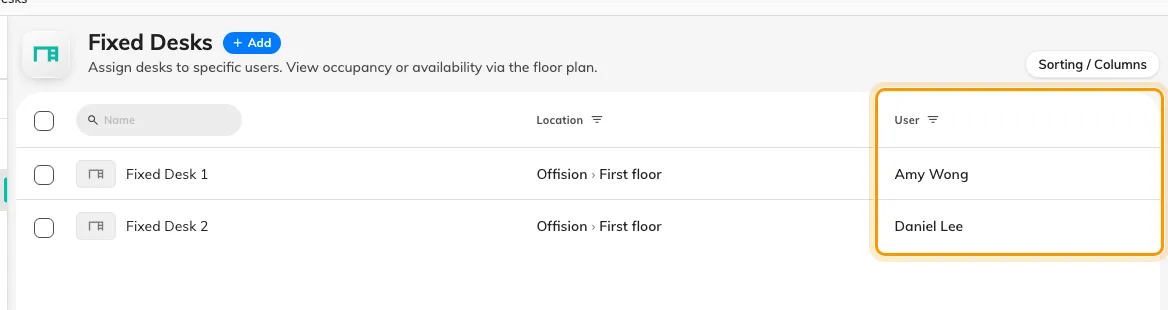
Fixed Desks. The User column is the whole point: a fixed desk names its owner instead of a policy.
The two convert in both directions from the row menu — Change to Fixed on a bookable desk, and back again on a fixed one — so a floor that turns out to need more shared seating is a change of type rather than a rebuild.
What booking one then looks like
Everything above is the admin side. The person taking the desk meets it in the user app, and three screens are most of the experience:
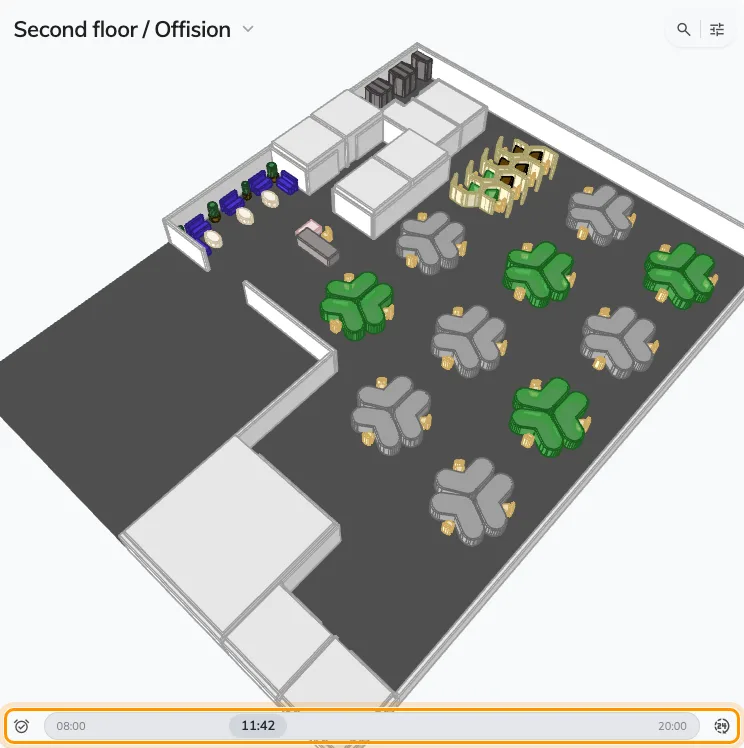
A desk is booked from the floor plan: every desk on the floor, coloured by availability for the time on the slider.
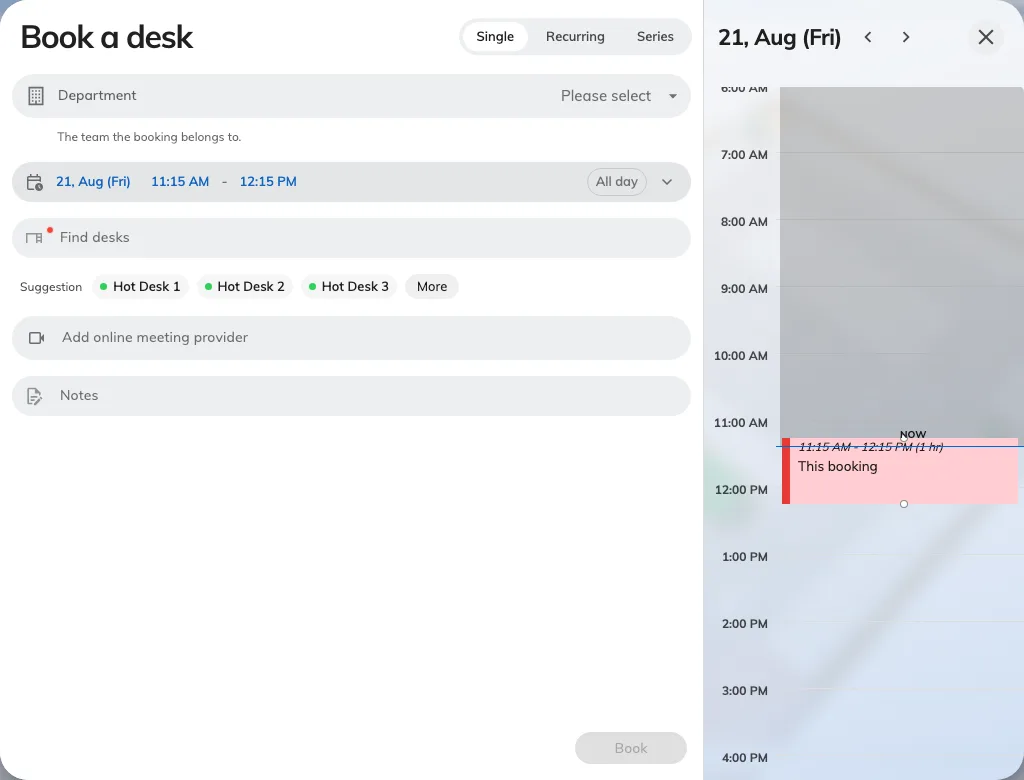
The desk booking form asks for a desk, a time and optional notes — no subject, no attendees, none of the room form's other fields.
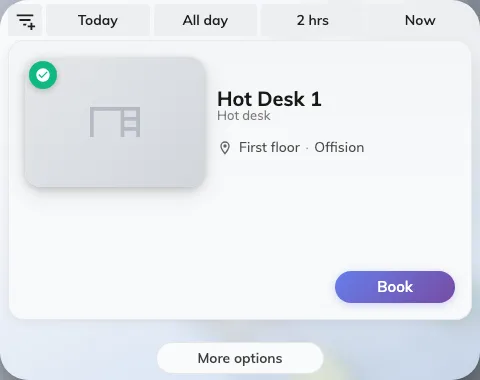
Find a desk now is the quick booking: every desk free for the asked-for length, each row with its own Book button.
The walkthroughs are in the user guide — Book a desk and Find a desk on the floor plan.
What this does not cover
- The rules a desk floor needs. Walk-in only, all-day bookings, the check-in window that reclaims an empty desk — see Set the rules a hot-desk floor needs.
- Charging desks and rooms separately. A month of hot-desking eating the meeting-room allowance is a quota question — see Charge desks and rooms from separate budgets.
- AM and PM desks. Half-day desks are a Booking hours time-slot schedule, not a desk setting — see Restrict bookings to fixed time slots.
- Scanning the sticker. What a scan of the desk’s QR code lets a person do — book, check in, extend, release — is in the user guide.