

Offer suggested booking times
Suggested times fill the booking form's period field with the blocks a normal day is divided into, without ever forcing them — Custom time is always there. Set one grid for the whole company, and give a room its own only where it differs.
Suggested time slots are the blocks the booking form offers as hints — nine to ten, ten to eleven — so most people book by tapping one instead of setting two times by hand.
They are only ever hints. Whatever is on offer, Custom time sits under the list and hands the ordinary date and time pickers back, so nobody is ever stuck with the blocks somebody else chose. That is the whole difference from fixed time slots, where the list is the only thing there is.
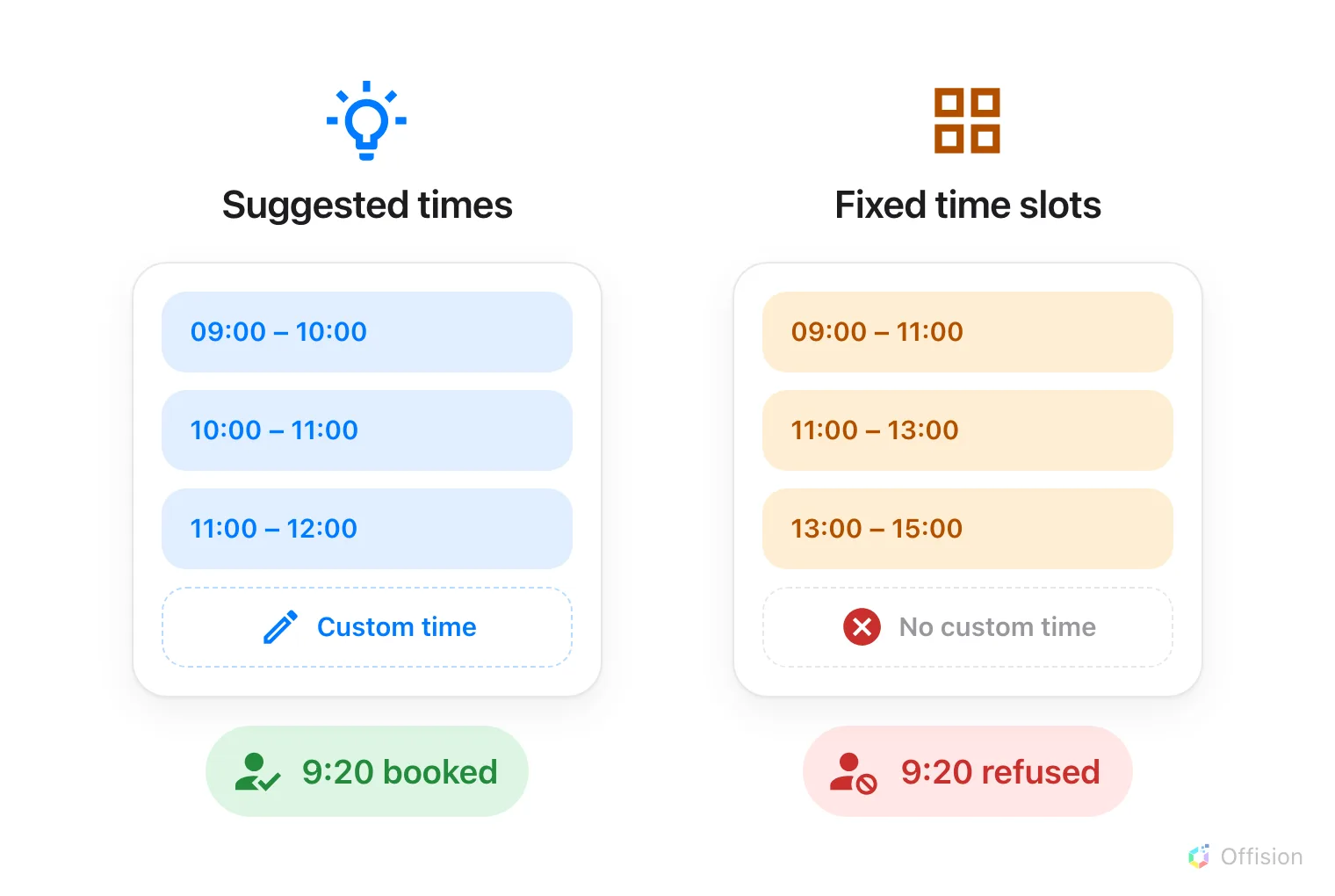
Both offer a list. Only one leaves a way off it.
1. Set one grid for the whole company
Start here. A company-wide grid is the one most estates need, and it is the only one that reaches the booking form before a room has been picked at all — the form asks for the period above the room, so until this existed the first field anybody touched had nothing to suggest.
Open Email reminder settingsGo to Booking › Setting / Email reminder. Suggested time slots is the third group on the page, under the reminder settings. Switch on Show suggested times — “Rooms without their own use these.”
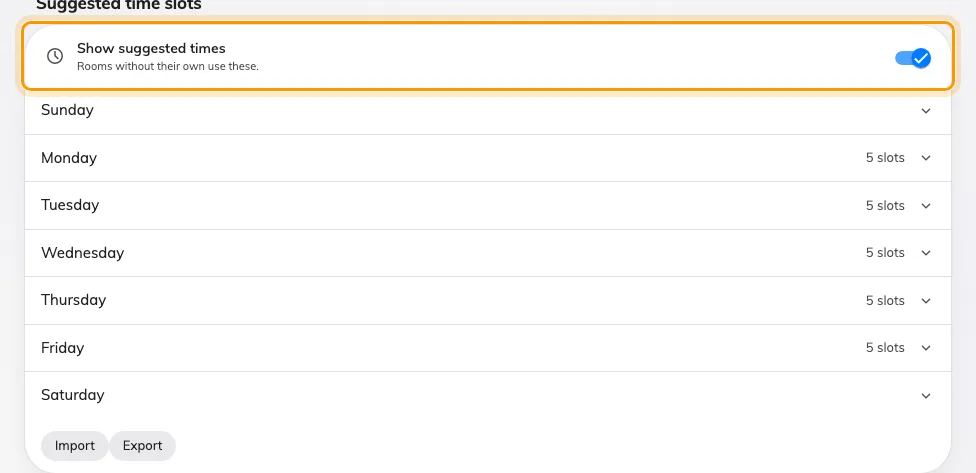
The Suggested time slots group, with the company-wide grid switched on.
The seven weekdays appear beneath it. Open one and add the blocks a normal day is divided into; the count beside each weekday says how many it holds without opening it. Import and Export at the foot of the group carry the whole week as a spreadsheet, in the same format the per-schedule editor uses — so a grid built in one place can be moved to the other rather than typed twice.
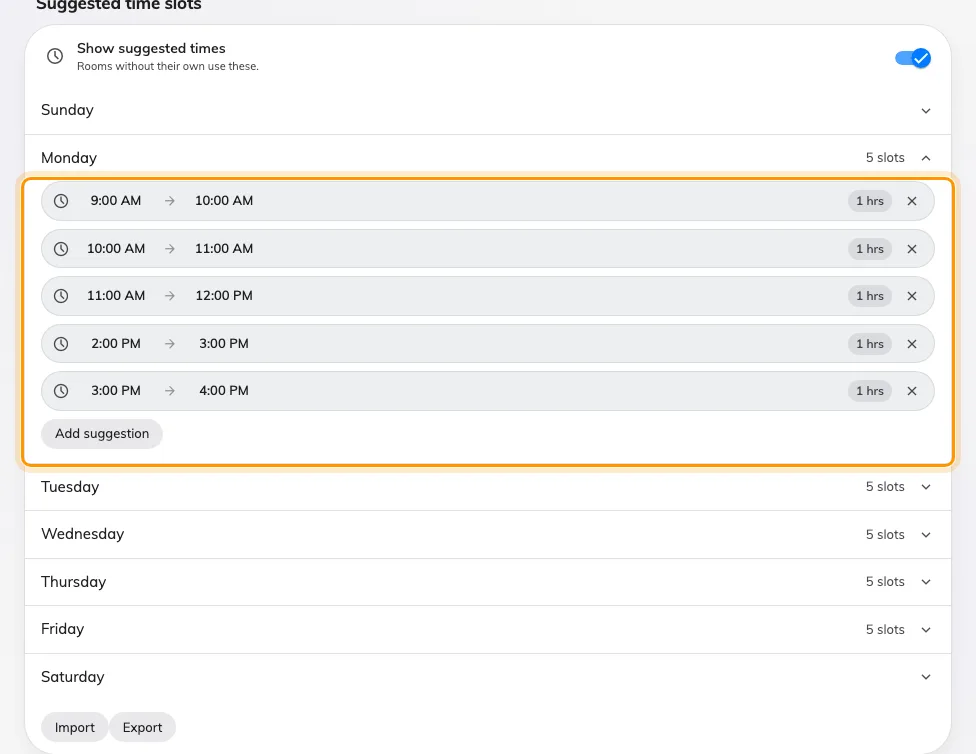
A weekday opened, with its blocks and Add suggestion.
2. Give a room its own, where it differs
Only if one has to. A room that should offer the same blocks as everywhere else needs nothing here — it inherits.
Where a room genuinely differs — a studio booked in half hours, a hall booked in mornings and afternoons — the list goes on the Booking hours schedule that room carries, and it overrides the company grid for every room on that schedule.
Open Booking hoursSelect the schedule and choose Edit, then its Suggested time slots page — the third in the rail, with the total on a badge beside it. Each weekday says how many blocks it holds, and a day the schedule closes is marked.
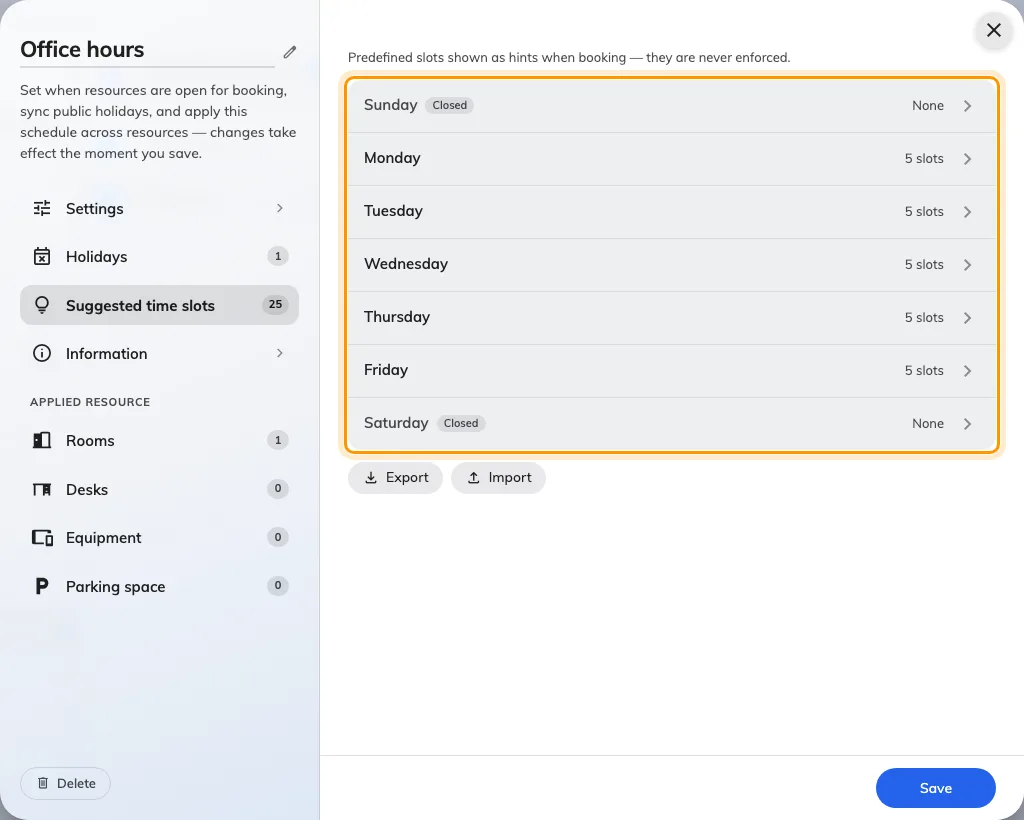
A schedule's own suggested times, one row per weekday.
Open a weekday for its own page of blocks, with the same row editor and the same Add suggestion button.
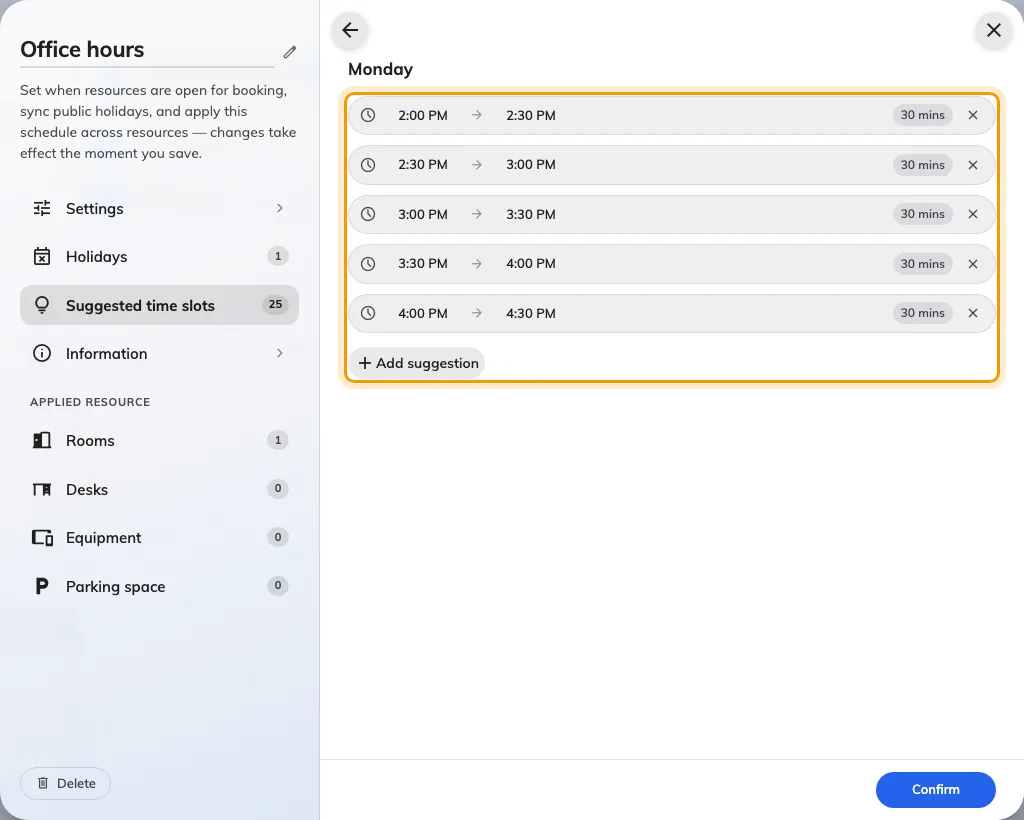
One weekday's blocks on a schedule — half hours, where the company grid runs in whole ones.
Setting up a schedule and attaching rooms to it is covered in Business hours.
3. Which list a booker actually gets
| The situation | What the booking form suggests |
|---|---|
| No room picked yet | The company-wide grid |
| The room has its own suggested times | The room’s own list — it overrides |
| The room has none | The company-wide grid, inherited |
| The room is on fixed time slots | Its enforced grid — not a suggestion |
The important row is the third. A room with no list of its own no longer offers nothing: it falls back. So the suggestions never vanish when somebody picks a room, they only narrow — which is the behaviour people can actually predict.
A room that should genuinely offer nothing is set that way by restricting it to fixed time slots, not by leaving its suggestions empty.
4. Suggested, or fixed?
| If | Use |
|---|---|
| People usually book the same blocks, but somebody occasionally needs twenty minutes or a long afternoon | Suggested times — the blocks are offered, Custom time is still there |
| The grid exists because something downstream depends on it — a cleaning round between slots, a shuttle, a class timetable | Fixed time slots — nothing else can be booked |
5. What people see when booking
A fresh + Add booking opens on the list, with the next block already selected. Nobody chose the period it seeded — the next hour, usually — so it is moved onto the nearest block ahead of it rather than left between two.
A period somebody did choose is never moved. Drag the calendar, or open an existing booking, and the form starts on Custom time: the ordinary date and time pickers, with the list still beside them. Suggested times, at the foot of the timeline, goes back to the blocks.
Open the form after the day’s last block has passed and it moves to the next day that still has one, rather than offering a column of elapsed times. The date field says so.
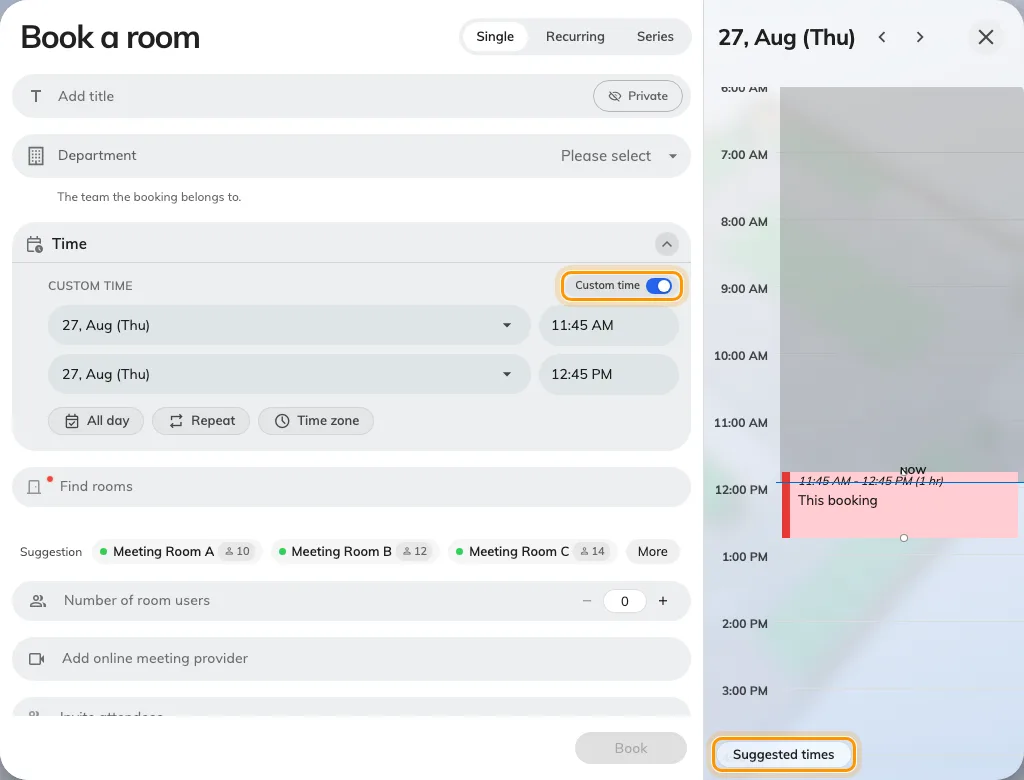
Custom time, and the two controls that move between it and the blocks.
Pick a room and the list narrows to that room’s, or stays on the company blocks where the room has none of its own. Tapping one sets the period; Custom time under the list is still there.
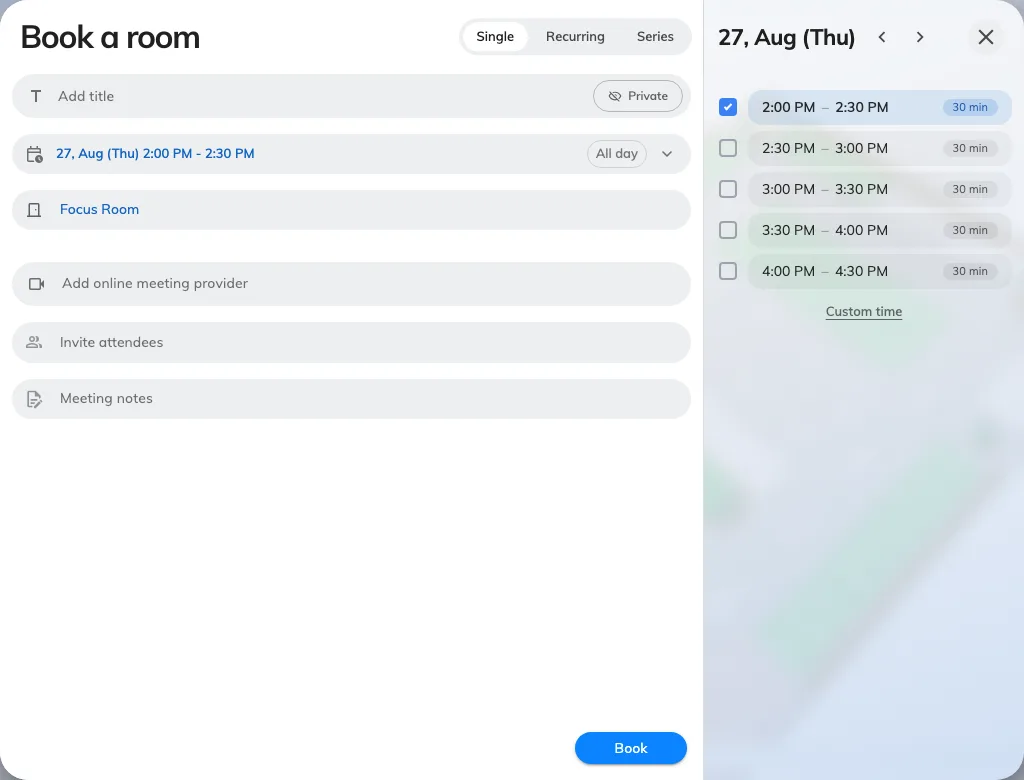
A room with its own half-hour list, replacing the company grid.
The Resource calendar in the user app paints the same blocks behind the day as faint bands, so a room’s suggested rhythm is visible without opening a form.
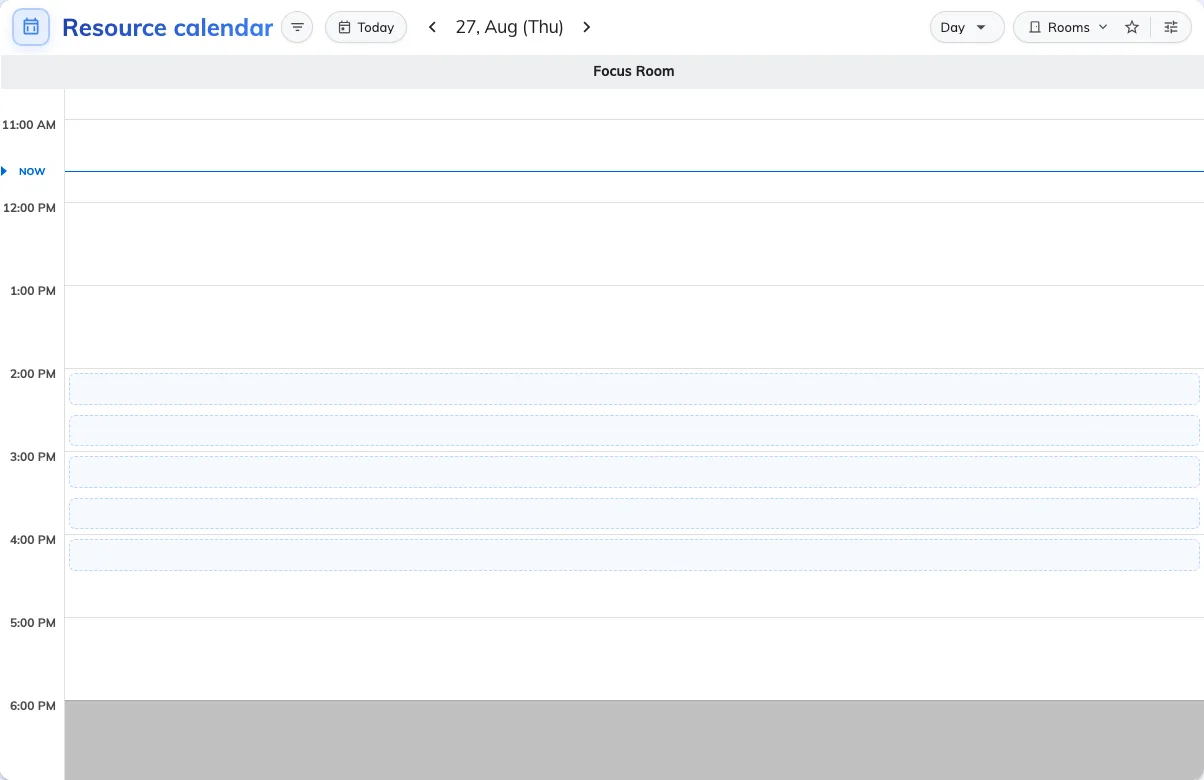
Suggestion bands behind the day on the Resource calendar.
6. Daylight saving
The company-wide blocks are stored as times of day and resolved against the building’s time zone each day, so a nine o’clock block stays at nine o’clock across a daylight saving change rather than drifting by an hour.
A schedule’s own suggestions do not work that way: a Booking hours schedule freezes its offset when it is saved. If you have ever seen a schedule slip by an hour in spring, that is the reason — and it is one more argument for keeping the company-wide grid as the default and the per-room list as the exception.
7. Check it worked
Open the booking form and choose nothing at all. The blocks you entered should already be on screen with one selected — that is the case that had nothing to offer before, and it should not need a room, or a tap on Suggested times, to appear.
Then pick a room with no suggestions of its own and confirm the same blocks are still there, and a room that has its own and confirm the list changes to that room’s. Finally switch Custom time on and confirm the ordinary pickers come back.
What this does not control
- Whether the times are enforced. These are hints, always. To make the offered times the only bookable ones, use fixed time slots.
- When a room is open. Suggestions are not cut to a room’s business hours or its holidays — a block outside them is still offered, and the booking is then refused when it is saved. Keep the grid inside the hours the estate actually opens. See Business hours.
- All-day bookings. Switch All day on and the suggestions step aside; an all-day booking sets its own times.
- Room panels and lobby boards. Suggestions are offered in the app and the web booking form. A panel by the door offers its usual durations.