

Find a booking on the management calendar
The calendar shows one period at a time, so a booking you cannot date is hard to reach. Search it by subject, by who booked it, by room, or by the booking reference off somebody's email — then narrow the results and export them.
The management calendar draws one period at a time. That is the right shape for “what is happening on Tuesday” and the wrong one for “where is the booking somebody is emailing me about” — you would have to know the date before you could look. Search answers the second question.
1. Type in the search pill
It sits at the top right of the calendar header. On a phone it is a magnifier that opens across the row when tapped.
Open Management calendarTyping opens a palette of live suggestions under three headings:
- Booking — matching bookings themselves. Each row carries the day, the matched text with the hit picked out, the booking reference, a status dot, the time, the resource and the organizer. Choosing one opens it.
- Organizer — the people whose bookings matched. Choosing one adds them as a filter rather than opening anything.
- Resource — the same, for rooms and desks.
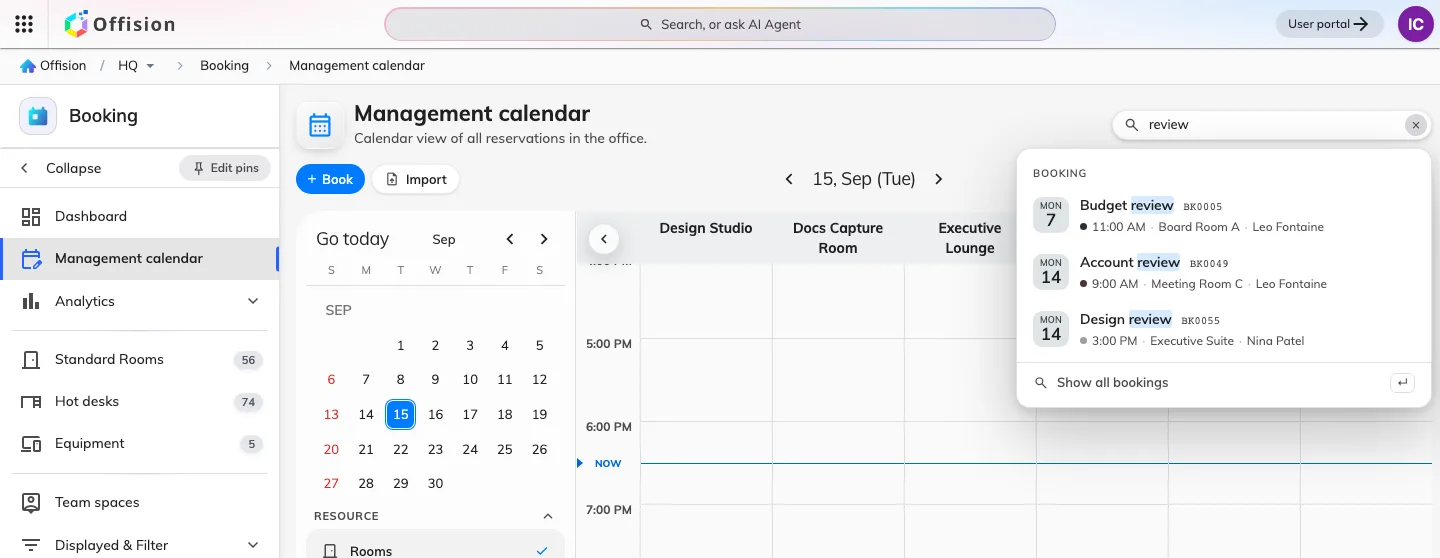
Suggestions as you type, under the heading they matched — here bookings, with the matched word picked out and the booking reference beside it.
The keyword reaches the booking’s subject, its organizer and the resource it is on, so a room name and a person’s name are both fair game.
2. Or paste the booking reference
Every booking has one — BK0042, shown on the booking itself and the thing
the booking log is searched by, so it is what a colleague quotes when they ring
up about a meeting. Typed on its own it goes straight to that booking, and it is
forgiving about how it arrives: BK0042, bk42, #42 and 42 are all read as
the same reference.
A reference belongs to the whole series, so quoting one finds every date of a repeating booking, not just the first.
Put anything else in the box beside it — BK0042 review — and it stops being a
reference and goes back to being ordinary words.
3. Show all the matches
Press Enter, or choose Show all bookings at the foot of the palette. The grid gives way to a list of every match, with a row of filter chips and a count above it.
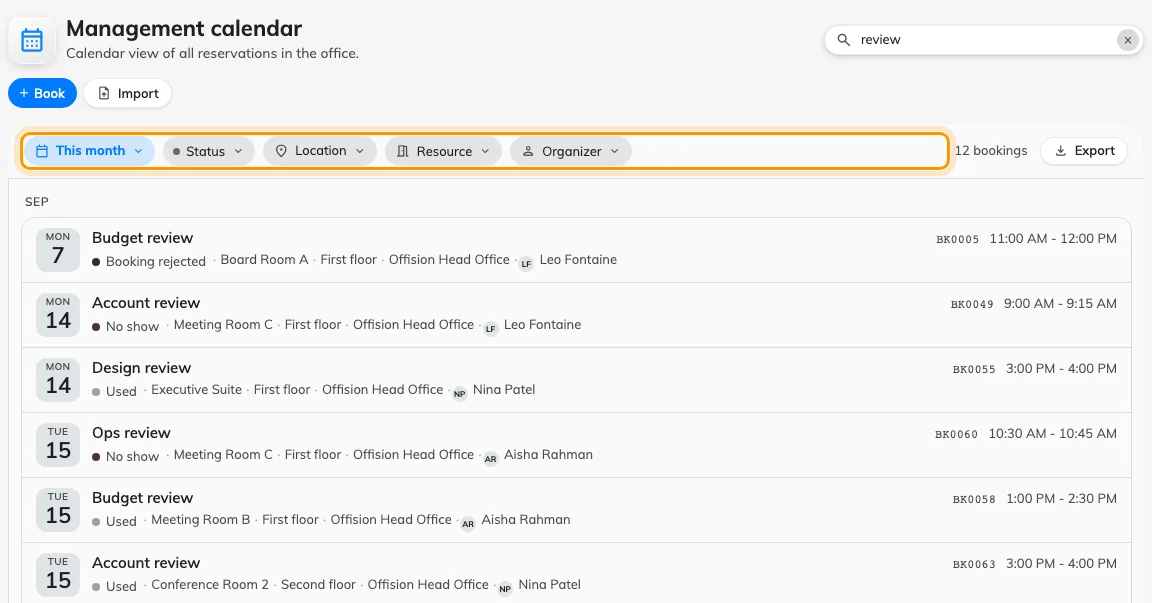
Results replace the grid: the chips narrow them, the count says how many there are.
While results are showing, the date navigator, the resource columns and their paginator are all out of the way — none of them describes what you are looking at any more.
4. Narrow it with the chips
| Chip | Narrows to |
|---|---|
| The period | Today, This week, This month, Next 30 days, or Custom for two dates of your own. It opens on This month |
| Status | One or more booking states — see What a booking status means |
| Location | Buildings, and the floors inside them |
| Resource | Named rooms and desks |
| Organizer | The person who made the booking |
A chip you have set carries what it is set to, and clears from its own menu.
5. Take the results away, or put the grid back
Export beside the count turns exactly these results into a spreadsheet — see Export the bookings you are looking at.
Clearing the box returns the calendar to the day it was on.
The search is in the address bar
Every chip and the keyword itself live in the page’s own address, so a search survives a reload, a back button and being pasted to a colleague — who sees the same list, filtered by their own permissions.
What this does not cover
- Bookings you could not otherwise see. Search is subject to the same permissions as the calendar.
- Visits. Visitor invitations have a search of their own on the visiting calendar — see Find a visit on the visiting calendar.
- Moving anything. Results are a list, not a grid; dragging a booking to another room is still done on the calendar itself — see Move a booking on the management calendar.