

Move a booking on the management calendar
The one screen in Booking that shows the estate rather than configures it. Every room's day side by side — so it is also how you eyeball which hours a room actually filled — and a booking manager can drag anyone's booking to a different time or a different room, through a confirmation and the booking form, not straight into the database.
The management calendar is where a booking manager watches the estate instead of configuring it: every resource’s day on one grid, everybody’s bookings on it, and the ability to move any of them by dragging.
That last part is what separates this screen from the calendar your colleagues use. In the app, people can only move their own bookings. Here, a manager can move anyone’s — which is how a room gets freed for the visitor who arrived early, without asking the person who booked it to do it themselves.
1. Open the calendar
Open Management calendarThe grid arrives showing today. The header above it is two rows: the page’s own name with a search pill pinned to the right, then Book, Import, the date navigator, Export and the view menu. The filters — Location, Resource, category and More filters — are in the panel down the left.
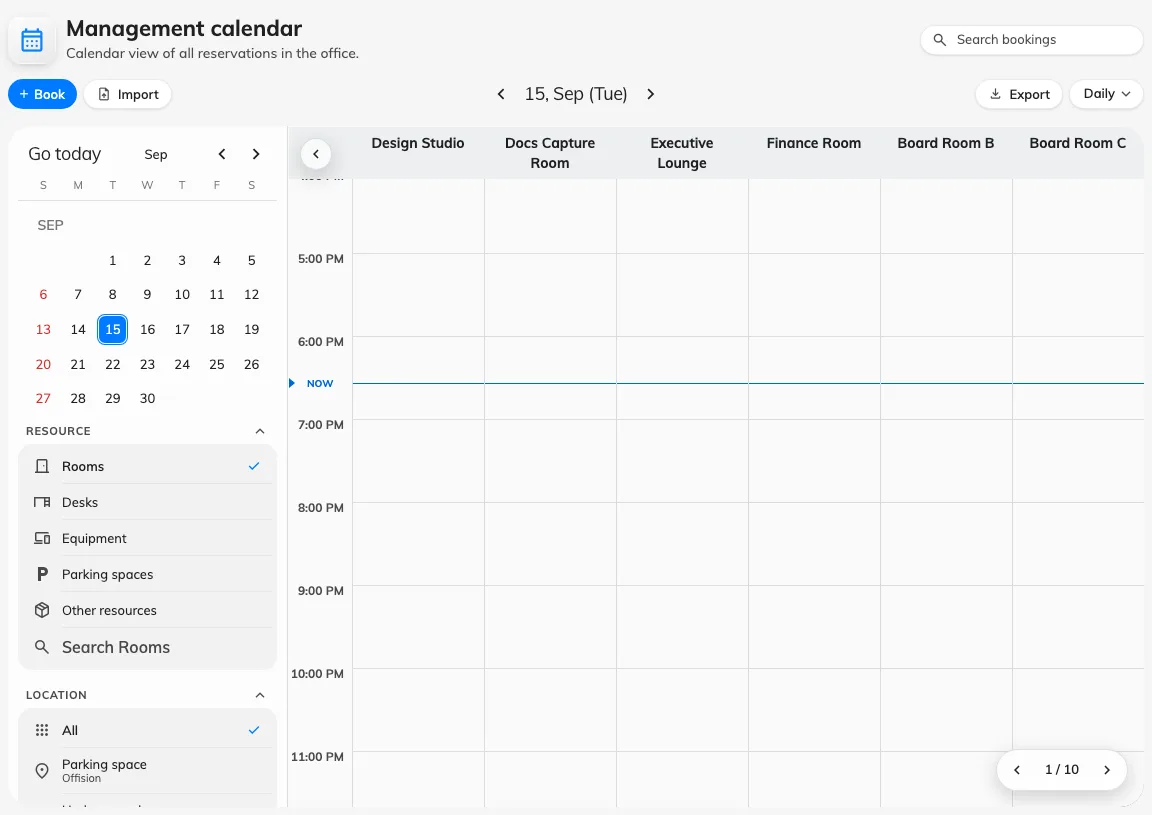
The management calendar on Daily schedule: a column per resource, everybody's bookings on it.
The view menu offers Daily, Weekly, Monthly and List, plus Show full day and Show weekend to widen what the grid covers. Dragging works in the schedule views; the list is for reading, not for moving.
Two things the header does that this article does not: searching swaps the grid for a list of matching bookings — see Find a booking on the management calendar — and Export turns what you are looking at into a spreadsheet, in Export the bookings you are looking at.
Reading is a use of this screen in its own right: a week view with one room filtered in shows at a glance which hours that room fills and which it never does. What it will not give you is a number — for a measured usage rate, or a heatmap of one room’s hours, open Booking analytics.
How many resource columns fit on a page, how much of the day is visible, and what each block prints are all set separately — see Density and privacy and Colour-code the calendar by booking purpose.
2. Find the booking and drag it
Drop it higher or lower to change the time, onto another resource’s column to change the resource, or drag its edge to change how long it runs. In the weekly and monthly schedules the axes swap — resources become rows — but the gesture is the same.
You are not limited to bookings you made — the only test here is the booking’s own state. A booking that has finished, been rejected or timed out will not lift; one that is merely somebody else’s will.
Everything on the grid that is not a booking is refused before the drag even registers: business holidays, out-of-service periods, service appointments and public events all snap straight back.
3. Confirm, then finish in the booking form
Dropping the booking asks you to confirm, and then — unlike the app, which can save a simple move outright — opens the full booking form with the new time and resource already filled in. Save it there.
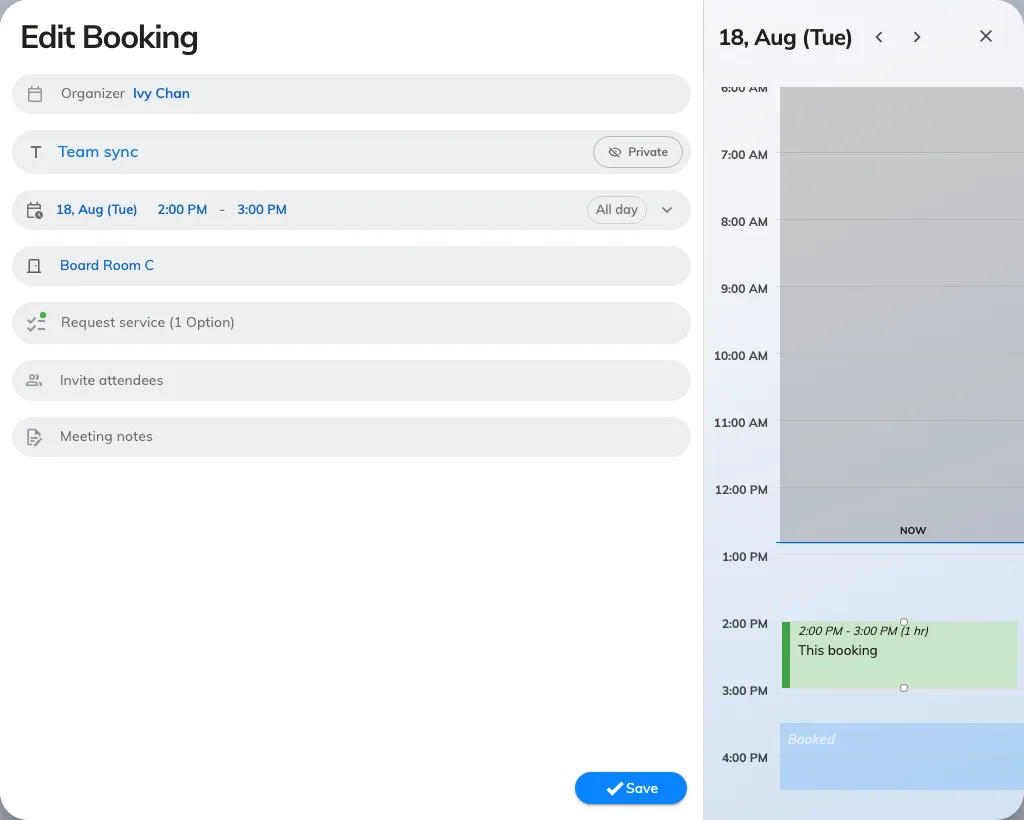
After confirming the drag: the booking form, with the new room and time already in it.
The route through the form is deliberate: moving somebody else’s meeting often means changing something else too — the room’s services, the approval it now needs, the attendees who have to be told. The form is where those are.
4. Check it worked
Look at the booking in its new position on the refreshed grid. If the resource requires approval, the move re-submits the booking and it will be waiting for a reviewer — see Approve or reject a booking request.
When a booking will not move
| What happens | Why |
|---|---|
| The block will not lift | The booking is in a state that can no longer be edited — finished, rejected, cancelled or timed out |
| Not allow end before now | The new end time is in the past |
| It snaps back immediately, with no dialog | You dragged a holiday, an out-of-service period, a service appointment or a public event. None of them are bookings |
| You are asked about the series first | It repeats. Answer for this booking, this and after, or the whole series — each opens the form scoped accordingly |
| The form refuses to save | Clashes, quotas and booking rules are enforced on save, not on the drop. The drag never checked them |
What this does not control
The management calendar moves bookings; it does not decide who could have made them. Which resources a person may book, how far ahead, and whether a booking needs approval all live with the resource and its rules — see Booking rules reference.
It is also not the screen your colleagues use. Employees get their own calendar in the Offision app, where they compare rooms and move their own bookings — Compare room schedules and move a booking.