

Checking in at the booking panel
The panel is the only check-in that proves somebody was at the door. What it offers is decided by two separate screens, which is why a button can go missing.
The panel outside the door is the only way of checking in that proves somebody was physically there. Everything else — the app, a QR code, a sensor — can be satisfied from somewhere else in the building, or from home.
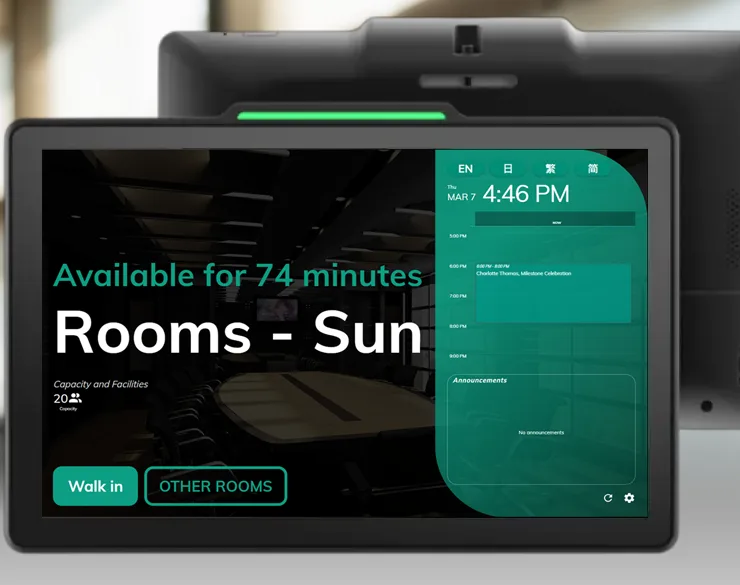
A booking panel by the door. What it offers follows the room — this one is free, so it offers a walk-in.
What the panel offers changes with the room’s state
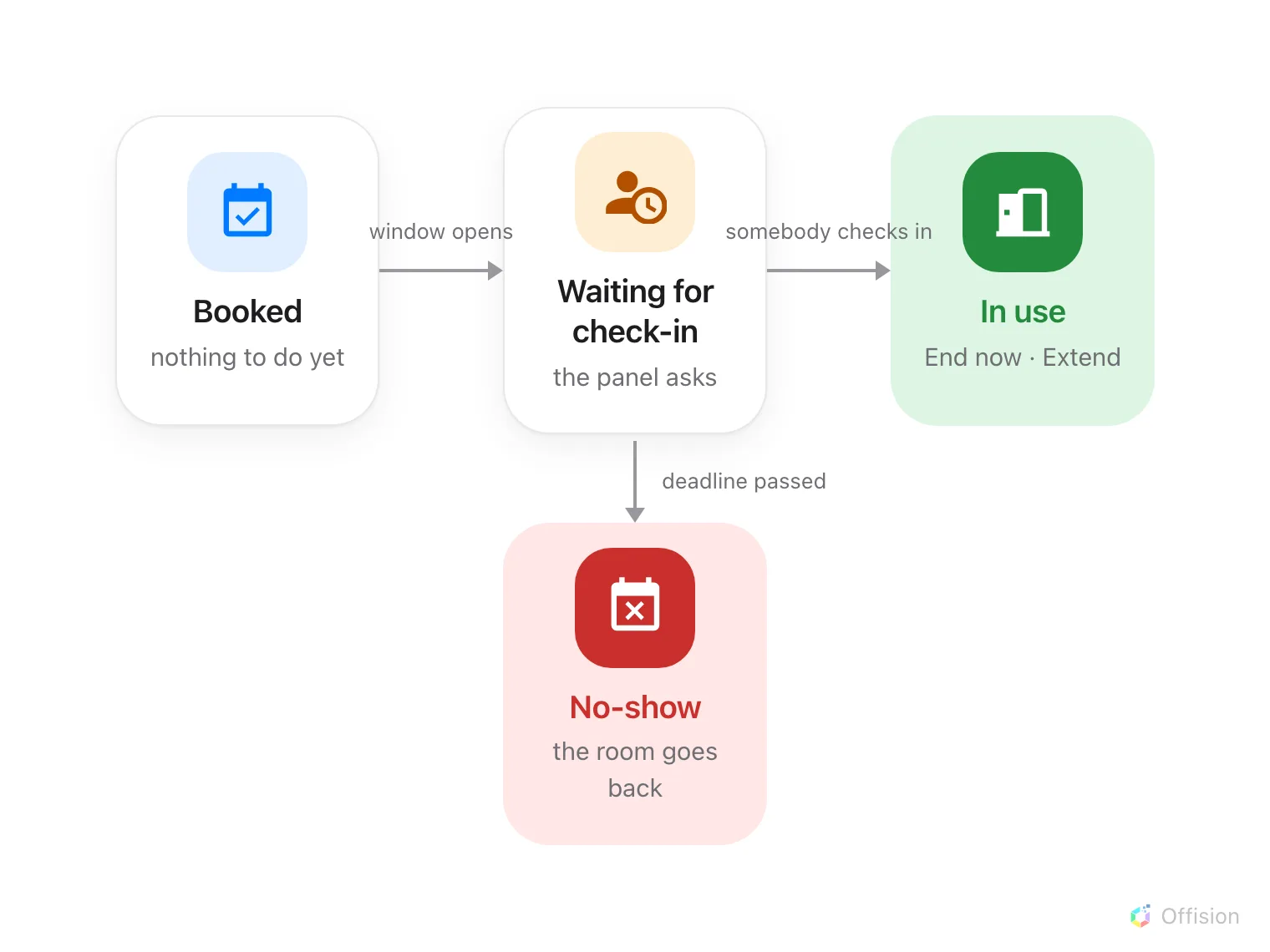
A booking that is never checked into does not stay booked — it leaves by a different door.
While a booking is waiting, the panel shows Check in. On the Meeting assistant the same wait is a screen of its own, which puts the no-show deadline on the clock — the remaining time under the word Auto-release, drawn from the policy’s Can check-in after (in mins). It is the only place the product counts that deadline down.
Do not confuse it with the Auto-release in badge in the room booking panel’s corner. That one is the occupancy sensor’s, it appears only once a booking is in use, and it is counting down to releasing a room that has gone empty — Keep the room when the sensor says it is empty.
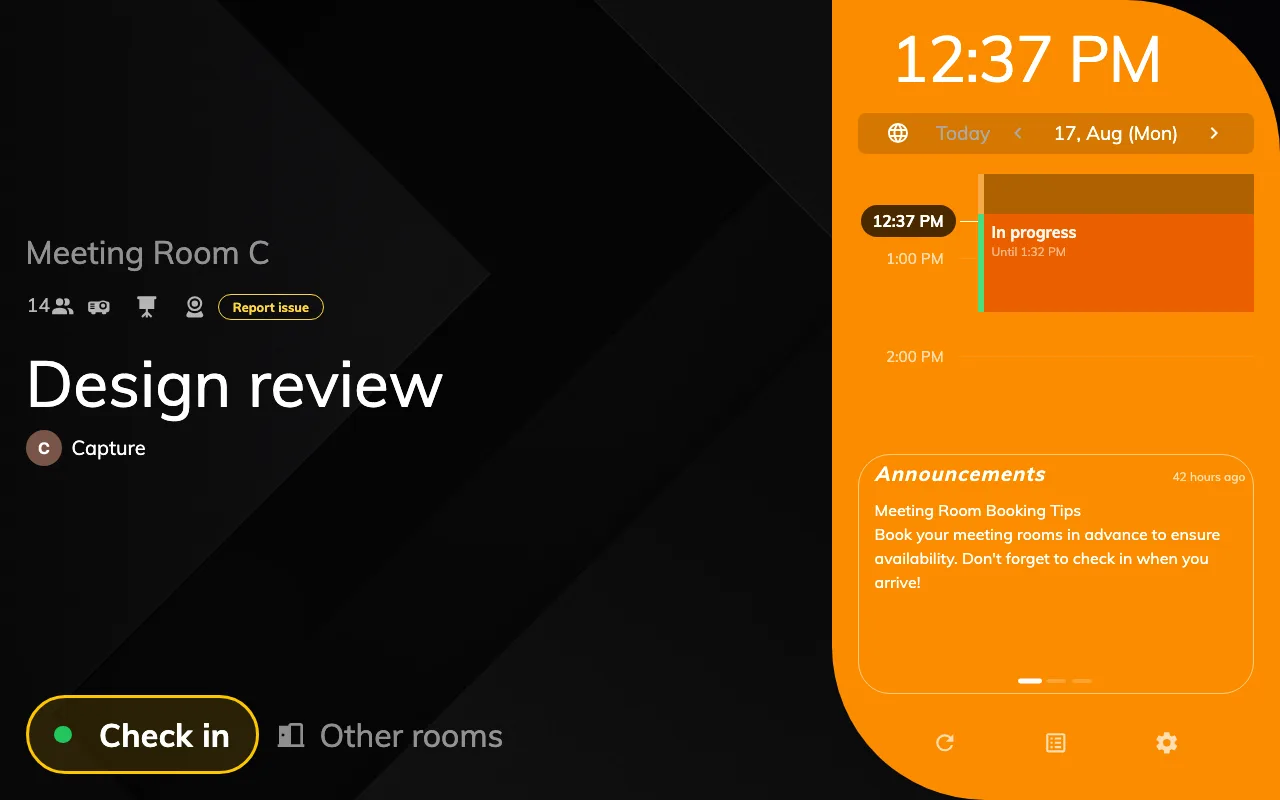
Waiting: the panel offers Check in.
Once checked in, the same panel offers End now and Extend. On a free room it offers Walk in instead — and a walk-in never needs checking in, because whoever pressed it is standing there. Setting that up is Let somebody take a free room at the panel.
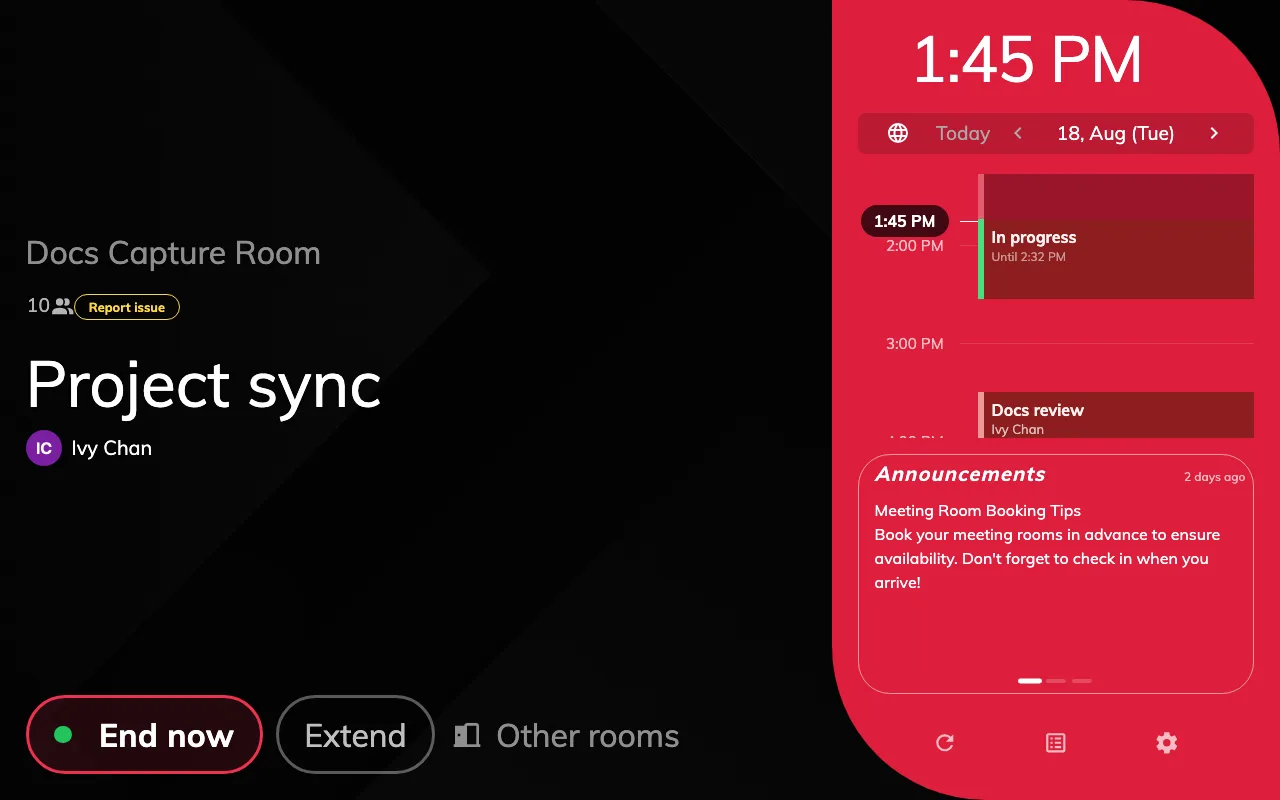
In use: the same booking, one check-in later — now End now and Extend.
The next meeting can check in while this one runs
Somebody arriving at 10:45 for an 11:00 meeting is already inside the check-in window, but the room is still in use — and until 4.5.18 the panel offered them nothing, so at 11:15 their booking released itself for a no-show.
Now a line appears under the action buttons as soon as the next booking’s window opens: its start time, its subject, and Check in. Tapping it checks that booking in from where the person is standing; the button becomes Checked in and the line stays until the room turns over. It is drawn on the Scheduling and Center designs.
Checking in early this way does not cut the meeting still running short. The new booking’s start lands at the end of whatever is holding the room, never before it — see How check-in and no-show work.
Two screens decide what it asks for, and neither is the policy
This is the part that produces “the button has disappeared” reports, because the two screens live in different sections and either one can remove a button the other enabled.
User identify settings decides, for the whole organisation, which credentials prove who somebody is: QR code, Staff Card, User passcode, Booking pin and Face identification. At least one must stay on. Setting up the card one end to end is its own page — Check in by tapping a staff card.
Open Check-in method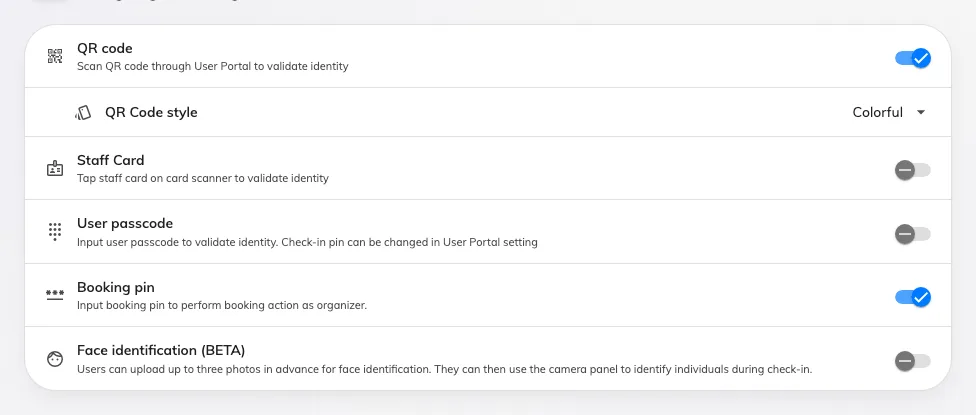
The methods a panel may ask for, set once for the organisation.
Where more than one is enabled, the panel asks which before it asks for anything else. Where exactly one is, it goes straight to it.
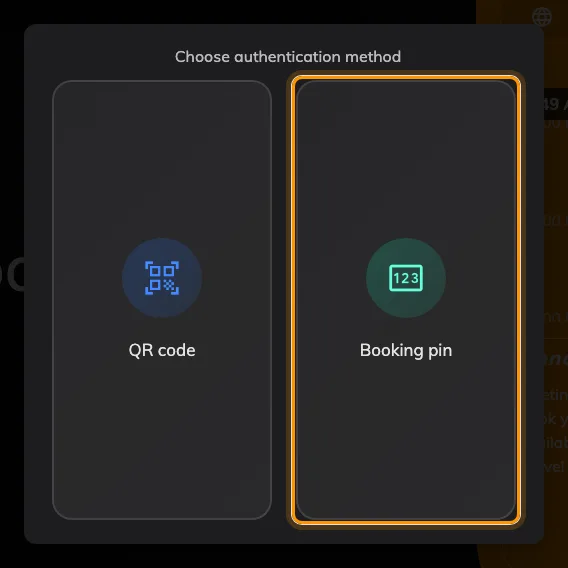
With several methods enabled, the panel asks which one first.
The booking panel configuration then decides, per panel, whether the buttons appear at all — Show check-in button, Show check out button, Show extend button, and whether each needs a confirmation tap.
Open Panel configurations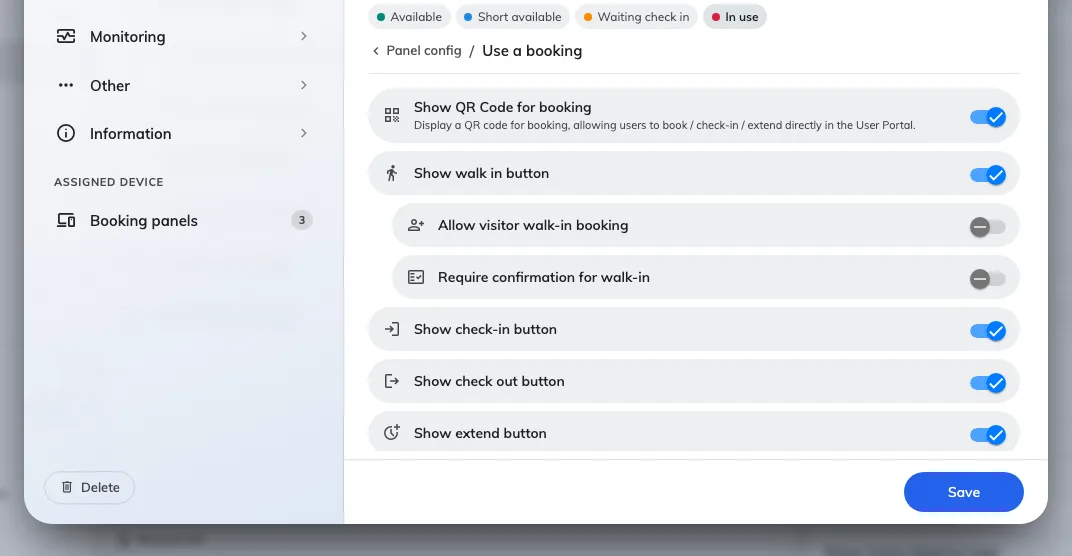
A panel can be told to hide a button the organisation has enabled.
So a panel with no check-in button is usually not a broken panel. It is a configuration that hides it, a policy that does not require check-in, or a room with nothing to check into.
Attendees are a separate permission, twice
Only the organiser may act on a booking unless the resource’s policy says otherwise, and it says so in two places that read almost identically:
- Allow attendees to check-in / check-out / extend at the booking panel — the panel.
- Allow attendees to check-out / extend in User Portal & check-in via QR — the app, and note that the app version grants check-in only by QR code.
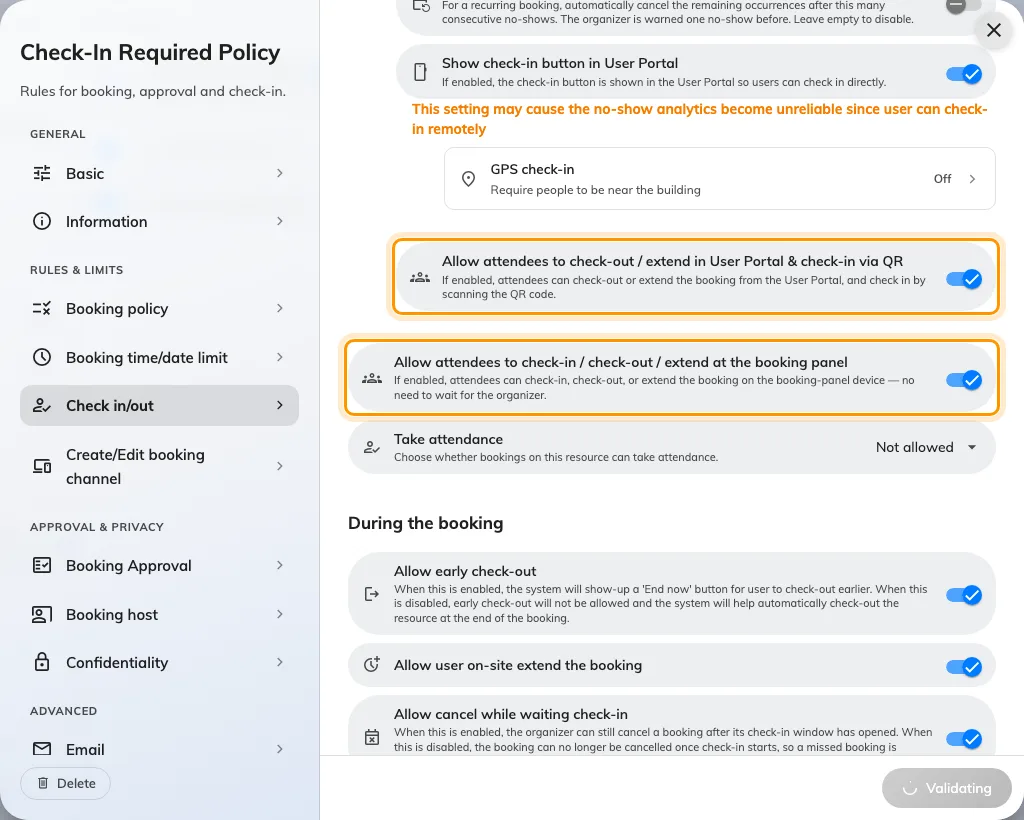
The two switches, one above the other: the User Portal one, then the booking panel one.
They are independent. Turning on the app one does nothing at the door.
What it does not control
- Who may book the room. A person can be allowed to check in and not allowed to book, and the other way round.
- Whether check-in is required at all. That is Require check-in on the resource’s policy — see How check-in and no-show work.
- Opening the door. Where a panel is wired to a lock, unlocking is a separate action that rides along with check-in; a panel with no access hardware still checks people in perfectly well.
- What the panel looks like. Skin, logo and idle screen are the panel’s design settings, not its check-in behaviour.
- Whether the panel can reach the server. Checking in needs the server. A panel on a broken link keeps showing the day but cannot take a check-in, and nothing is queued for when the link returns — see A booking panel keeps running when the network drops.