

Check what someone's quota was spent on
Every charge and every refund quota has ever made, on one screen. Filter it to one person, one resource or one unit, open a receipt to see what was actually spent and by whom, and download the range as a spreadsheet.
Somebody says their balance is wrong. Quota usage history is where that gets settled: every charge and every refund quota has ever made, each one stamped with when it happened, which booking caused it, and whose balance it came out of.
It is a ledger, not a statement. It tells you what moved and why — never what anybody has left.
1. Open Quota usage history
In the Booking module it sits under Logs, next to the booking log — but it is not one of the pinned entries, so choose Show more first.
Open Quota usage historyIt opens on the whole estate, newest first, with no date filter applied. That first view is every charge and refund ever recorded, so it is not somewhere to browse — it is somewhere to look one thing up.
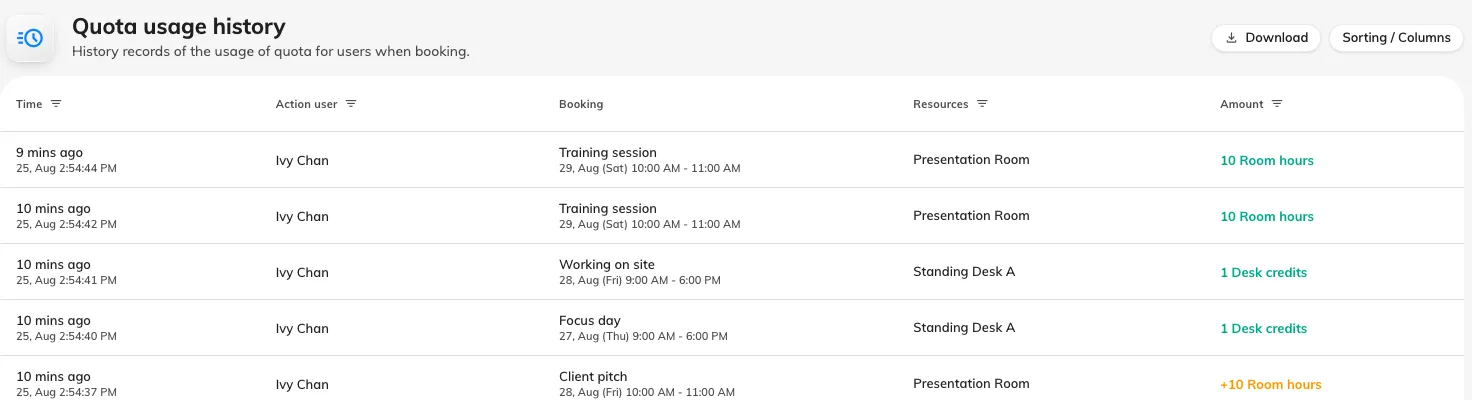
The ledger at rest: one row per charge or refund, newest at the top.
2. Narrow it to the question you were asked
There is no search box. The filters live in the column headers — a funnel appears on the four that carry one, and the header itself is the control:
| Header | Narrows to |
|---|---|
| Time | a date range. Nothing is set when the page opens |
| Action user | one or more people — but see the note below |
| Resources | one or more rooms, desks or other resources |
| Amount | one or more quota units |
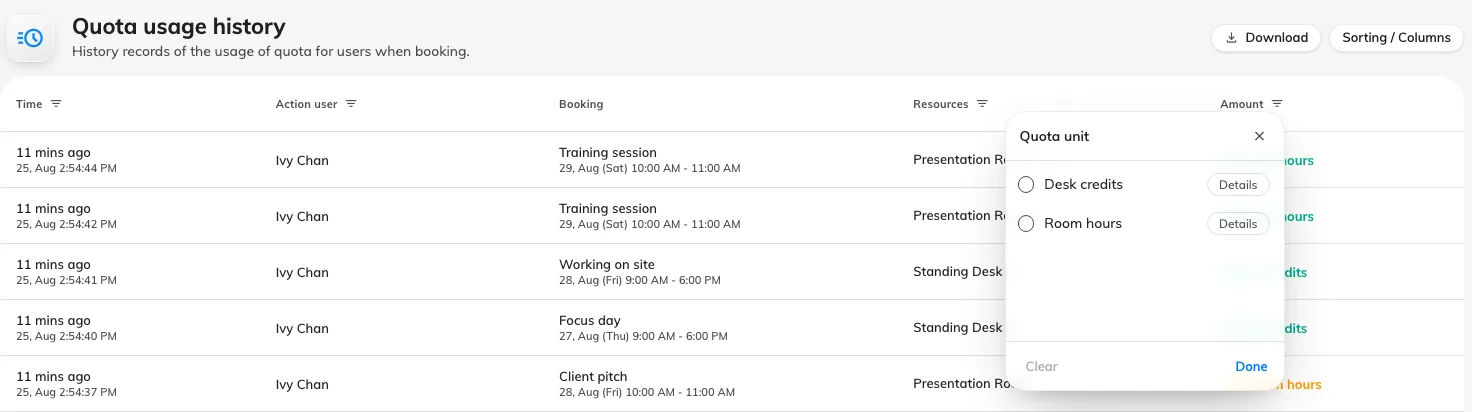
Each funnel opens a picker; the one on Amount lists the quota units in use.
Filters combine, and a filtered view that finds nothing offers to clear them rather than looking broken.
3. Read a row
| Column | What it holds |
|---|---|
| Time | When the quota moved — how long ago, with the exact time under it. This is when the booking was saved, not when the meeting is |
| Action user | Who made the change |
| Booking | The booking’s subject, with the period it covers underneath |
| Resources | What was booked. Only the first three are named; any others are shown as a count, such as +2 |
| Amount | What moved, one line per quota unit |
Amount is the row’s net effect. A charge prints plainly — 10 Room hours —
and a refund carries a leading plus: +10 Room hours. A booking that spends two
different units gets a line each, because the two are separate budgets that
cannot pay for one another.
Only Time and Action user can be sorted. The other three are assembled from the row’s contents, so they have nothing to sort on.
4. Open the receipt to see what actually moved
Click a row and the panel on the right breaks it into its Transactions — because one row is not always one movement.
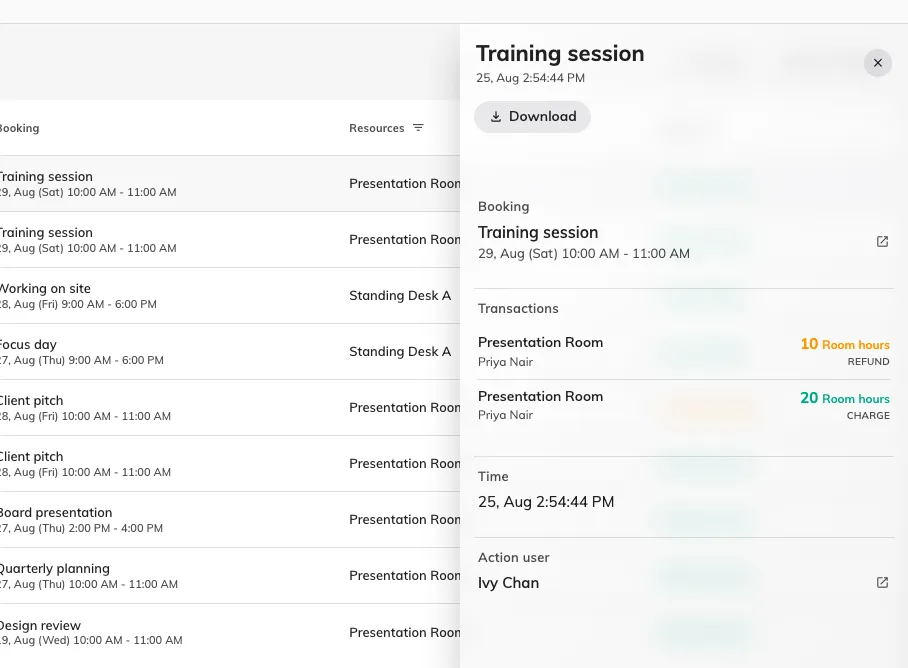
An edited booking: the original cost returned, the new one charged, and the net in the list behind.
Each transaction names the resource, the person whose balance it came from, and the amount — labelled Charge or Refund. Two things are only visible here:
- Editing a booking is two movements, not one. The old cost is refunded and the new one charged, so a meeting extended from one hour to two shows a refund of 10 and a charge of 20, and the Amount column reports the net of 10. Somebody looking at their own balance sees only the difference, which is why the arithmetic can look wrong until you open the receipt.
- The person charged is not always the person in the Action user column. Where an administrator books for a colleague, the receipt is the only place that says whose quota paid for it.
Booking at the top of the panel opens the booking itself, which is the quickest route from “this charge looks wrong” to the meeting that caused it.
5. Download it
Download in the header asks for a date range — it opens on the current month, or on whatever the Time filter is already set to — and gives you that range as a spreadsheet.
To take just a few rows instead, select them and use Export selected. That one works by booking, so a receipt you pick brings the rest of its booking’s history with it — the charge and the refund arrive together rather than one without the other.
6. Check you have the right answer
Take the complaint you were given and reproduce it end to end. Filter by the person, set Time to the period they are asking about, and add up the Amount column: charges less refunds is what left their balance in that window.
If that total matches what they say they have lost, the ledger and the complaint agree and the answer is in the rows. If it does not, the difference is almost always one of the four things below — none of which is recorded here.
What Quota usage history does not show
- Anybody’s remaining balance. Nothing in the console reports what a person has left. The only place it appears is the charge panel on the booking form while you are actually making a booking for them.
- Period resets. A balance that changed because the period rolled over leaves no row. Only booking, editing and cancelling are recorded, so a reset is invisible here even though it is the commonest reason a balance moved on its own.
- Bookings that were refused. Somebody blocked by Not enough quota never got charged, so nothing was written. There is no record of the attempt.
- Resources that are not priced. A resource with no quota policy costs nothing and never appears, however heavily it is booked.
A cancellation that gave nothing back is worth one more word: it means the resource’s own policy does not allow refunds, or the booking was cancelled inside its refund deadline. Both are settings on the resource quota policy, not faults in the record — the settings reference covers them.