

Let people check a room's schedule without booking it
Put a group on a team space as read-only so they can see what is on in a room — a course timetable, a boardroom, a shared lab — but never claim it, and give them the Resource calendar to read it in.
A team space does not only decide who may book a room. It can also let a group read one — see every booking on it, and never be able to take it. That fits wherever people need to know when a room is busy without being able to claim it:
- a training room whose timetable the trainers own and everyone else reads — which course is in Studio 2 this afternoon, whether the lab is free on Thursday
- the boardroom the rest of the company plans around
- a shared lab or studio booked by one team and watched by several
In each case two groups matter: the one that owns the rooms and books them, and the one that may only look.
1. Put the group on Readonly members
Open the team space and go to Members & access, the page it opens on. The three tabs across the top are the whole access model:
- Team members — “Can book the resources”. The group that owns the rooms.
- Readonly members — “Only check the resource schedule, but cannot book”. This is the one this article is about.
- Block — no access at all.
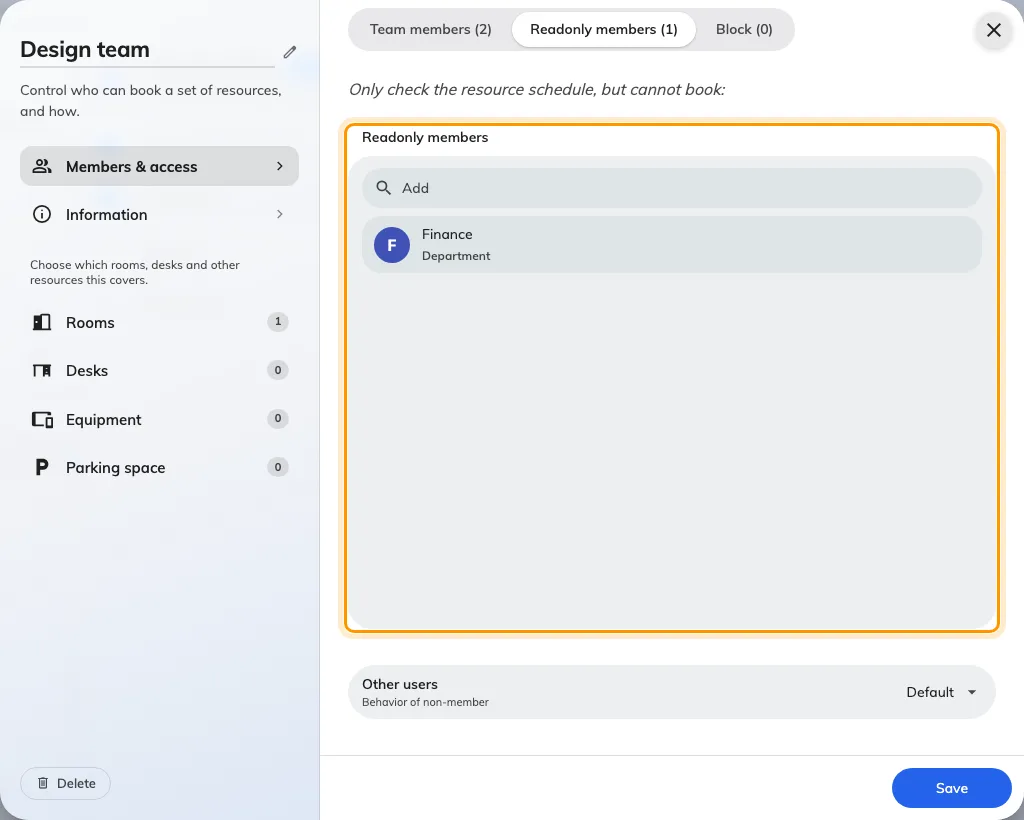
Readonly members: the group that may look, and only look.
A person is resolved against those four settings in a fixed order — Block, then Team members, then Readonly members, then Other users — and the first match wins. So somebody who is both a team member and a read-only member books normally; somebody in Block and in everything else still gets nothing. Booking rules reference has the full table.
2. Or make it everybody
If the answer is “the whole company should see this timetable”, you do not need a group at all. At the foot of the same page, set Other users to Readonly instead of Default, and everyone not named in a tab gets read access.
Default is the stricter setting, and it is the one to be deliberate about: under it the room simply disappears for outsiders. A room that vanishes generates questions; a room marked read-only does not.
Open Team spaces3. Check they have somewhere to read it
Read-only is only useful if the group has a screen to read. That is Resource calendar in the user app — several rooms’ days side by side — and it is a home layout rather than a page of its own, so it is switched on in the console.
Read-only access is enough to get it. A group that can only look still gets the entry, exactly as a group that can book does.
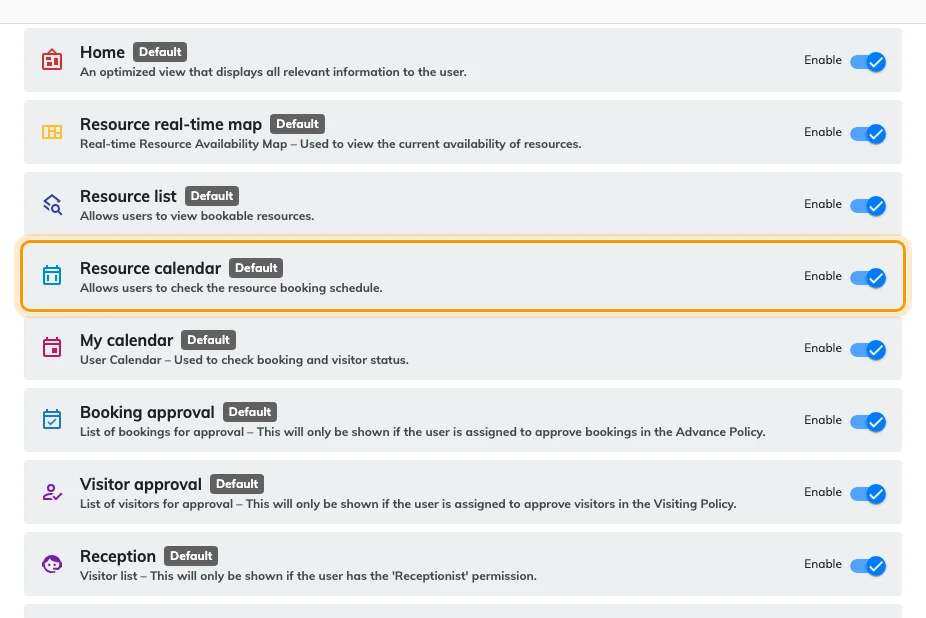
The user app's menu, in order. Resource calendar is on out of the box.
So this is a check rather than a step. Three things make the entry go missing:
- Enable was switched off for Resource calendar in this list. It is on for a new tenant.
- The list is tenant-wide — there is no per-group menu, so switching it off takes the entry away from everybody, not just from the read-only group.
- Allow user reorder the page lets each person move their own entries around, so “it is not there” is sometimes “it is further down”.
4. Make sure the schedule is worth reading
A read-only viewer sees only what the room’s Confidentiality setting lets them see. Set to Hide all booking detail, every block on the calendar reads Reserved — which tells them the room is busy and nothing else. For a course timetable that is the wrong answer: the whole point is the subject.
Check that setting on the room before you tell anybody the timetable is there. It is on the resource, not on the team space — Booking rules reference covers it.
5. What the group sees
Open Resource calendar as somebody on the read-only list and the room is there among the others, with an orange Readonly under its name.
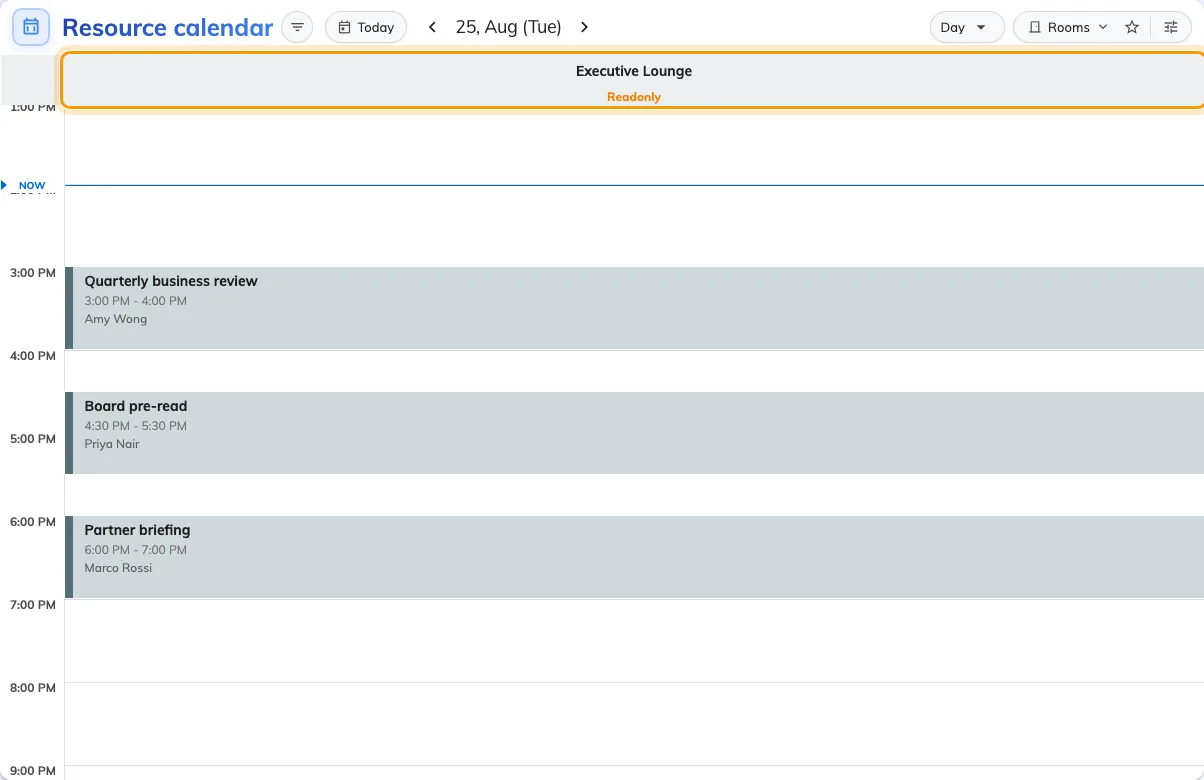
A read-only room on the day grid. Every booking is legible; none of them can be touched.
Week is usually the better view for a timetable: it turns the columns into one row per room, running across the days, which answers “what is on this week” in one screen.
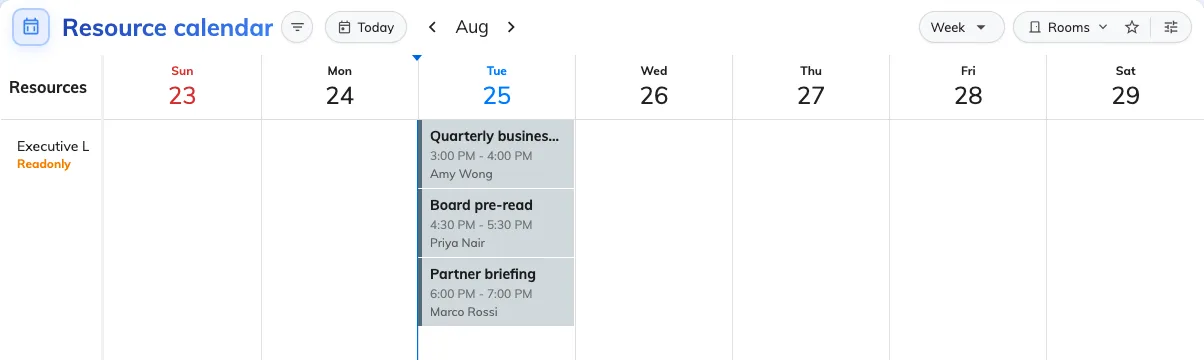
The same room in Week. The label follows the room into the row header.
Clicking the room’s name opens its card, and Book on it is greyed out — the same refusal the calendar makes, said in one word.
What the rest of the grid is telling them:
| What they see | What it means |
|---|---|
| Orange Readonly under the room name | This room is on a team space that grants them reading only |
| Others booking | Somebody else’s booking. Flat, and inert for everyone |
| Reserved instead of a subject | The room hides its booking detail — see step 4 |
| A time they drag out clears itself | The calendar refuses to start a booking on a read-only room |
| This resource is read-only | They dropped one of their own bookings onto it. It goes back where it was |
6. Check it worked
Sign in as somebody in the read-only group, open Resource calendar, and filter down to the room. Two things must both be true: the Readonly label is under its name, and dragging out a time on it opens nothing at all.
Then check the other direction, because it is the half people forget — sign in as a team member and confirm the same room still books normally.
What this does not do
Read-only does not hide the room. Hiding is Other users → Default, and it is absolute: for those people the room does not appear anywhere in the app.
It does not restrict the admin console either. Every room is listed there whatever team space it is on, so checking in the console proves nothing about what the group sees.
And it is scoped to this team space’s resources. The group books every other room in the estate exactly as before — a resource belongs to one team space at a time, so moving a room into this one takes it out of wherever it was.