

Take a room out of service
Close a room or a desk for a fixed period — for maintenance, a repair or a private event. The period either refuses overlapping bookings outright or lets them through with a warning, and the people who already booked can be emailed about it.
A room being decorated, a desk whose monitor has gone back to the supplier, a lab handed over to a contractor for a fortnight — all the same thing to Offision: an out of service period on the resource, with a start, an end, and a note explaining why.
The part worth reading before you set one is that a period does not have to stop anybody. One switch decides whether an overlapping booking is refused or merely flagged, and the two behave very differently for the person trying to book.
1. Open the calendar and click the room’s name
Open Management calendarClick the resource’s name — the column header in the daily schedule, the row label in the weekly and monthly ones. Not the column, the name. A card opens with that resource’s details, and its last section is Out of service period.
The button on that section says Add when the resource has none, and Manage when it has. Either opens the same place. The section also lists the next three periods, with a Now badge on one that is running.
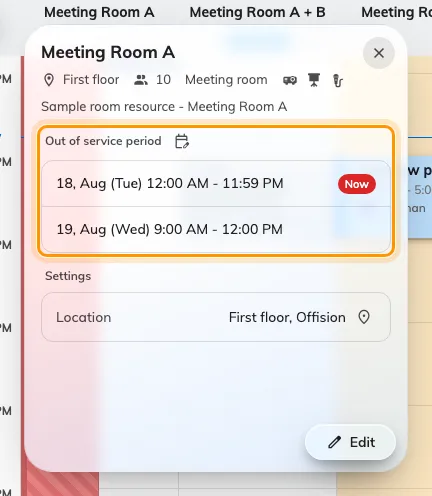
Clicking a resource's name opens its card, with Out of service period at the bottom.
2. Set the period
The resource’s editor opens on its Out of service period page: existing periods on the left, the editor sliding in from the right.
Period takes a start and an end, and it may cross days — a closure from Friday evening to Monday morning is one period, not three. All day turns the two times into whole days.
Remarks is the line the person who runs into the closure will read, in the booking form and on the room panel, so write it for them: Air conditioning replacement, use Meeting Room B. Internal Remarks never leaves this screen — it is for whoever picks the job up after you.
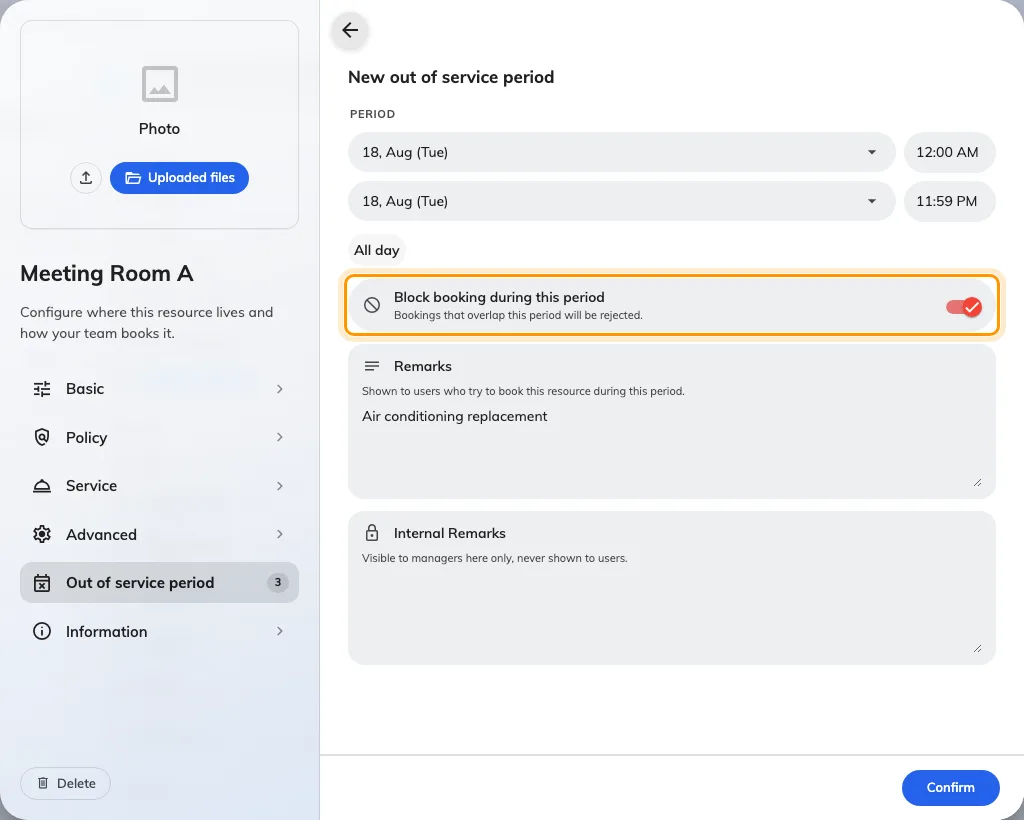
The editor, with Block booking during this period left on.
3. Decide whether it blocks bookings
Block booking during this period is on by default. It is the only choice on this page that changes what other people can do.
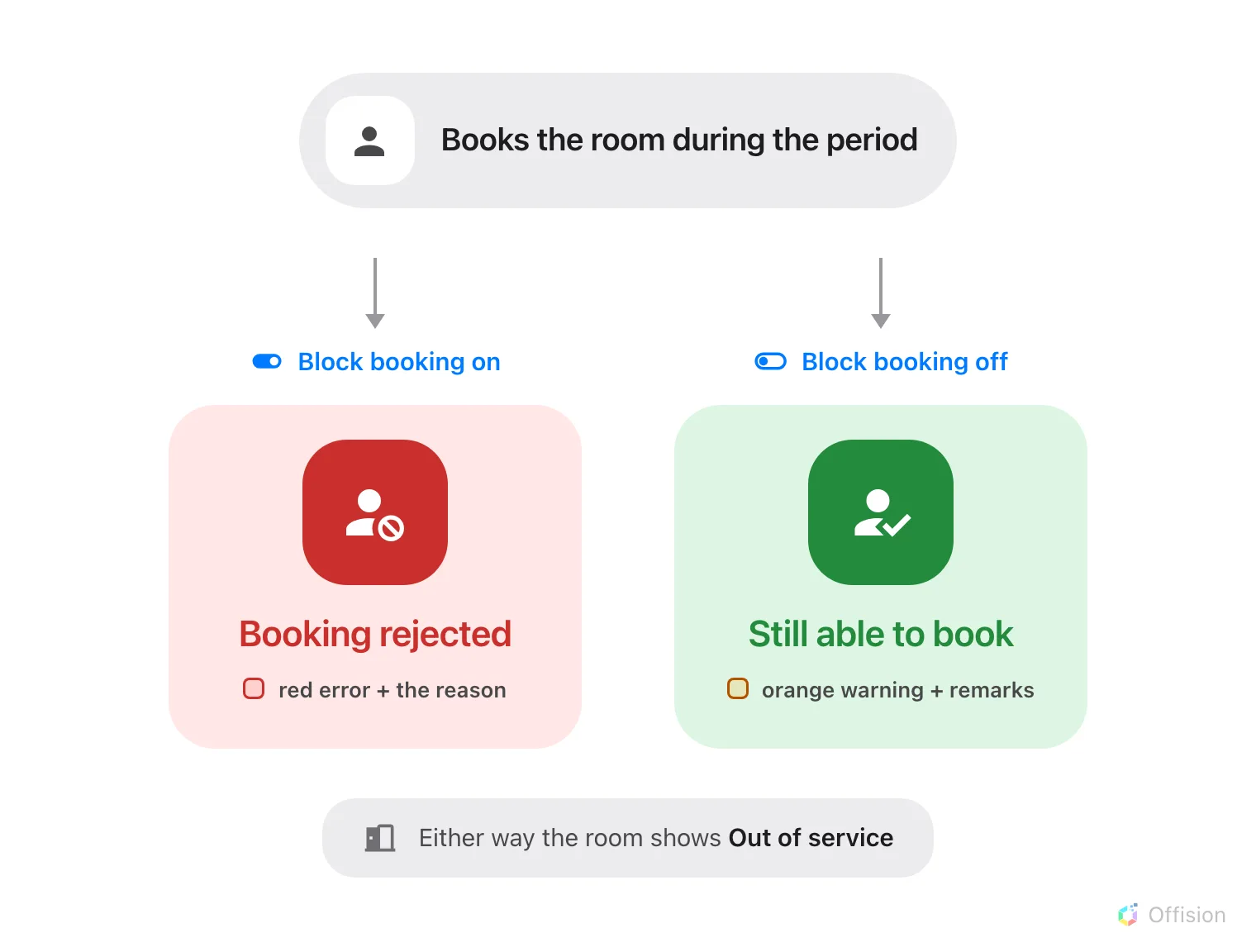
The switch decides one thing: whether the booking is rejected, or goes through anyway.
Which one to pick
| Pick it when | For example | |
|---|---|---|
| On — blocks booking | The room genuinely cannot be used, and a booking made anyway would be a wasted journey | The air conditioning is being replaced · the floor is up · the room is a building site · a client has the room for the day |
| Off — warning only | The room is still usable, or the closure might not happen at all | The projector is broken but the table is fine · a contractor is booked and may finish early · a decorator has one wall and the room seats twelve |
The rule of thumb: if somebody who ignored the notice could still hold their meeting, choose warning only. Blocking a room that is merely inconvenient sends people hunting for another one they did not need.
On — Bookings that overlap this period will be rejected. Nobody can create or move a booking onto the resource across those hours, from any surface. Recurring bookings are checked occurrence by occurrence, so one bad week stops that week and leaves the rest.
Off — Booking is still allowed but the organizer is notified that the resource is out of service. The booking goes through, but not silently, and the organizer is emailed once it is made. What people see below has each surface.
That notice is the entire difference between a warning-only period and no period at all. It is what tells somebody the projector is missing before they walk in expecting one — so the Remarks you wrote in step 2 matter more here than on a blocking period, where nobody gets as far as reading them.
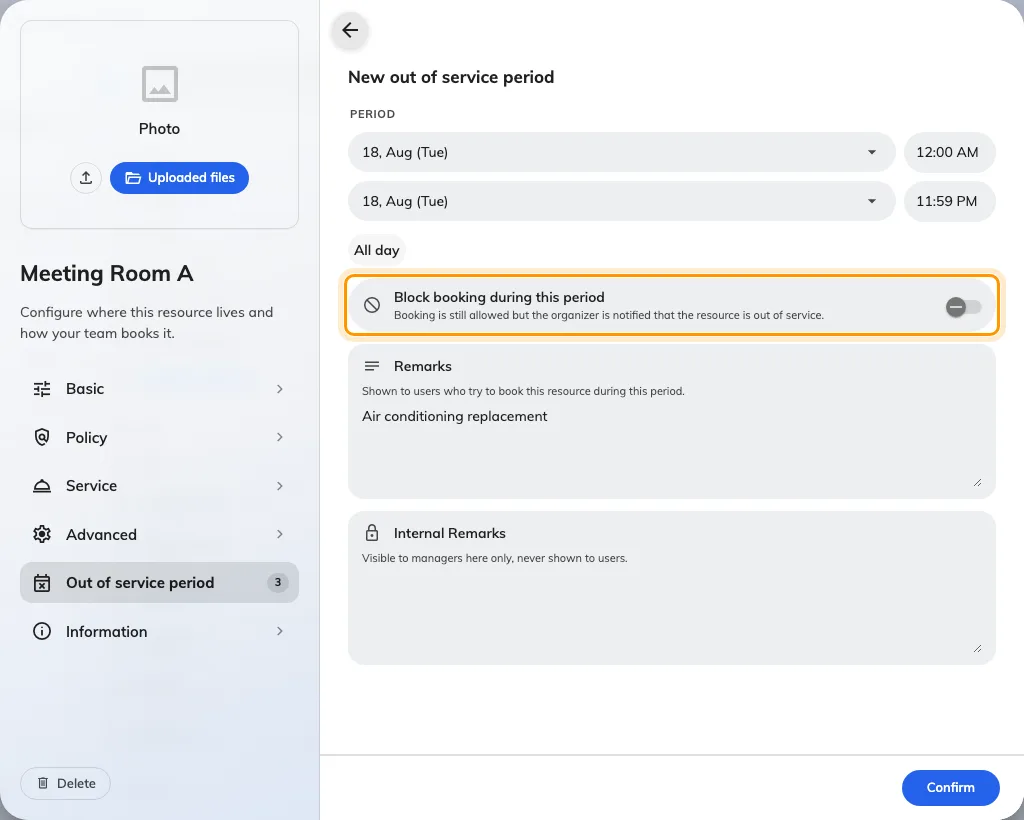
The same switch off: the sentence under it changes, and so does what happens to the booking.
4. Confirm, then save the resource
Confirm returns you to the list, where the new period joins Currently out of service, Upcoming or Past, tagged Blocks booking or Warning only, with a countdown to whichever end of it is next.
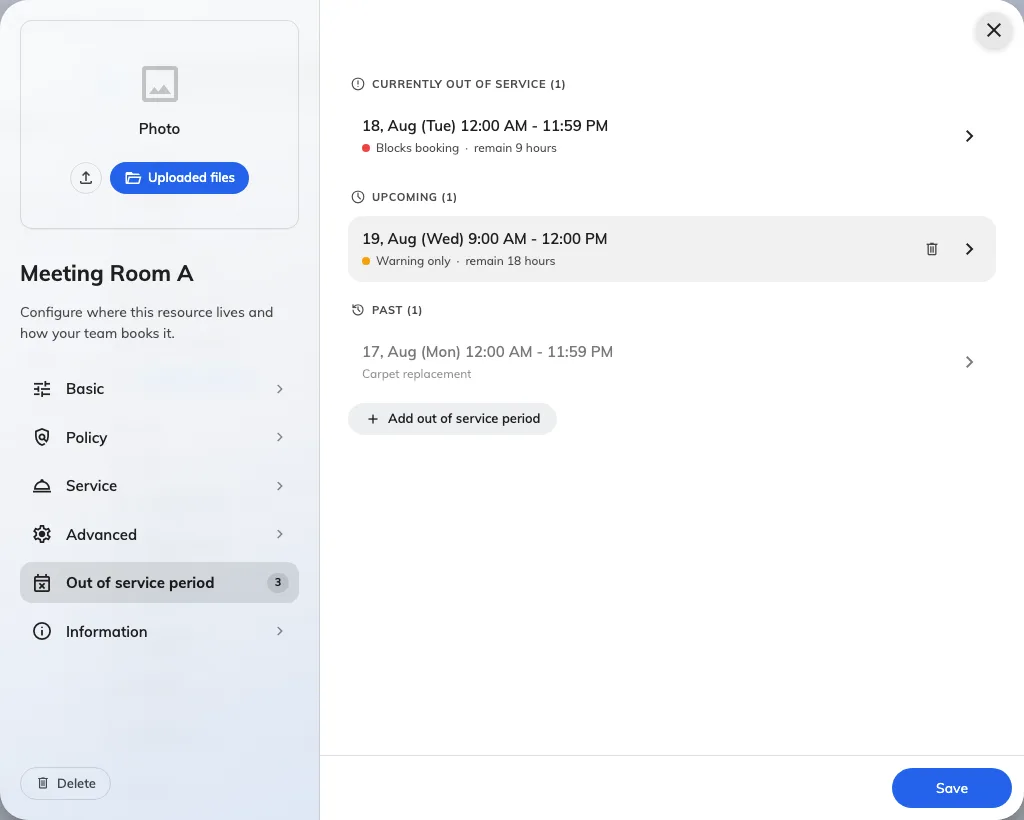
The list: grouped by when, tagged by what the period does.
Back on the calendar, a blocking period is a solid hatched band you can click to edit; a warning-only one is a faint band behind the day, with bookings still drawn on top of it.
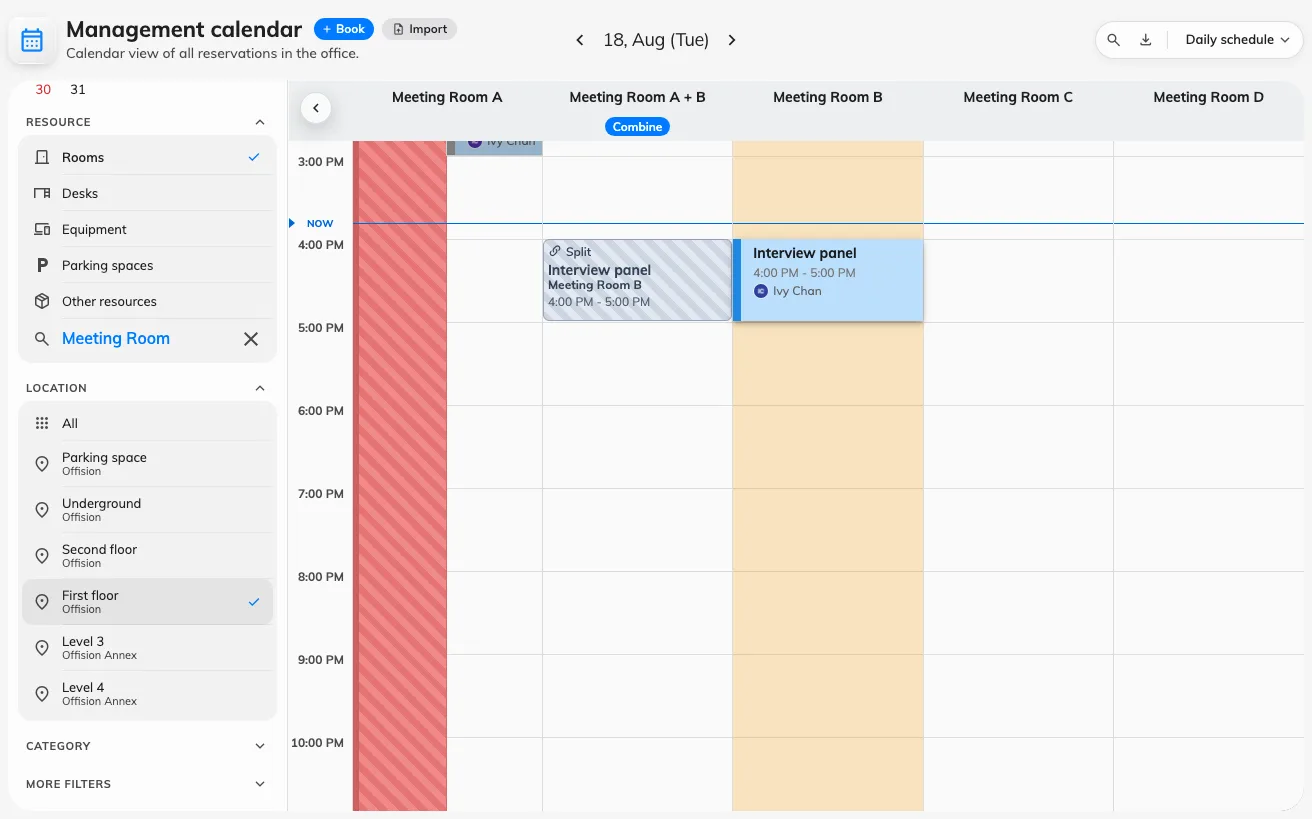
Both kinds on one grid: the blocking band is drawn over the day, the warning-only one behind it.
5. Choose whether the affected bookings are emailed
Closing a room does not cancel the bookings already in it. What Offision can do is tell the people who made them, and that is a booking rule, not a property of the period — so it is set once for a group of resources rather than every time you close one.
Open Booking policyOpen the policy that applies to the resource, go to its Others page, and find Out of service notification. Three switches, and only the first is on out of the box:
- Notify when an out-of-service period is created
- Notify when an out-of-service period is updated — covers the bookings in the old window as well as the new one
- Notify when an out-of-service period is deleted
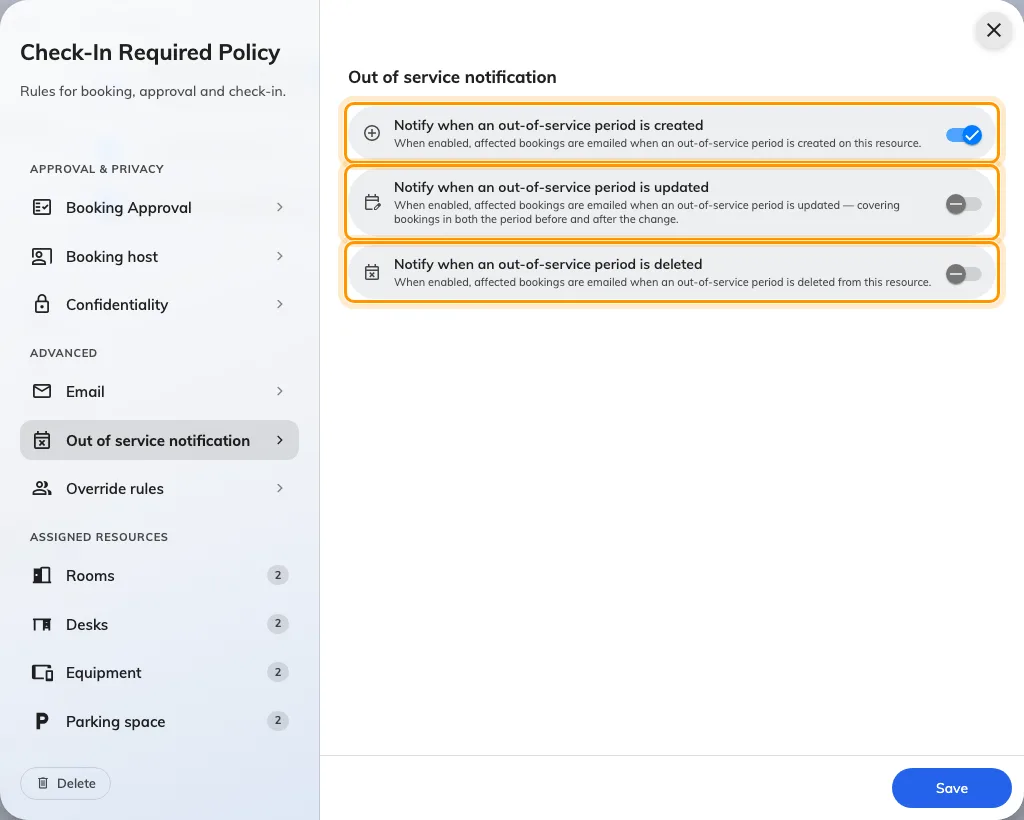
Out of service notification, on the policy's Others page. Only the first switch is on by default.
Leave the other two off unless closures on these resources genuinely move. A maintenance window pushed back twice sends three emails to the same people, which is how a useful notice becomes something nobody reads.
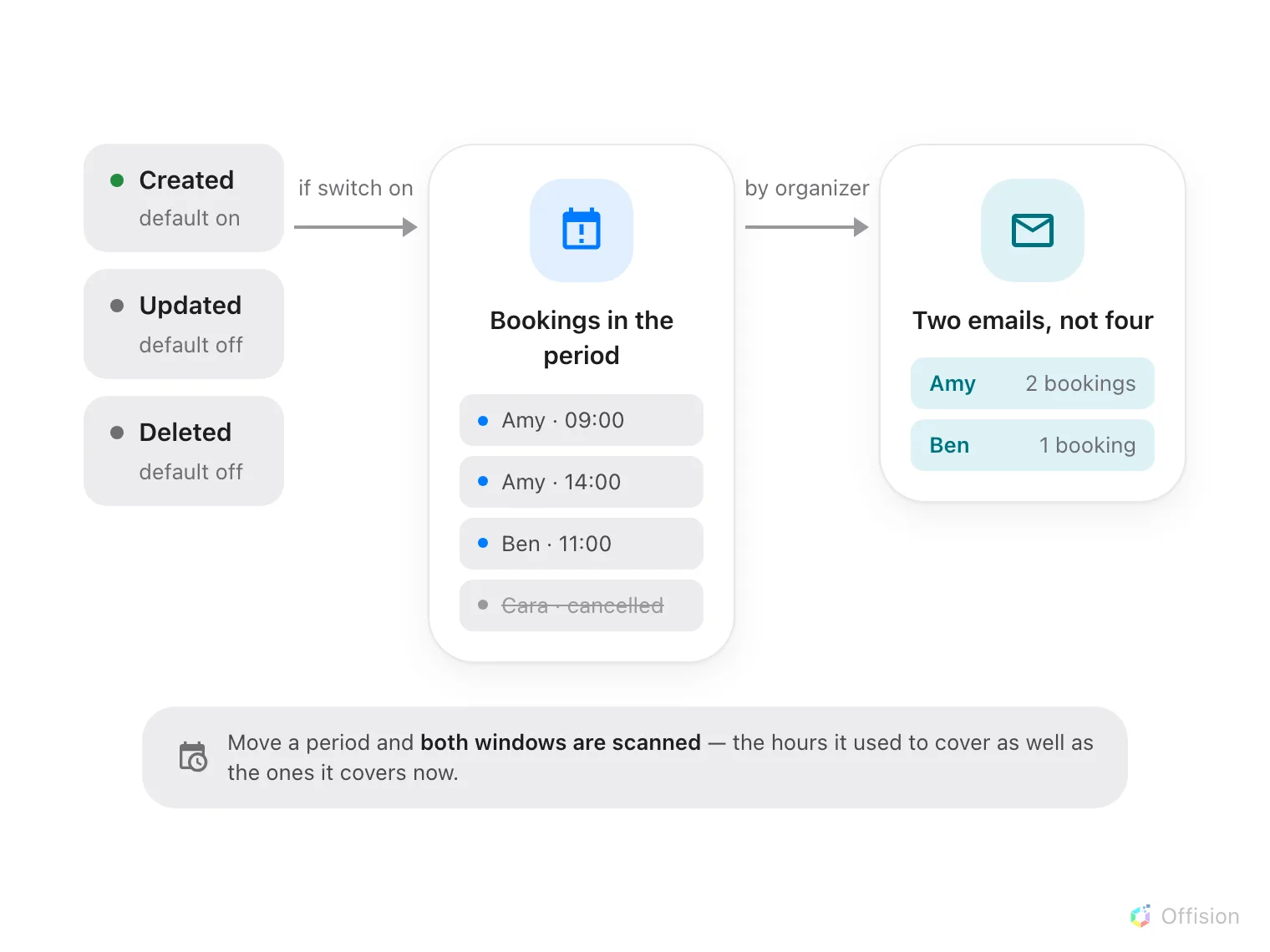
One email per organizer, listing only their own bookings — and only the ones still standing.
The mail is titled Out of service notification and names the resource, the period, your Remarks, and each of that person’s affected bookings as a link. Only the organizer is written to, not the attendees, and only for bookings that are still standing — anything already cancelled, rejected or marked a no-show is left out.
6. Check it worked
Open the room in the Offision app and try to book it across the period. A blocking one refuses you; a warning-only one lets you through after a warning. That single test covers the period, its mode and the remarks in one go.
What people see
| Where | Blocking | Warning only |
|---|---|---|
| Management calendar, Resource calendar | Hatched band over the day, labelled Blocks booking | Faint band behind the day, no label, bookings drawn on top |
| Booking form | “@name is out of service at @period” — the booking is refused | “@name is out of service during the selected time but can still be booked”, then your remarks |
| Panel and lobby board | Out of service, with the period and remarks | Out of service — the panel does not tell the two apart |
| Room list in the app | Red Out of service badge | Red Out of service badge |
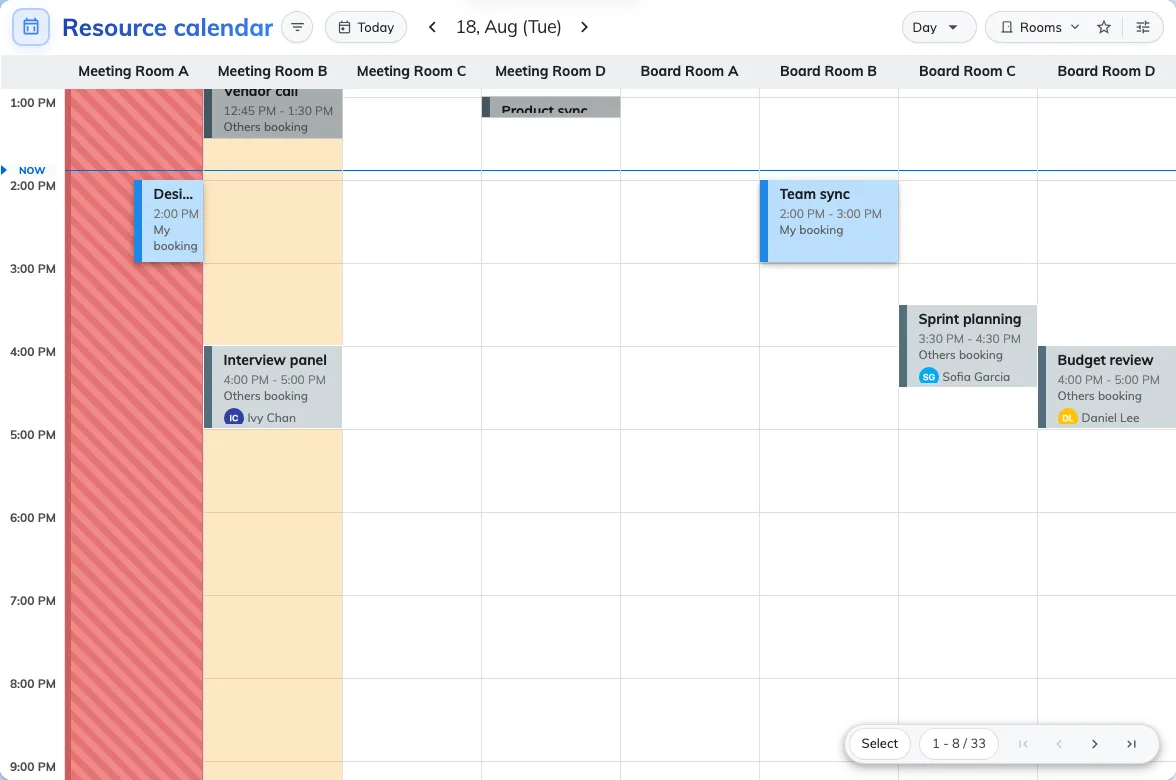
The same two rooms on a colleague's Resource calendar.
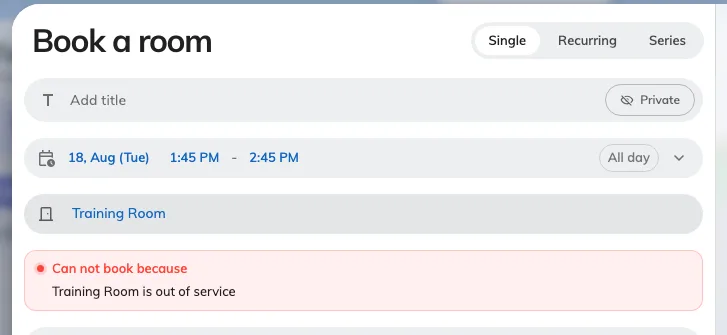
A blocking period, in the booking form: the room is refused.
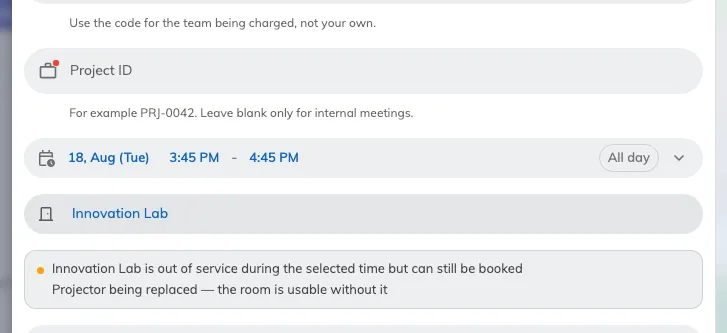
A warning-only period: the same room, the same hours, and the booking still goes through.
What this does not control
Warning only is not “half available”. Everything that reports a resource’s availability — the badge in the room list, where the room sorts in the picker, the free-room counts on a lobby board, the panel outside the door — treats any overlapping period the same way and says Out of service. Only the calendars, the booking form and the quick-book flows read the switch. So a warning-only period is best understood as the room looks closed, and booking it anyway is allowed — not as a quieter closure.
A period does not repeat. There is no recurrence: a room closed every Friday afternoon needs a period for each Friday.
Existing bookings stay. Setting a blocking period does not cancel what is already in the room; it only stops new ones. Moving them is a separate job — see Move a booking on the management calendar.
This is not how you retire a resource. A room leaving the estate for good is switched off in the resource’s own booking settings, not given a period stretching into next year — see Add a room.
The email switches are shared. They live on the booking rules, so they apply to every resource that rule covers, and if a resource resolves to more than one rule, a single one with the switch on is enough to send the mail — see Booking rules reference.