

Fit more rooms on screen, and hide other people's subjects
Column width decides how many resources fit on a page, row height decides how much of the day does, and between them they decide how many card lines survive. Then two switches decide what a colleague is allowed to read.
Two complaints arrive about the booking calendar more often than any others: it shows four rooms when the floor has twenty, and the last line of every card is missing. Both are the same two settings, and they pull against each other.
1. Decide how many rooms fit on a page
Open Resource calendarUnder Columns, Column width is Narrow, Normal or Wide. The grid redraws beside the control as you choose, so the trade is visible rather than guessed at.
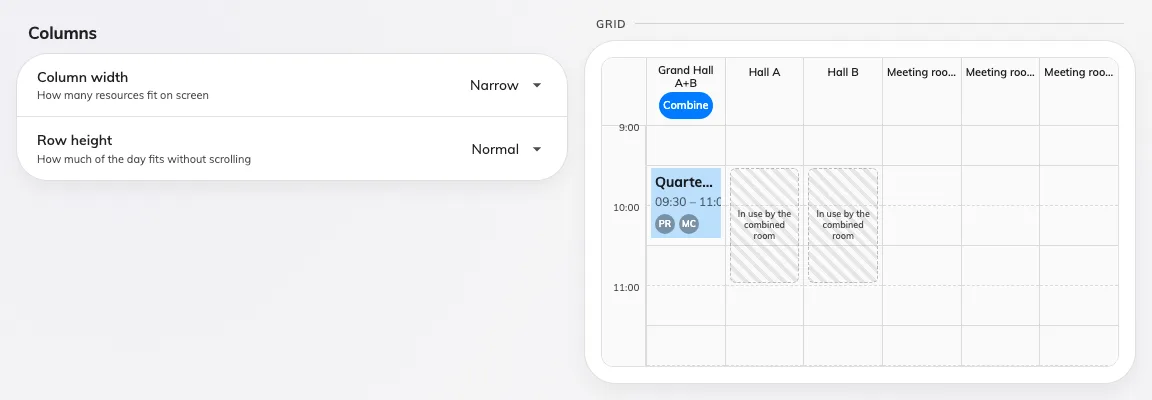
Narrow — the most resources on a page, and the least room in each block.
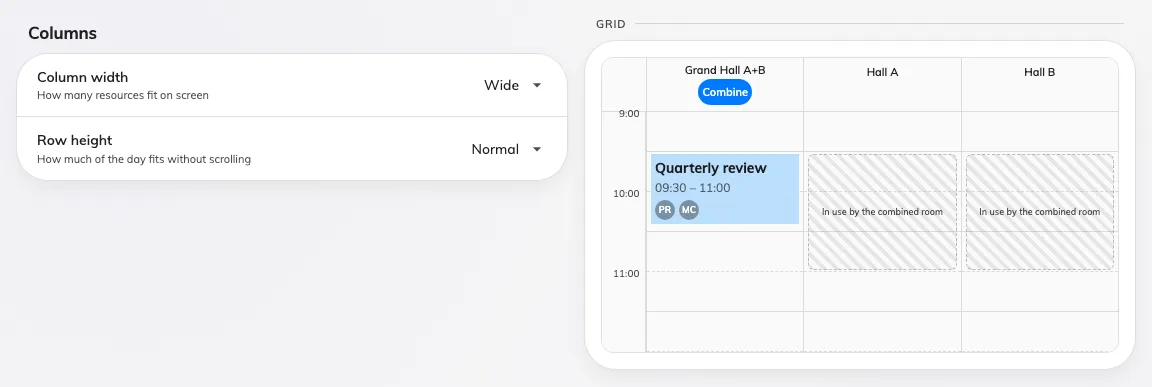
Wide — half as many resources, and a card with room to say something.
2. Decide how much of the day fits
Row height is Compact, Normal or Tall — how much of the day is visible without scrolling. It is the same trade turned ninety degrees, and it is the one that decides how much a card can say, because a one-hour booking at Compact is a third the height it is at Tall.
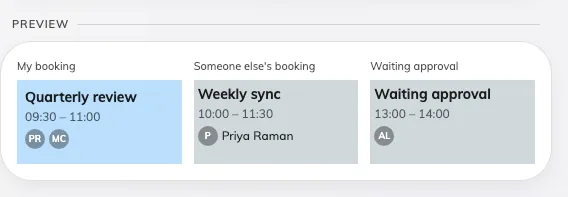
Compact. The whole morning is on screen, and a card has about four lines.
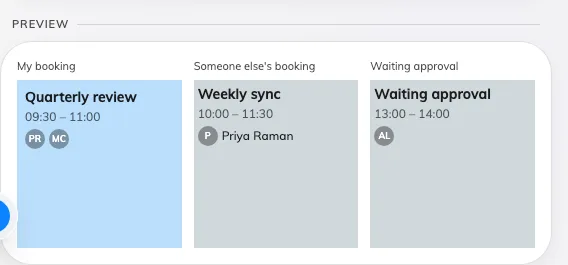
Tall. Half the day on screen, and about nine lines to spend.
3. Keep the card inside the block
Fields, under the booking card, carries a hint that is the point of this step: fits ~N lines — four at Compact, six at Normal, nine at Tall.
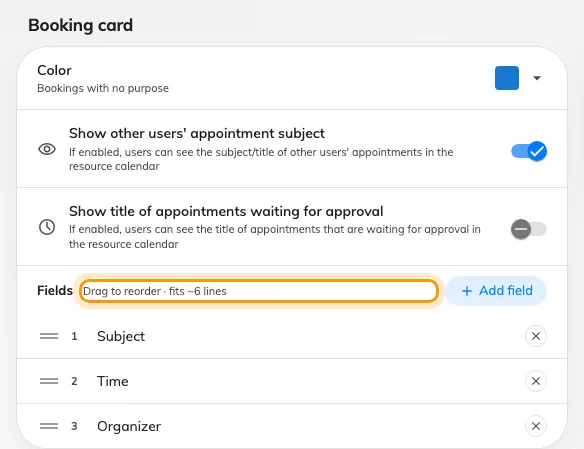
The hint beside Fields. It moves with Row height, not with the number of fields.
Go past it and the card loses lines silently. Overflow is clipped, not scrolled, there is no marker to say a line is missing — and the clipping takes the top of the card as readily as the bottom, so the line that disappears can be the subject.
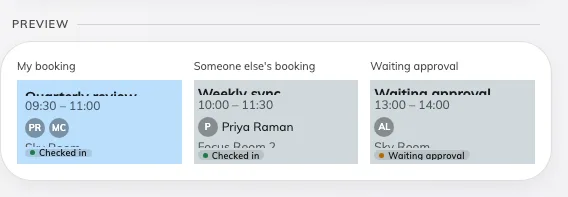
Six fields in a block with room for about four. The subject is sliced off the top and the room off the bottom.
Two habits make this stick: watch the hint rather than the preview alone — the preview draws a ninety-minute block, and most bookings are shorter than that — and re-check it whenever you shorten the rows, because a card that fitted at Tall will quietly lose lines at Compact.
4. Decide what a colleague may read
Two switches on the same card, and they are one question asked twice.
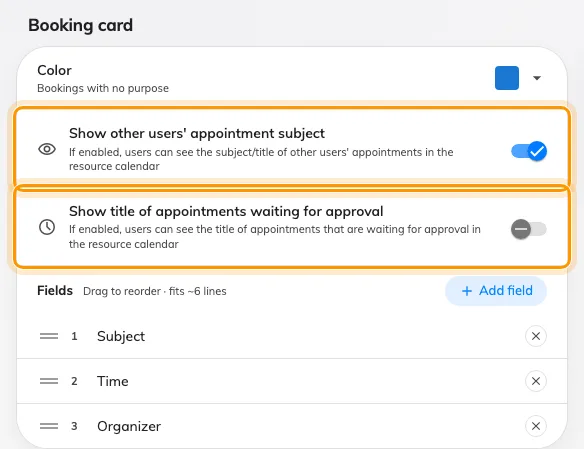
The two switches that decide what somebody who is not on the booking sees.
- Show other users’ appointment subject — off, and a colleague’s booking reads as busy without saying what it is. This is the privacy switch of the screen.
- Show title of appointments waiting for approval — the same question for a booking that is not confirmed yet, which is often the one people would rather nobody read.
A third switch, on its own card lower down under Booking details, decides how much of a colleague’s booking opens when somebody taps it: Show full details for others’ bookings — Opens the same booking card as your own. Actions stay hidden. Off unless you turn it on, so nothing changes on an existing calendar.
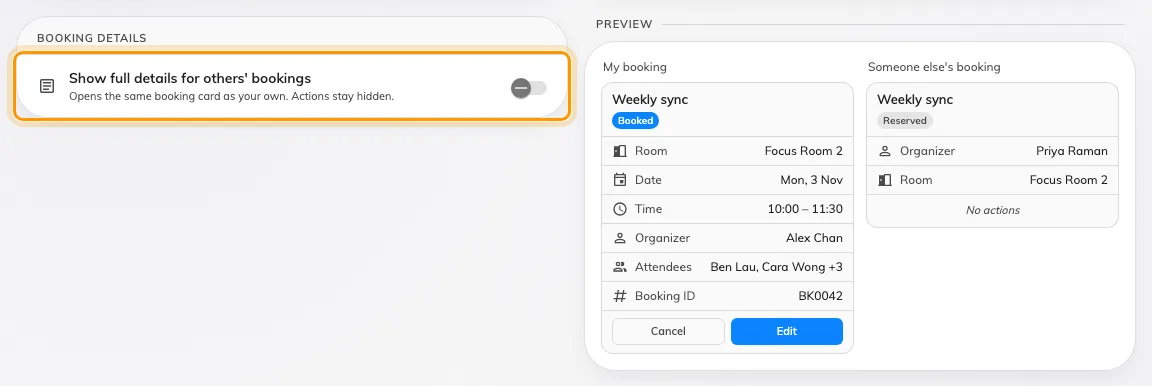
Booking details, with the two cards it compares drawn beside it.
Left off, tapping a colleague’s booking opens a reduced card: title, a Reserved badge, the time, the organiser and the resources. Turned on, it opens the card you get for your own — status, attendees, notes, reference and history — with every action still hidden. Nobody gains a way to join, share, edit or cancel a booking that is not theirs.
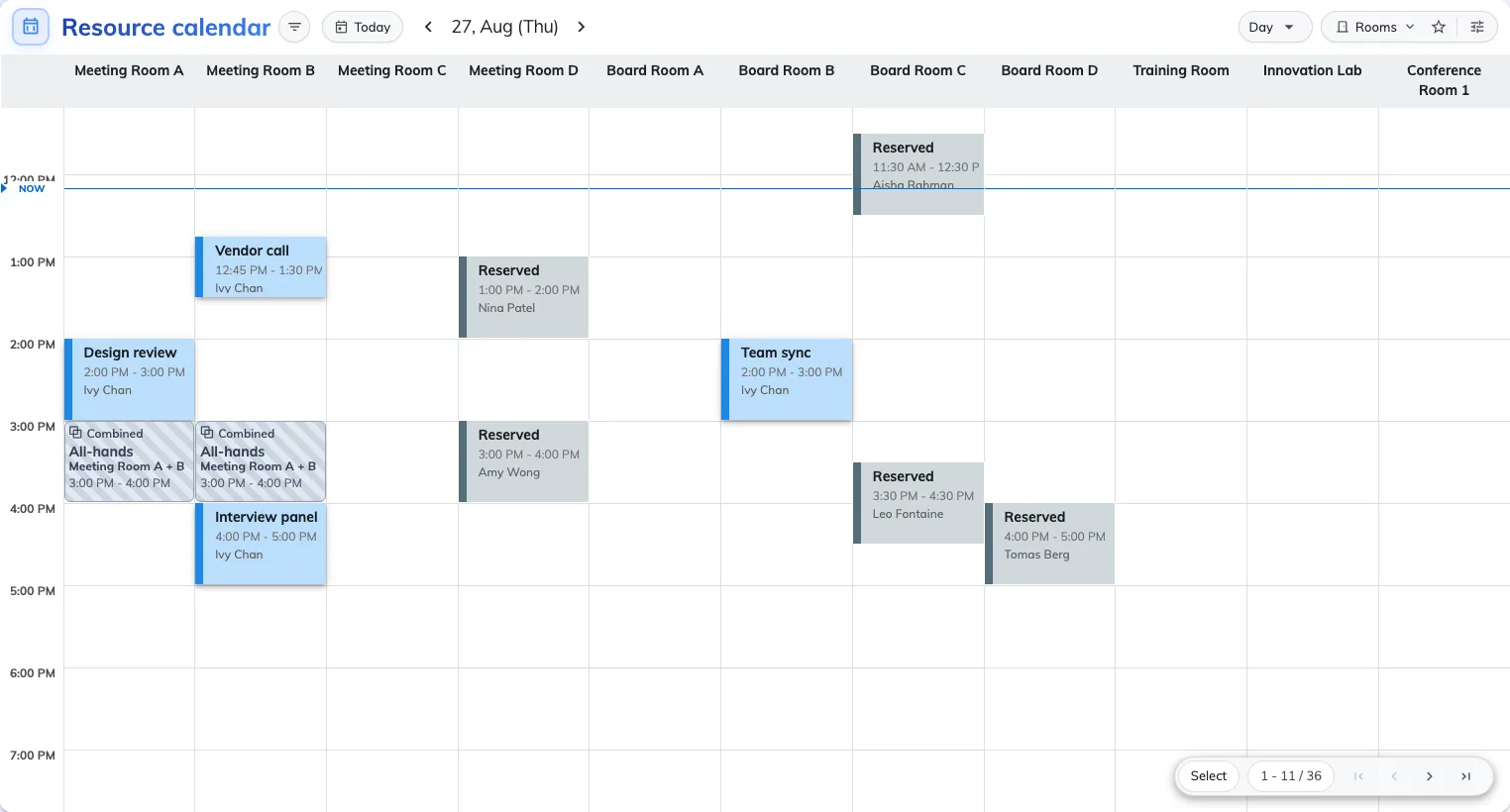
With the first switch off, every colleague's booking reads Reserved. Your own are untouched.
The subject switch hides the subject and nothing else: the hours are still taken, and the organiser is still named. Somebody who needs the room can still see who to ask.
5. Choose what the resource list starts sorted by
One more setting decides what people meet before they touch a filter: Order by, on the Others page, sets the default order of resources in the user portal’s calendar. Which order to pick, and everything else that decides where a room lands in the list, is its own page — see Change the order rooms appear in.
6. Do the same for the console’s calendar
The management calendar has its own Column width and Row height, on its own page, and a preview that prints the minimum column width in pixels — useful when you are deciding how much paging a booking manager will tolerate.
Open Management calendar7. Check it worked
Open the booking calendar in the user portal, on the busiest floor you have.
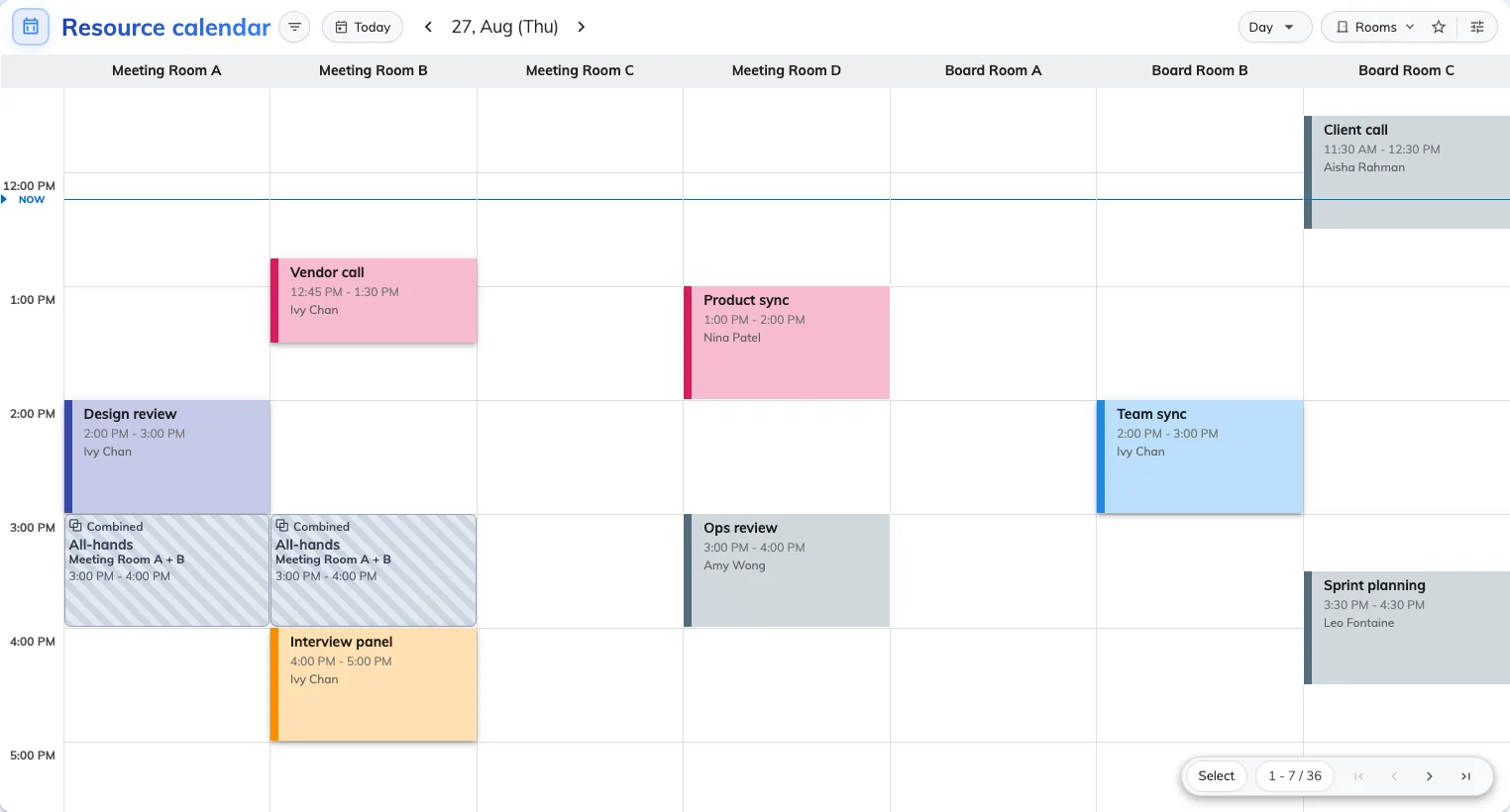
The finished grid: wider columns, taller rows, and every card printing all its lines.
- Count the resource columns. It should match what the preview promised.
- Find the longest card on screen and read its last line. If it is missing, go back to step 3.
- Open a colleague’s booking. It should tell you exactly as much as you decided in step 4, and no more.
What this does not control
- How much anybody may book. Density is a display setting; the rules live on the resource policy.
- Sideways scrolling. There is none — the grid paginates.
- The status stripe on a console block, which no width, height or colour changes.
- Which fields exist. Adding a question to the booking form is a different screen — see Booking form fields. This decides only which of them the card prints.