

Booking rules reference
Configure booking rules through resource policy, quota and team space. Lists resource-policy and team-space settings, occupancy-sensor automation, and batch field editing with per-policy review and partial-save recovery.
Three separate things decide whether a booking is allowed, and they are configured on three different screens:
- A resource policy is a reusable rule set — the booking window, durations, check-in, approval, which channels may book. Attach it to a class of space, not to one room.
- A quota gives a booking a price and a person a balance. Quota has settings of its own and a section of the manual to match.
- A team space decides who may book the resources at all.
This article covers the resource policy and the team space in full, and starts with how all three interact — that is the part that surprises people.
How the rules combine
There is no order of precedence. When a booking is saved, every rule is checked in one pass and every failure comes back together, so a booking that is both outside the window and short of quota reports both problems at once.
What is worth holding in your head is that the three rules answer three different questions:
- Can this person see the resource at all? — team space. This is applied when the resource list is built, not only when the booking is saved. Someone with no access does not get a greyed-out room; the room is not in their list.
- Is the booking shaped legally? — resource policy. Window, duration, all-day, recurring, cross-day, business hours, walk-in, channel.
- Can they afford it? — quota.
| What the person sees | Which rule did it |
|---|---|
| The room is missing from search and from the resource list | Team space — they are blocked, or Other users is on its default |
| The room is listed, the schedule is readable, Book is a disabled lock | Team space — they are a readonly member |
| “You’re not allowed to book this resource” | Team space, at save time |
| “You don’t have enough quota to book this resource” | Quota |
| “This date is outside the allowed booking period” | Resource policy — booking date range or release schedule |
| “The booking duration exceeds the allowed limit” | Resource policy — booking time length |
| “This time is outside business hours” | Business hours on the resource, allowed by the policy |
Four behaviours that catch people out:
- Team space is judged against the organizer, not against whoever is clicking. A booking manager creating a booking for someone outside the team is refused, even though the manager can see the room.
- Quota is charged when the booking is saved, not when it is approved. Rejecting a request does not give the quota back — only cancelling does, and only where the resource refunds at all.
- A booking purpose can switch the rules off. A purpose option may override the resource policy and the quota policy, and an override left empty means no policy and no quota rather than falling back to the resource’s own.
- A booking purpose can never override a team space. It is the one rule nothing else unlocks.
There is no role that bypasses all of this. A booking manager gets whatever Override rules the policy grants them; approval relaxes most of the policy but leaves team space and business hours in force; quota has no exemption for anyone.
Resource policy
The policy editor has Rules & limits — Booking policy, Booking time/date limit, Check in/out, Create/Edit booking channel; Approval & privacy — Booking Approval, Booking host, Confidentiality; and Advanced — Email, Out of service notification, Override rules. Assigned resources follow by resource type, with Information on a saved policy. The policy name is edited in the rail title. Use the settings search to jump to a field, including fields inside a nested page.
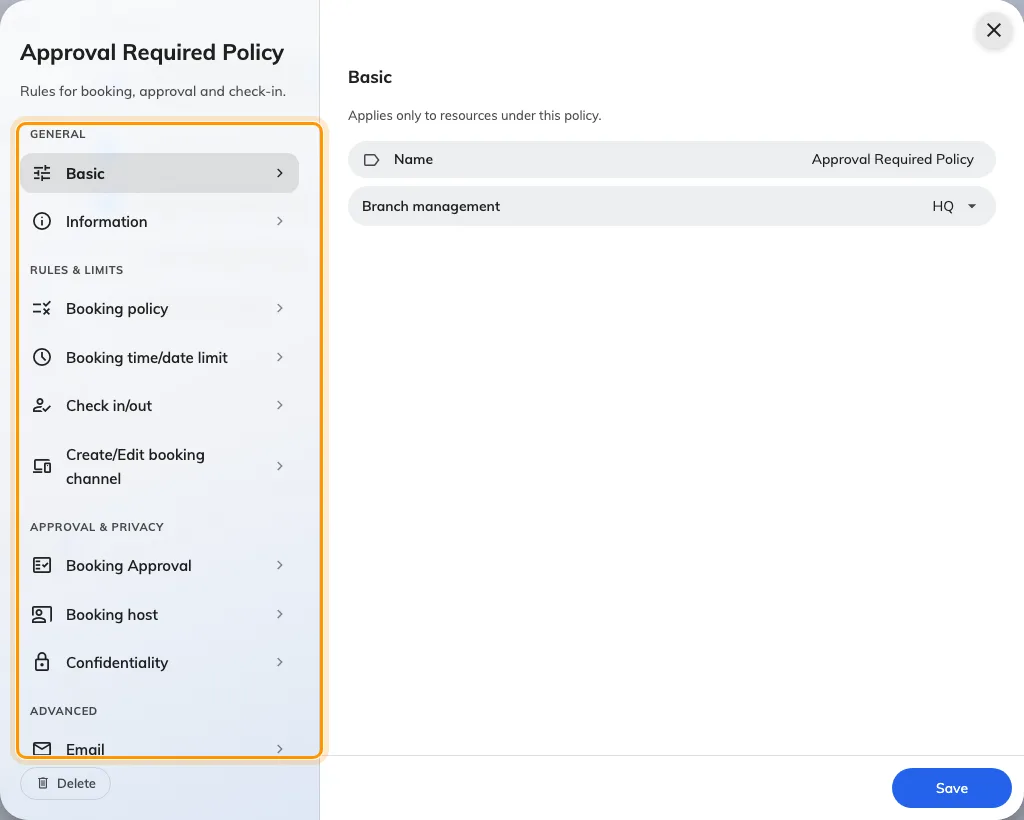
The policy editor. Every setting below sits on one of these pages.
Change fields across several policies
In the booking policy list, tick the policies and choose Batch edit. In Edit fields, use Search fields to add to choose only the settings you intend to change. Mixed means the selected policies currently disagree; choose an explicit value before continuing. Selected policies lets you change the target list.
Choose Review changes and compare each policy’s current and proposed values, then choose Apply to … policies. Fields you did not add retain their values. The batch editor offers supported fields rather than replacing every policy setting or its resource assignments.
If saving stops partway, the dialog shows how many policies were saved. Retry the remaining policies; the successful changes have already applied. Do not assume the whole batch was rolled back.
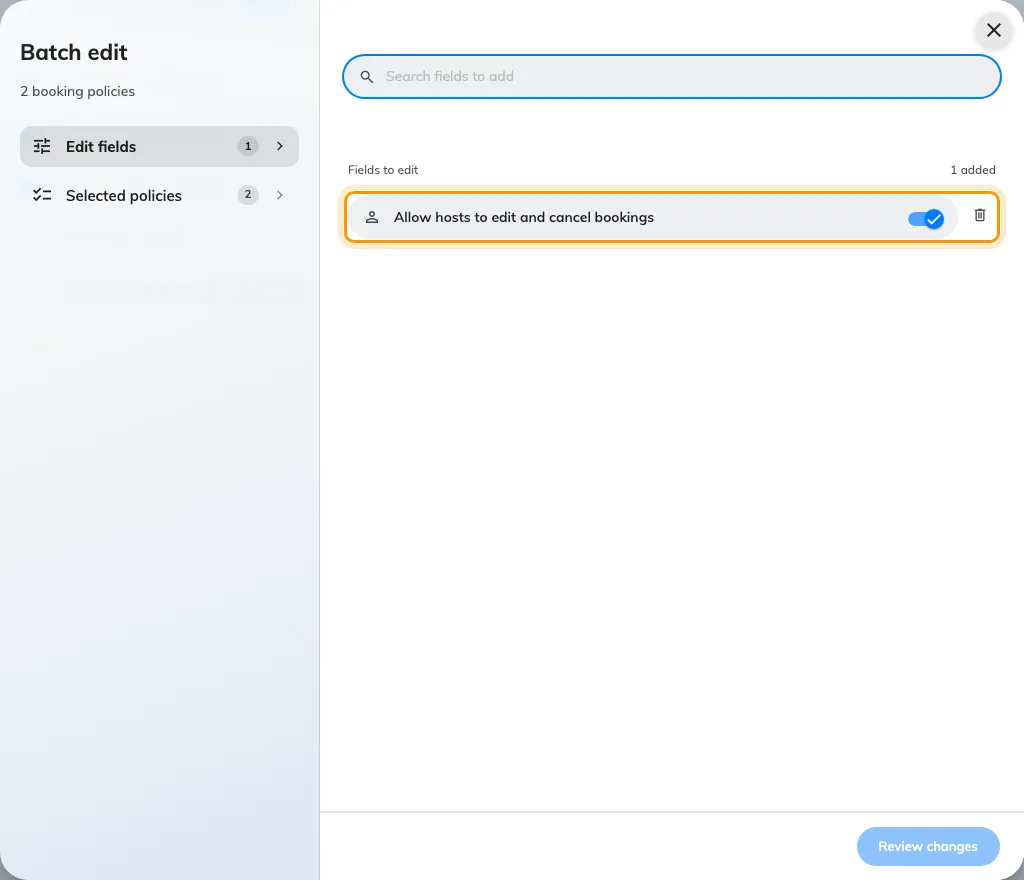
Batch edit selects fields and target policies before reviewing each policy's changes.
Check in/out
This page is check-in, end to end — requiring it, the window that opens and closes it, the clock deadline all-day bookings use instead, checking in from the app, GPS and IP conditions, who besides the organiser may act, early check-out and the cancel rules, Take attendance, and the recurring no-show policy.
Every field is documented with its own figure in Check-in settings reference; the mechanism behind them is How check-in and no-show work.
Booking policy
What may be booked at all.
| Setting | What it does | When to change it |
|---|---|---|
| Allow recurring booking | Lets people create a repeating series | Turn off on scarce rooms, where one series can claim a slot indefinitely |
| Allow all day booking | Lets a booking take the whole day in one go | Turn off on meeting rooms; leave on for desks |
| Allow cross day booking | Lets one booking run past midnight | Turn on for overnight equipment, off for rooms |
| Allow non-business hour booking | Lets people book outside the resource’s business hours | Turn off where out-of-hours use needs building access nobody has |
| Allow booking multiple resources | Lets one booking hold several resources at once — a room plus its equipment | Turn off where each resource must be booked deliberately |
| Allow extend booking | Lets people extend from the panel when nothing follows | Turn off where the next booking must start on time |
| Walk-in Only | The resource can only be claimed on the spot; advance booking disappears | Use for touchdown desks and phone booths |
| Overlap with other bookings | Whether a person may hold two bookings at the same time: Allow overlap with all other bookings, Not allow overlap with bookings that involve resources using this booking policy, or Not allow overlap with all other bookings | Tighten it where people hold a backup room “just in case” |
Booking time/date limit
See Limit how far ahead people can book for the task itself.
| Setting | What it does | When to change it |
|---|---|---|
| Limit the booking date range | Turns on the rolling window below | Turn on to stop the calendar being claimed months out |
| From (e.g.: Today = 0) | The earliest bookable day, in days from today. 0 is today | Raise where rooms need preparing between meetings |
| To (e.g.: one month = 30) | The furthest bookable day, in days from today. Two months is 60; the field accepts up to 1095 | Shorten on contested rooms. Off, the system falls back to 365 days |
| Release time | The hour at which each newly reachable day opens | Move off midnight on rooms people compete for |
| Limit the booking time length | Turns on the minimum and maximum below | Turn on for scarce rooms |
| Minimum booking time in minute(s) | The shortest single booking allowed | Raise to stop the calendar filling with five-minute holds |
| Maximum booking time in minute(s) | The longest single booking allowed | Lower on scarce rooms to stop all-day holds |
| Limit the booking time length for walk-in booking | The same pair of limits, applied only to bookings made on the spot | Set shorter than the main limit — a walk-in should not take the room all afternoon |
| Limit user can edit or delete booking before it start | Freezes a booking once the start time is close | Turn on where a room is prepared per booking |
| Limit each person’s time on one resource | Counts per person, per resource, per period — within each period one person may hold at most 8 hours on any single resource — desk, room, equipment or parking. The 8 hours is fixed; you choose the period (day, week, two weeks or month) and the reference date it counts from | The one rule that stops somebody keeping the same resource. See Stop one person keeping the same resource |
| Allow booking before a specific date | A fixed calendar cut-off rather than a rolling one | Use for a date that does not move, like a fiscal year end |
| Allow booking after a specific date | The same, from the other side | Use to keep a space closed until it opens |
| Booking time sector restriction | Holds a whole period closed until an announced release moment. Each time sector names a booking period and the date and time it opens; the list can be uploaded and downloaded, and rows can be ticked and deleted together, or all at once with Delete all | Use where a term or quarter should open at one moment for everyone |
Booking Approval
The whole page is behind the Booking approval master toggle. See Require approval before a room is booked.
| Setting | What it does | When to change it |
|---|---|---|
| Booking approval | Requests wait for a decision instead of confirming | Turn on for rooms somebody owns |
| Block timeslot before approval | Holds the slot while the request is pending, so nobody else takes it | Turn on where a rejected request would otherwise lose the slot to a race |
| Room replies in Outlook while waiting | Outlook and Google rooms only. Whether the holding acceptance that blocks the slot also mails the organiser. Off, the room holds the slot silently and replies once approved | Turn off if a pending request appearing as confirmed in Outlook causes confusion — see How a booking on a synced room is validated |
| Conditional Booking Approval | Switches from “every booking” to “only bookings matching the conditions below” | Use to approve the expensive cases and let routine bookings through |
| Re-approval after edit | Whether an approved booking goes back into the queue when it is edited: Any change requires re-approval, Only time or resource changes require re-approval, or Edits never require re-approval | Loosen to time or resource where organizers keep editing the subject line |
| Show approvers | Whether the person booking is told who will decide: Do not show, Show approvers, or Show approvers and managers | Show them where people would otherwise chase the wrong person |
| Disable booking approval for walk-in booking | Lets somebody standing at the door claim the room without waiting | Turn on wherever a panel is the main way in |
| Booking approval user(s) or user group(s) | Who may decide. The first decision wins — there is no chain | Name a group rather than a person, so leave does not stall the queue |
| Auto reject booking if no people approve after (?) days | Clears requests nobody answered | Set it below the booking window, or requests expire after the date they were for |
The conditions available under Conditional Booking Approval:
| Condition | Sends the booking for approval when |
|---|---|
| Minimum booking duration | It runs longer than the duration you set |
| All-Day Booking | It reserves the resource for the whole day |
| Recurring Booking | It repeats on multiple dates |
| Cross-Day Booking | It spans two or more days |
| Outside Business Hours | Any part of it falls outside business hours |
| Multiple Bookings by the Same User | That person exceeds a number of bookings in one day |
| Too many upcoming bookings by the same user | They already hold that many upcoming confirmed bookings |
| Room Capacity Utilization | Attendees are fewer than a percentage of the room’s capacity |
| Booking with Service Requests | It asks for additional services |
Booking host
| Setting | What it does | When to change it |
|---|---|---|
| Allow invite a host | The policy’s own switch for the host field. Off, the field is hidden and the rest of this page does not apply. The booking form carries a second switch per kind of resource, and the field needs both | Turn on where somebody other than the organizer runs the meeting |
| Host field | Optional, or Required — a host must be chosen before the booking saves. Across several rooms the strictest answer wins, and it is only enforced where the field is usable at all: never when the host field is hidden — by this policy or by the booking form — and never against somebody who may not assign a host | Rooms whose bookings are charged or staffed to a named person |
| Default host to organizer | Pre-fills the host with the booking’s organizer, and keeps it in step while the organizer or delegate changes — until somebody edits the host row themselves | Off where the host is usually somebody other than the person booking |
| Allow hosts to edit and cancel bookings | Lets saved booking hosts edit or cancel when the booking state and usual time limits permit. On for existing and new policies | Turn off where hosts should run the meeting without managing its reservation |
| Allow multiple hosts | Lets a booking name more than one host | Turn on for panels and interviews |
| Who can assign a host | All users, or only the users and groups you name | Restrict where hosting carries a cost, so not everyone can volunteer somebody |
| Host assigner user(s) or user group(s) | The list used when the answer is Specify users | — |
| Who can be a host | All users, or only the users and groups you name | Restrict to the people actually trained to host in that space |
| Eligible host user(s) or user group(s) | The list used when the answer is Specify users | — |
Default host to organizer is on for every policy that existed before 4.5.12. The pre-fill used to be unconditional, so an upgraded policy keeps behaving exactly as it did — the setting only matters once somebody turns it off.
A host keeps the original organizer when editing; becoming a host does not transfer ownership. For a booking with several resources, every applicable policy must permit host management. A normal attendee does not gain this permission. The usual edit/cancel deadline, booking validation and re-approval rules still apply. Test with a different organizer and host, then open the booking as the host in the user app.
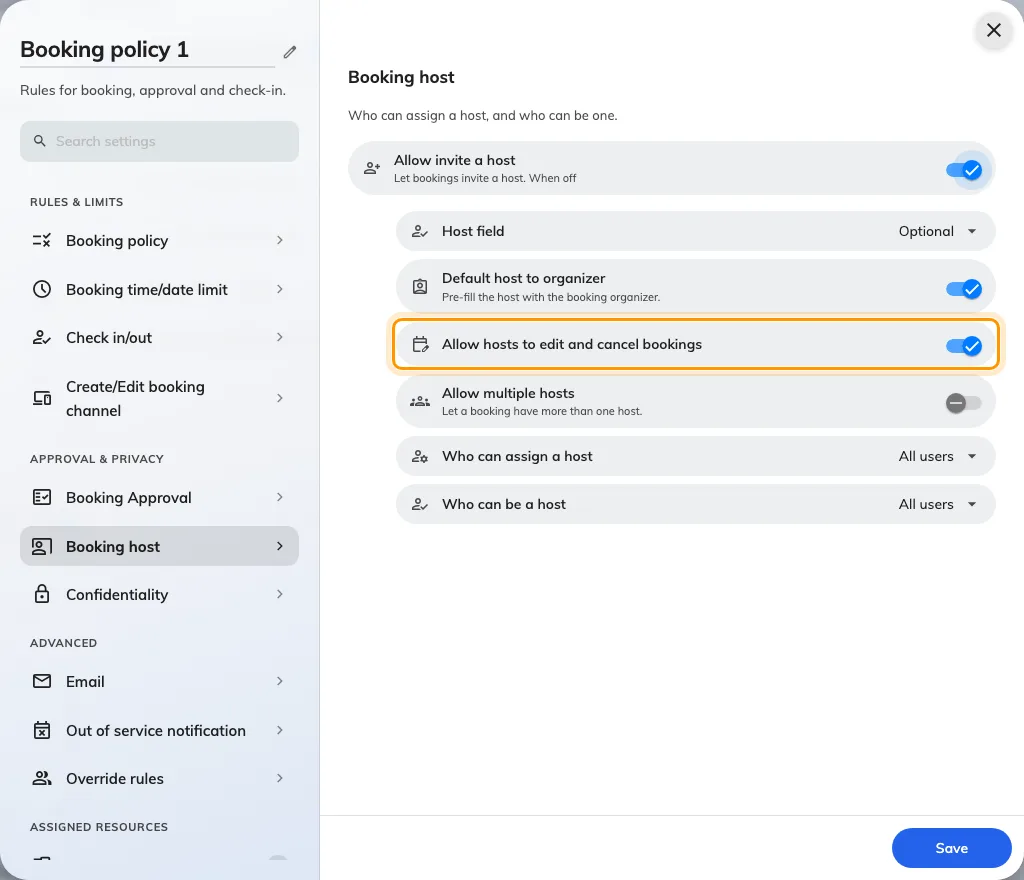
Booking host: Allow hosts to edit and cancel bookings is on by default; each applicable policy can turn it off.
Confidentiality
| Setting | What it does | When to change it |
|---|---|---|
| Hidden booking information | Hides booking detail from people not involved, in the app, on panels and on signage | Turn on for executive and HR rooms |
| Information Confidentiality Level | Hide all booking detail — others see only that the resource is occupied. Hidden booking detail, except organizer name — others also see who has it | Keep the organizer visible where people need to ask for the room back |
| Terms and Conditions | Requires the text below to be accepted before a booking is created | Use where a space carries house rules or a safety briefing |
| Require scrolling to the end | The accept button stays inactive until the text has been read to the bottom | Leave on where acceptance has to mean something |
Create/Edit booking channel
| Setting | What it does | When to change it |
|---|---|---|
| Allow booking manager book for user | Lets a manager create and edit these bookings from the admin console | Turn off for spaces that must be self-service only |
| Allow booking from User Portal | Lets people book from the app — browser, phone, Teams and Outlook, and a sticker scan, all one channel | Turn off for a room that is only ever claimed at the door, knowing the sticker stops booking too |
| Allow booking from booking panel and signage | Lets people book at the panel outside the room. Shown where panel hardware is enabled | Turn off where every booking has to be planned |
| Skip user verification in booking panel | Books from the panel without asking who is booking. Appears only while the row above it is on | Turn on for open areas where a sign-in step just makes people give up |
Off is not one behaviour. Switching off the admin console or the User Portal removes the resource from that surface’s list — it is absent, not greyed out. Switching off the panel leaves it on the panel’s screen and refuses when somebody tries to take it.
The three arrangements people usually want out of these rows — bookable only from the app, only by scanning the sticker, or not from the portal at all — are walked through in Choose where a resource can be booked from.
Email and out-of-service notification
Two pages under Advanced: Email carries the first four rows, Out of service notification the last.
| Setting | What it does | When to change it |
|---|---|---|
| Disable booking email notifications | Stops all booking email to organizers and attendees — new, changed and cancelled | Turn on for desks and equipment, where the mail is noise |
| Attach .ics data in email when booking Desk or Equipment | Puts a calendar invitation in those emails | Turn off if desk bookings are cluttering people’s calendars |
| Notify booking managers by email | Emails the people below when a booking on these resources is created, edited, cancelled, or changes state. Also covers bookings synced from Microsoft 365 | Turn on for spaces somebody has to prepare |
| Booking manager user(s) or user group(s) | Who gets that mail | — |
| Notify when an out-of-service period is created / updated / deleted | Emails the affected bookings when the resource is taken out of service | Leave creation on; the other two are for spaces whose closures move |
Sensor
On the Check in/out page, under Sensor, and useful only where an occupancy sensor is bound to the resource: auto check-in, auto check-out and auto extend, each with the durations it reveals. All ten fields are walked, with a figure each, in Let an occupancy sensor check in, check out and extend a booking.
At the foot of the page, and nothing to do with the sensor, is IP restriction — it accepts app check-in only from the addresses you list. See Check-in settings reference.
Override rules
A policy can carry exceptions for named users or user groups. Each rule picks an Override condition — Organizer, which applies when those people create or edit their own bookings, or Booking manager, which applies when they work through the admin console — and then reopens a subset of the settings above: the date range and release schedule, durations, check-in, edit and delete limits, the all-day, recurring, cross-day and out-of-hours toggles, overlap behaviour, the approval requirement and the sensor automation.
Rules are ordered, and the first matching rule wins. Use overrides where one team genuinely needs a longer horizon than everyone else — not as the normal way to configure people, since an override is invisible from the resource itself. See Let managers book further ahead than everyone else for the walkthrough.
Booking quota
Quota is configured on four tabs of its own and is documented separately — start at how booking quota works, or go straight to the settings reference.
Open Quota settingsTeam space
Open Team spacesA team space is a set of resources plus the people allowed to use them. See Give a department its own rooms for the walkthrough.
Resources
One rail page per resource type, each with a count of what the team space covers. A resource belongs to one team space at a time — picking a room here takes it from whichever team space had it before. A room shared between two departments needs one team space listing both groups, not two team spaces.
A resource on no team space stays bookable by everyone.
Members & access
| Setting | What it does | When to change it |
|---|---|---|
| Team members | Users and groups that can see and book these resources | Add the department’s user group, not a list of names |
| Readonly members | Can see the resources and their schedules, but cannot book | Use for everyone who has to plan around the space without claiming it |
| Block | No access at all. Block wins over everything, including Team members | Use to carve one exception out of a large group, never as the general tool |
| Other users | What everyone not named above gets: Default (no access to the resources), Readonly, or Full access | Default is stricter than most people expect — the resource vanishes for them. Readonly is usually the kinder answer |
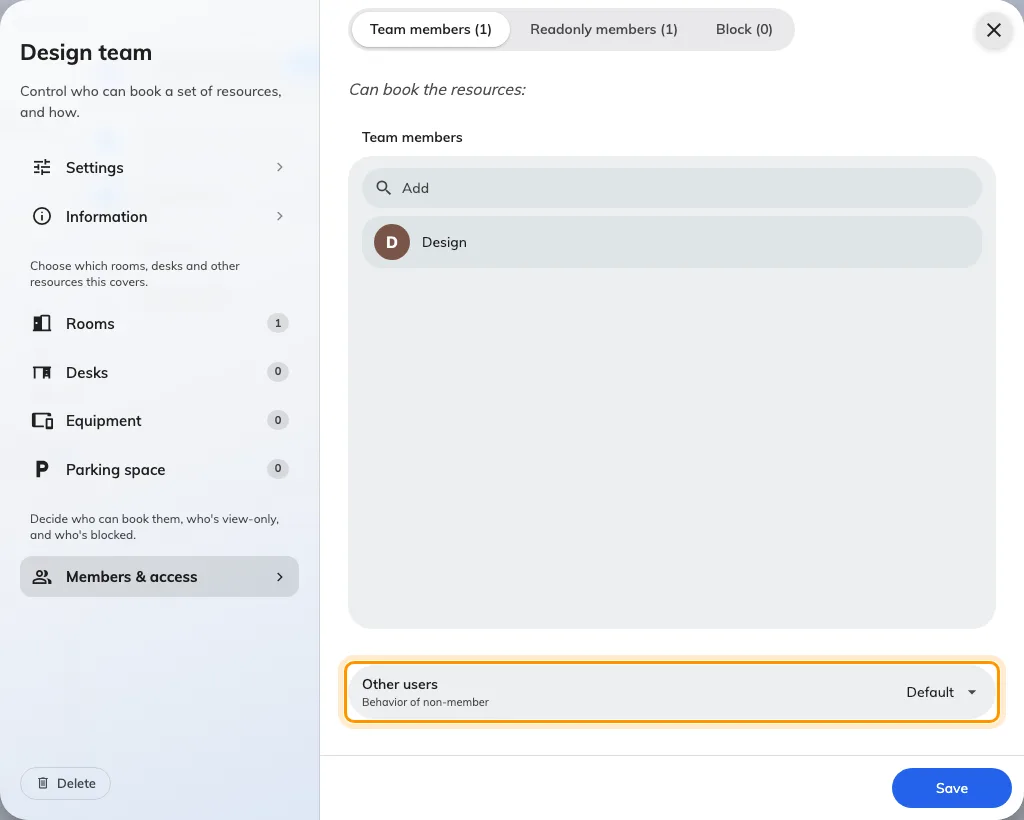
Other users: what people outside the team get.
Those four are read in order — Block, then Team members, then Readonly members, then Other users — and the first match wins. Someone who is both a team member and blocked is blocked.
What these do not control
- Business hours belong to the resource. A policy can allow or forbid booking outside them; it does not define them. Setting the pair up is its own article: Limit booking times to business hours.
- Booking purposes, and the overrides that let a purpose replace the policy or the quota, are configured under Booking purpose.
- The booking form — extra fields, custom labels — is its own screen, as is the auto-complete configuration.
- Service items and catering attached to a booking follow their own rules; the only trace of them here is the approval condition for bookings that request services.
- Calendar sync with Microsoft 365 or Google is set up under integrations. The only sync-related setting on these screens is whether the room replies in Outlook while approval is pending — see How a booking on a synced room is validated.
- What a resource is — its name, capacity, building, amenities and which policy, quota policy and team space it belongs to — is set on the resource.