

Check your quota before you book
What the charge on the booking form is telling you, how to show your remaining balance on your own calendar, and where to find what a booking cost you.
Where your organisation charges quota for booking, every booking spends some of a balance you have been given. You do not have to keep track of it — the booking form tells you before you commit, and your calendar will show it every day if you ask it to.
What the booking form is telling you
Pick a resource that is charged and a panel appears above the footer with the cost of what you are about to book.
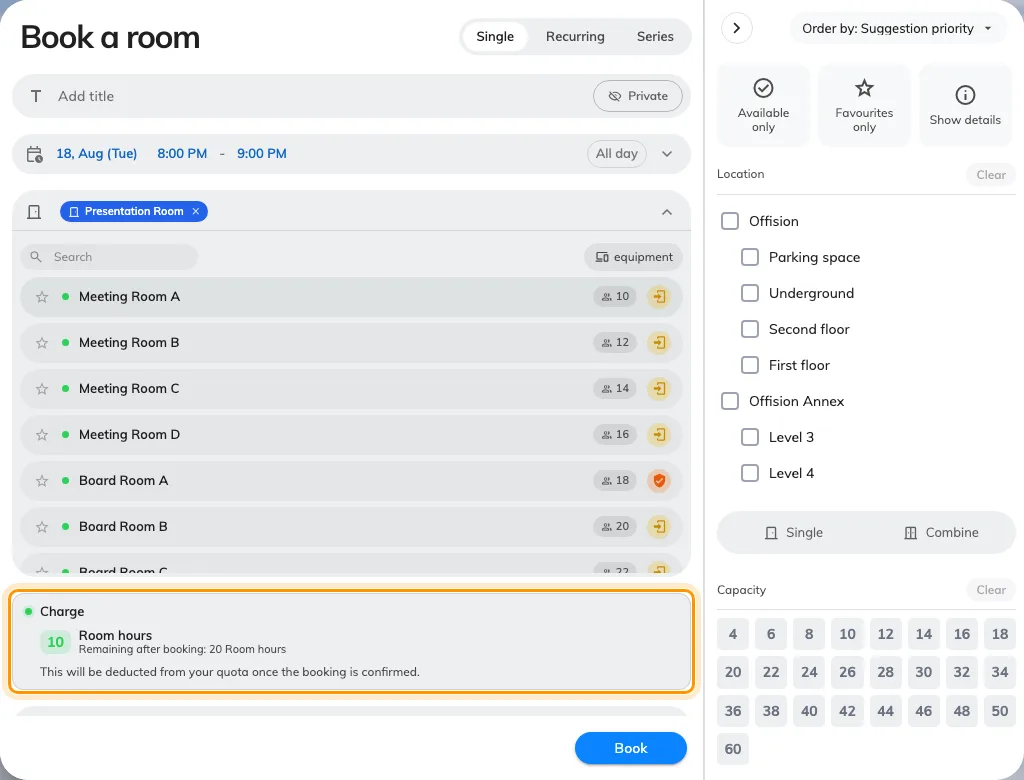
The charge, and what you are left with, in the unit the resource is priced in.
- Charge is what this booking costs. On a repeating booking it says Total charge and covers every occurrence, not just the first.
- Remaining after booking is what you will have left if you save.
- There is one row per quota unit the booking spends. Rooms and desks are usually priced in different units, so which row you see depends on what you are booking.
- Editing an existing booking shows Extra charge instead — only the difference, because what the old version cost is given back first.
If the panel turns red and reads Not enough quota, the booking will not save. It also tells you how far short you are — You only remain — so you can shorten the booking, move it to a cheaper time, or pick a different resource.
Show your balance on your calendar
Your remaining quota can sit on your calendar, one figure per day, so you can see what a busy fortnight will leave you with before you commit to it. It is off until you switch it on, and it is your own setting — nobody else is affected.
- Open your schedule and choose the gear, Calendar options.
- Under Quota, switch on the units you want to watch.
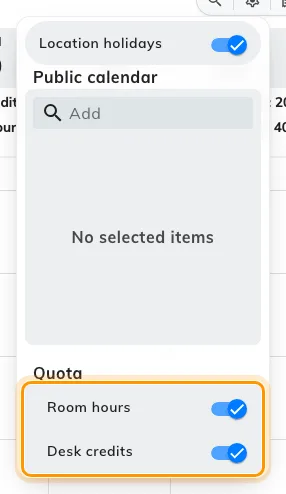
One switch per kind of quota you hold. The switch is labelled with the unit's own name.
Each switch is labelled with the name of the quota unit itself — Room hours, Desk credits, whatever your organisation calls them — so what you see here depends on what you have been granted. If the Quota section is missing altogether, you hold no quota at all.
Switch one on and every day carries its balance:
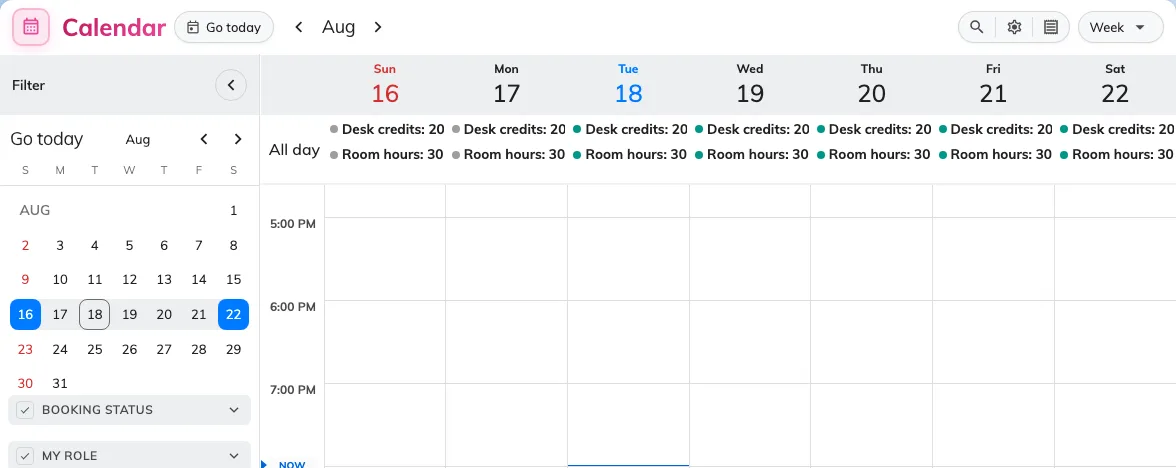
The balance for that unit, on every day, alongside the bookings that spend it.
The figure on a day is what is left in the period that day falls in — so every day inside one period shows the same number, and it changes when you cross into the next one. That is why a whole week often reads the same, and why the figure drops everywhere at once when you book something.
Find out what a booking cost you
The receipt button in your schedule header opens Quota usage record — every charge and every refund, filterable by date and by resource.
It is the place to check three things the booking form cannot tell you:
- Whether a cancellation actually gave anything back. Many resources are set up so that cancelling refunds nothing at all, and others only refund if you cancel far enough ahead.
- Exactly when a charge was taken — the moment the booking was saved, not the day of the meeting.
- What an edit really cost, when the extra charge was not what you expected.
A period reset is the one thing that never appears. Nothing is recorded unless a booking is made, edited or cancelled — so a balance that changed with no entry against it changed because the period rolled over.
If you are short and cannot wait
There is nothing you can do from your own screens: quota cannot be borrowed between units, cannot be carried over from a period you did not spend, and no role can waive it. What is left is to book something cheaper, book it shorter, or ask whoever administers booking to raise your policy.