

Let an occupancy sensor check in, check out and extend a booking
Leave early and the room can hand itself back: once the sensor has reported it empty for long enough, the booking is shortened and the leftover time is free for somebody else. The same sensor can also check a booking in when somebody arrives, and keep the room while a meeting overruns. The three settings are not on their own page — they are on the policy's Check in/out page, under Sensor.
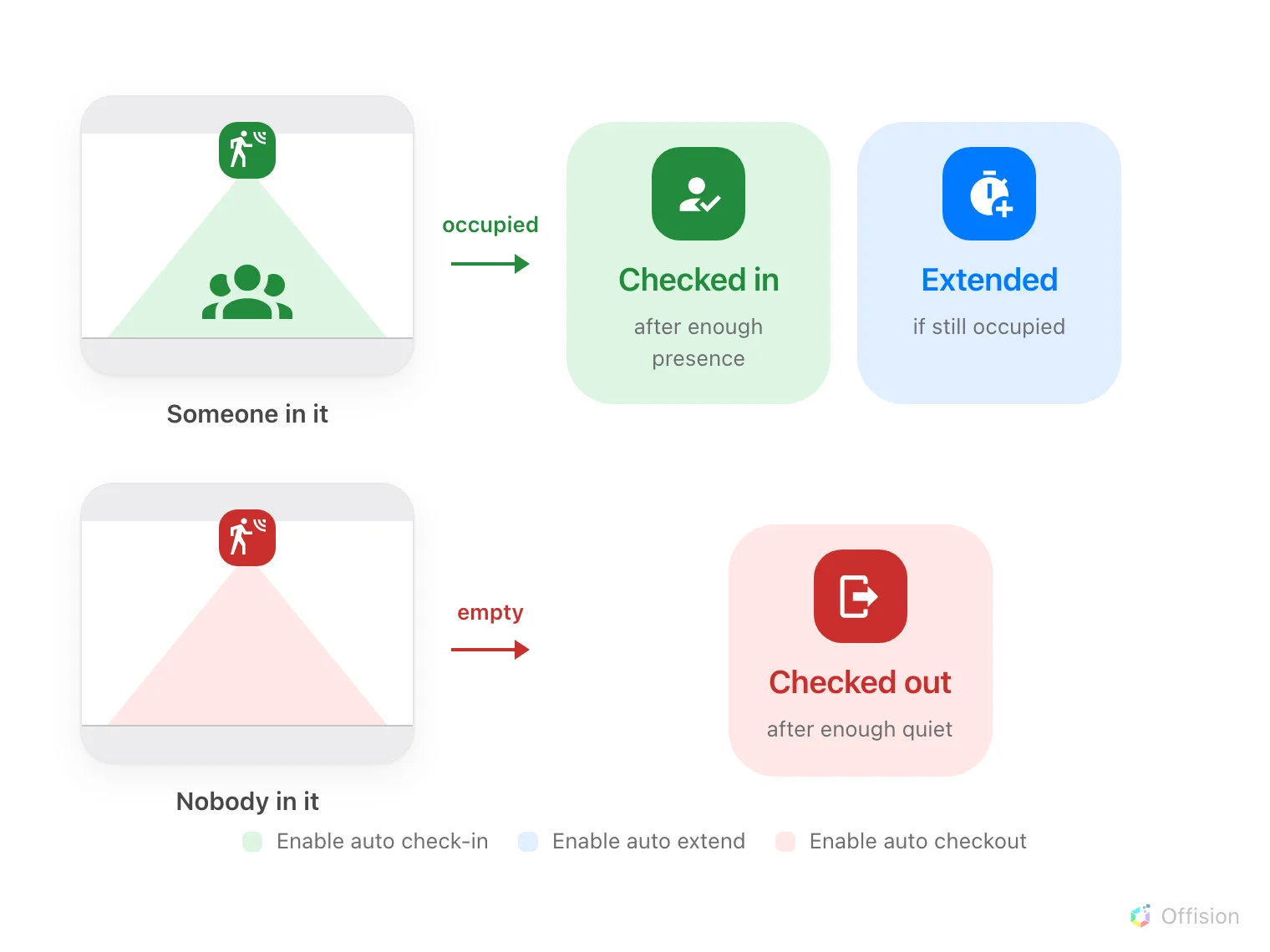
The sensor only ever reports occupied or empty. Three separate settings decide what the booking does about it.
They are not on the check-in page
Require check-in, Allow early check-out and the cancel rules are on the policy’s Basic page, in a group called Check in/out. The sensor settings are not there.
They are on the Check in/out page, under Sensor, below the cancellation rules. That is the commonest reason somebody concludes Offision cannot do this at all. (Before 4.5.18 the same group sat on a page called Others.)
1. Open the policy’s Sensor group
Open Booking policy, select the policy the room uses, then Edit. In the dialog’s left rail choose Check in/out, under Rules & limits, and scroll to Sensor.
Open Booking policy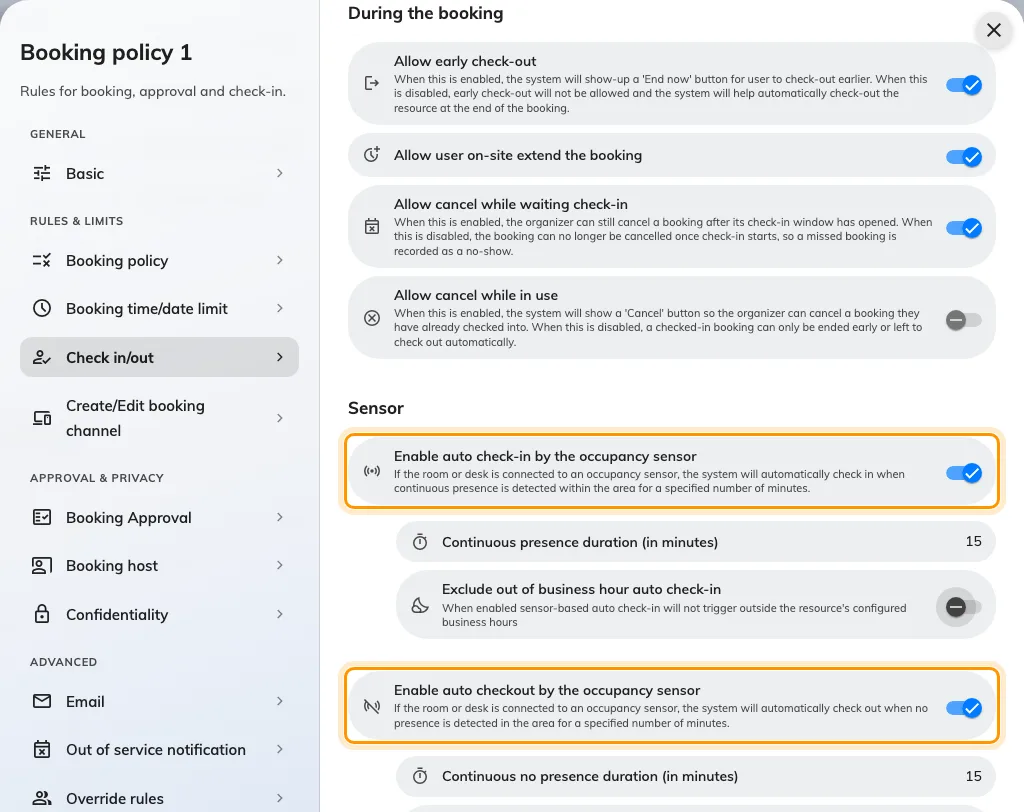
The Check in/out page, with all three sensor automations on and the minutes each one reveals.
Each of the three works on its own. Turning on check-out does not require check-in, and nothing here changes how people check in by hand.
They are not independent of the policy around them, though. Allow early check-out, back on Basic, has to be on for auto check-out to do anything — see the callout in step 3.
2. Check in when somebody arrives
Enable auto check-in by the occupancy sensor checks a waiting booking in once the sensor has reported somebody for long enough.
Continuous presence duration (in minutes) is how long. Five minutes is the lowest it accepts. Too short and somebody crossing the room claims a booking that is not theirs; too long and people decide check-in is broken and press the panel anyway.
Exclude out of business hour auto check-in stops cleaners and security tripping it overnight.
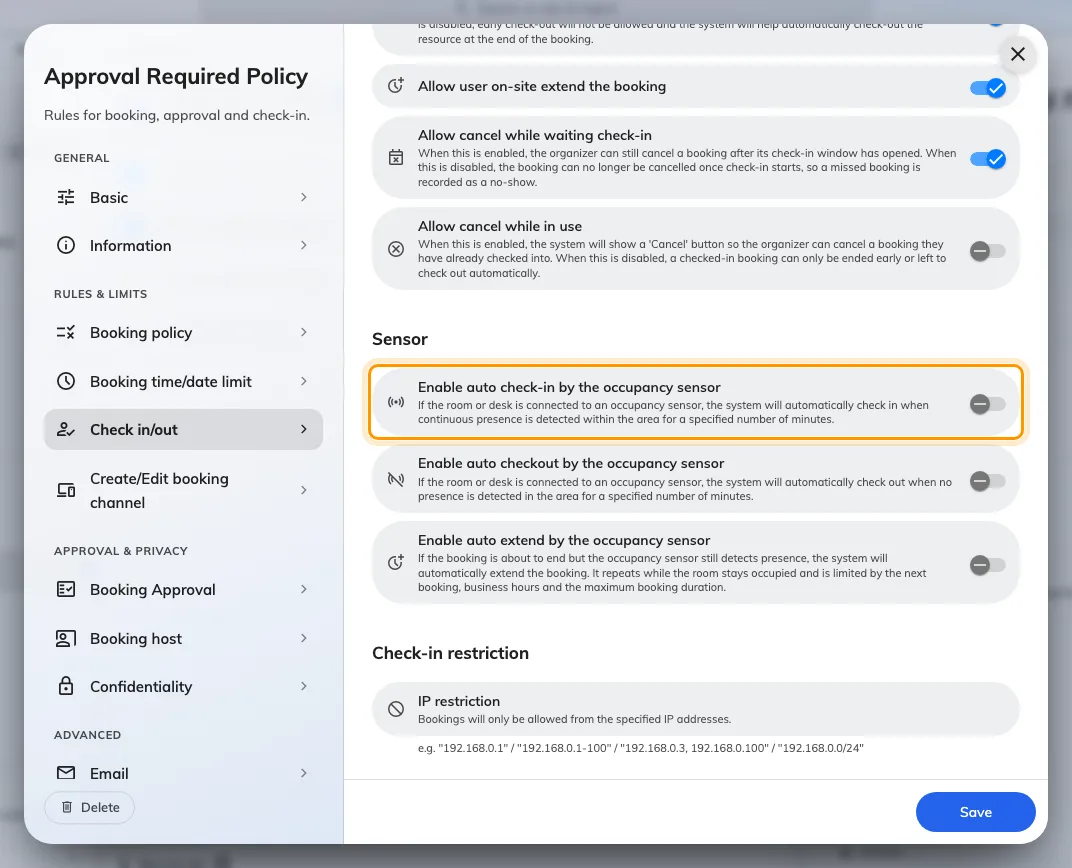
Enable auto check-in by the occupancy sensor: nobody presses anything.
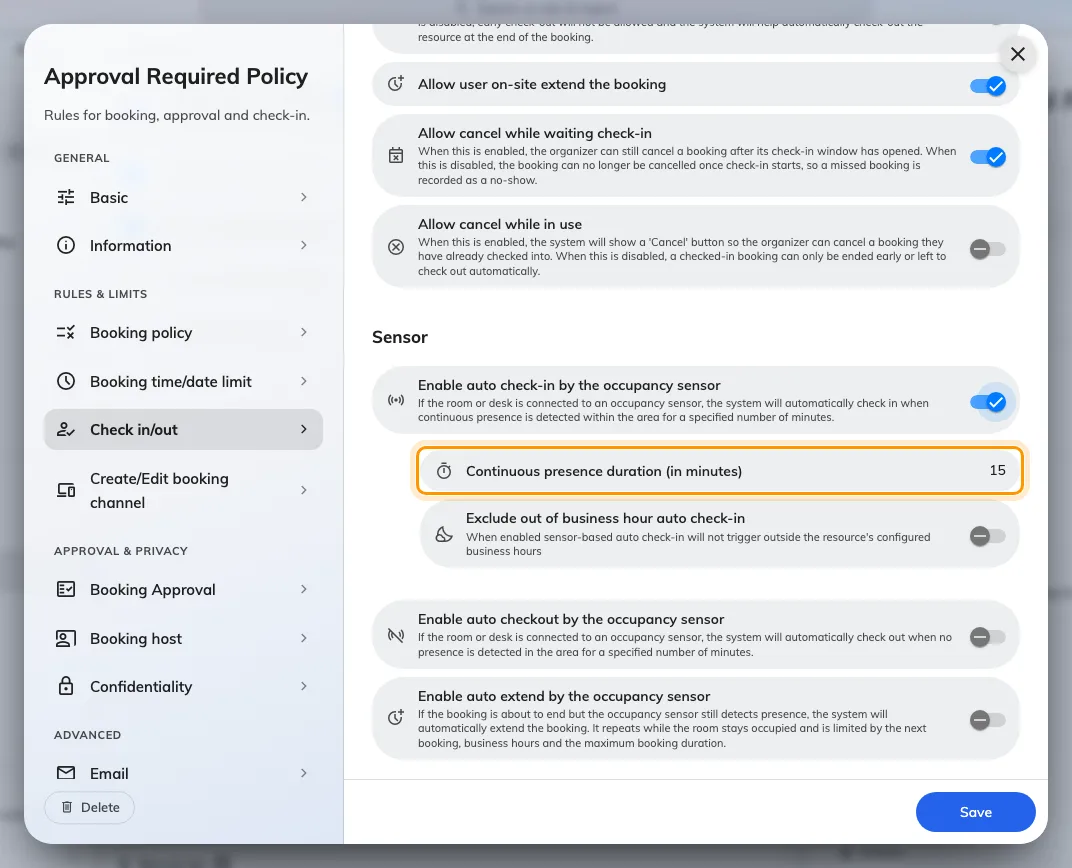
Continuous presence duration — how long somebody must be there before it counts.
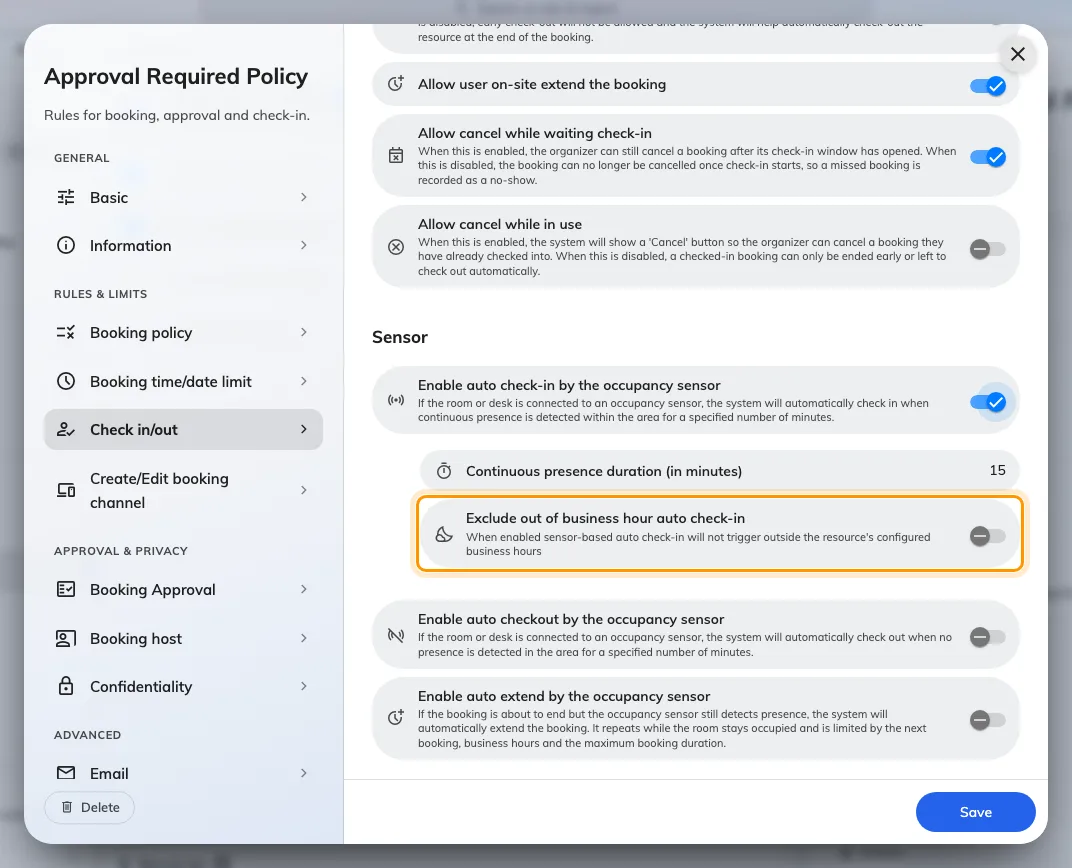
Exclude out of business hour auto check-in, for the cleaner who walks through at night.
3. Check out when the room empties
Enable auto checkout by the occupancy sensor releases the room once the sensor has reported nobody for long enough.
It only ever acts on a booking that is already checked in. A booking nobody arrived at is released by the check-in window instead, which is a different mechanism with a different timer — see How check-in and no-show work.
Continuous no presence duration (in minutes) is how long the quiet has to last, counted from the booking’s start or the last reading, whichever is later. Set it long enough to survive a coffee run.
Two settings stop it firing when it should not:
- Ignore occupancy sensor auto check-out for all-day bookings. An all-day booking begins at midnight in an empty room, so without this it releases itself before anybody arrives. Leave it on wherever all-day bookings are used.
- Exclude out of business hour auto check-out, the pair of the check-in equivalent.
A meeting can keep the room
Auto check-out is not silent about what it is going to do. The room’s panel carries a badge for the whole of an in-use booking: Auto check-out on while the sensor can still see somebody, and Auto-release in, counting down, once it cannot. Tapping it suspends the release for that booking only — there is no confirmation — and the badge changes to Auto check-out off. The policy is untouched and the next booking is governed as before. On the Meeting assistant the same choice arrives as a Still here? screen with one button, I’m still here.
That is the answer to the quiet room that is still in use — a workshop where everybody is at a whiteboard out of the sensor’s view, or a long call taken from one corner. The tap is sticky rather than a snooze, and the two panel designs differ over whether it can be undone, so the details are on Keep the room when the sensor says it is empty.
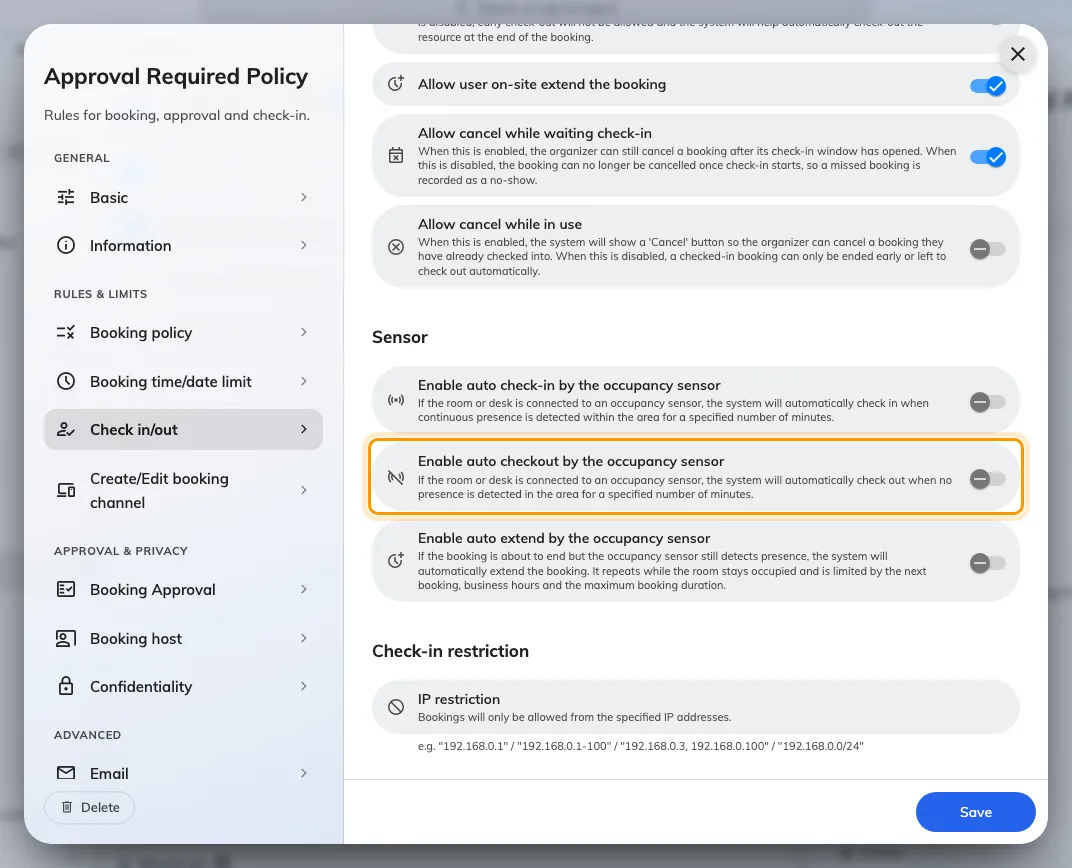
Enable auto checkout by the occupancy sensor, which acts only on a booking already checked in.
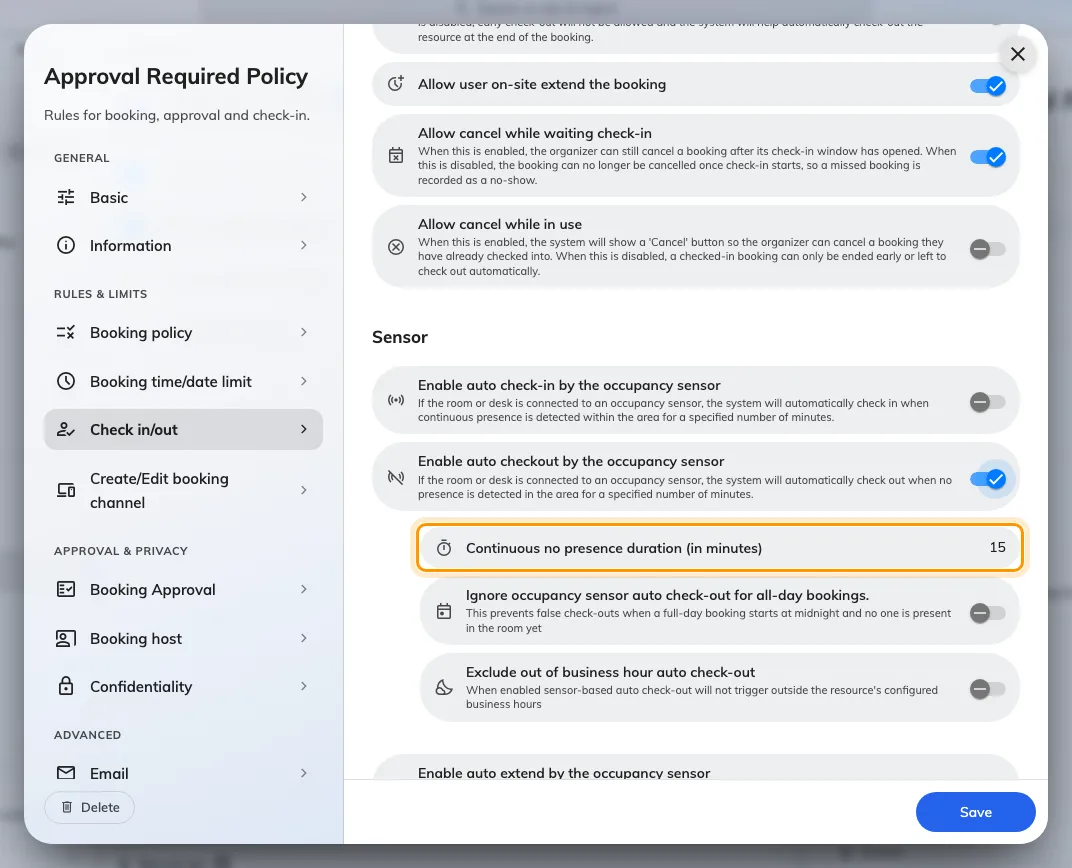
Continuous no presence duration. Too short and a coffee break ends the meeting.
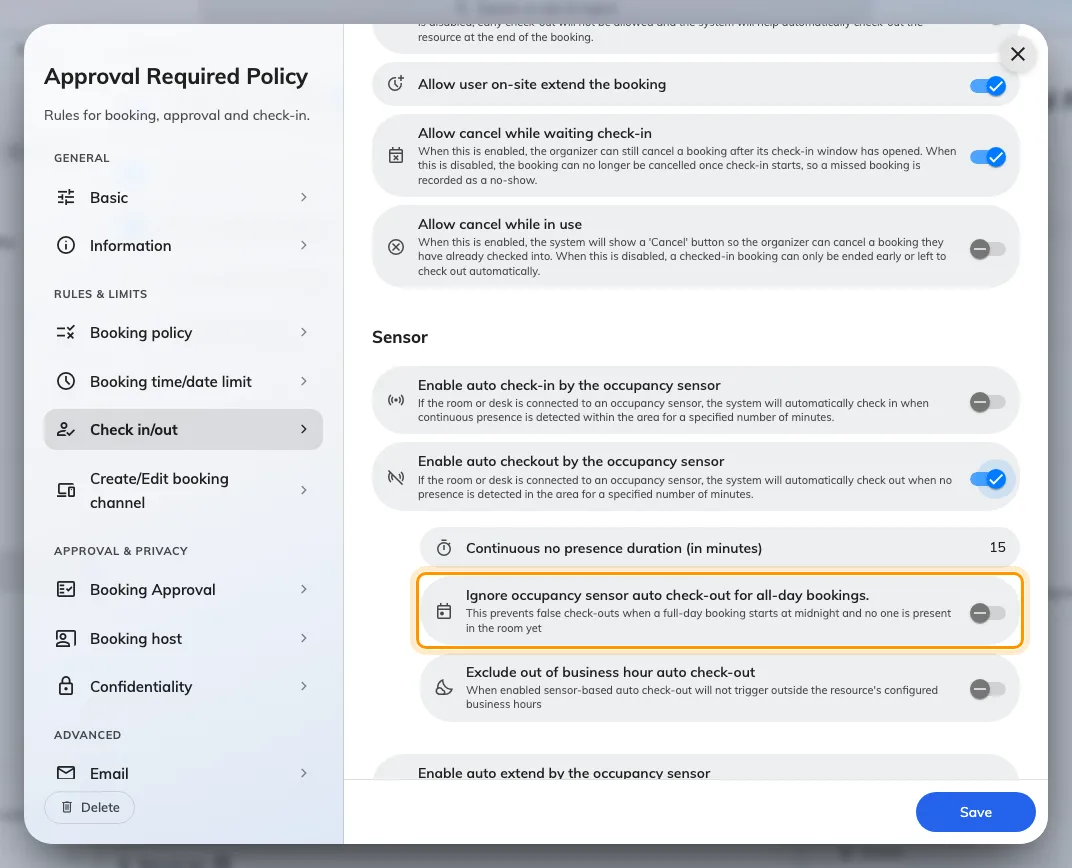
Ignore auto check-out for all-day bookings, so an empty desk is not released overnight.
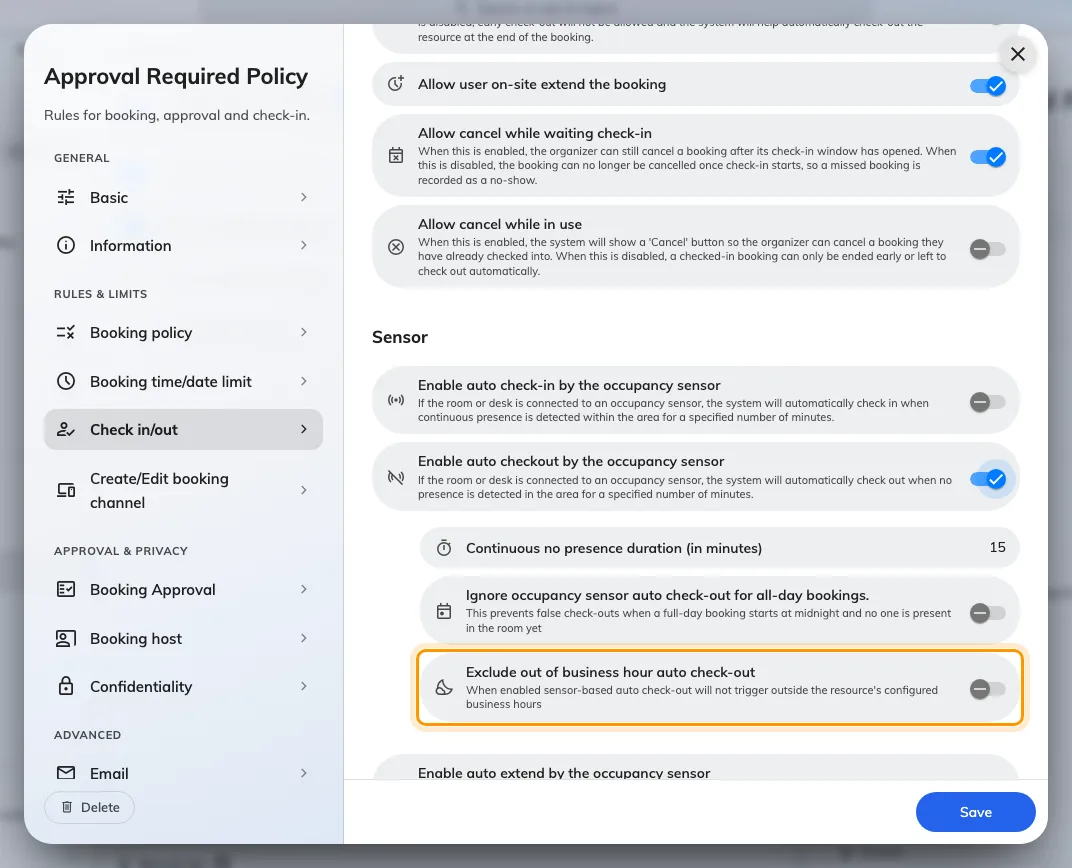
Exclude out of business hour auto check-out, the pair of the check-in setting above.
4. Extend while the meeting is still running
Enable auto extend by the occupancy sensor pushes the end of a booking back while the room is still occupied, rather than turning a meeting out mid-sentence.
Trigger when ending within (in minutes) is how close to the end the check happens. Extend by (in minutes) is how much each extension adds. It keeps extending while people stay, and stops at the next booking, the end of business hours, or the resource’s maximum booking duration. Small increments give an empty room back sooner.
This is not Allow user on-site extend the booking, on the Booking policy page. That one is the button a person presses.
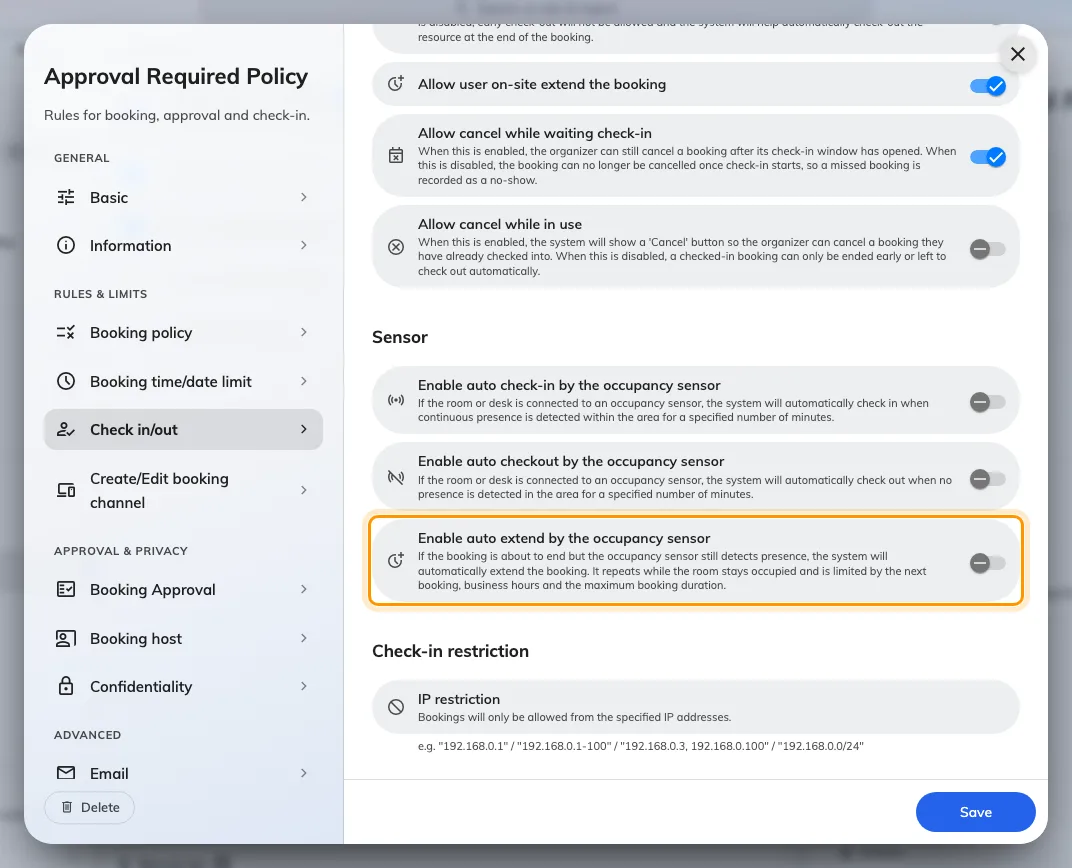
Enable auto extend by the occupancy sensor, for the meeting that runs over.
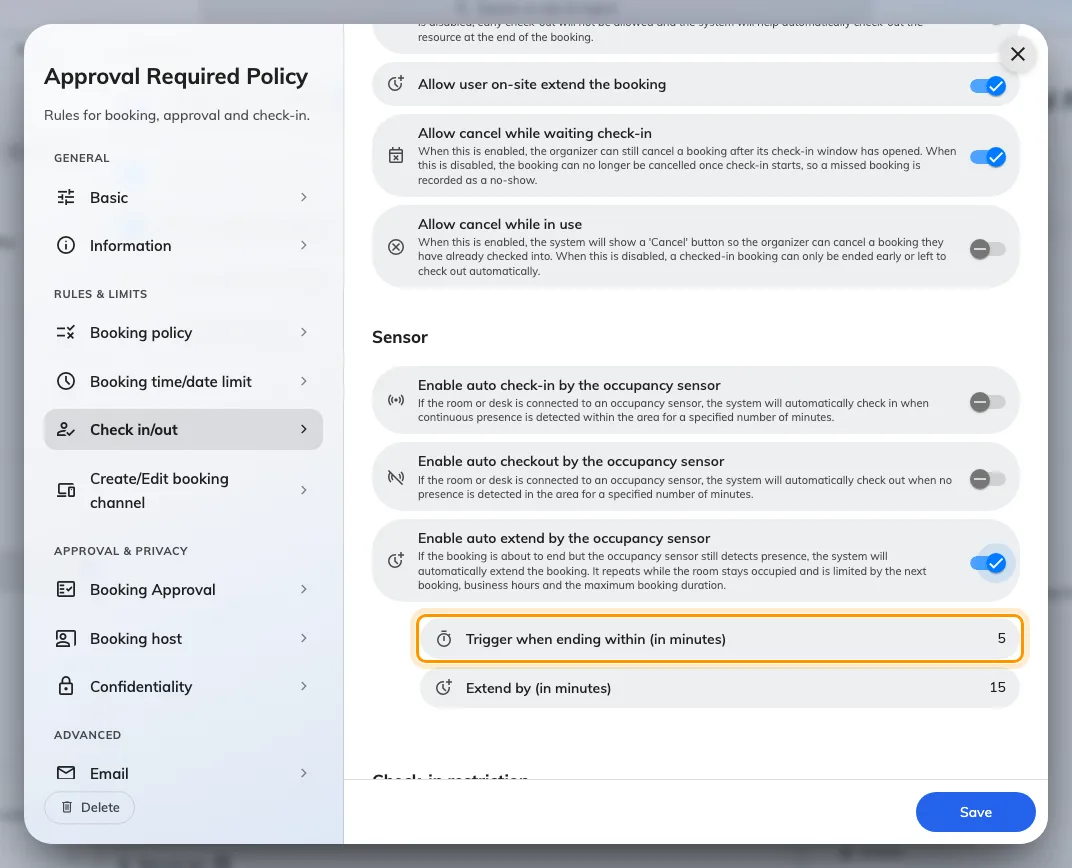
Trigger when ending within: how close to the end the room is checked.
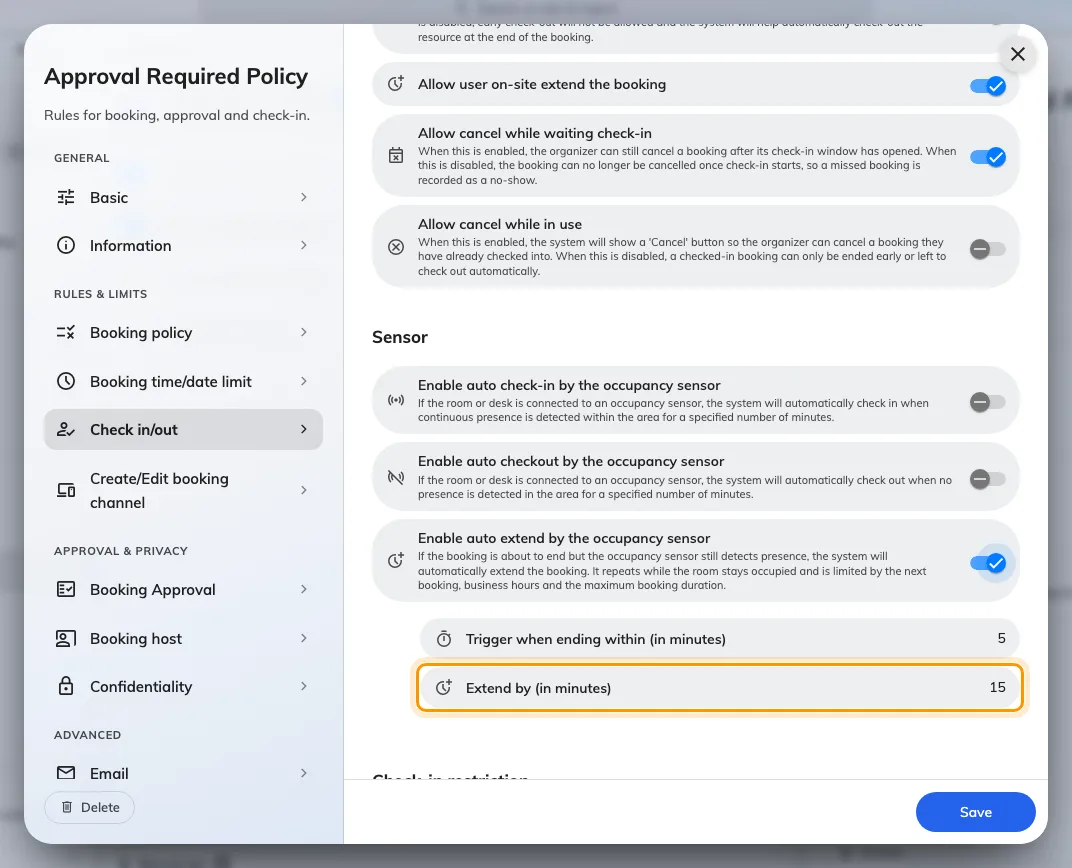
Extend by: small increments, so an empty room is given back quickly.
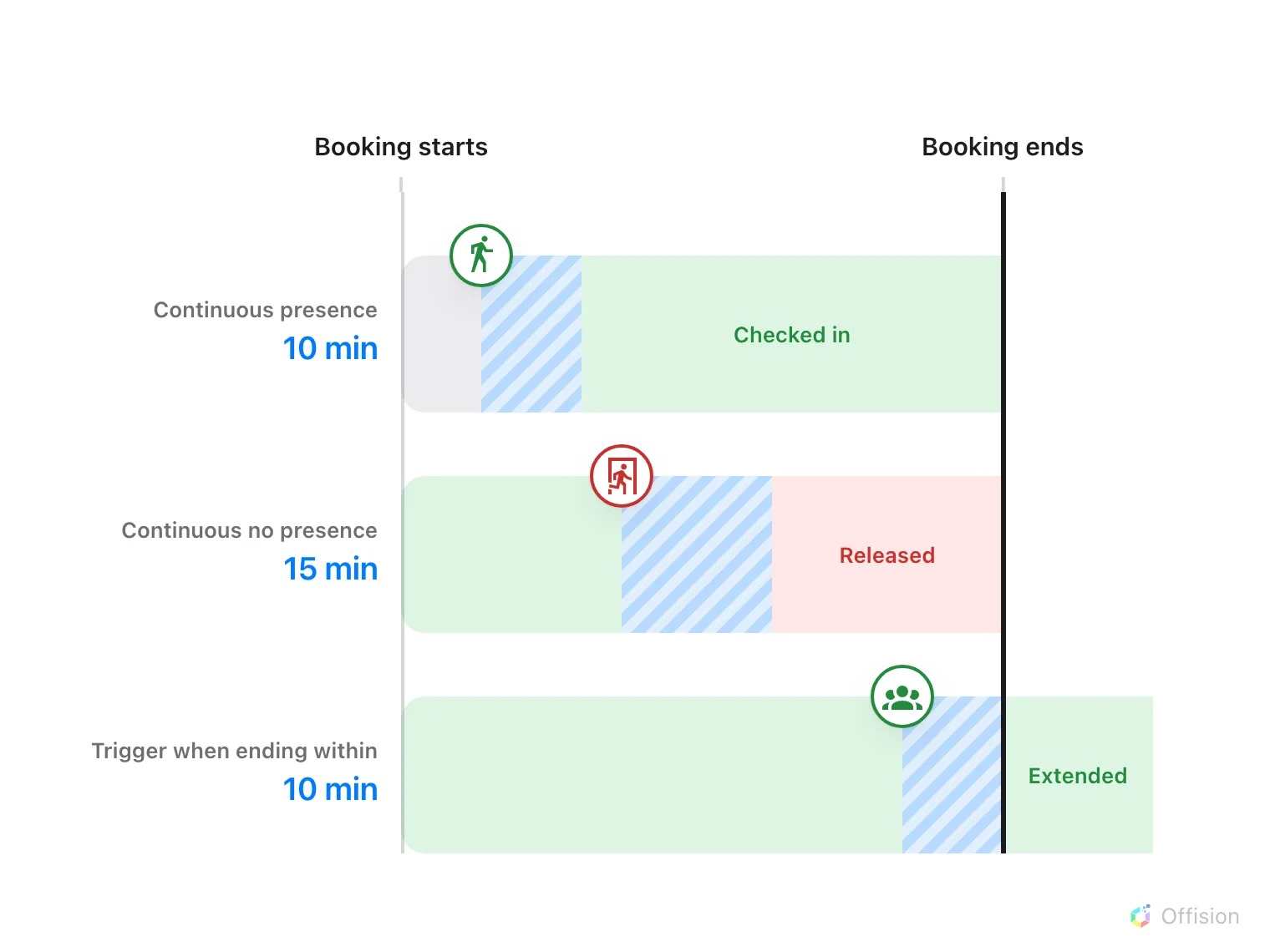
All three are the same quantity — a stretch the sensor has to keep reporting. Only where it is measured differs.
5. Check it worked
Book the room, sit in it, then leave. After the no-presence duration the booking releases itself, and its history records the release as Auto Check out — see Trace what happened to a booking.
What this does not control
- A booking nobody turned up to. That is the check-in window, in How check-in and no-show work.
- The buttons people press themselves, End now and extend — see Extend or end a meeting early.
- Which sensor watches which room. That is set on the sensor itself — see Which occupancy sensors work with booking.
- How many people are in the room. An occupancy sensor reports occupied or not, and nothing here needs more than that — a people counter is a different device.