

Show a room's description on the booking form
A room's own description can be printed under the resource picker as a quiet line or as a caution — set separately for the user app's form and the console's.
A room carries a Description — the projector needs the front HDMI cable, ask facilities before moving the tables. It is written once on the resource, and this decides whether the person booking that room ever reads it.
1. Open User booking form
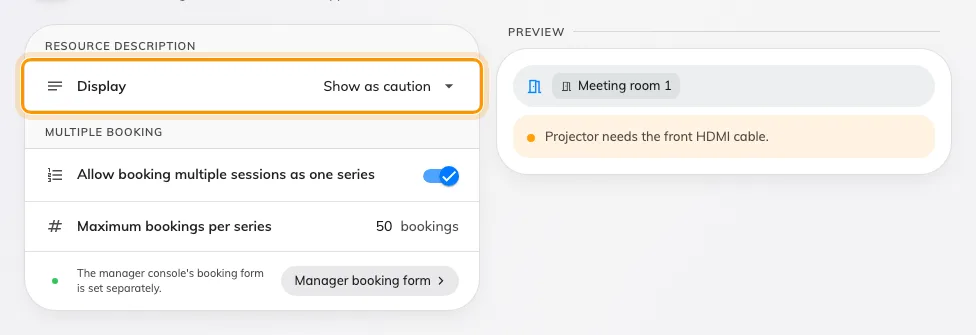
Display set to Show as caution, and the notice it draws on the form beside it.
It sits under UI customization, beside the other pages that decide how Offision looks. More detail setting in booking form, in the header, is the way over to which fields the form has — a different page and a different question.
2. Choose how much attention it gets
Under Resource description, the Display row is one of three:
| Value | What somebody booking sees |
|---|---|
| Hidden | Nothing under the resource. The description stays on the room, read by administrators only |
| Show description | Quiet line under the selection, once a room is chosen |
| Show as caution | Highlighted notice under the selection — the same words on an amber panel, with a dot beside them |
Show as caution is informational and nothing more: it never blocks Save and it never stops the booking. Use it for the thing people get wrong — the cable, the door code, the room that has to be left as it was found — and leave everything else on Show description, or the notice stops being read.
Pick several rooms at once and each contributes its own line, named, so nobody has to guess which caution belongs to which room.
3. Do the same for the console’s form
The two forms are set separately, and the page says so: The manager console’s booking form is set separately. The pill beside that line goes straight to Manager booking form, on Management calendar, which carries the same three values for the form an administrator books on.
Setting one and not the other is a reasonable choice — a caution written for staff booking their own meeting is not always the one an administrator needs — but it is a choice, not a default.
Open Management calendar4. Check it worked
Book the room you wrote the description on, in the app. The line should appear under the resource once the room is selected, and disappear when you swap to a room that has no description.