

Restrict bookings to fixed time slots
Turning on a fixed step replaces the free timeline with a list of slots: people pick 9:00 or 11:00 and nothing in between. The step is set per time range on the Booking hours schedule, and it switches suggestions off.
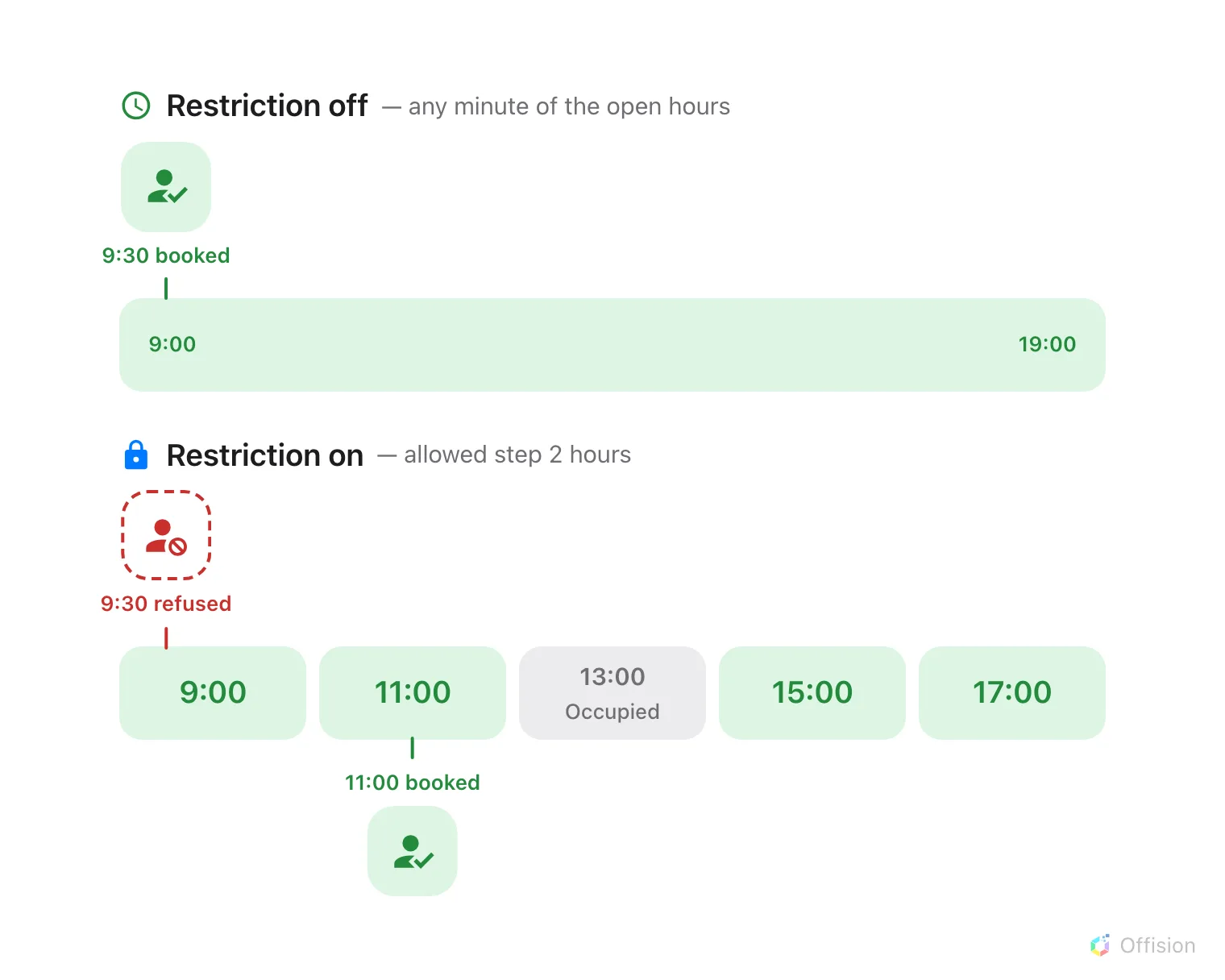
With a step set, a booking can only start where a slot starts — and a slot somebody already holds is closed.
1. Turn the restriction on
The step lives on the schedule, not on the booking policy — so a room follows the grid as soon as the schedule it carries has it turned on. Nothing else has to be paired with it.
Open Booking hoursSelect the schedule those rooms use and choose Edit. On its Settings page, above the week timetable, turn on Restrict booking start times to fixed steps.
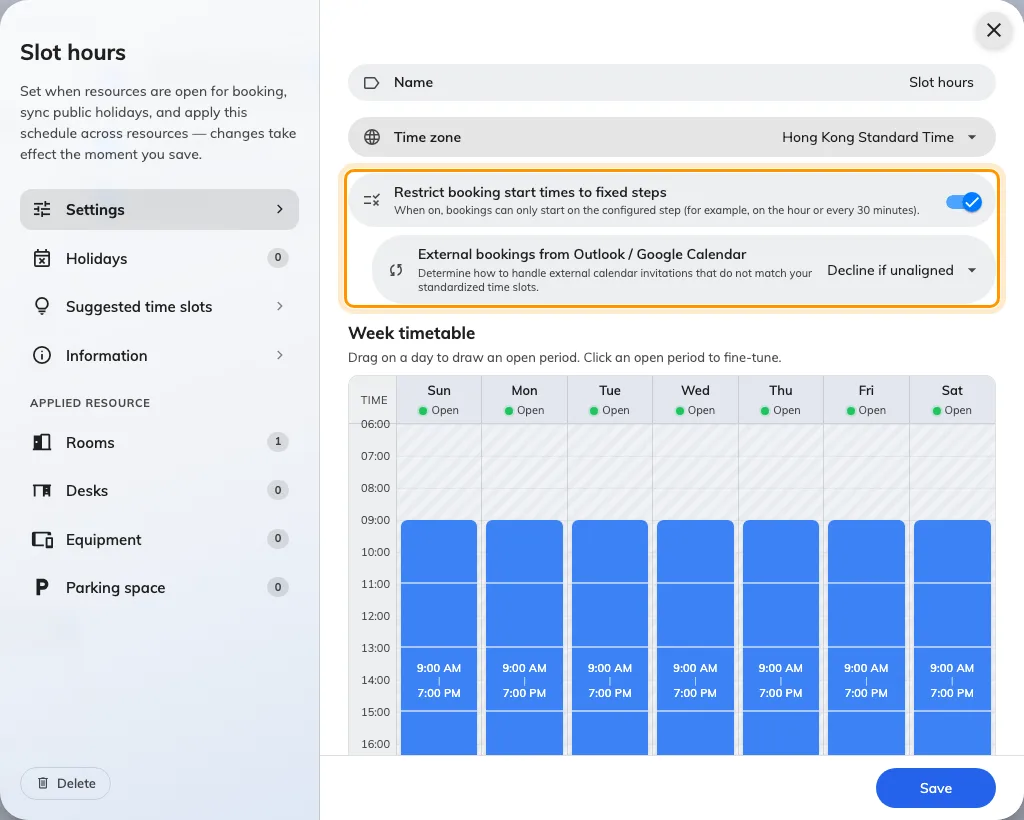
The Settings page of a schedule, with the restriction turned on.
Turning it on reveals a second choice, External bookings from Outlook / Google Calendar. Meetings that arrive from a synced calendar were made in somebody else’s client, where the grid does not exist, so Offision has to be told what to do with one that does not line up:
- Allow — sync it as it stands. The grid governs bookings made in Offision and lets the calendar keep its own.
- Decline if unaligned — refuse it. Use this where the grid exists because something downstream depends on it, such as a cleaning round between slots.
2. Set the step on each time range
The switch says bookings must start on a step; the Week timetable says what the step is. Click an open period on the timetable to open its editor, turn on Enforce fixed intervals, and set the Allowed step in minutes.
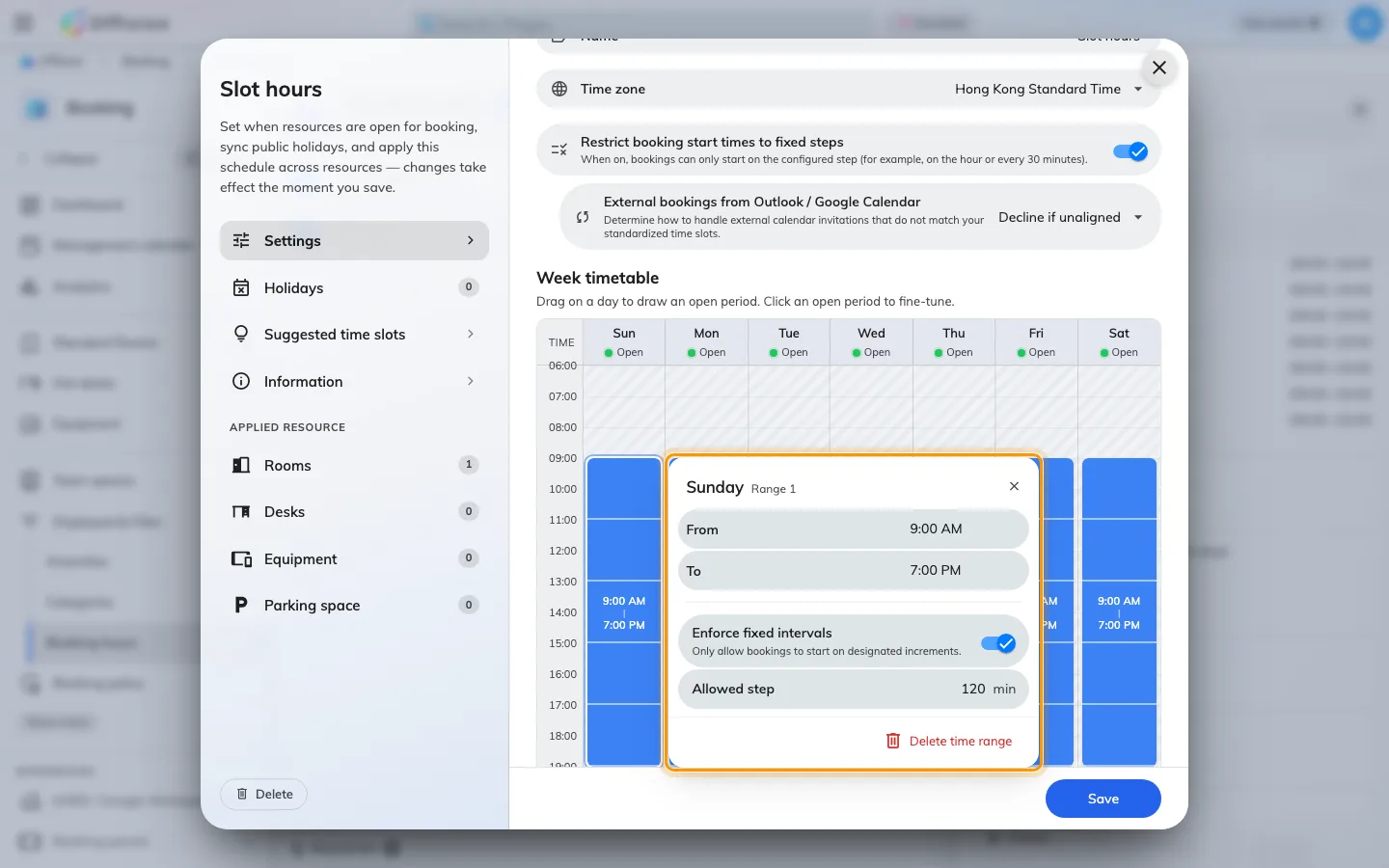
A time range's editor, with a two-hour step.
The step belongs to the range, not to the schedule, so each drawn period carries its own. A morning drawn 09:00–13:00 can step every two hours while an afternoon drawn 14:00–18:00 steps every 30 minutes, and a range left without a step stays free even while the rest of the week is on the grid.
Two things the step does not do:
- It fixes the start, not the length. Slots run from the start of the range, so a two-hour step on a range opening at 09:00 offers 9:00, 11:00, 13:00 and so on. A longer booking is made by taking several slots in a row, which is why the lengths on offer are always multiples of the step.
- It is checked per resource. A booking that holds two rooms has to satisfy the grid of each of them, so two rooms on different steps only share the times both allow.
3. Suggestions turn off
A schedule can offer Suggested time slots instead — the same idea, but advisory: “Predefined slots shown as hints when booking — they are never enforced.” The two are alternatives, and the restriction wins.
That holds for the company-wide grid as well. A restricted room does not fall back to it: its own enforced slots are what people get, and the company-wide suggestions reach only the rooms that are not restricted.
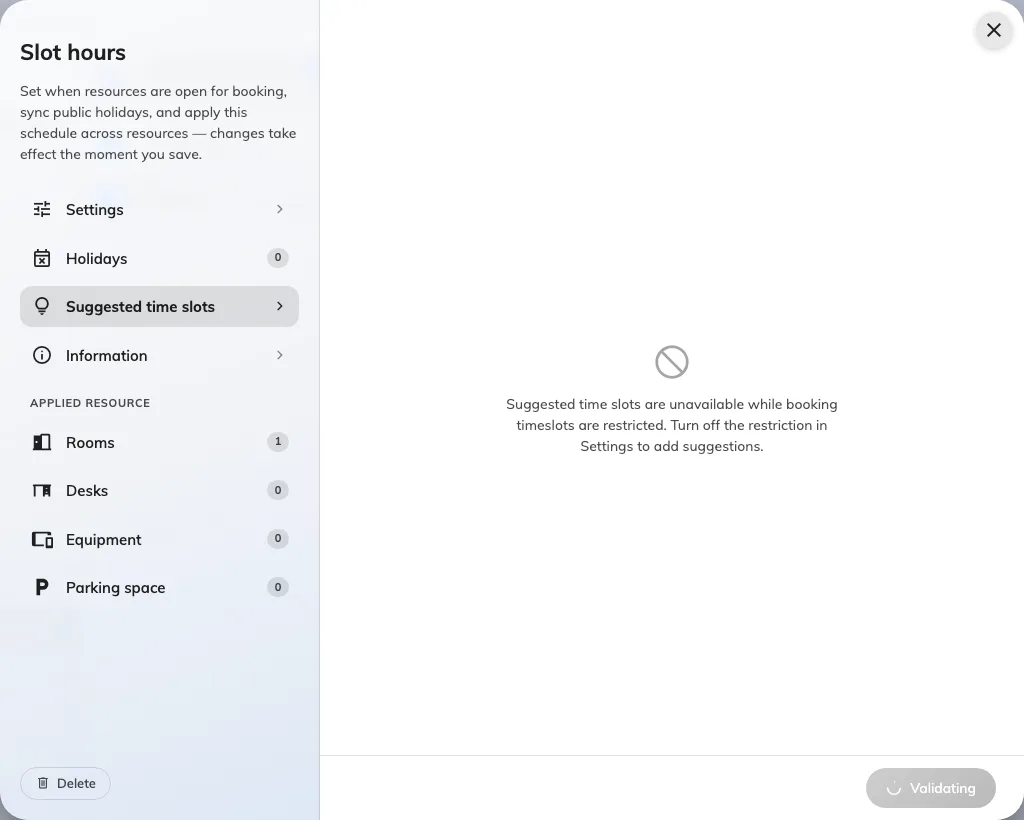
The Suggested time slots page while the restriction is on.
4. What people see when booking
Picking one of these rooms replaces the free timeline in the booking form with a list of the day’s slots. There is no way to type a time that is not on it.
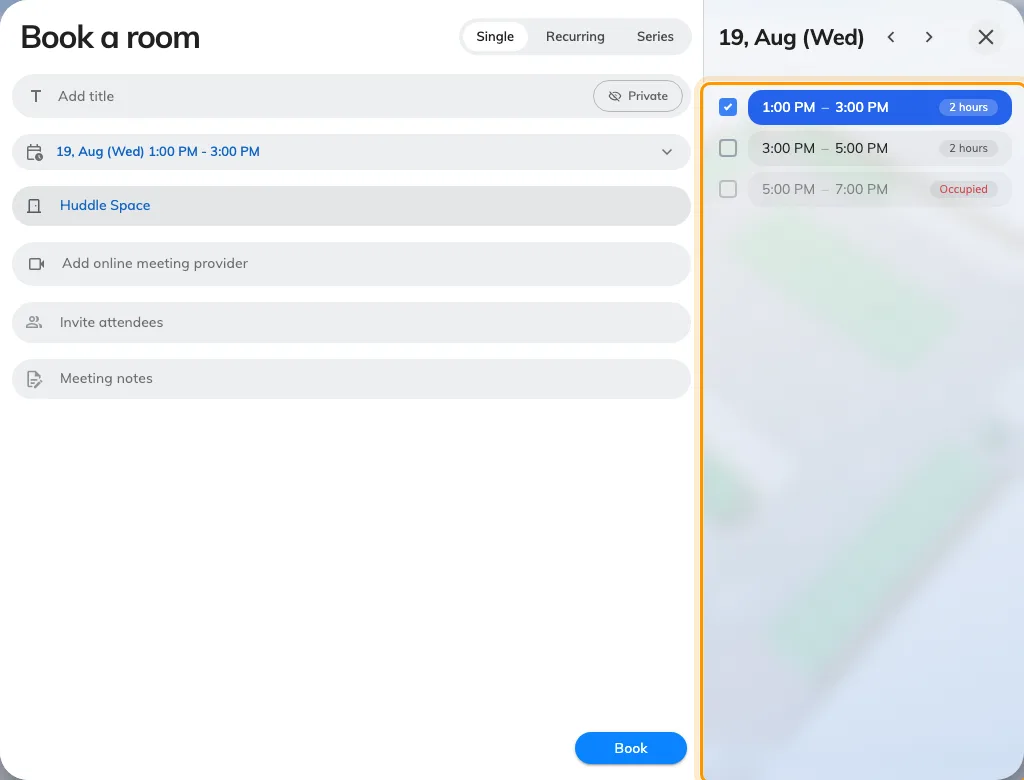
The booking form for a room on the grid: a slot list, not a timeline.
Each row is one slot, with its length beside it, and the date it belongs to sits above the list with arrows either side. A slot somebody already holds is greyed out and reads Occupied where its length would be; a day with nothing left says No available slots. Slots that have already passed drop off as the day goes on, so the first row is always something still bookable — which is why the morning is missing from the shot above.
A longer booking is made by dragging down the list: the rows you cross are taken together, and the form’s period grows to cover all of them.
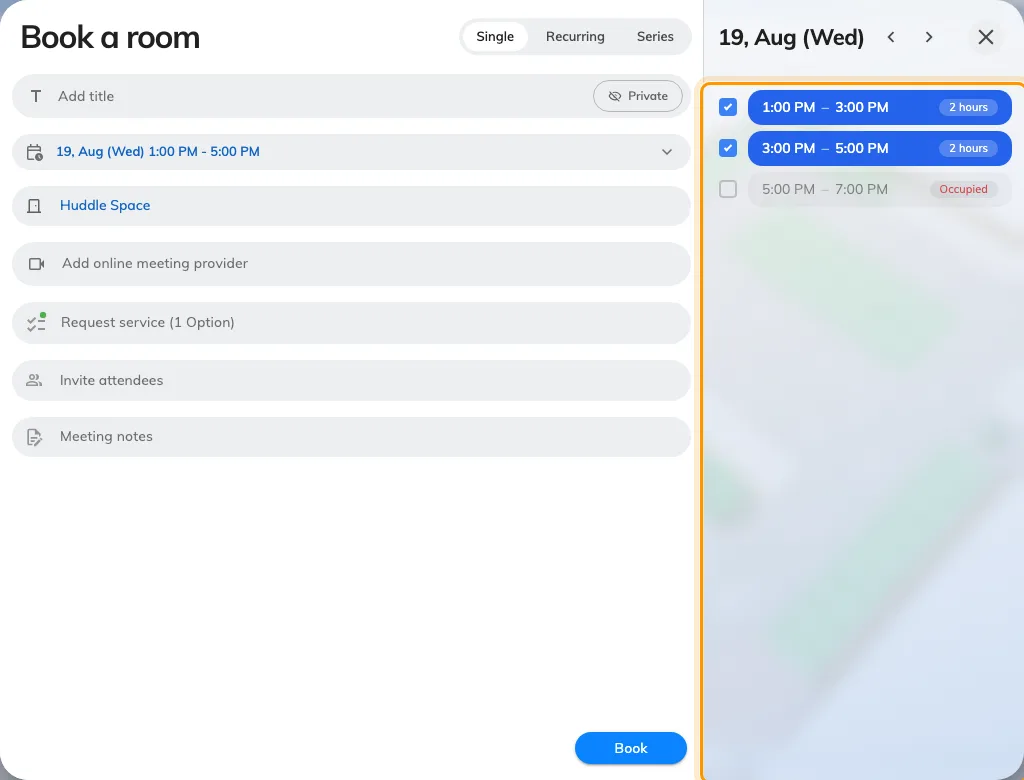
Two slots taken together, for a booking twice the step.
A time that came from somewhere else — a synced calendar, an older booking being edited — is refused rather than rounded, with the room named and its step spelled out in minutes: “Huddle Space only allows booking start times every 120 minutes.”
5. On the calendars
Both calendars draw the grid behind the bookings, as faint bands, so a room on a step is recognisable before anyone opens a form. Selecting time by dragging snaps to the bands.
Open Management calendar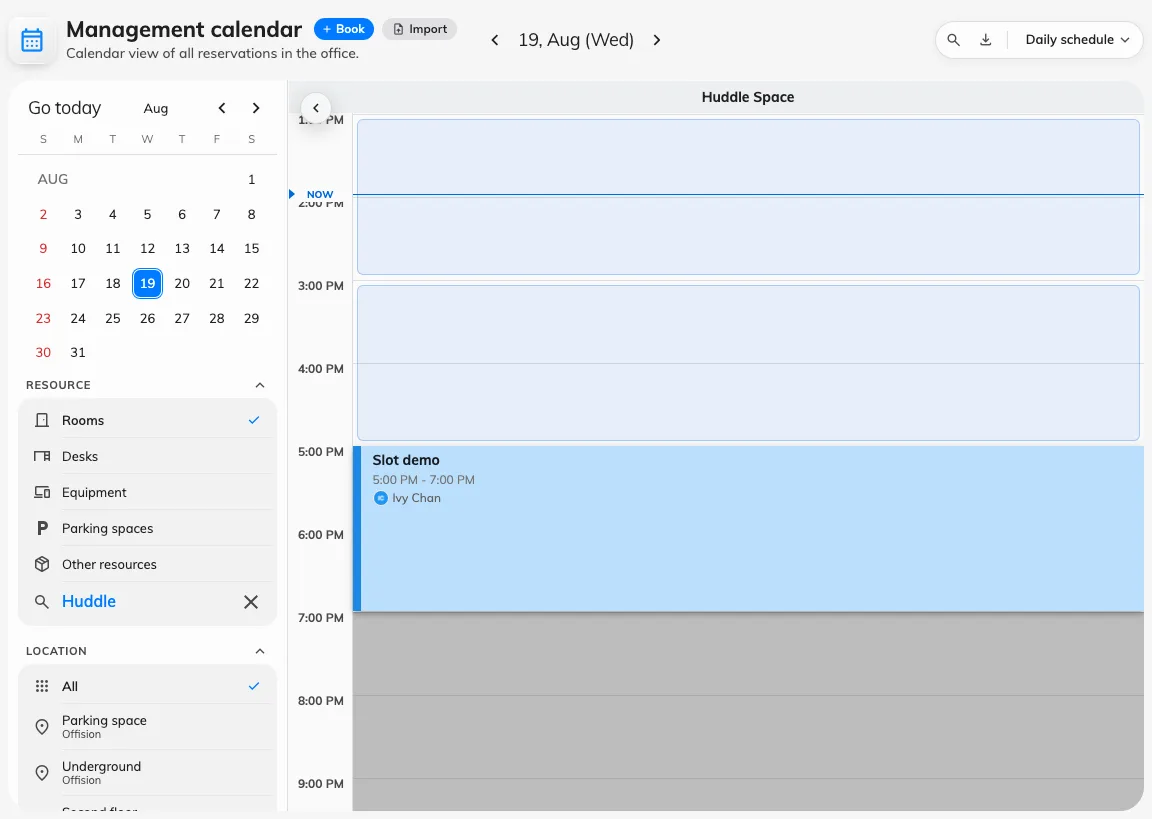
The management calendar, with the slot bands behind the day.
The Resource calendar in the user app draws the same bands.
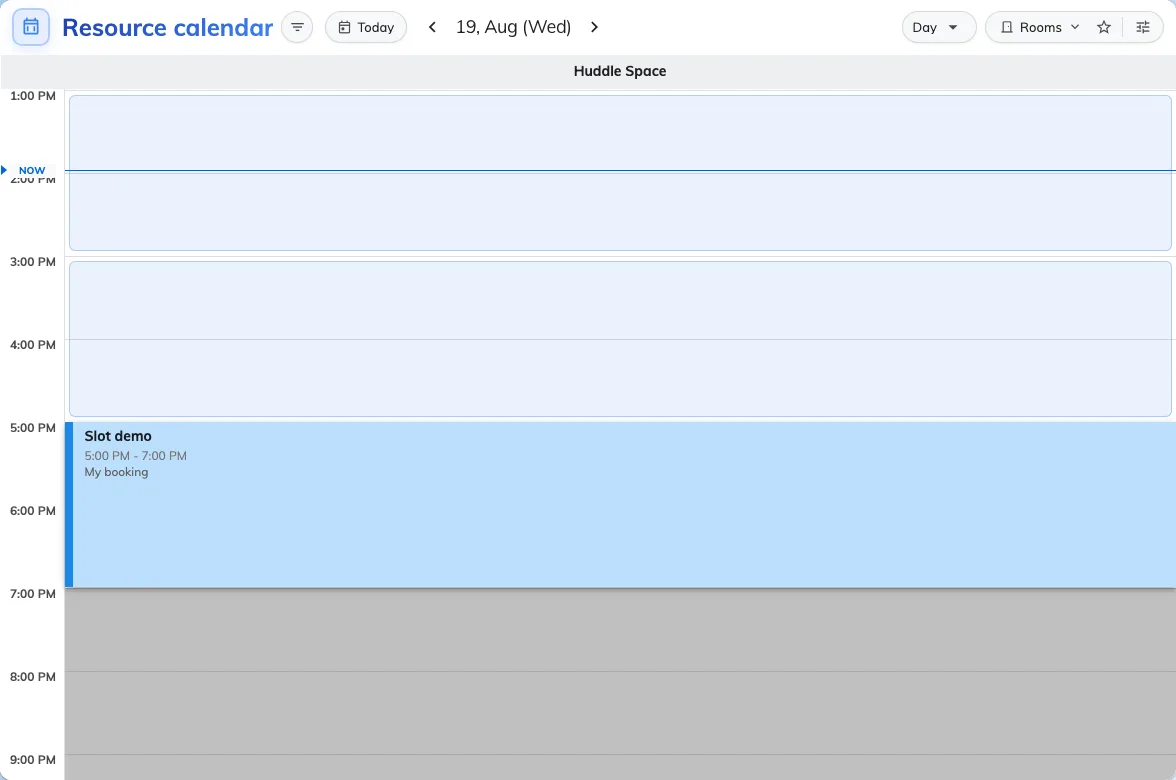
The Resource calendar in the user app, on the same room.
Two details to expect there:
- The bands need a time axis. The list view, the month view and the week and month schedule views have none to draw them against, so they leave the bands out rather than draw them wrong.
- A band under an existing booking is not drawn. The booking already covers that time, so a second grey block behind it would only be visual noise — which is why an occupied slot looks empty of bands rather than greyed.
Hours the schedule closes stay grey on both calendars, as they always were. Show full day widens the axis past the open hours; the slots do not follow, because there are none outside them.
6. Check it worked
Sign in as an ordinary user, open the booking form and pick one of these rooms. The picker should be a list of slots rather than a timeline, and the times on it should be the step apart. If a timeline appears instead, the room is not on that schedule — check the room’s Business hour field — or the schedule carries the switch but no range on it has an Allowed step.