

How somebody proves who they are at the panel
Five credentials the panel can ask for, plus the option of asking for nothing. What each one needs in place first, and why two panels in the same building can ask for different things.
Before a panel books a room, checks somebody in, or lets them out early, it wants to know who is standing there. Five credentials can answer that, and a sixth option says not to ask.
When more than one is available, the panel offers Choose authentication method first. With exactly one it goes straight into it, and with none it refuses the action outright.
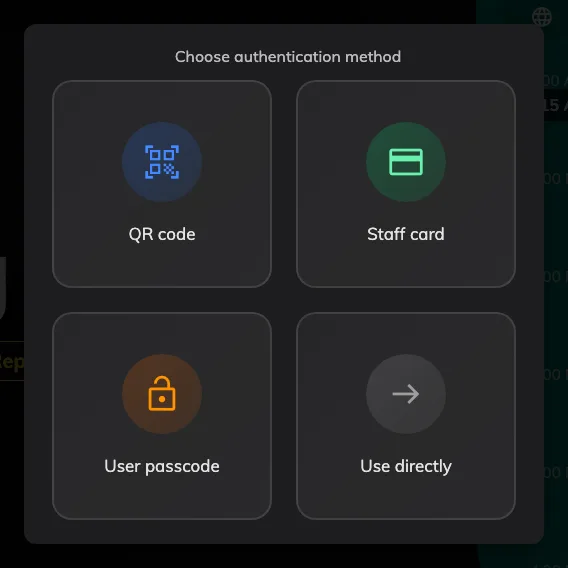
Four methods on this panel, including the one that asks for nothing.
The five credentials
| Method | What the person does | What has to exist first |
|---|---|---|
| Face identification (BETA) | Looks at the panel | A camera on the panel hardware, and up to three photos uploaded in advance by each person |
| QR code | Scans the code on the panel with the Offision app | The app, signed in. The code rotates and expires on a visible countdown, with Generate new QR code underneath it |
| Staff card | Holds their card near the reader | A card reader on the panel, and a card number stored against them in Access cards — see Check in by tapping a staff card |
| User passcode | Picks their name, then types a 4–8 digit passcode | The passcode, which each person sets themselves in the user app — or which an administrator sets for someone who has forgotten theirs |
| Booking pin | Types the pin from the booking | An existing booking to act on — which is why it never appears on a walk-in. The person reads the pin off their booking mail or the booking itself in the app |
The QR code is the one people get backwards. The panel shows the code and the person scans it with their phone; the panel is not reading a code off their screen. Whether it renders Black & white or Colorful is a setting beside the method itself.
User passcode always takes two steps, because the passcode alone does not say whose it is. Where the action has a booking attached the panel already knows the candidates; on a walk-in it has to search everybody.
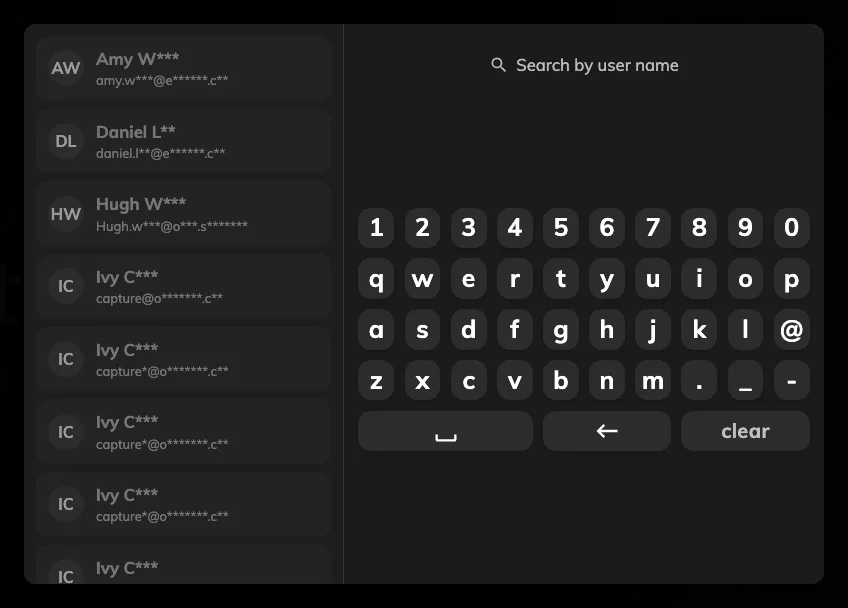
Name first, passcode second — shown here with Mask part of user name from search list on.
Asking for nothing: Allow anonymous
Allow anonymous adds a Use directly tile. Taking it creates the booking with no organiser at all — the room is held, and nothing records who took it. It only ever appears on booking-type actions, and it lives only on a panel configuration; there is no organisation-wide equivalent, which is deliberate.
Left as the only method on a panel, it removes the question entirely — see Let people book at the panel without signing in, which sets one up end to end.
Where the methods are set
Two screens, and the second overrides the first.
Check-in method sets the default for the whole organisation — QR code, Staff card, User passcode, Booking pin and Face identification, with Enable at least one of the following check-in methods on the device. Any panel with no override of its own follows it. See Checking in at the booking panel, which shows that screen.
Open Check-in methodOverride the system user identification settings, on a panel configuration’s Check-in method page, is what lets panels differ — “By overriding the system settings, each device can be configured with a different identification method.” A panel in a secure area can insist on a staff card while the one in the open-plan corner accepts a passcode.
Open Panel configurations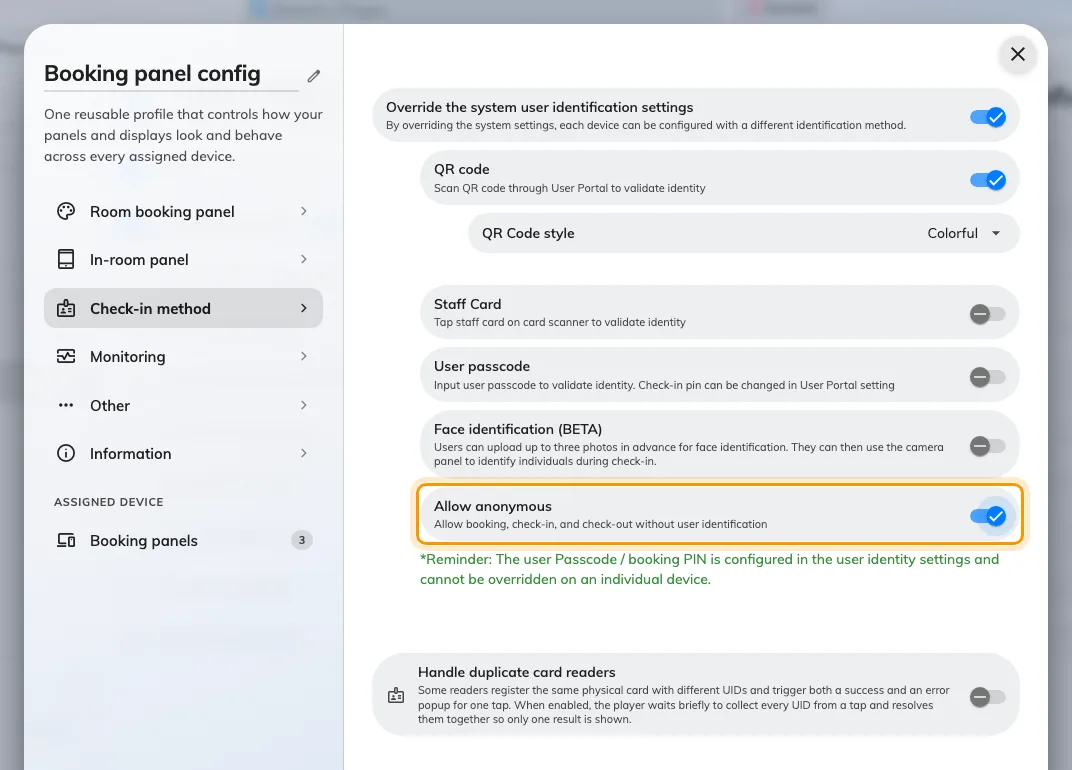
The override, with Allow anonymous underneath the methods it applies to.
Two things do not follow the override:
- Booking pin is not on the per-configuration list at all. A panel takes it from the organisation-wide screen whatever its configuration says — see Let outside attendees check in with a booking pin.
- Face identification still needs a camera. Turning it on for a panel that has none simply leaves the tile off that panel.
What this does not control
- Whether the person is allowed to do the thing. Identifying successfully and being permitted to book, check in or extend are separate questions — the second is the resource’s policy and their permissions.
- The passcode itself. Each person sets and changes it in the user app. An administrator can give somebody a new one but can never read the current one — see Let people identify with a passcode at the panel.
- Opening the door. Where a panel drives a lock, unlocking rides along with the action; a panel with no access hardware still identifies people perfectly well.
- Which buttons the panel offers. That is the configuration’s Room booking panel page — see Let somebody take a free room at the panel.