

Rename, edit or delete a room
Change a room after it exists — its name, capacity, photo, category or floor — and know what each change ripples to. Then the three ways to stop a room being booked without deleting it, what deleting actually does to its bookings, and how to get a deleted room back from the recycle bin.
A room rarely stays as it was created. It gets a proper name, loses two chairs, moves a floor, and one day is knocked through into the room next door. Every one of those is a change to the same record, and most of them are safe — the one that is not safe is Delete, and it is less final than it looks.
1. Open the room and rename it
Click the room’s row. A detail panel opens on the right, with Edit, Copy and Change across its top and Delete at its foot. Click Edit: the editor opens on its Basic page, and Name is the first field — one value per enabled language, with a language switcher beside it. Change it and Save.
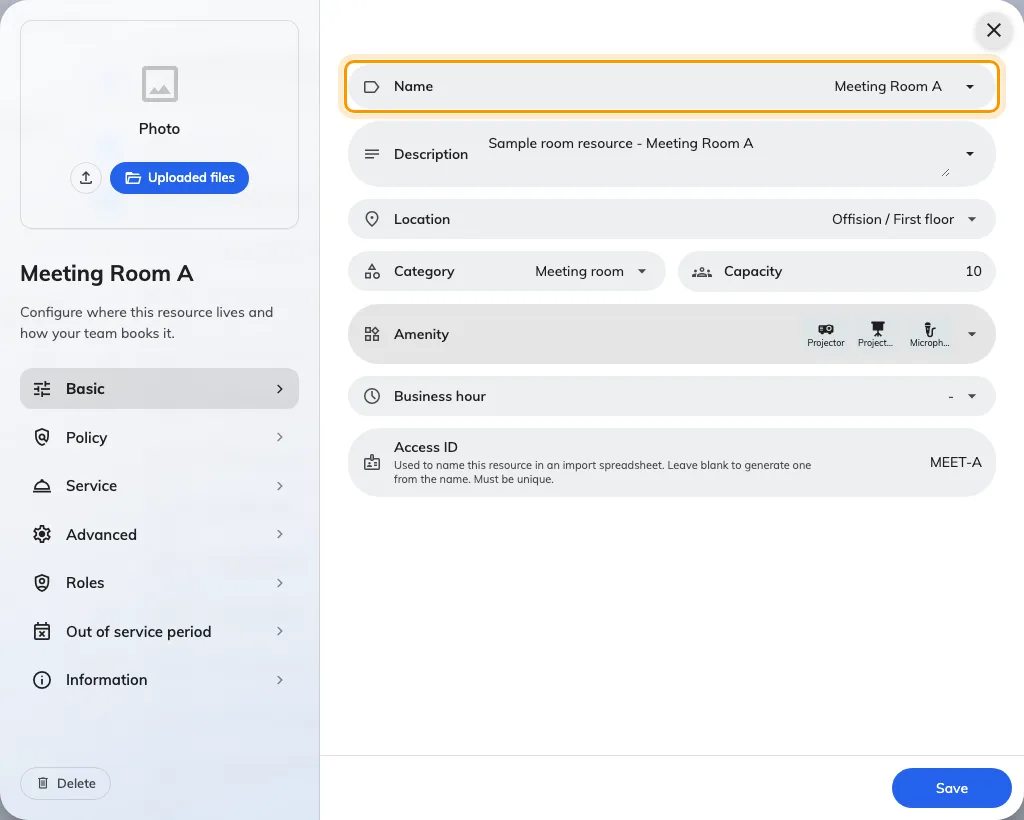
Basic, with Name — one value per enabled language.
What a rename reaches, and what it does not:
- Panels, boards and calendars pick the new name up within a second or two. Nothing has to be restarted.
- Existing bookings are untouched. A booking points at the room, not at its name, so every past and future booking simply shows the new one. Emails and calendar invitations already sent keep the old text.
- A room synced from Microsoft 365 or Google Workspace keeps the name you give it here. The nightly sync brings in new rooms and removes vanished ones; it does not write the mailbox’s name back over yours. The reverse is also true — renaming the mailbox in Exchange changes nothing in Offision.
- A spreadsheet import does overwrite the name. The row is matched by its ID column, so re-importing an old sheet puts old names back.
Nothing stops two rooms sharing a name. If the list has two Boardroom rows, that is two rooms, not a display fault.
2. Change the capacity, photo or category
Capacity on Basic now supports a single maximum or a minimum–maximum range. Choose Range, enter Min and the maximum, or remove the range to keep one number. A minimum above the maximum cannot be saved.
Size is the optional room area with m² or ft²; it does not change the number of people the room seats. Lowering the maximum can affect capacity searches and attendee warnings. Setting a minimum can remove the room from headcount-based suggestions for smaller meetings, without forbidding a manually selected booking.
Category is on Basic too, and its options are the room categories only — the list is filtered by resource type. Photo is not on a page: it sits in the left rail above the page list, and accepts an image in 4:3.
Save once. One save covers every page of the editor.
3. Move it to another floor
Use Location in the detail panel or on Basic to choose the new building and floor. On Classic, choose the room’s area or point on the new plan; moving floors clears its old point. On Map 2.0, select a compatible object on the new floor, or assign the room in the designer. Check the map binding after the move rather than assuming its old shape moved with it. The room’s bookings, policy and panel stay attached to the same resource.
What does unbind a panel is Change → Change type. Turning a room into a desk, a piece of equipment or an other resource releases every panel and e-paper tag bound to it, and clears its category, because categories belong to a type. It is refused while the room is part of a combine room — Cannot change since it is linked with a combined resource.
4. Stop bookings without deleting
Three switches take a room out of circulation and leave everything else in place. Reach for one of these before Delete.
| To | Use | Where |
|---|---|---|
| Keep the room but let nobody book it, indefinitely | Booking settings off | Editor → Policy. The rest of the page, and all of Service, is replaced by This resource will not be available for booking |
| Close it for a fixed period, with or without blocking | Out of service period | Editor → Out of service period — see Take a room out of service |
| Keep it bookable in Offision only, with the room mailbox no longer feeding it | Stop connection with external calendar | Detail panel → the calendar row’s menu (synced rooms only). Confirms with Bookings will no longer synchronize from the external calendar |
| Pull the room’s bookings from its mailbox again, after a sync problem | Resync upcoming bookings, or Resync past 7 days bookings | Detail panel → the calendar row (synced rooms only) — see Bookings stopped syncing |
Booking settings is also the first thing to check when a room has stopped appearing in the user app. On a list with several rooms selected, the same switch is Enable for booking on the batch toolbar.
5. Delete it
Delete is at the foot of the detail panel, on the batch toolbar when several rows are selected, and in the editor’s left rail. Each asks Are you sure you want to delete this item? and lists what is about to go; Delete confirms.
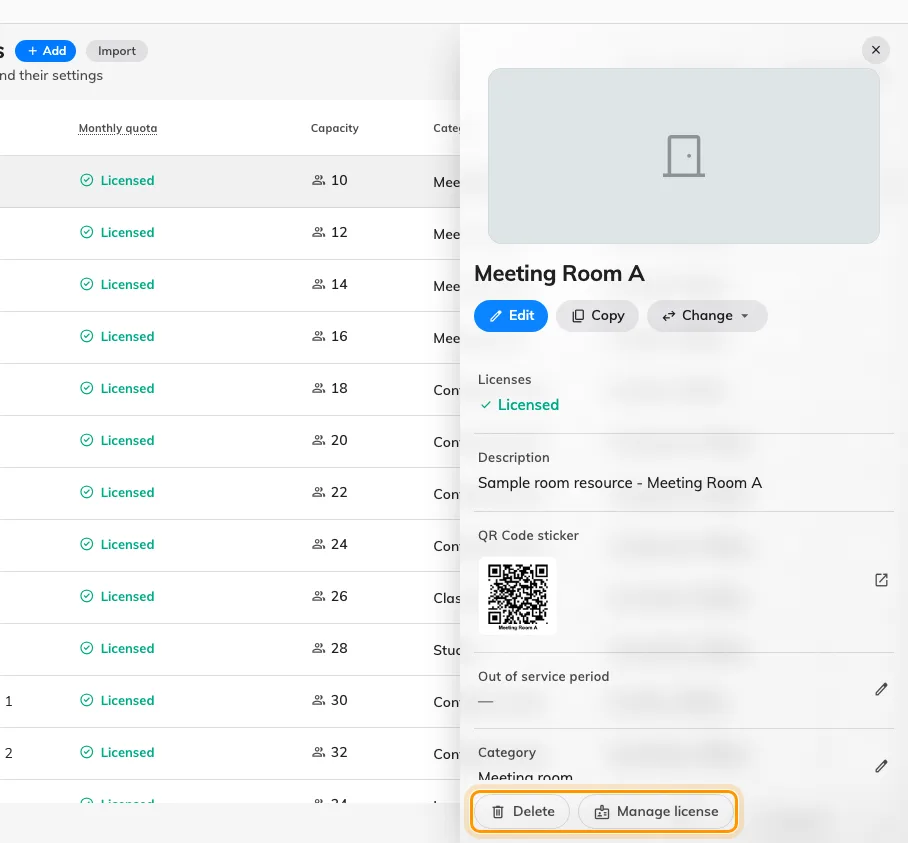
Delete is at the foot of the detail panel.
What happens:
- Bookings are not cancelled and nobody is emailed. The room’s past and future bookings are kept exactly as they are — but the room itself no longer appears in the resource lists or on the management calendar, so those bookings are not visible anywhere until the room is restored. Cancel or move the future ones first if the room is genuinely gone.
- Its point on the floor plan is cleared, and its licence goes back to the spare pool.
- A synced room’s calendar connection is stopped.
It can be undone. The list header has a Recycle bin pill, with a count. Open it and the header reads Deleted items — Restore items to bring them back to the active list. Each row is read-only and shows Delete by and the deletion date; Restore puts it back, confirming with Confirm to restore following item(s)?. A restored room reclaims its licence, and its bookings are visible again as if nothing had happened.
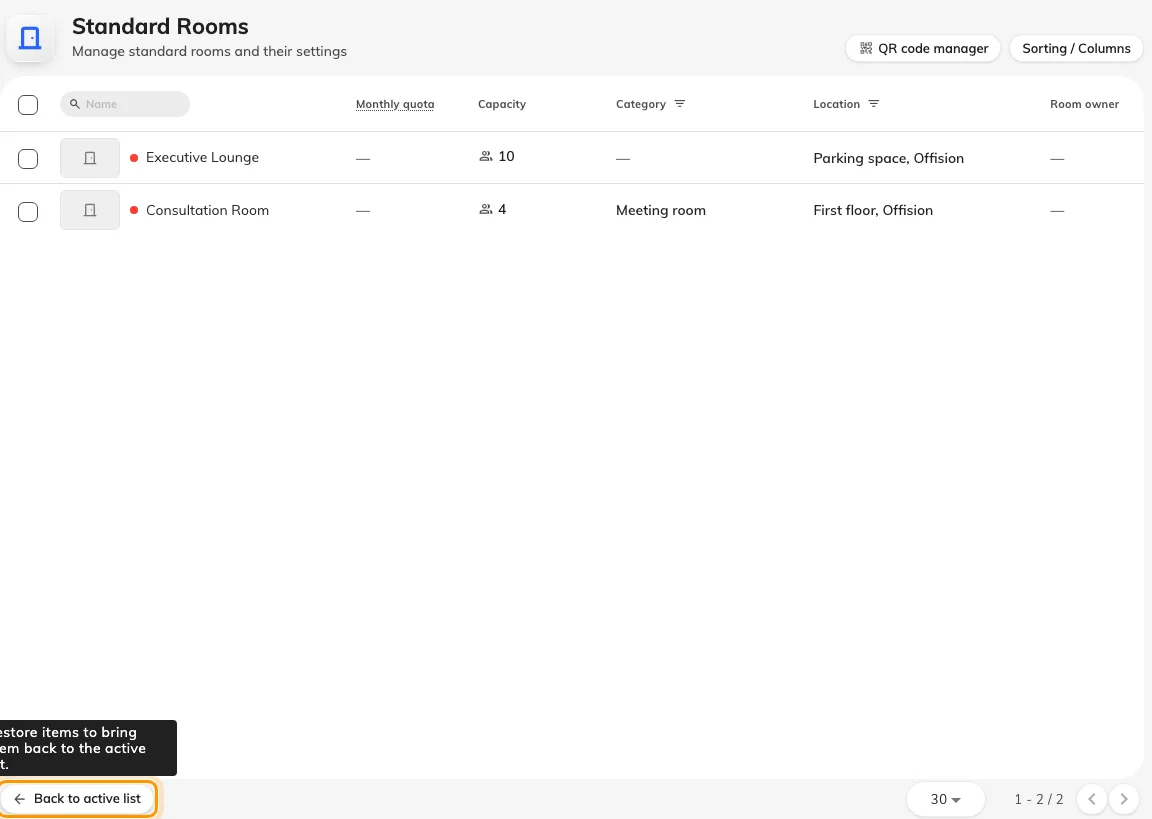
The Recycle bin toggle on the list footer, and the deleted items it opens.
6. Check it worked
For a rename or a move, open the room in the user app: the new name and floor are what a colleague searches by, and the admin list would show them either way. For anything meant to stop bookings, try to book the room from the user app — the admin console shows every room whatever its state, so it is the wrong place to check. A deleted room should be missing from the app and present under Recycle bin.