

Remind people before and after their booking
Six reminders the organiser can be sent about their own booking — the two that stop people forgetting to check in are already on, and what decides whether they ever arrive is whether the resource requires check-in. Turning one off stops the email and not the notification on their phone.
If people keep forgetting to check in, the two reminders that fix it are already on. Waiting for check-in reminder writes to the organiser the moment the resource becomes available to check into, and No-show email reminder writes again if it is released because nobody did. Neither has to be switched on.
What decides whether they ever arrive is something else entirely: the resource has to require check-in. Without that requirement there is no check-in window, so there is nothing to be waiting for and nothing to release — and both reminders stay silent no matter how they are set. That requirement lives on the booking rules, not here: how check-in and no-show work.
1. Open the reminder settings
These are set once for the whole account. There is no per-room and no per-policy version of them.
Setting / Email reminder is the second of the three groups on that page, between the general settings above it and the suggested time slots below.
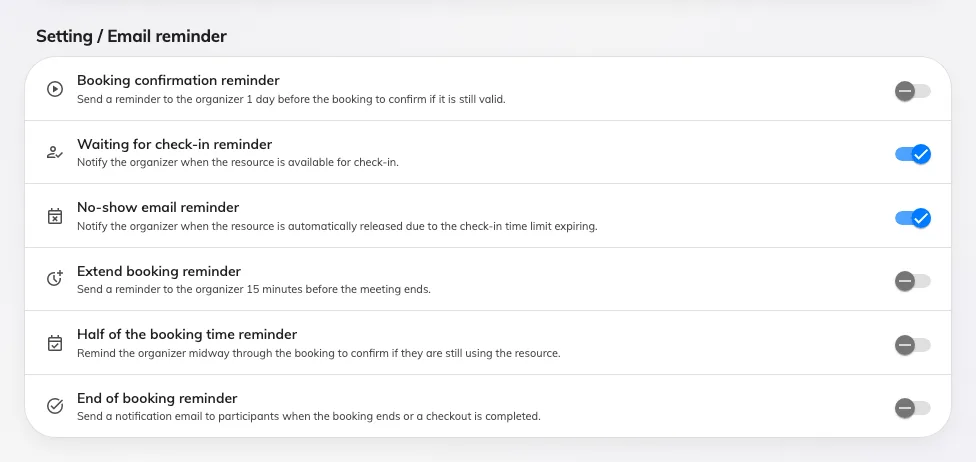
All six reminders, in the order the page shows them. The two check-in ones are on unless somebody turned them off.
2. Choose the reminders you want
| Reminder | When it is sent | On by default |
|---|---|---|
| Booking confirmation reminder | A day before the booking, asking the organiser to confirm it is still wanted. Only for bookings nobody has started yet | No |
| Waiting for check-in reminder | The moment check-in opens, which is a few minutes before the start — the resource policy sets how many, normally 15 | Yes |
| No-show email reminder | When the resource is released because nobody checked in | Yes |
| Extend booking reminder | Shortly before the booking ends, and only when extending it is actually allowed | No |
| Half of the booking time reminder | Once a long booking is well past its middle, asking whether the room is still needed. Only for bookings longer than two hours | No |
| End of booking reminder | When the booking ends or is checked out. The only one that also goes to the attendees | No |
Save when you are done. The change applies to bookings already in the calendar, not only to new ones.
3. Know what a switch here does not stop
Turning a reminder off stops the email. It does not stop the notification that appears in Offision itself — in the notification list, on the mobile app, on the desktop app, and in Teams where that is connected. Three of the six send one:
- Waiting for check-in reminder and No-show email reminder notify whether or not the email is on.
- Extend booking reminder does the same.
- Booking confirmation reminder and Half of the booking time reminder are email only — there is no notification to receive.
- End of booking reminder is the exception that behaves as you would expect: its switch turns off both.
So an organiser who says they are still being told about no-shows after you turned the reminder off is describing the notification, and it is working as built.
4. Check it worked
Do not read the form back — book something and watch it.
- Book a room whose rules require check-in, as an ordinary account.
- Wait for the check-in window to open. The organiser should get the Waiting for check-in reminder mail, and a notification in the app.
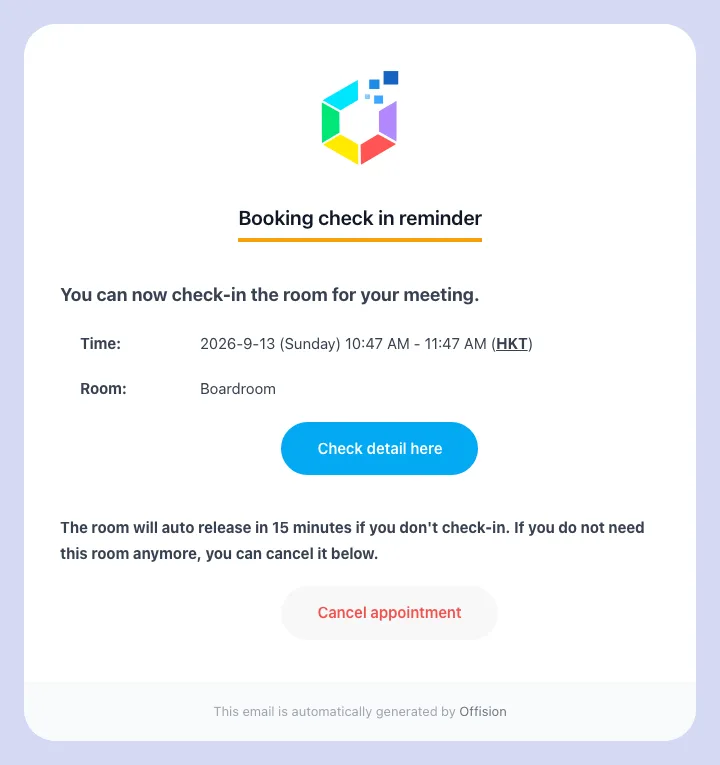
The check-in reminder: the room, when it was booked for, and the deadline to check in by.
- Do not check in. Once the grace period passes, the room is released and the No-show email reminder follows.
Nothing sends twice for the same booking. Editing a booking arms its reminders again, so a booking that was moved gets a fresh one rather than staying silent.
What this does not control
- When check-in opens and closes. The window before the start and the grace period after it are set on the booking rules, per resource — Check-in settings reference.
- Whether a no-show is counted. A room is released and counted whether or not anyone was told — What counts as a no-show.
- The mails sent when a booking is made or cancelled. Those are per-policy switches: Choose which booking emails go out.
- What the mail says. Subjects and body text are set once for the whole site, under Change the wording of an Offision email.
- A recurring booking that cancels itself after repeated no-shows. That warning and cancellation come from the booking rules, not from these switches.
- The digests managers subscribe to. Those are separate subscriptions — Summary email and Forecast email.
Change the reminder’s wording
The check-in and no-show reminder rows offer Edit email, opening the corresponding template. Turn on Write your own to edit a multilingual subject and rich-text body, insert booking fields, and choose the summary, action buttons and sign-off. The cancel link and cancel button are available only on the check-in reminder. See Template wording.
Save the template, then check room and desk samples. Wording does not enable delivery, change the check-in deadline or stop automatic release. The switches on this page still decide whether the emails are sent.