

What a booking's status means
Twelve statuses: seven on the line a booking walks and five it can end at instead, the colour each one is drawn in, the three stops that are skipped unless the room asks for them, and the three that are the same slate.
A booking’s status says where it has got to between being asked for and being over. It is the word on the chip in every calendar and list, and it is what the Booking status filter narrows by.
Nobody sets it. Offision works it out from the booking’s own facts — whether the room has answered, whether the room needs approving, whether the check-in window has opened, whether anybody arrived — and works it out again each time one of those changes. There is no control that makes a booking say something else, and checking in can take a moment to show for the same reason.
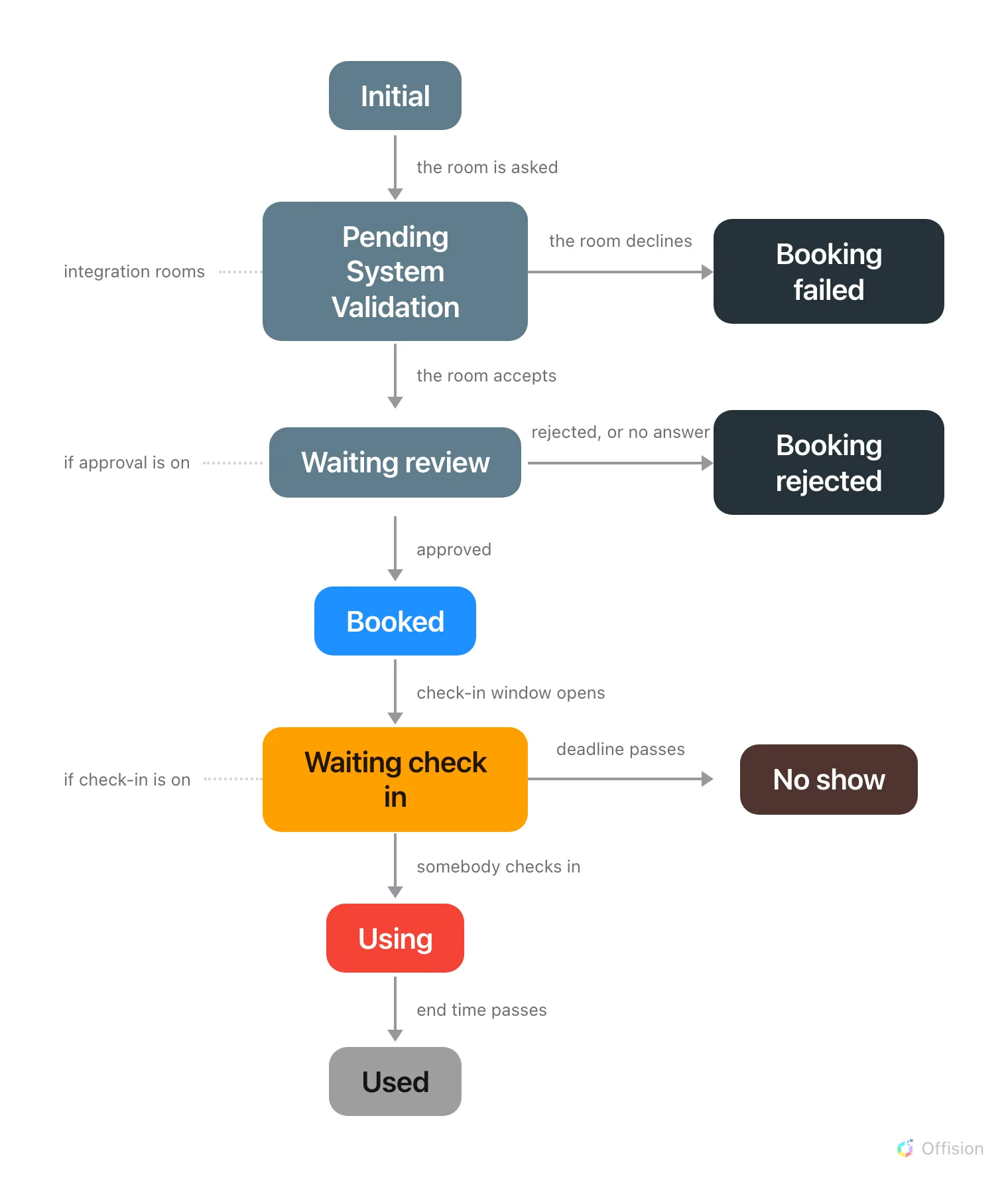
A booking walks one line to the bottom. The dotted tags down the left say which stops are skipped unless the room asks for them; only a refusal — or nobody arriving — leaves the line to the right.
The seven on the line
Three of these are skipped unless the room asks for them. The Appears column is what decides whether a booking ever shows that word at all.
| The chip says | Colour | Appears | What it means |
|---|---|---|---|
| Initial | slate | always | Saved, and no room has answered yet |
| Pending System Validation | slate | integration rooms | A room has been asked, and has not answered yet |
| Waiting review | slate | if approval is on | Sent to an approver, and not decided yet |
| Booked | blue | always | Confirmed. Nothing to do until it starts |
| Waiting check in | amber | if check-in is on | It has started, and nobody has checked in |
| Using | red | always | Somebody checked in — or the room never asked |
| Used | grey | always | The end time passed. The ordinary end of a booking |
The employee app draws one of them differently: what the admin console calls Using, the app’s own calendar and its status filter call In use. Same status, same red.
Three of the seven are skipped, and none of them is skipped by the person booking:
- Pending System Validation appears only on a room whose calendar lives somewhere else — one synced from Microsoft 365 or Google Workspace. A room Offision owns outright has nothing to wait for.
- Waiting review appears only where the resource policy asks for approval. Without it, a booking goes from Initial straight to Booked — see Require approval before a room is booked.
- Waiting check in appears only where the resource policy requires check-in. Without it, a booking turns Using at its start time and can never be a No show — see How check-in and no-show work.
A booking on an ordinary room with neither setting on therefore only ever shows four words: Initial, Booked, Using, Used.
A booking can also go backwards. On a room that needs approving, editing a confirmed booking can send it back to Waiting review — see Edit a booking.
And it can be moved by hand. When a sync fails or a panel misses a check-out, a booking sits in a state nothing in the normal flow will move it out of. Force change state, in the booking’s history, offers Booked, Using and Used — the one it is in already is ticked and cannot be picked. It confirms first and records the change under your name as Forced by admin, so the trail still says who decided. Needs booking-manager write access, and repairs those three working states only: it cannot cancel, approve, or produce any of the endings below.
That history is also where a check-in says how the person identified — Staff card, User passcode, Booking code, QR code, Face, Anonymous or Confirmed on panel. Rows written before this was recorded show no method.
The five it can end at instead
| The chip says | Colour | What happened |
|---|---|---|
| No show | brown | The check-in deadline passed unattended, and the room went back |
| Booking rejected | near-black | An approver said no |
| Timeout | near-black | Nobody answered the request in time |
| Booking failed | near-black | The room’s own calendar refused it |
| External calendar rejected | near-black | The room’s calendar refused it, and Offision found out late |
No show means nobody checked in before the deadline for an accepted booking. The other four are refusals, so all use near-black. See what remains in the three calendars after a no-show.
Waiting for the room to answer
Initial and Pending System Validation are the gap between pressing save and the room answering. On an ordinary room the gap is too short to see; on an integration room it is the whole point of the two words.
- Initial — the booking is saved and no room has answered yet.
- Pending System Validation — a room has been asked and has not replied.
A room synced from Microsoft 365 or Google Workspace answers over that connection, and until it does, the booking is not confirmed. Nothing is wrong for the first few seconds, and nothing you can press makes it go faster. Both are ordinary statuses in every other way: the booking can still be edited or cancelled while it sits there.
A booking that has sat in either for longer than a few minutes is a sync problem, not a booking problem. Offision retries them on its own, and a room that answers no ends at Booking failed rather than staying put — so a booking still showing one of these the next day is worth raising with whoever looks after the calendar connection.
Three of them are the same slate
Initial, Pending System Validation and Waiting review are drawn in exactly the same colour, and Used and the four near-black refusals are neutrals too. At a glance down a month, most of the statuses are grey-ish and three of them are identical. The word is what separates them, not the colour — so filter rather than scan when you are looking for requests still waiting.
The two that want attention are the ones with colour in them: amber is a room being held for somebody who has not turned up, blue is a booking nothing needs doing about. Using is red because the room is occupied, not because anything has gone wrong.
What a status does not tell you
- Whether anybody is in the room. Using means a booking is running and somebody checked in, which is not the same as somebody being there.
- Whether it was cancelled. There is no cancelled status. A cancelled booking is removed, so it leaves the calendar rather than turning grey — and it is never counted as a no-show. See Cancel a booking and What counts as a no-show.
- Who attended. Attendance is recorded per person, separately, and only on bookings that ask for it. A booking can be Used with nobody marked present.
- What the room is doing. A room out of service, closed for the day, or turning around between meetings has no booking status at all — that is the room’s state, and only a panel shows it.