

Limit how far ahead people can book
Stop the calendar being claimed months out by setting a rolling booking window on the policy your rooms use. About five minutes.
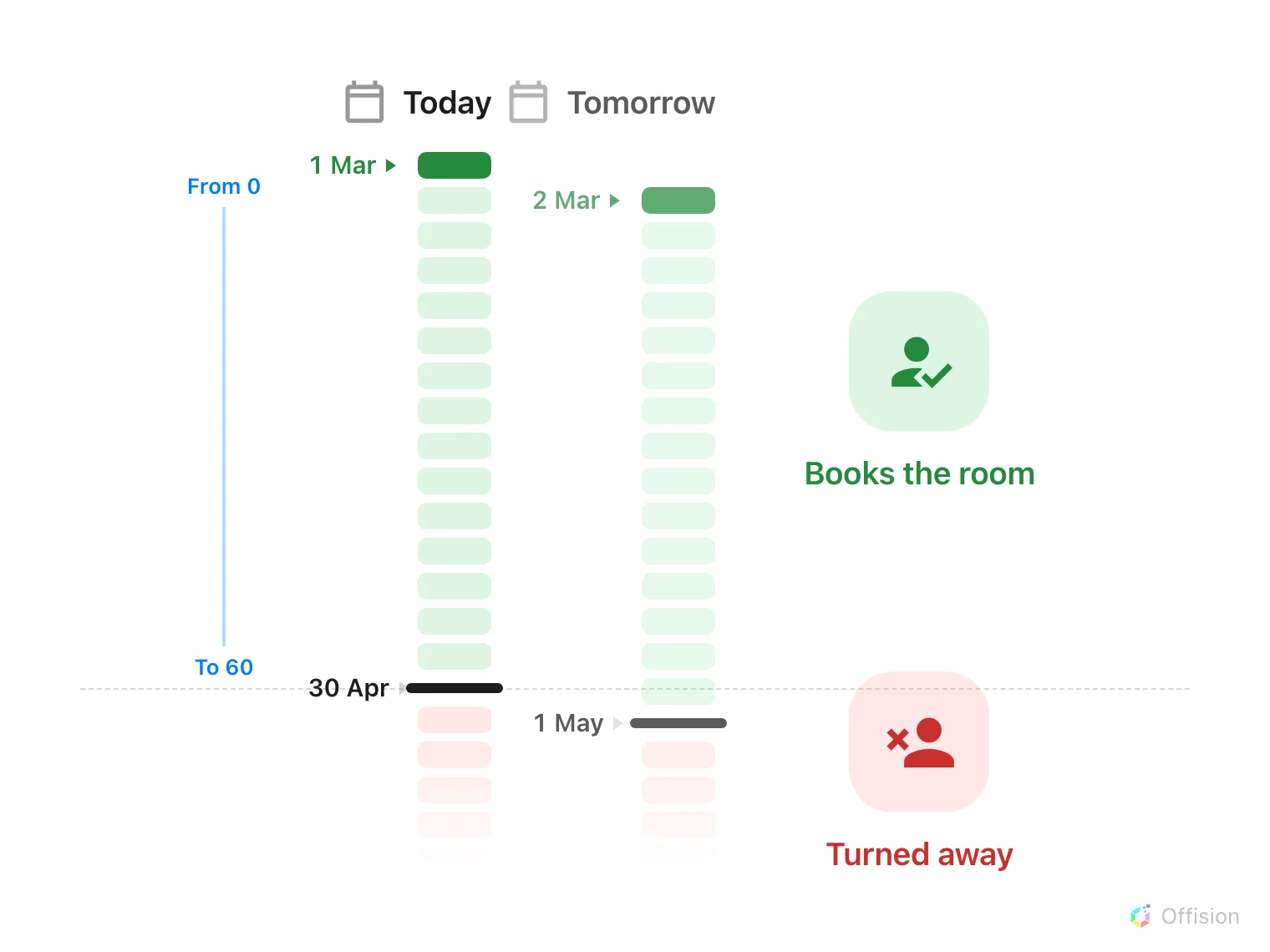
Both ends of the window are counted in days from today, so the whole window slides forward one day, every day.
1. Open the policy those rooms use
A policy covers a class of space — all meeting rooms, all desks — rather than one room each. Whatever you set here applies to every resource assigned to it, so open the policy the rooms in question actually use rather than the first one in the list.
Open Booking policySelect the policy, then choose Edit in the panel that opens on the right. Clicking the row only selects it — the editor is behind that Edit button, which is the step people most often hunt for.
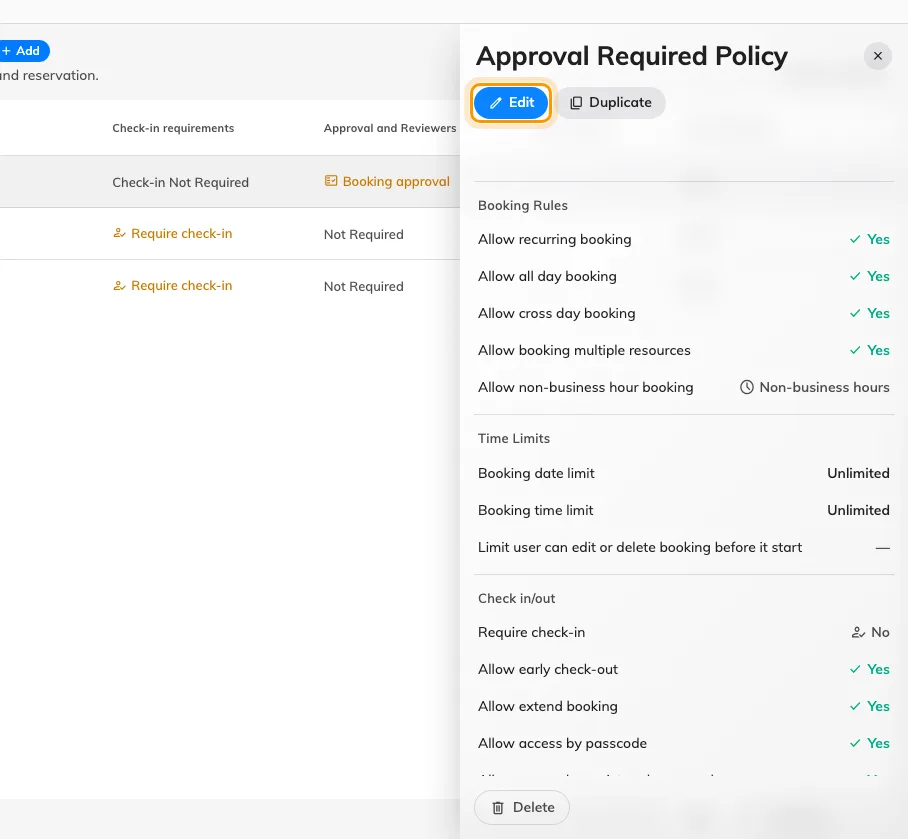
Selecting a policy opens its panel, with Edit at the top.
2. Go to the booking limits
The editor has its own list of pages down the left. Choose Booking time/date limit — the third one. Every setting in the rest of this article lives on that page.
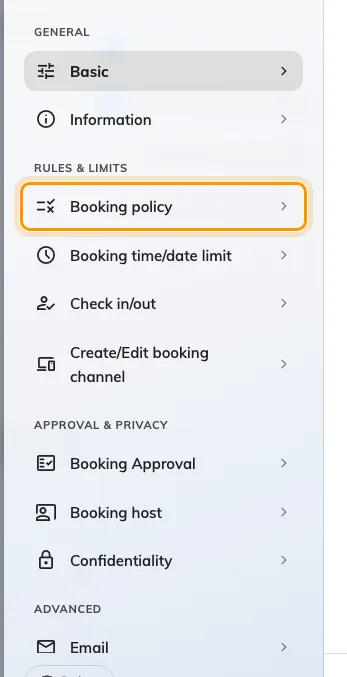
The policy editor's page list.
3. Set the rolling window
Turn on Limit the booking date range. Two fields appear, and both are counted in days from today — there is no month or week unit:
- From (e.g.: Today = 0) — the earliest day that may be booked.
0is today. Raise it where rooms need preparing between meetings. - To (e.g.: one month = 30) — the furthest day ahead. Two months is 60.
The window rolls: every day the far end moves one day further out. Release time decides at what hour that newly reachable day opens. The default of midnight is worth changing on rooms people compete for — set it to the start of the working day and nobody has to set an alarm to win a booking.
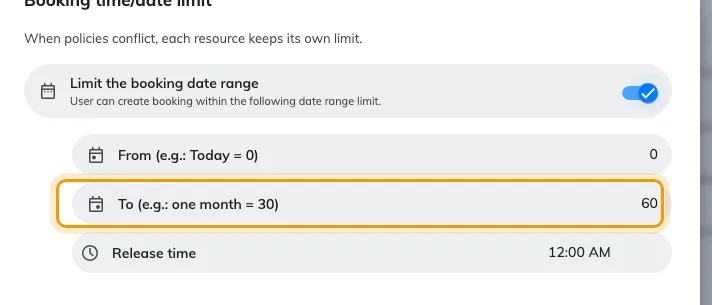
A two-month window: From 0, To 60.
Leave the toggle off and there is still a ceiling — the system falls back to 365 days. The highest value the field accepts is 1095.
When a booking covers several rooms on different policies, the strictest of them wins: the latest From and the earliest To.
If one group — the managers, say — genuinely needs a longer horizon, do not widen the window for everyone: give that group an override rule instead. See Let managers book further ahead than everyone else.
4. Add a fixed cut-off if the date is absolute
A rolling window is the right tool for “not more than two months out”. It is the wrong tool for “nothing past the end of the fiscal year”, which does not move. For that use Allow booking before a specific date and Allow booking after a specific date, further down the same page. Each takes a calendar date and a time rather than a day count, and a booking has to satisfy both.
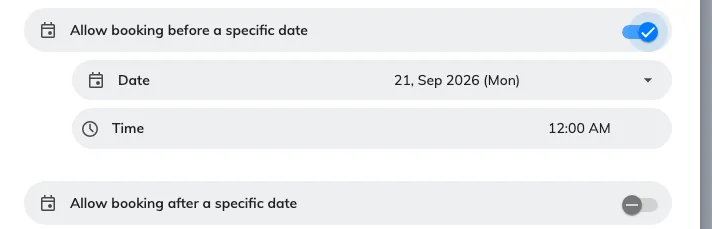
The two absolute cut-offs, with the first one turned on.
5. Stagger the openings, if everyone wants the same slot
Booking time sector restriction, at the bottom of the page, solves a different problem from the window: not how far ahead people may book, but when a given period opens at all. It opens a list of its own; add a Time sector and you get four fields.
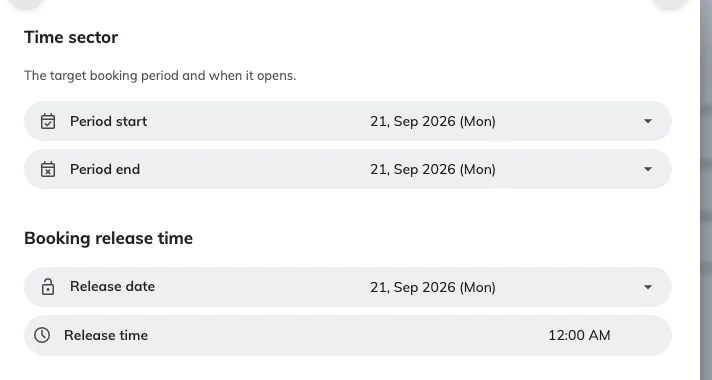
One time sector: the period it covers, and when that period opens.
Reach for this where a whole term or quarter is contested and you want it to open at one announced time for everyone, rather than leaking open a day at a time. It is extra machinery, so skip it if the rolling window already does the job.
6. Check it worked
Sign in as an ordinary user and try to book one of those rooms past the window — day 61 with the settings above. Set the date first and add the room after, which is the order that shows the message.
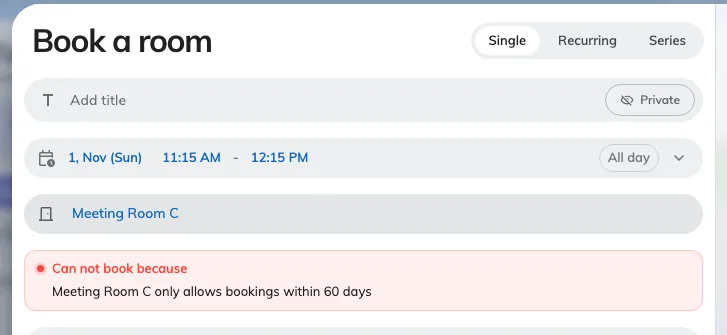
A booking placed past the window, with Book unavailable.
Two outcomes both mean it is working: the message above, or the dates simply being unavailable in the picker once the room has been chosen. If instead the booking goes through, the room is on a different policy from the one you edited.