

Working schedule settings reference
Every setting in the working schedule editor, page by page — Basic Info, Check-in rules and Security & location — with what each one does and when to change it.
The working schedule editor is three pages of settings on the left — Basic, Check-in rules, Security & location — plus an Info page of audit metadata on a saved schedule. This page lists every setting in screen order; the task articles link back here rather than repeating it.
Open Working scheduleBasic Info
| Setting | What it does | When to change it |
|---|---|---|
| Name | Names the schedule everywhere — the list, the report filter, the app. Must be unique. | Name it for the team, not the times: times live on the working hour and may change. |
| Working hour | The business-hour definition this schedule reads its expected times, working days and holidays from. | Point several schedules at one working hour when teams share times; give a team its own only when its hours differ. |
| Worker | The people who clock in against this schedule — individual users and/or whole user groups. | Prefer groups: membership changes then maintain the schedule for you. |
| Supervisors | Users and/or groups who can view and export this schedule’s results in the user app. They cannot edit records. | Name team leads who need the numbers without console access — see the supervisor article. |
| Organization unit | Scopes the schedule to one unit. Shown only where organization units are enabled. | Only in a multi-unit estate. |
Check-in rules
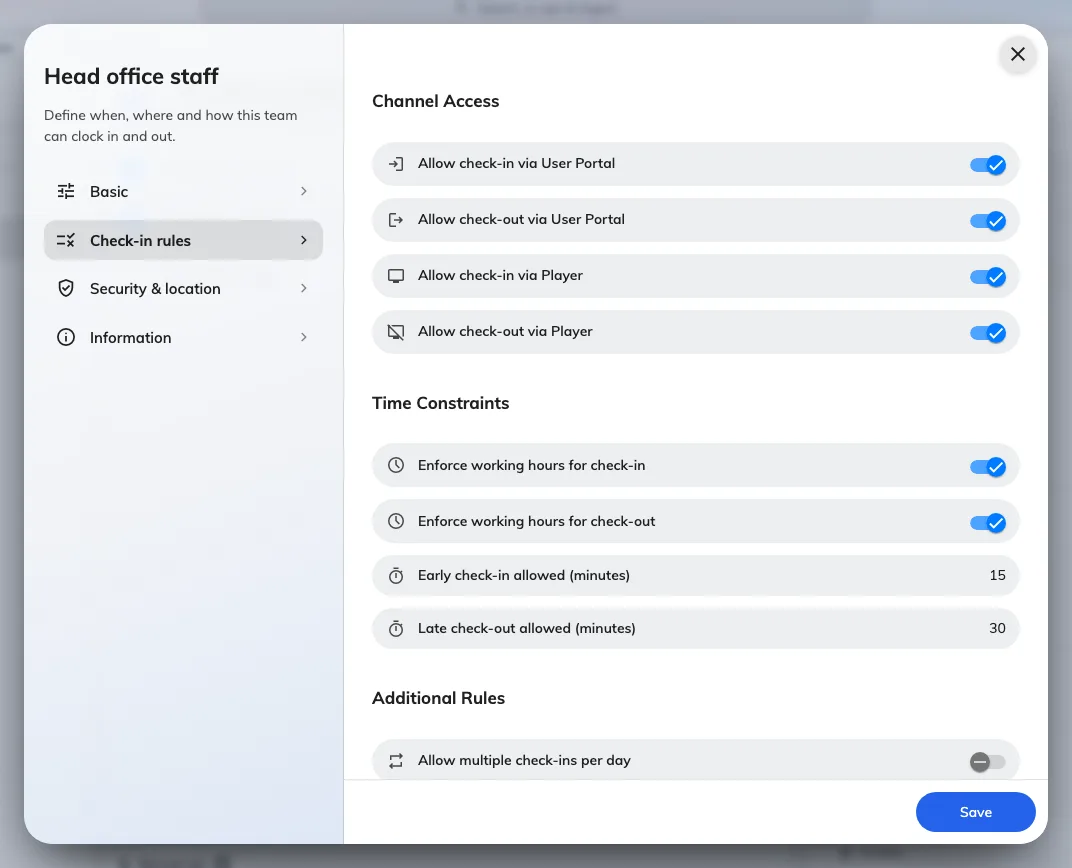
Check-in rules: the four Channel Access switches, the Time Constraints pair with their minute allowances, and the Additional Rules.
Channel Access
| Setting | What it does | When to change it |
|---|---|---|
| Allow check-in via User Portal | The app’s Sign in button works for this schedule’s workers. Off, the app never offers it. | Off for teams that must punch at the door kiosk in person. |
| Allow check-out via User Portal | Same, for signing out. | Commonly left on even where check-in is kiosk-only, so people leaving late need not find the kiosk. |
| Allow check-in via Player | A kiosk (signage screen or panel) accepts sign-ins for this schedule. | On wherever a Take attendance widget is deployed. |
| Allow check-out via Player | Same, for signing out. | As above. |
All four off means nobody on the schedule can punch at all — the editor does not stop you.
Time Constraints
| Setting | What it does | When to change it |
|---|---|---|
| Enforce working hours for check-in | A sign-in outside the working hour is refused with Outside of working hours. | Off for teams with genuinely flexible starts; the report still marks lateness either way. |
| Enforce working hours for check-out | The same, for sign-outs. | Usually paired with the one above. |
| Early check-in allowed (minutes) | How long before the working hour opens a sign-in is still accepted, when enforcement is on. | Give at least 15–30 minutes — people arrive early, and zero refuses them at the door. |
| Late check-out allowed (minutes) | How long after the working hour closes a sign-out is still accepted. | Same reasoning, for people leaving late. |
The two minute fields matter only while their enforcement switch is on; without enforcement, any time is accepted.
Additional Rules
| Setting | What it does | When to change it |
|---|---|---|
| Allow multiple check-ins per day | Off, a second sign-in the same day is refused with Already signed in today. On, each punch is recorded. | On for split shifts or people moving between sites; off keeps one clean in/out pair per day. |
| Require remarks on late arrival | A late sign-in cannot be confirmed until the person types a reason; it lands on the record’s Remarks. | On where lateness needs a paper trail; the report shows the lateness either way. |
| Require remarks on early departure | The same, for signing out before the working hour ends. | As above. |
Desk booking
Off by default. With every switch off, desk bookings record no attendance at all and nothing on this page changes behaviour.
| Setting | What it does | When to change it |
|---|---|---|
| Desk check-in signs in | Checking in to a desk booking — or walking up and claiming the desk — records a sign-in marked Auto, naming the desk. | On where coming to the office and taking a desk is what “at work” means. |
| Desk check-out signs out | Checking out of the desk records a sign-out. Includes a release by the occupancy sensor. | Leave off if a sensor mis-read cutting someone’s hours short would be worse than a missing sign-out. |
| Booking ending signs out | A booking that runs to its end time signs the person out, so nobody stays signed in overnight. | On unless people routinely stay past their booking. |
| Only desks in selected locations | Limits the rules above to the buildings and floors chosen on this schedule. | Required when a person sits on more than one schedule — see below. |
Only desks count: rooms, equipment and parking spaces never record attendance. A booking covering several desks records one sign-in, not one per desk.
If a person sits on more than one working schedule and the best matching schedules tie for the same desk, nothing is recorded — the system will not guess which schedule the day belongs to. Switch on Only desks in selected locations and give each schedule its own buildings or floors. A schedule bound to the desk’s floor wins over one bound only to its building.
The Allow multiple check-ins per day rule above still applies: with it off, a desk check-in by someone already signed in today records nothing.
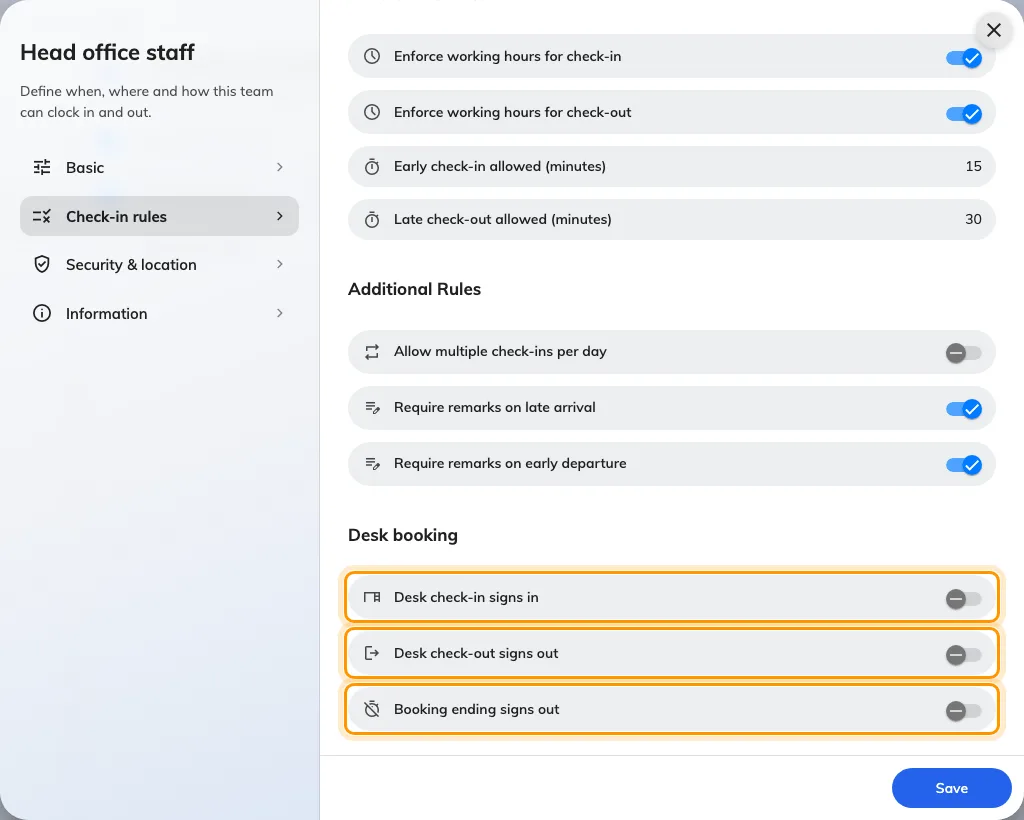
Desk attendance has separate switches for arrival, checkout and booking end.
Security & location
The proof a punch must carry. The GPS, IP and selfies article walks these; the rows here are for completeness.
| Setting | What it does | When to change it |
|---|---|---|
| Require IP validation in User Portal | An app punch must arrive from one of the Allowed IP ranges (IP or CIDR, with an optional description) or it is refused. | On to pin punches to the office network. An empty list refuses nothing. |
| Require location in User Portal | An app punch must carry a GPS position inside one of the Allowed geofences — each a named map circle with a Radius (meters) from 10 to 10,000, default 100. | On to require presence on site. One fence per legitimate work site; keep the radius generous. |
| Require selfie on check-in (User Portal) | The app pauses the sign-in for a photo, stored on the record. | On where who-was-holding-the-phone is the question. Selfies auto-delete per the Selfie privacy retention period. |
| Require selfie on check-out (User Portal) | Same, for sign-outs. | As above. |
| Require selfie on check-in (Kiosk) | The kiosk takes the photo instead. | On where the kiosk identification (QR, card, PIN) alone is not proof enough. |
| Require selfie on check-out (Kiosk) | Same, for sign-outs. | As above. |
Notification Rules
| Setting | What it does | When to change it |
|---|---|---|
| Send push notification when attendance | The person gets a push confirming each accepted punch, with its time. | Off only where the confirmations annoy more than they reassure. |
| Send email when attendance | The same confirmation, by email. | On where punches are disputed and people want a receipt. |
What this editor does not control
The times themselves — weekdays, start and end, holidays — are on the Working hours page, not here. The selfie retention period is on Selfie privacy. And whether Attendance exists at all is the Enable Feature switch on the module’s overview page — a schedule saved while the module is off does nothing until it is enabled.
Open Working hours