

Allow or block all-day, recurring and cross-day bookings
Three switches on the booking policy decide which shapes a booking may take — a whole day in one go, a repeating series, or a span across midnight. All three start on; this is how to turn the right ones off, and what people see once you do.
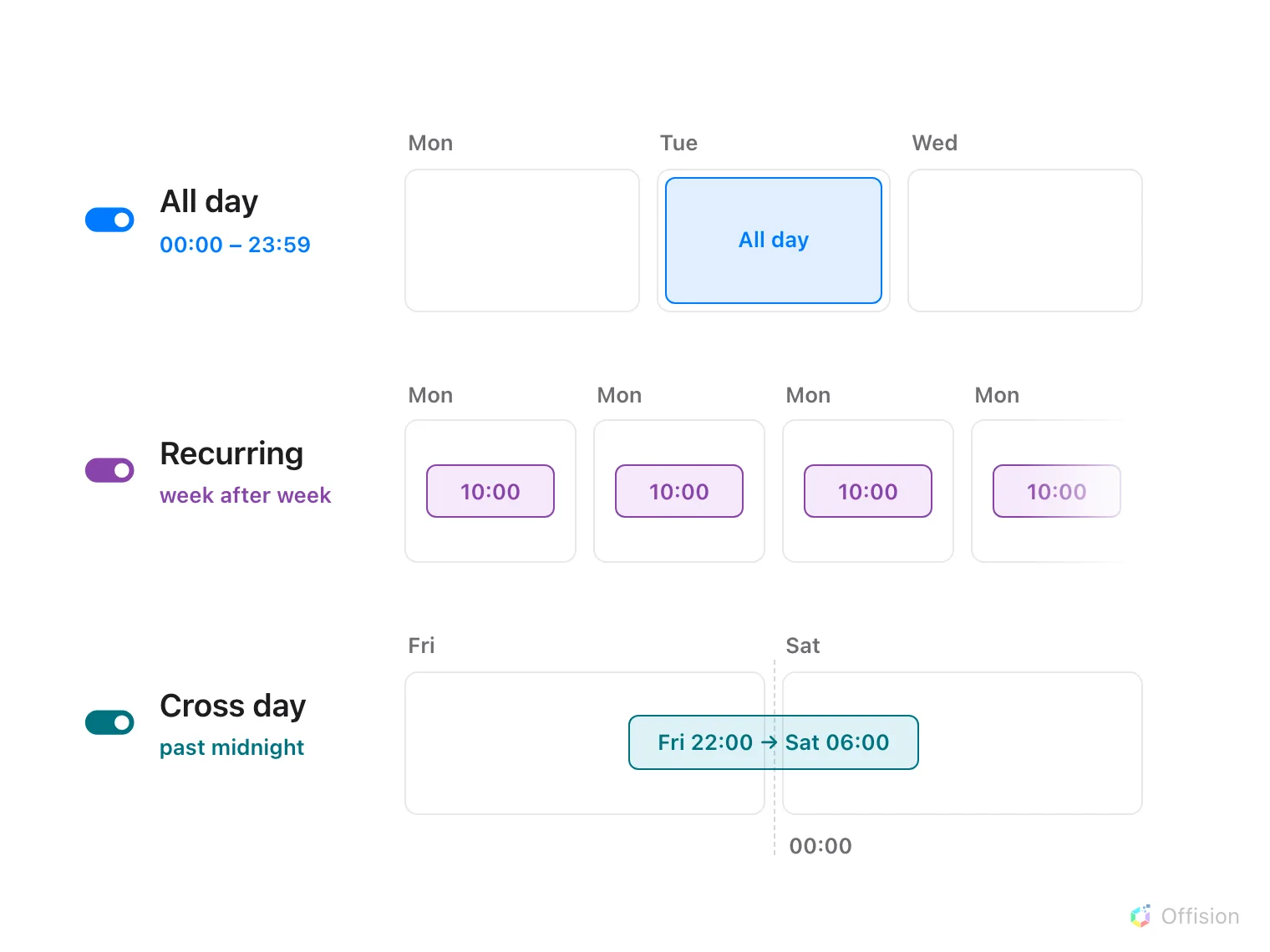
The three shapes a booking can take beyond a plain time range — each one exists only while its switch on the policy is on.
A plain booking is a time range on one day. The booking policy has three switches that each permit one further shape: a booking that takes the whole day in one go, a booking that repeats as a series, and a booking that runs past midnight into the next day. On a new policy all three are on, so in practice this page is about deciding what to turn off — and because the switches live on the policy, the decision is made per class of resource, not per room.
Which way to set each one is a judgement about the resource, not about the feature:
- All day suits resources held for the day — desks, parking, equipment. On meeting rooms it lets one meeting swallow a calendar day, which is why room policies often turn it off.
- Recurring is how standing meetings book their slot once. On scarce, high-demand rooms a series claims the slot indefinitely — turn it off there, or pair it with the no-show rule that cancels an abandoned series.
- Cross day exists for overnight use — equipment on loan, a war room kept through the night. Rooms rarely need it.
1. Find the switches on the policy
Open Booking policySelect the policy those resources use and choose Edit, then open Booking policy — the second page in the editor. The three switches sit together at the top of the page:
- Allow users to create recurrence booking
- Allow users to create all day booking
- Allow users to create cross day booking
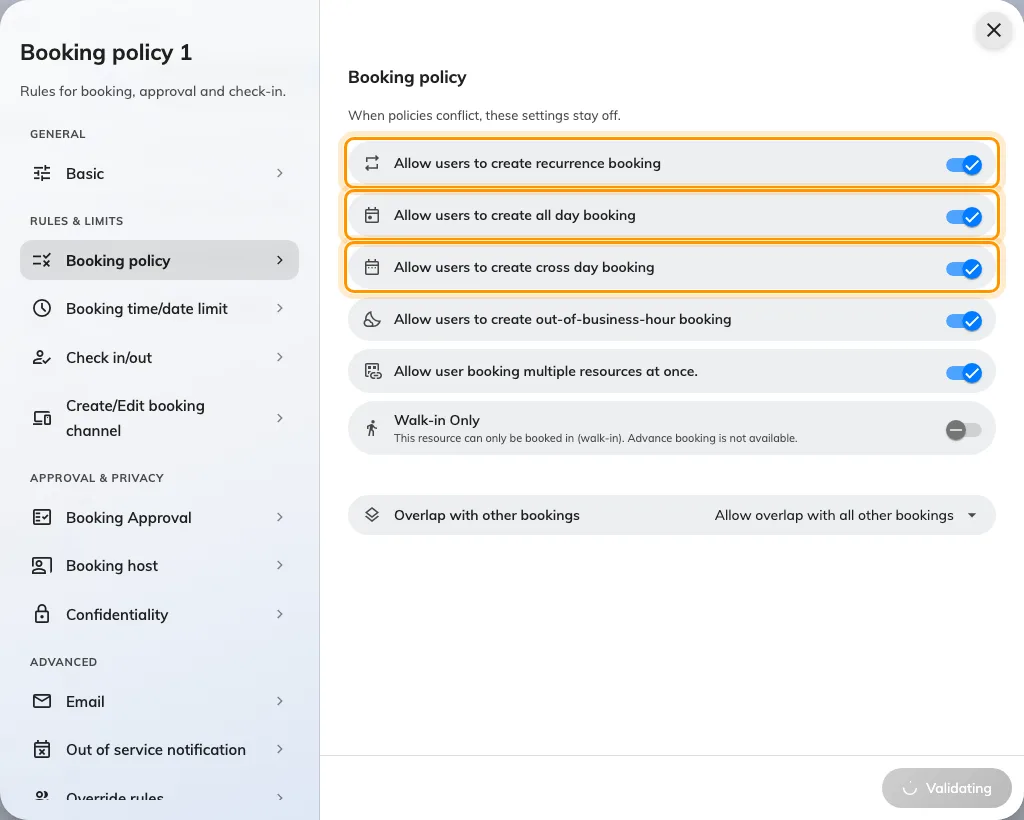
The Booking policy page, with the three shape switches together at the top.
Turn off the ones this class of resource should not offer, and save. The change applies to new bookings at once; bookings that already exist keep the shape they were made with.
2. What each shape means exactly
All day is not a long booking — it is a different kind of period. The form offers it as an All day button on the date-and-time row, and choosing it drops the clock times entirely: the booking runs from the very start of the day to the very end, whatever the working hours are. Because a midnight start makes the normal check-in window meaningless, a policy that requires check-in can give all-day bookings a fixed deadline of their own — see the check-in deadline on a desk floor.
Recurring turns one booking into a repeating series. On the booking form it is the Recurring choice at the top — one booking that repeats on a schedule, with the usual daily, weekly and monthly patterns — and every occurrence is checked against the same rules as a single booking.
Cross day lets one booking end on a later day than it starts. With it allowed, the form’s date picker offers separate start and end dates; without it, one date serves both and the booking must end by midnight. An all-day booking that covers several days is both shapes at once, so it needs both switches on.
Series is the third choice on that control, and it is not a resource policy at all: whether it is offered, and how many sessions one series may hold, are two settings under UI customization › User booking form, in the Multiple booking group — with a second pair for the console’s own form on Management calendar. Turning the switch off removes Series from the form rather than greying it, so a policy change here will never bring it back — see UI customization settings.
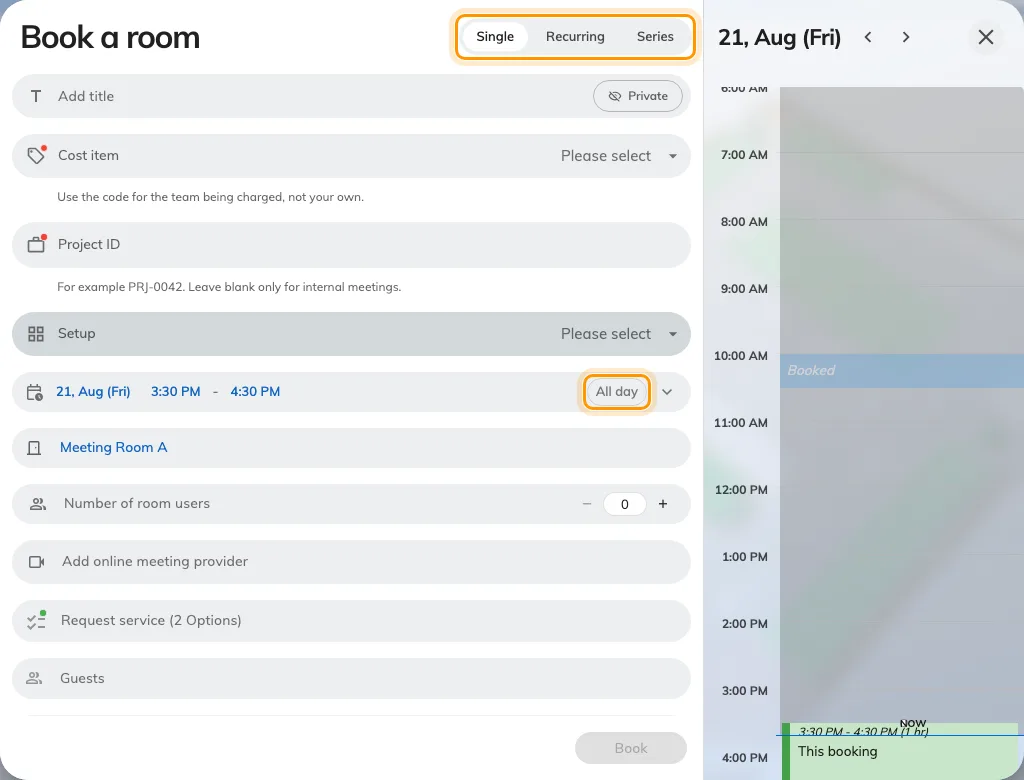
The booking form: the Single, Recurring and Series choice at the top, and All day on the date row.
3. What people see when a shape is off
Nothing disappears silently — the form says no, in two different ways:
- The control greys out. In the expanded time section, an All day or Repeat button for a disallowed shape stays visible but disabled, and hovering it explains why — Not allow all day booking, or its recurring twin. A booking that already is all-day can still be switched back to timed; only turning the shape on is blocked.
- The booking is refused by name. Everywhere else — the shape chosen before a resource that forbids it joins the booking, or several resources booked at once — the form refuses with the resource’s name, in the same place other rule violations appear.
A booking that holds several resources must satisfy every one of them: as the policy page itself puts it, when a booking involves different policies, these settings default to off. One desk whose policy forbids all-day is enough to grey the button for the whole booking.
4. Check it worked
Sign in as an ordinary user and open the booking form on one of the resources. The switched-off shapes should show as greyed All day or Repeat buttons, and a timed booking on one day should save as before. If the button is still live, the resource is pointing at a different policy than the one you edited — check which policy the resource carries.