

Email your managers a summary of past bookings
Schedule a recurring email that counts the bookings of the past week, fortnight, month or calendar quarter — who booked most, which rooms were busiest, how many were never used — and attaches a one-page PDF and a spreadsheet of every booking. About ten minutes, and you can send one immediately to check it arrives.
The booking module publishes two reports from one page. Booking record summary looks back — the bookings of the past week, fortnight, month or quarter, who booked the most, which rooms were busiest, and how many bookings were never checked in. Upcoming booking forecast looks ahead at the bookings already on the calendar. Both arrive on a schedule you set, with a one-page PDF and a spreadsheet attached.
1. Open the email report page
In the Booking module, the page sits under Settings in the list down the left — if Email report is not among the pinned entries, choose Show more first.
Open Email reportA subscription is a standing instruction: this report, this often, to these people, about these rooms and desks. Two audiences means two subscriptions.
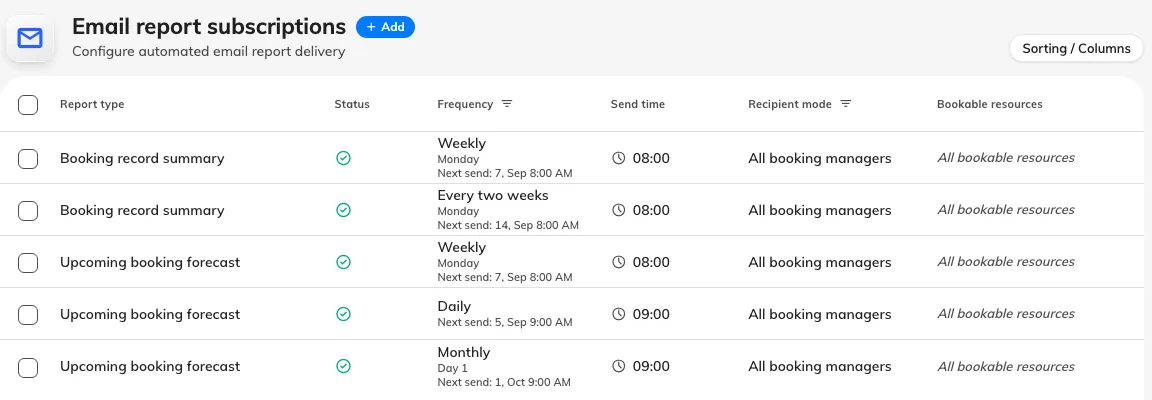
Every subscription on the page, with its report type, how often it sends and who it goes to.
2. Add a subscription
Choose Add. The dialog opens on Report, where the two reports sit as cards side by side: Booking record summary, the period just gone, for the figures a manager reads after the fact, and Upcoming booking forecast, the days ahead, for the desk that needs to know what is coming. A new subscription starts on the summary.
Everything else is on the rail down the left — Schedule, Recipients and Scope — under a pill reading Active. Choosing that pill pauses the report: it keeps every setting and every recipient and sends nothing until you turn it back on.
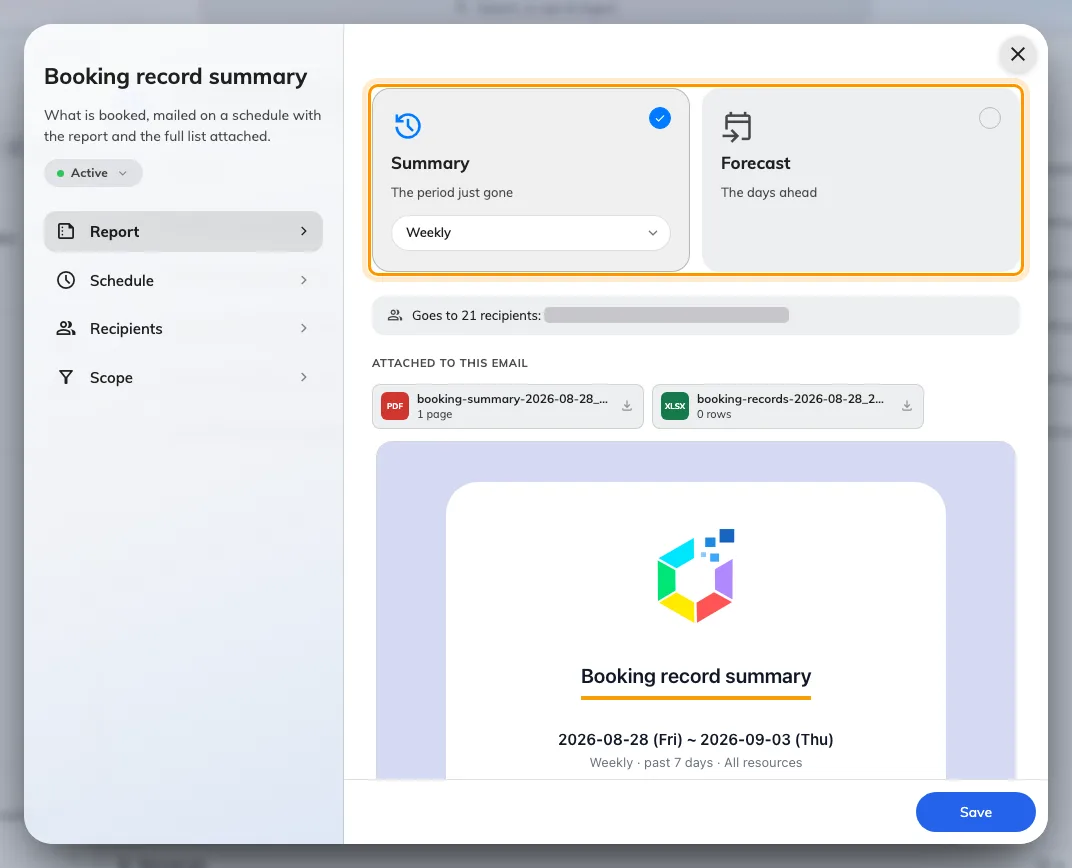
The Report page: the two cards, and under them the mail this subscription would send.
3. Choose how often it arrives
The frequency sits on the selected card, as a pill under its name. It decides both when the email arrives and how much it covers, and the two reports read it differently. A summary ends at midnight at the start of the day it is sent, so it never includes a half-finished day.
Booking record summary
| Frequency | Arrives | Covers |
|---|---|---|
| Weekly | The day of week you pick | The past 7 days |
| Every two weeks | The day of week you pick, every second week | The past 14 days |
| Monthly | The day of month you pick, 1 to 28 | The past month — one month back from the send date, ending yesterday |
| Quarterly | The day of month you pick, in January, April, July and October | The last full calendar quarter, even from Send now |
Daily is not offered for the summary; Quarterly is offered for nothing else. Sent on the 1st, a monthly summary covers the previous calendar month exactly.
The forecast reads its frequency differently — it also offers Daily, has no Quarterly, and only Weekly and Every two weeks widen the window it covers. A per-room usage rate is an export. Its own article has the table.
Changing the day of week later re-anchors from the creation date with the new weekday, so read the list of sends again after editing. Send now never shifts the cadence. Weekly and Every two weeks refuse to save without a day of week, and Quarterly without a day of month.
Schedule lists the next four sends and the period each one covers.
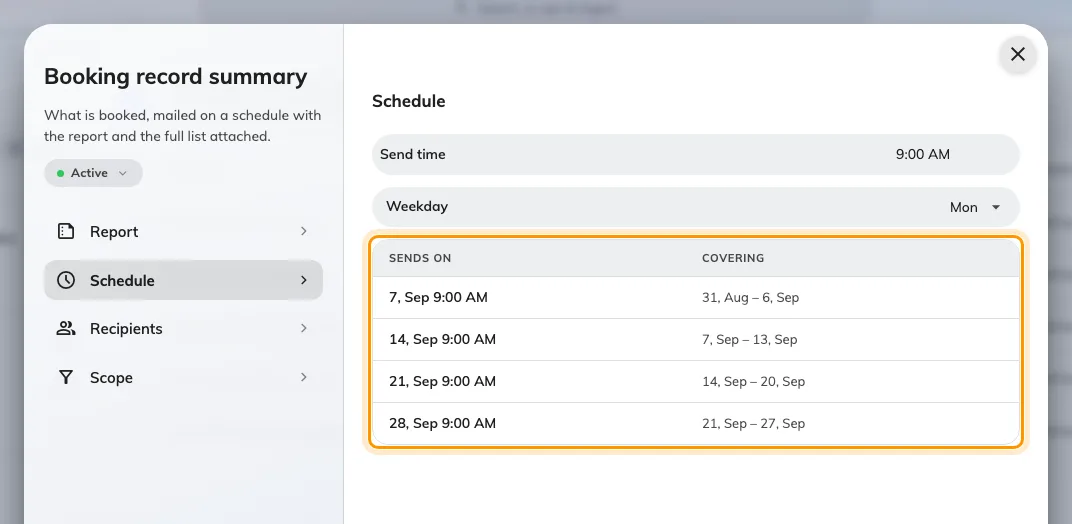
Schedule, with the next four sends and the period each one reports on.
Send time is honoured to the hour, in the system time zone — minutes are ignored, so 09:30 and 09:00 both send during the 9 o’clock hour. If the server is down for that whole hour, the occurrence is skipped rather than sent late. Day of month stops at 28 because 29, 30 and 31 do not exist in every month.
4. Choose who receives it
Recipients, on the rail, offers two modes:
- All booking managers — everyone holding Booking manager or Global administrator, resolved fresh at the moment each report is sent, so people joining or leaving that role are picked up without anyone editing the subscription.
- Specify recipients — name individual people, user groups, or both. A user group is expanded to its members when the report is sent.
Either way, recipients are filtered to people who hold Booking manager or Global administrator. Naming someone without those rights, directly or through a group, does not add them — a subscription addresses managers, it never grants sight of bookings to somebody who cannot otherwise see them.
5. Choose which resources it counts
On Scope, leave All bookable resources on and the report covers every room and desk. Turn it off to pick specific resources — a department head’s report about their own floor rather than the whole estate.
6. Read the mail before you save
Go back to Report. Under the two cards the dialog builds the email this subscription would actually send — real figures, both attachments, and Goes to N recipients naming the list that survives the manager filter — and rebuilds it whenever you change a setting.
No one would receive this report is the first cause at the foot of this page, caught before the first send. Finish the schedule to see the mail this report sends means the schedule is still incomplete — a weekly report with no day of week, say.
Then choose Save.
7. Send one now to check
Select the subscription, and choose Send now in the panel on the right. The report goes out immediately, to its real recipients — a live send, not a preview. It confirms the request, not the delivery, so check a recipient’s inbox.
What arrives
The email leads with the period it covers, then a headline count of bookings, with the change against the comparable period — the previous 7, 14, 30-odd or 90-odd days. Then:
- Bookings per day, with the busiest day picked out
- Attendees, Organizers and Resources — how many in total, and how many distinct people and rooms
- A status bar — Checked in against No-show
- Top organizers — the people who booked the most
- Attached — the two files that ride along
The forecast is the same layout looking the other way, and its own article describes it.
View bookings opens the admin booking calendar with the same period already selected.
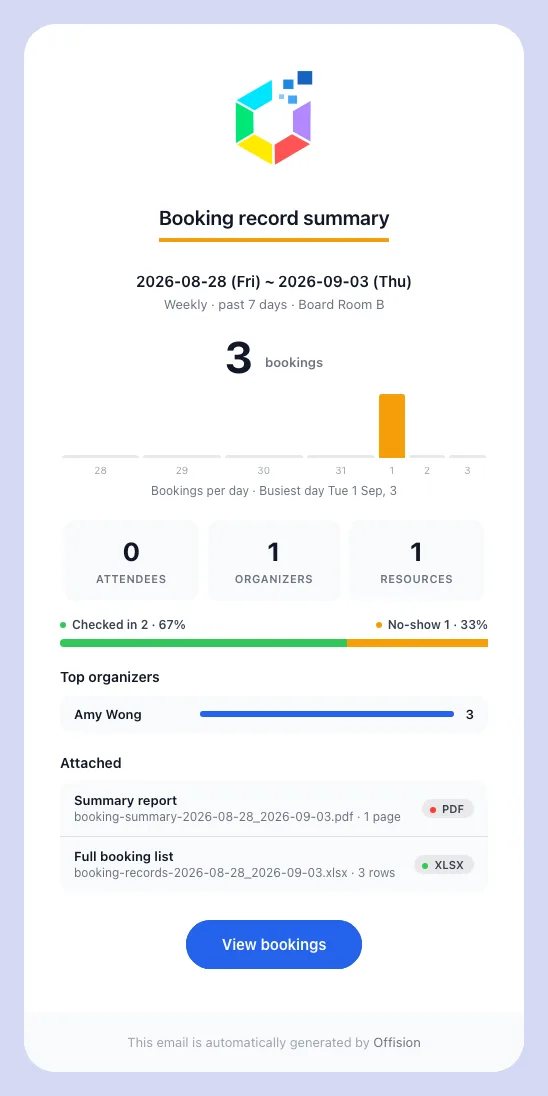
A weekly Booking record summary, as it lands: the period, the headline count and the change on it, then the breakdowns.
Every report carries a one-page PDF of the summary above — which adds the
busiest resources and a full outcome breakdown — and a spreadsheet listing
every booking in the period: booking-summary-<start>_<end>.pdf and
booking-records-<start>_<end>.xlsx.
The dates are yyyy-MM-dd and name the days covered, not the day the report
was sent — a weekly summary sent on 8 September is called
booking-summary-2026-09-01_2026-09-07.pdf.
The report inherits your email branding — logo, colours and footer — from the same settings every other Offision email uses. To change the wording, pick the template type Booking record summary in the email template editor; keyword overrides set there apply.
If the report does not arrive
Work through these in order:
- The recipients are not booking managers. The commonest cause by far. Everyone named, directly or through a group, must hold Booking manager or Global administrator; anyone else is dropped silently, and if nobody qualifies nothing is sent at all.
- The subscription is paused. The list shows its status as Disabled. Open it and choose the Paused pill on the rail to start it again.
- The schedule has not come round. A subscription whose hour has not passed since you saved it, or an every-two-weeks one whose Next send is still a week away, has not fired yet. If Send now arrives and the scheduled send never does, the schedule is the problem, not the recipients.
- Email sending is not set up. If no Offision email reaches anyone, the problem is the sender rather than this report.
An empty report is not a failure. When nothing was booked in the period the report still arrives, showing zeroes and carrying an empty spreadsheet — that is how you tell “nobody booked last week” apart from “the report stopped coming”.