

Set the rules a hot-desk floor needs
The six settings a floor of shared desks sets differently from a floor of meeting rooms — walk-in only, all-day bookings, the check-in deadline that works on one, handing a desk back early, quietening the mail, and stopping a photographed sticker being scanned from home.
Desks obey the same booking policy as rooms — the same screen, the same fields, attached to the resource the same way. What changes is which of those fields you reach for, because a shared desk fails in a different way from a meeting room: nobody double-books it, they just sit somewhere else and leave it held all day.
So this article is a selection, not a settings reference. Every field below is documented in full in Booking rules reference; what is here is which six a desk floor sets, and why.
Open Booking policy1. Decide whether a desk can be booked ahead at all
On the Booking policy page, two toggles frame everything else.
Walk-in Only — “This resource can only be booked in (walk-in). Advance booking is not available.” Turn it on and the desk disappears from the booking form entirely; the only way to take it is to be standing at it. That is right for touchdown desks and phone booths, where a reservation an hour ahead is worth less than the desk being free when somebody needs it, and wrong for the seat somebody plans their Tuesday around.
Note what it does not say: on the spot is not the same as by scanning, because a panel is on the spot too. Turning it on is one half of a desk that can only be taken by scanning its sticker — the other half is a channel setting, and both halves are in Choose where a resource can be booked from, along with the arrangement for a desk bookable only from the app.
Allow users to create all day booking — leave it on. A desk booking is usually a whole day, which is the opposite of the advice for a meeting room, and turning it off makes people book 09:00–18:00 by hand every morning.
While you are here, consider turning Allow users to create recurrence booking off. One repeating series can hold the same desk every Tuesday indefinitely, which is a fixed desk by the back door — and if that is what is wanted, make it a fixed desk instead.
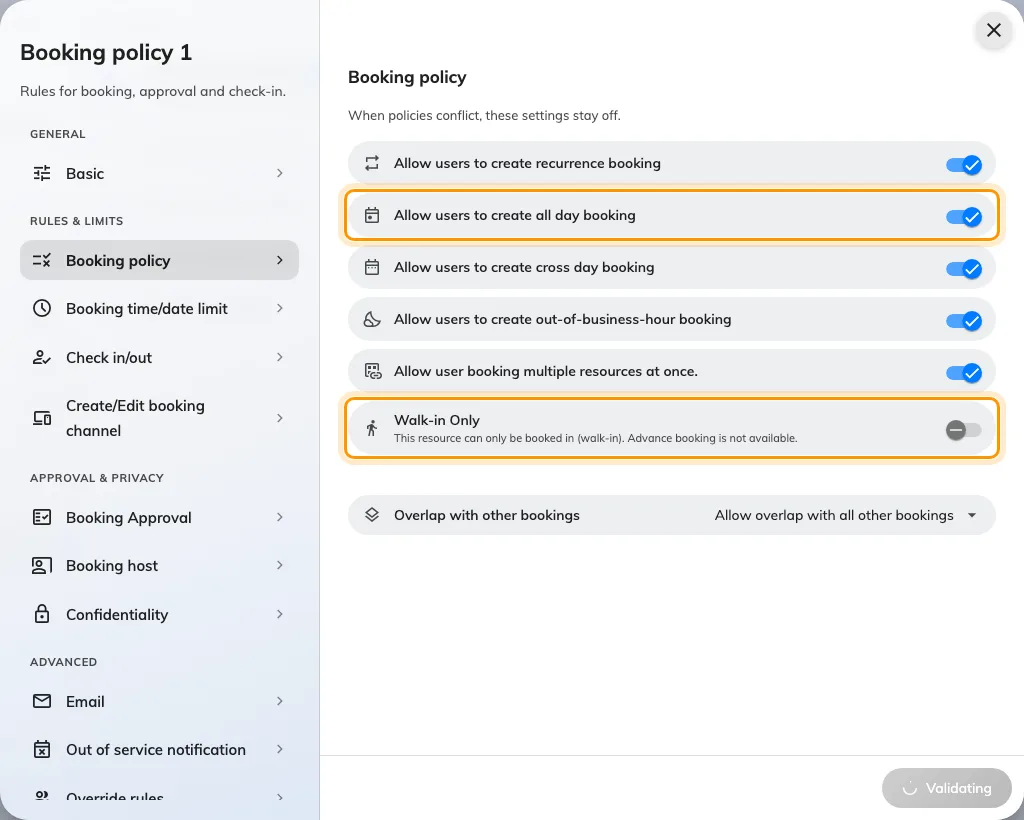
Booking policy. Walk-in Only decides whether the desk appears in the booking form at all.
2. Require check-in, and give it a deadline that works on an all-day booking
This is the setting that makes hot desking work, and the one that most often is not set. Without it, a desk booked and never used stays held until the person who booked it remembers — which is to say, until the end of the day.
Turn Require check-in on, and the ordinary window appears: how early a check-in counts, and how long after the start before the booking is treated as a no-show and the desk released. The full mechanics are How check-in and no-show work; what matters here is the next toggle.
All-day booking check-in time — “Specify a fixed check-in time limit for all-day booking.” The ordinary window is measured from the booking’s start, and an all-day desk booking starts at midnight, so a thirty-minute window has expired before anyone is awake. This replaces it with a clock time: check in by 10:30 or the desk goes back in the pool. On a floor where step 1 left all-day bookings on, this is not optional — the window above it is meaningless without it.
The policy decides that a desk must be checked in, not how. A desk has no panel; people scan its sticker from the app, or use a kiosk, an e-paper tag or a desk panel — compared in Choose how people claim a hot desk.
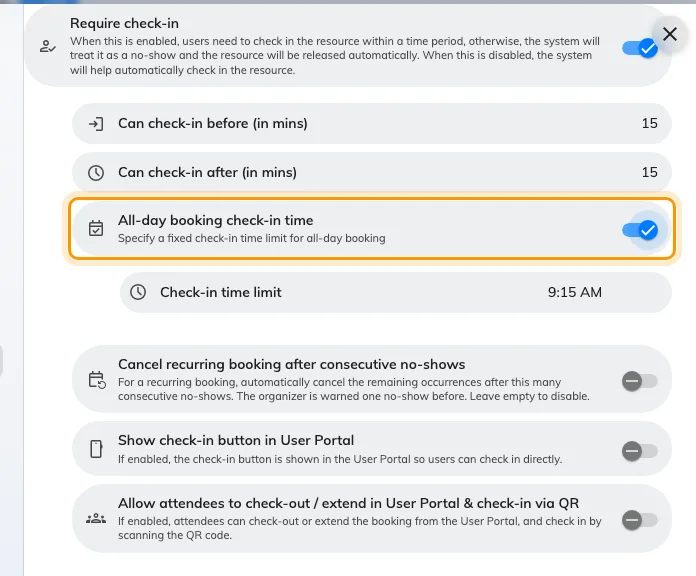
Require check-in on, and the all-day deadline under it. The clock time replaces a window measured from midnight.
3. Let people hand a desk back
Allow early check-out puts End now on the sticker and in the app. Leaving at three when the booking runs to six holds a desk for three hours that nobody can use, and the booking has no way of noticing you have gone.
On a floor of shared desks this single toggle is where most of the reclaimed space comes from — more than the no-show release above it, because a desk given back deliberately is given back hours earlier than one that times out.
Allow user on-site extend the booking is the mirror of it, and worth leaving on for the same reason: somebody who can add half an hour from the desk they are sitting at does not book until six “just in case”.
4. Quieten the mail
Meeting-room mail is useful — it tells five people where to be. Desk mail tells one person something they already know, every day, and it is the commonest complaint about a new desk floor.
Two settings on the Others page, under Email:
- Disable booking email notifications stops the lot — new, changed and cancelled — for every resource on this policy. On desks that is usually the right answer, and it is safe precisely because a desk booking has no attendees to inform.
- Attach .ics data in email when booking Desk or Equipment decides whether the mail that does go out carries a calendar invitation. It is the one switch in the whole policy that names desks in its own label, and it exists because a month of desk bookings arriving as calendar entries buries everything else in somebody’s week.
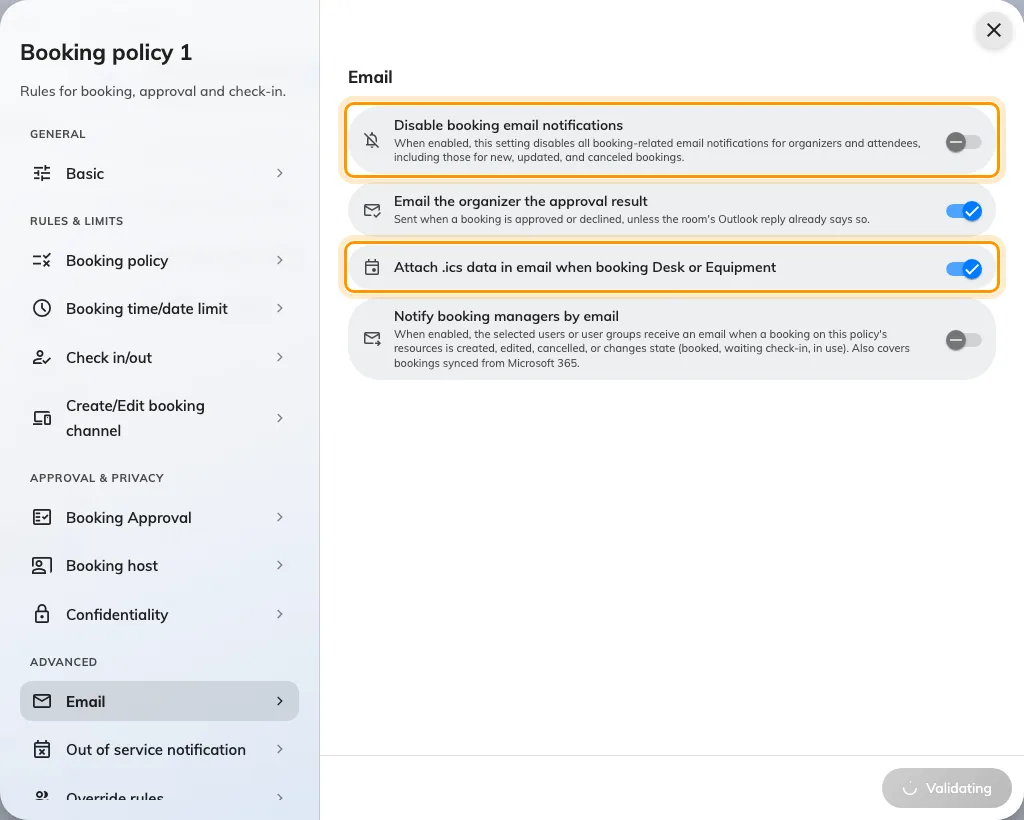
The Email section on Others. The .ics switch names Desk and Equipment because it applies to nothing else.
5. Stop a photographed sticker being scanned from home
A desk sticker is a printed code that never changes, so anybody who photographs one can scan it from anywhere — and a scan that books a desk from a sofa is worse than no booking at all, because the desk now looks taken.
User Portal check-in IP restriction, also on the Others page, is the answer: list your office addresses and a scan from anywhere else is refused. It is the one setting on this page that is about the sticker rather than about the booking, and it is the reason the sticker is safe to hand out at all. See Print and put up resource stickers.
6. Attach the policy to the desks
The policy exists on its own until something points at it. Open each desk’s Policy page and choose it, or assign a batch from the policy’s own Assigned resources pages — a desk with no policy is held to the tenant default, not to anything you have just written.
7. Check it worked
Do the failure, not the success. Book a desk as an ordinary account, do not check in, and wait out the window you set in step 2: the booking should turn to no-show and the desk should come back in the list. Then book it again, scan the sticker, and confirm End now is offered.
A floor where nothing is ever released is almost always one of two things — the policy was written but never attached (step 6), or Require check-in is off.
What this does not control
- Who may book a desk at all. That is team space, set on the desk itself — see Give a department its own rooms.
- How much desk one person may take. That is quota, and desks can have a budget of their own — see Charge desks and rooms from separate budgets.
- AM and PM desks. Half-day desks are not a policy setting at all; they are a Booking hours schedule with a time-slot step — see Restrict bookings to fixed time slots.
- The hours a desk may be used. A business-hours schedule sits on the desk and is checked alongside this policy — see Limit booking to business hours.