

Both maps
Combine two rooms into one bookable room
Set up a room that is really two or three adjoining rooms with the partition open, so people can book the whole space in one go. Booking the combined room takes its parts with it, and booking a part makes the combined room unavailable.
A ballroom that divides into three. Two meeting rooms with a folding wall between them. A training suite that opens up for the quarterly all-hands — the same problem every time: people need to book the big space sometimes and one end of it the rest of the time, and the two must not be bookable at once.
A combine room is how Offision holds that. It is an ordinary room in every respect but one: instead of standing on its own, it is made of other rooms. Book it and a booking lands in each of its parts. Book a part and the combined room goes unavailable, because half of it is now somebody else’s.
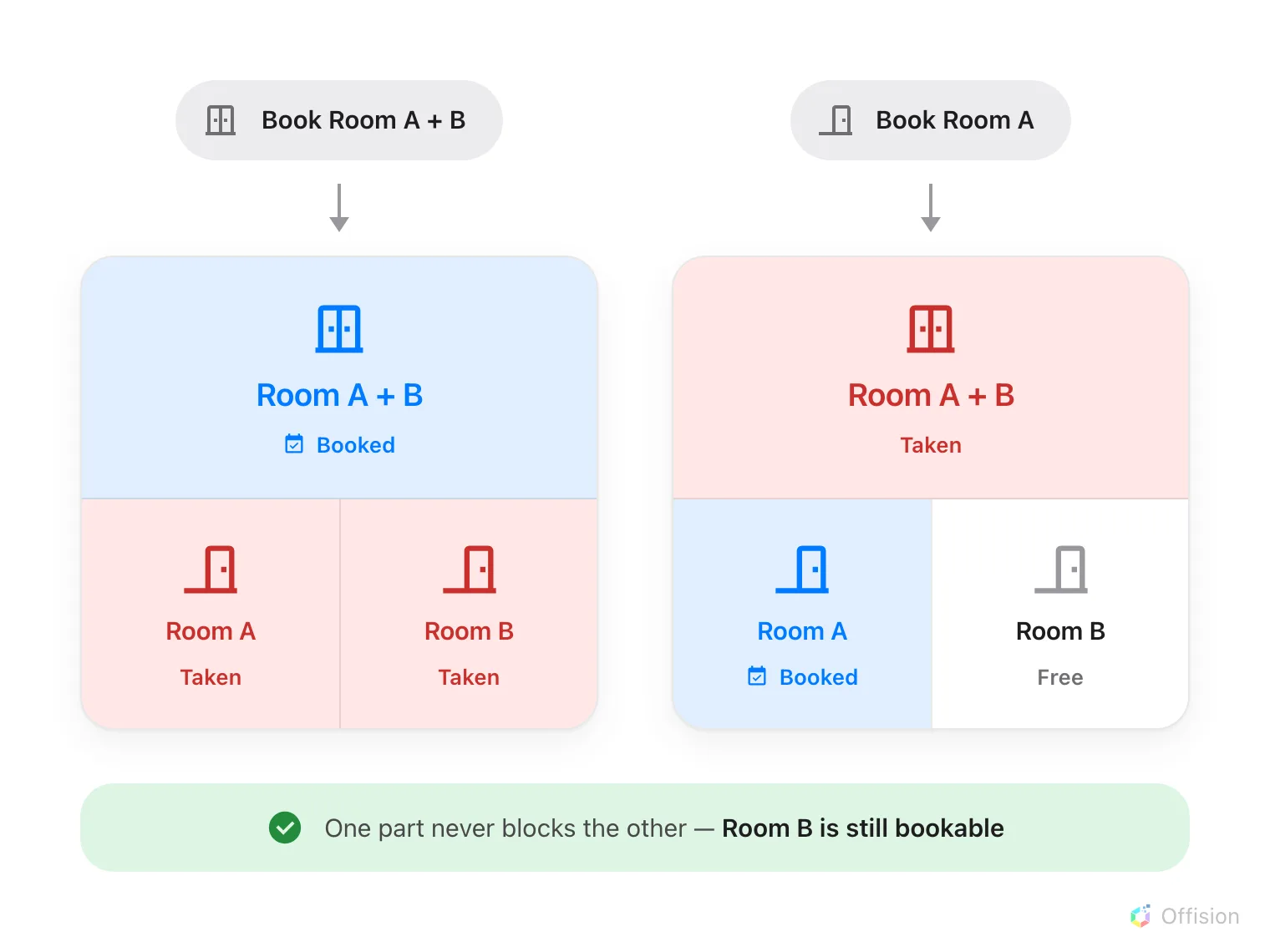
Booking either end takes the other with it. One part never takes its sibling.
That last part is the rule people get wrong: the parts do not block each other. Room A and Room B can be booked by two different teams at the same time. All that happens is that nobody can have the whole thing while either is in use, which is exactly how a folding wall behaves.
1. Open Combine rooms
Open Combine roomsIt sits under Rooms in the booking menu, beside the ordinary Rooms page, and it is not pinned by default — which is the usual reason people conclude the feature is missing.
The list looks like the rooms list with one column added: Combine, naming the rooms each row is made of. There is no Import button and no menu behind Add, because a combined room is always assembled by hand.
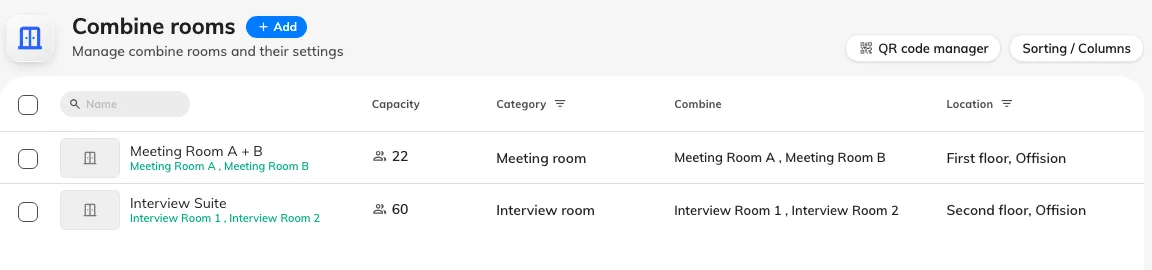
One row per combined room, with the rooms it is made of named in the Combine column.
2. Name it, and pick the rooms it is made of
Add opens the resource form on its Basic page. Name it for the space people will ask for — Ballroom, Meeting Room A + B — and not after the mechanism; nobody books a “combine room”.
Under the name is the one field this form has that the ordinary room form has not: Combine. Pick two or more rooms. It is required, and it is the whole point of the record.
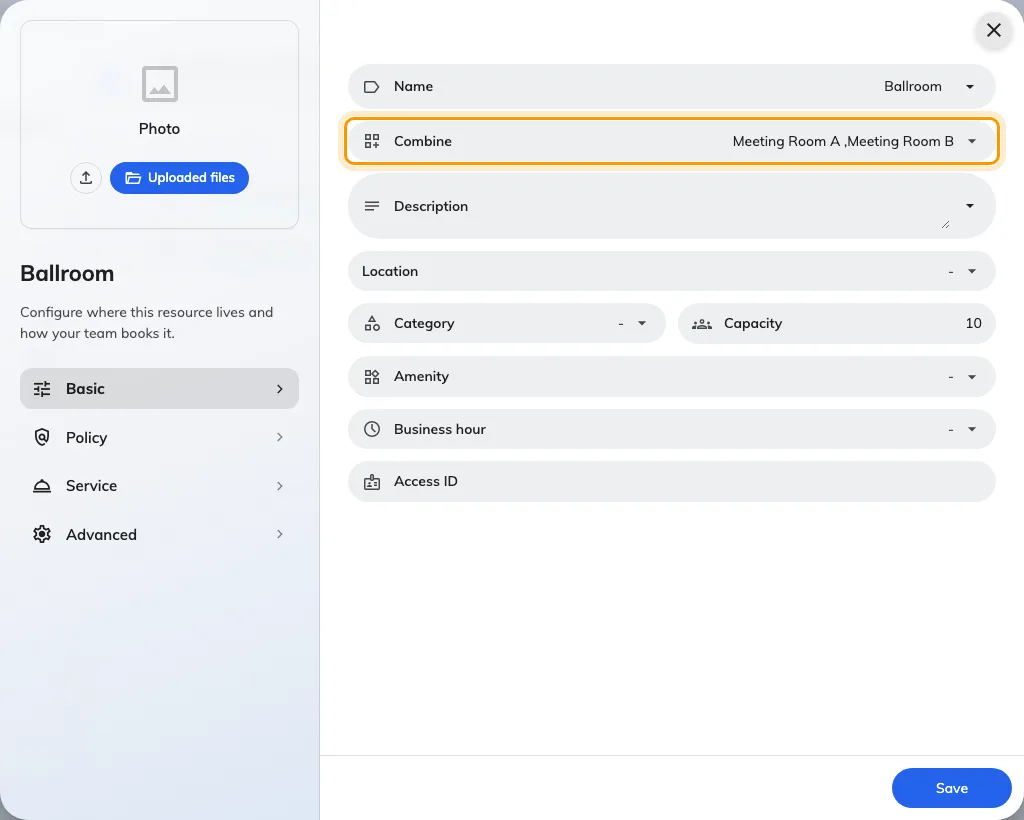
Basic, with Combine under the name — the only field an ordinary room does not have.
The picker offers ordinary rooms only. A combined room cannot be built from another combined room, and a room that is assigned rather than booked is not offered either.
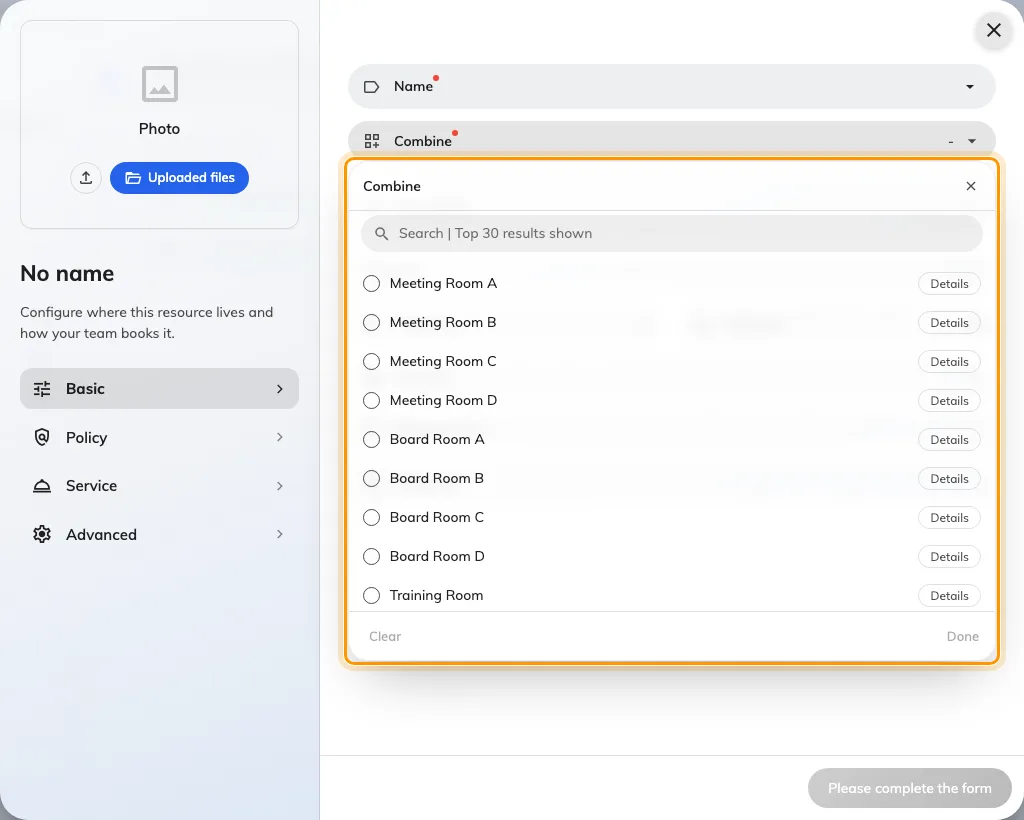
Only ordinary rooms are on offer — combined rooms are not in the list.
3. Fill in the rest as an ordinary room
Everything below Combine is the normal resource form, and the combined room carries its own answers rather than inheriting them from its parts.
Capacity is not added up for you. Two rooms of ten are rarely a room of twenty once the wall is folded away and the chairs are re-laid — put in the number the space genuinely seats, because that is what people filter on.
Give it a Location for the right floor. Classic uses the constituent rooms rather than a single combined-room point. On Map 2.0, assign the combined resource to its combined-room group using Assign combined room. Separate room objects take their own individual resources; a combined group takes the combined resource.
The Category, Amenities, booking policy and business hours are all set here too, and none of them come from the parts. A combined room that should be found under Event space has to be put there itself.
4. Check it worked
Book the combined room for an hour in the Offision app, then open one of its parts on the resource calendar. You should find that hour blocked there, marked Combined. That single test proves the record, the links and the direction that matters most — one booking reaching every part.
What people see
Once it exists, the combined room behaves like any other room in the pickers and lists, marked with a Combine room badge. What is new is on the calendars.
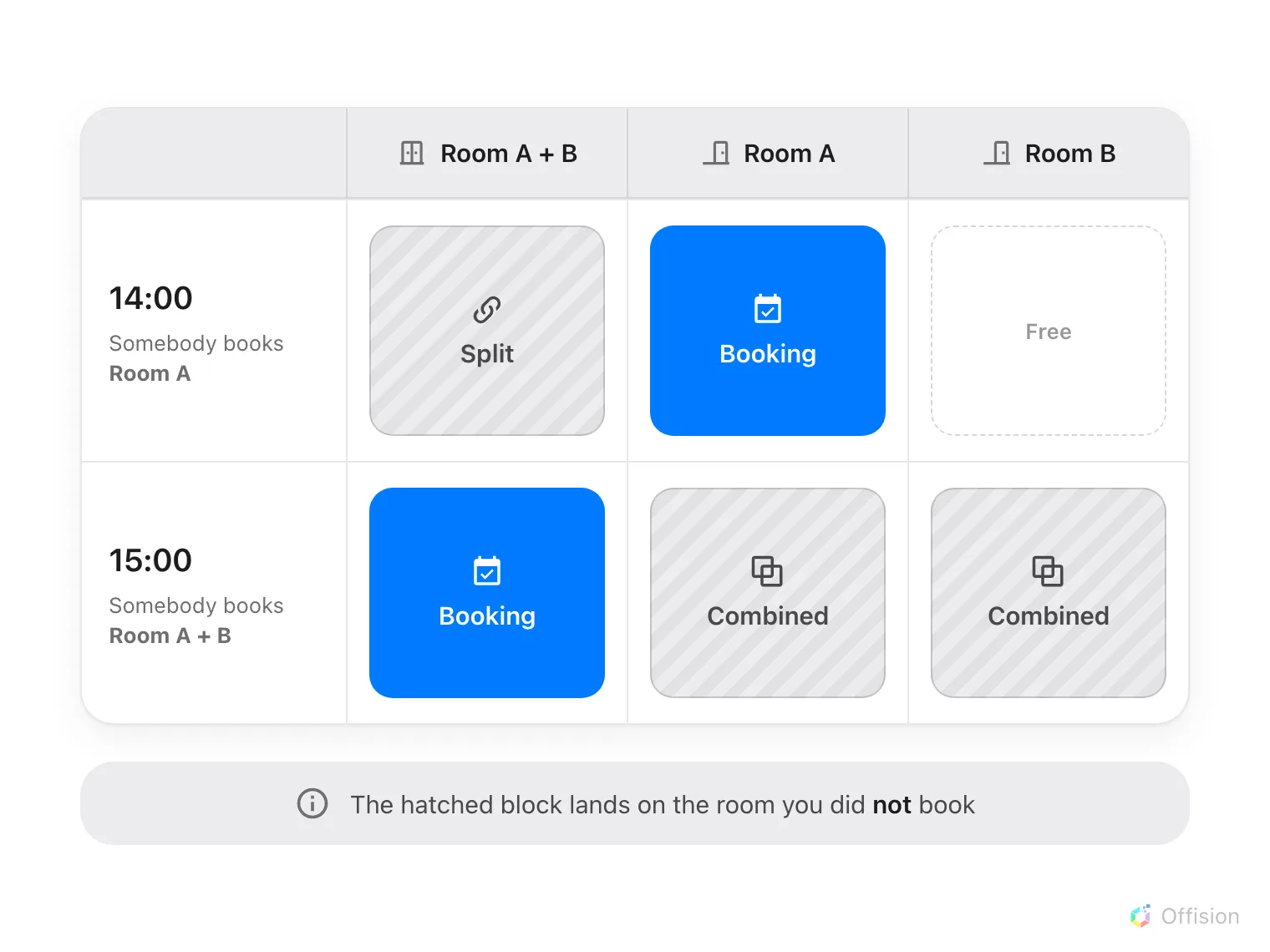
Which column the hatched block lands on tells you which end was booked.
Two hatched blocks, and the label says which way round it is:
| Block | Where it appears | What it means |
|---|---|---|
| Split | on the combined room | One of its parts is booked, so the whole space is not available |
| Combined | on a part | The combined room is booked, so this part is spoken for |
Neither is a booking. They cannot be opened, dragged or resized, and clicking one does nothing — they are the consequence of a booking somewhere else. Each carries the subject of that booking and the name of the room it happened in, so somebody staring at an apparently busy room can see exactly where the time went and who to ask.
The combined room also announces itself in the column header, with a Combine tag beside its name.
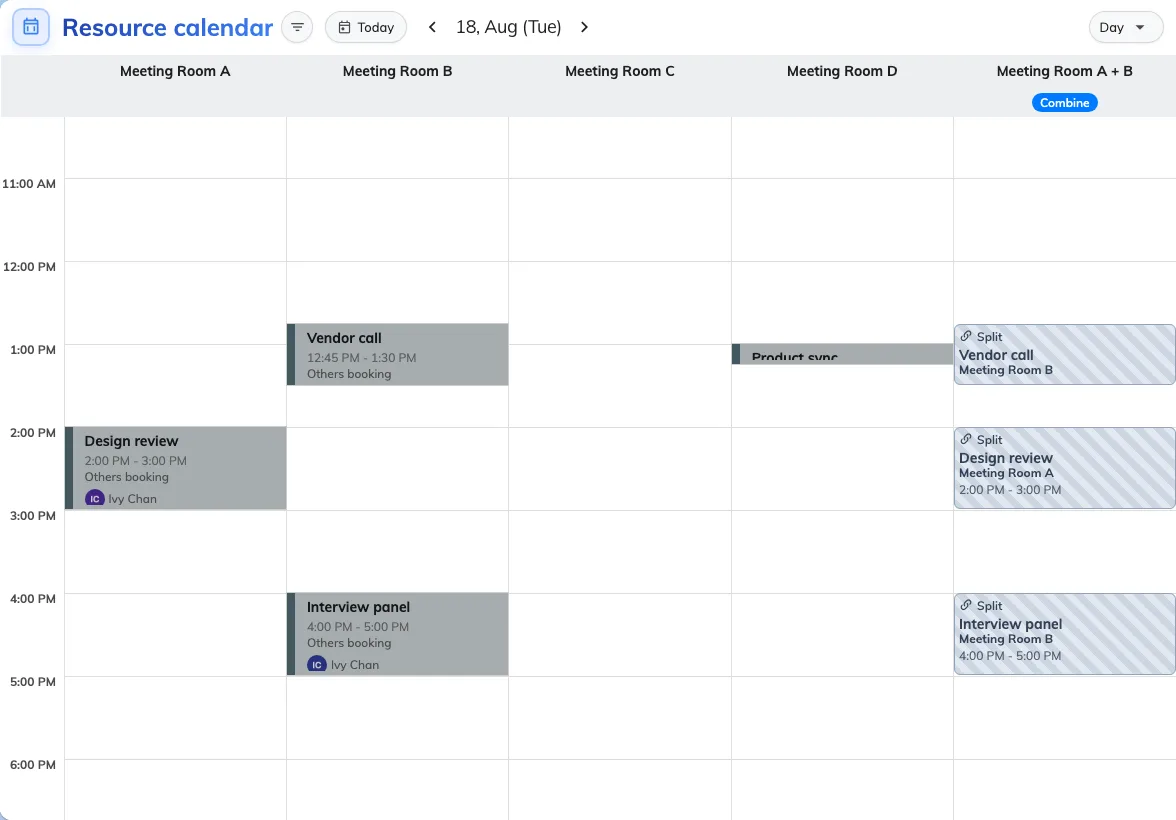
The combined room and both its parts, side by side: a Split block, a real booking, and two Combined blocks.
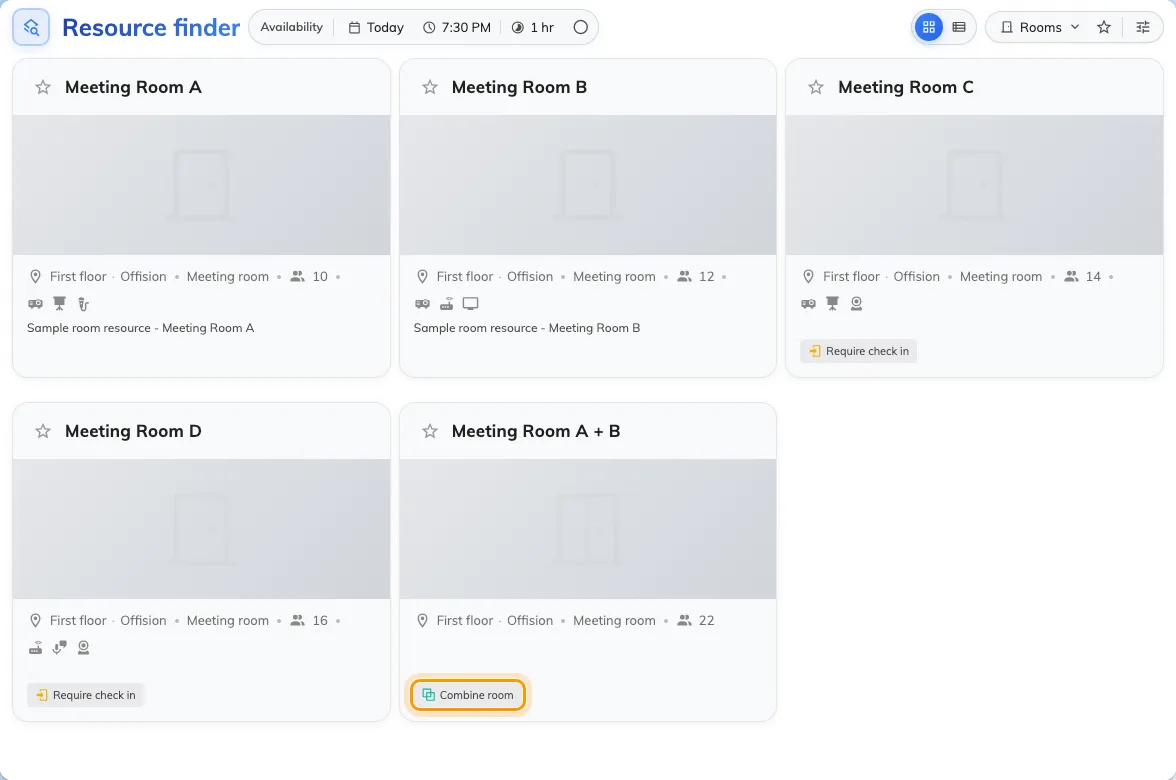
In the room list, a combined room carries its own badge.
Where a tenant has combined rooms, a Combine / Single filter appears beside the other room filters — in the room list, on the home resource calendar and in the booking form. It is the quick way to say show me only the big spaces, or to get them out of the way when they are cluttering a search.
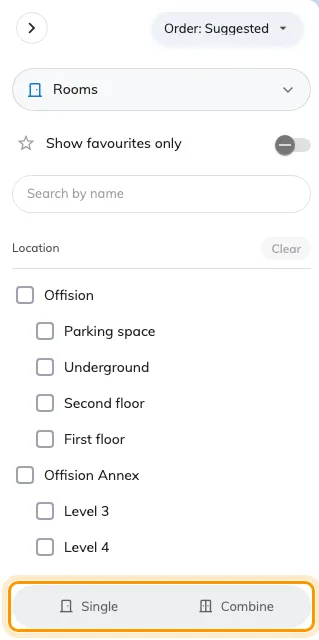
Combine / Single — shown only on tenants that actually have a combined room.
The same mark follows it into the booking form’s room picker, where it is the one thing distinguishing the whole space from the rooms it is made of — all three are in the list, under similar names.
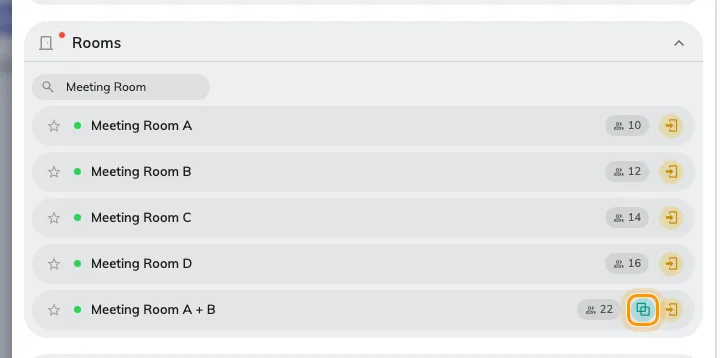
In the picker the mark is on its own, without the wording — hover it and it says Combine room.
What this does not control
Nothing is inherited from the parts. Capacity, category, amenities, the booking policy, business hours and approval are all set on the combined room itself. Changing a part later does not change the whole.
The parts stay independently bookable. Combining rooms does not stop two teams taking Room A and Room B at the same time — it only stops either of them being taken while the whole space is booked.
One booking cannot hold both ends. Choose the combined room and its parts disappear from the picker; choose a part and the combined room disappears. There is no way to book Room A + B and Room A together, and nothing to gain from it — the first already includes the second.
A part cannot change type. While a room belongs to a combined room, Offision refuses to turn it into a desk or anything else: Cannot change since it is linked with a combined resource. Take it out of the Combine field first.
This is not how you group rooms for browsing. If you only want people to find the rooms on floor 3 or the rooms with a projector together, that is categories and amenities — see Set up the categories and amenities people filter by. A combined room is for a space that is genuinely bookable as one.
There is no on/off switch. The feature is just this page; a tenant with no combined rooms simply never sees the badge or the filter.