

Choose which booking emails go out
Six switches on one page decide whether a booking mails anybody, whether the calendar invitation rides along, and who else is told. All of them sit on the policy, so they apply to a class of space rather than to one room.
1. Open the policy and find the Email section
Open Booking policy, click the policy those resources use, and choose Edit. In the rail down the left of the editor, the last of the ordinary pages is Others — everything in this article is at the top of it, under the heading Email.
Open Booking policy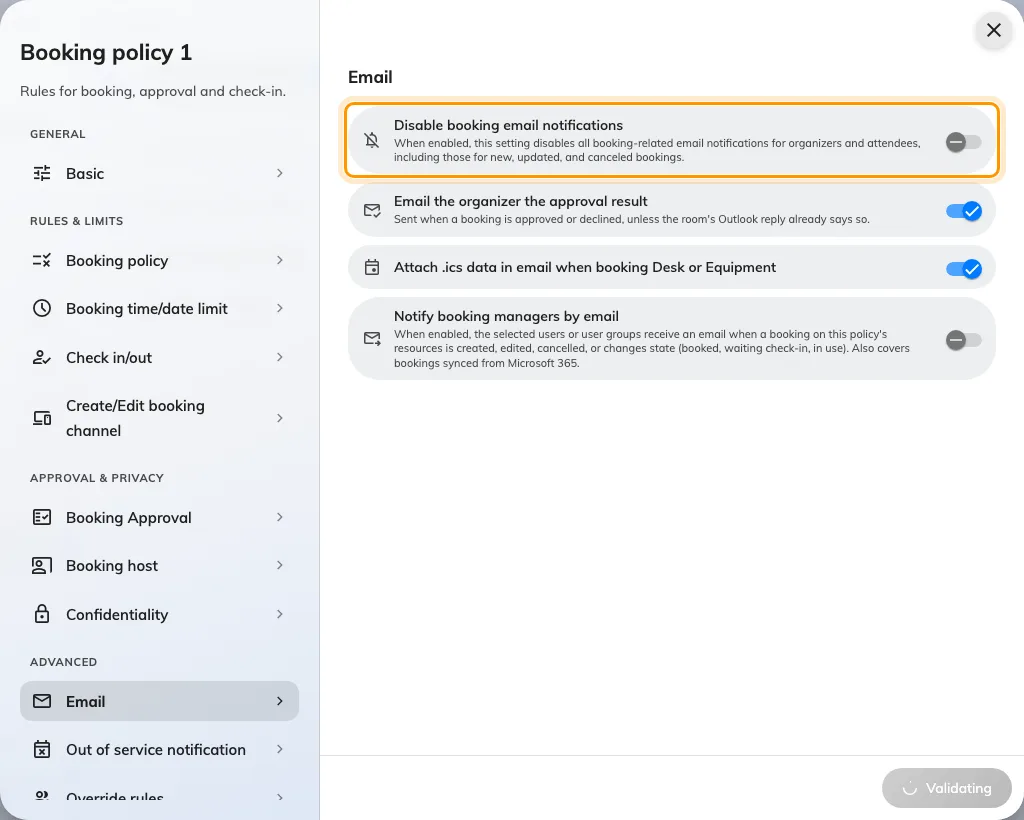
The Email section, at the top of the Others page.
2. Decide whether a booking mails anybody at all
Disable booking email notifications — “this setting disables all booking-related email notifications for organizers and attendees, including those for new, updated, and canceled bookings.” It is the blunt one: nothing goes out, to anybody, for any resource on this policy.
Turn it on for desks and equipment, where the mail tells one person something they already know and is the commonest complaint about a new desk floor. Leave it off for meeting rooms, where the mail is how five people find out where to be.
3. Keep or drop the approval result
Email the organizer the approval result is on unless you turn it off, and sends Booking approved or Booking rejected once somebody decides. It only means anything on a policy that requires approval in the first place.
The one reason to turn it off: where the room is an integrated mailbox, the room’s own calendar reply already tells the organiser the answer, and two messages saying the same thing is worse than one.
4. Decide whether desks and equipment carry the invitation
Attach .ics data in email when booking Desk or Equipment is the only switch on the whole policy that names a resource type in its label, because it applies to nothing else — a room booking always carries the calendar invitation and this does not change that.
Leave it on where people plan their week around a desk and want it in their calendar. Turn it off where they book one every morning, since a month of desk bookings arriving as calendar entries buries everything else. The desk floor’s full set of settings is Set the rules a hot-desk floor needs.
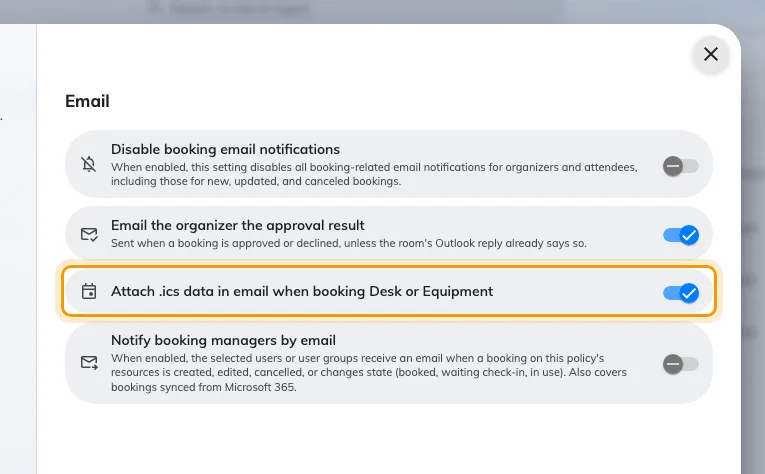
The .ics switch names Desk and Equipment because rooms are never affected by it.
5. Tell the people who have to prepare the space
Notify booking managers by email mails a named list every time a booking on these resources is created, edited, cancelled, or changes state — booked, waiting check-in, in use. Bookings that arrived by sync from Microsoft 365 count too.
Turning it on reveals Booking manager user(s) or user group(s) underneath. Name a user group rather than individuals, so the list survives somebody going on leave.
This is a different question from step 2. Silencing the organiser’s mail on a desk floor does not silence this; they are separate switches and the manager can keep being told while nobody else is.
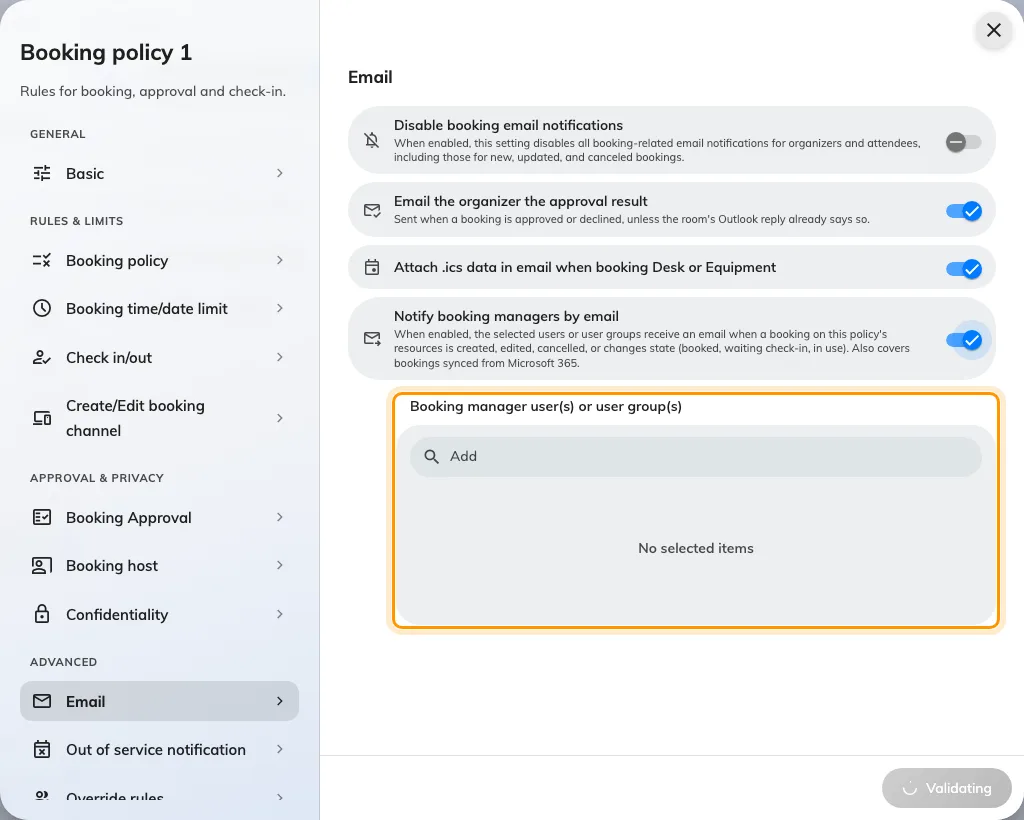
The recipient list appears only once the toggle above it is on.
6. Decide how loudly a closure is announced
Under Out of service notification, three switches decide whether the people who already booked are emailed when the resource is taken out of service — when a closure is created, updated, or deleted.
Creation is on by default and should stay on: somebody whose meeting has just lost its room needs to know. The other two are for spaces whose closures move around; on a room that is closed once a year they are noise.
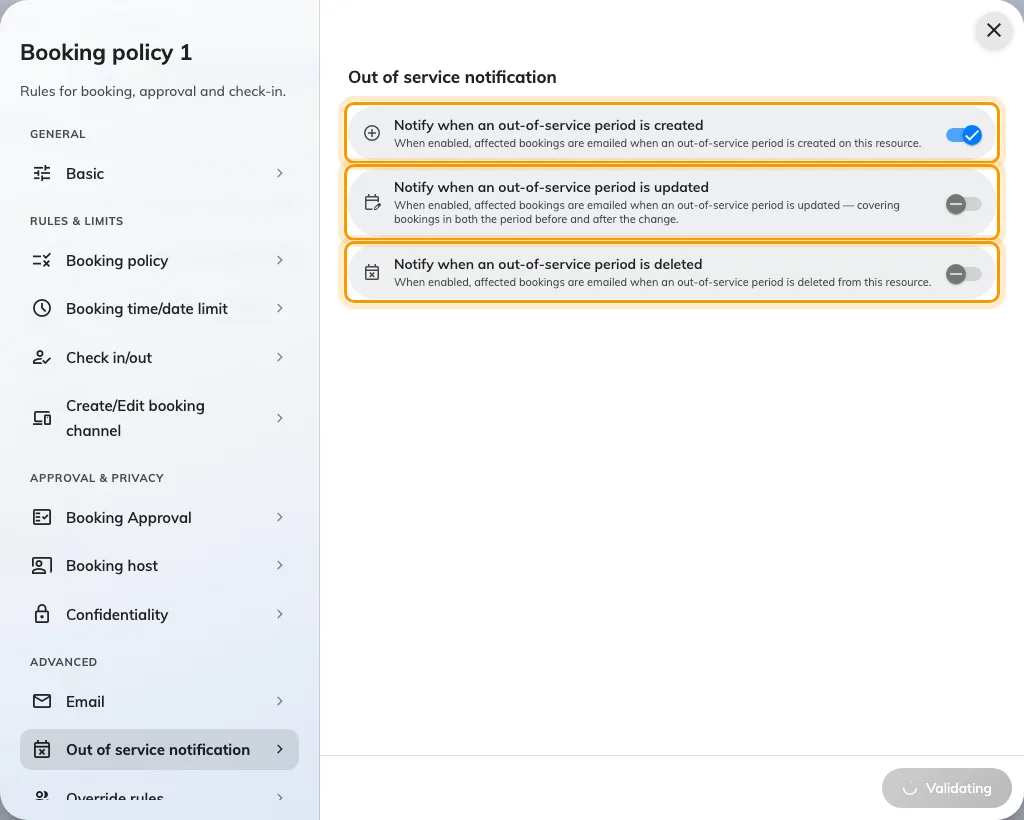
Out of service notification: created, updated and deleted are three separate decisions.
7. Save, and check it worked
Save the policy, then do it for real rather than reading the form back. Book one of these resources as an ordinary account, with somebody else as an attendee, and open both inboxes:
- The organiser should have Booking created, or nothing at all if step 2 is on.
- The attendee should have Meeting invitation.
- Anybody named in step 5 should have their own copy.
- Cancel the booking and confirm the cancellations arrive too — that is the half people forget to test.
If the calendar invitation is not visible as an attached file, that is expected on most sites and not a fault: the invitation is usually not a file.
What this does not control
- What the mail says. Subjects and body text are set once for the whole site, under Change the wording of an Offision email.
- Reminders. The mail sent before a booking starts, or when it is about to be released for a no-show, is switched on the booking settings page and applies to the whole site rather than to a policy — Reminders.
- Approval requests. The mail asking an approver to decide is part of requiring approval; only the result mail is on this page.
- The forecast digest. A scheduled summary for managers is a subscription of its own — Email your managers a forecast of upcoming bookings.
- Whether mail leaves the building. The sender, and whether the invitation arrives as a file, are set under Send email from your own address.