

Let managers book further ahead than everyone else
Keep the booking window short for everyone, then give one user group — the management team — a longer horizon with an override rule on the same policy. With a worked example for two groups and two resource types: professors four weeks out on lecture theatres, students one day out on study pods. About five minutes.
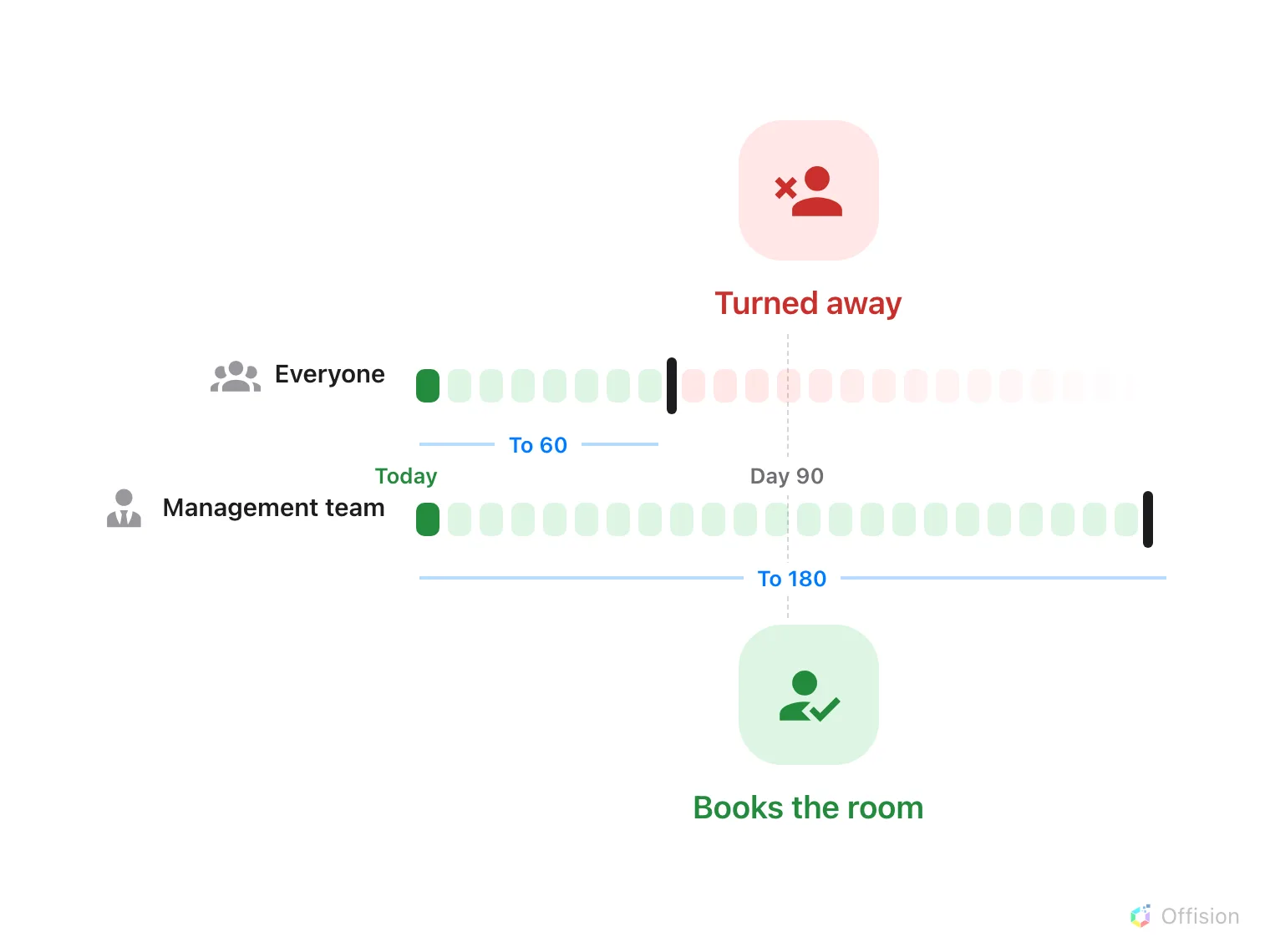
The policy's window still applies to everyone — except the group named in the override rule, which carries a window of its own.
1. Put the managers in a user group
An override rule targets users or user groups. Use a group — people are promoted and leave, and a group means the rule never has to be edited for that. Offision ships a Department category of groups, so a suitable one may already exist; see Create a user group if not. This article uses a group called Management team.
Open User groups2. Open the policy those rooms use
The rule lives on the booking policy, beside the window it overrides — not on the room, and not on the group. Select the policy, then choose Edit in the panel that opens on the right.
Open Booking policy3. Add an override rule for that group
In the editor’s page list choose Override rules — near the bottom, with a badge counting the rules the policy already has. Choose Add Override Rule and fill in the three parts every rule has:
- Name — name it after the group: Management team. The list you come back to shows only these names, so a rule named after its group reads as policy.
- Override condition — Organizer applies when these people create or edit their own bookings, which is the case here. Booking manager instead applies when they work through the admin console on anyone’s booking.
- User(s) / user group(s) — pick the Management team group.
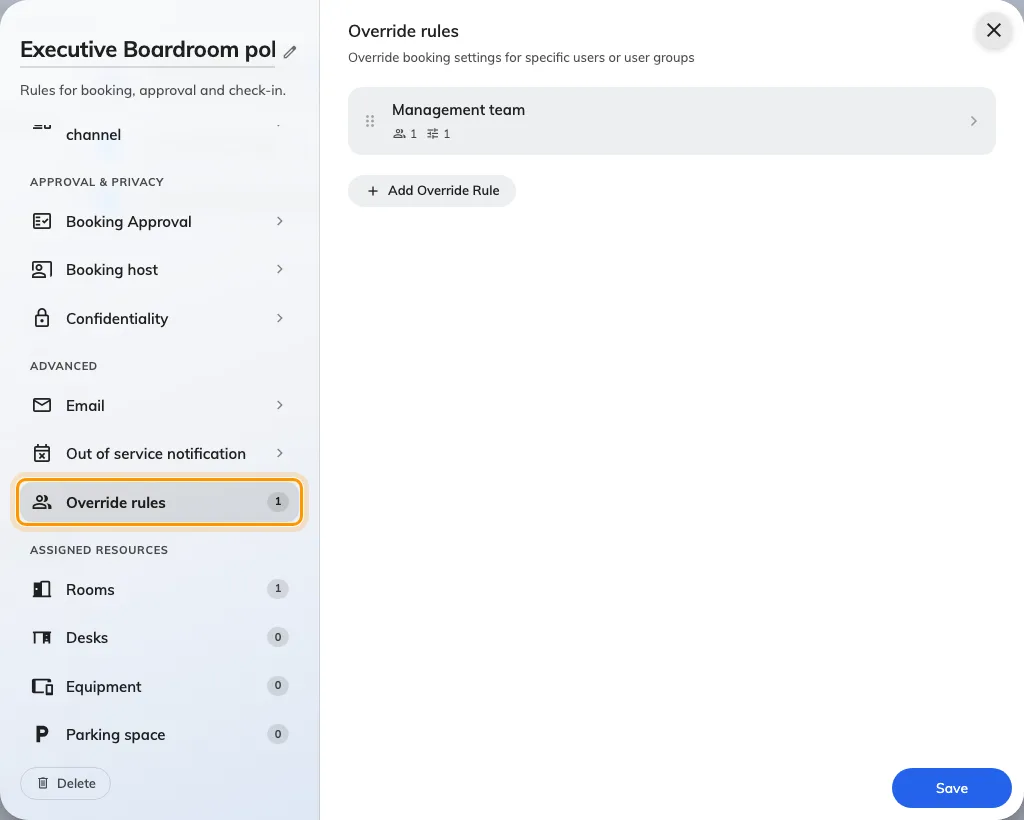
Override rules, in the policy editor's page list.
A person is matched by at most one rule per policy: the first matching rule from the top wins. If you add a second rule later — say a wider one for directors — drag the more specific rule above the more general one.
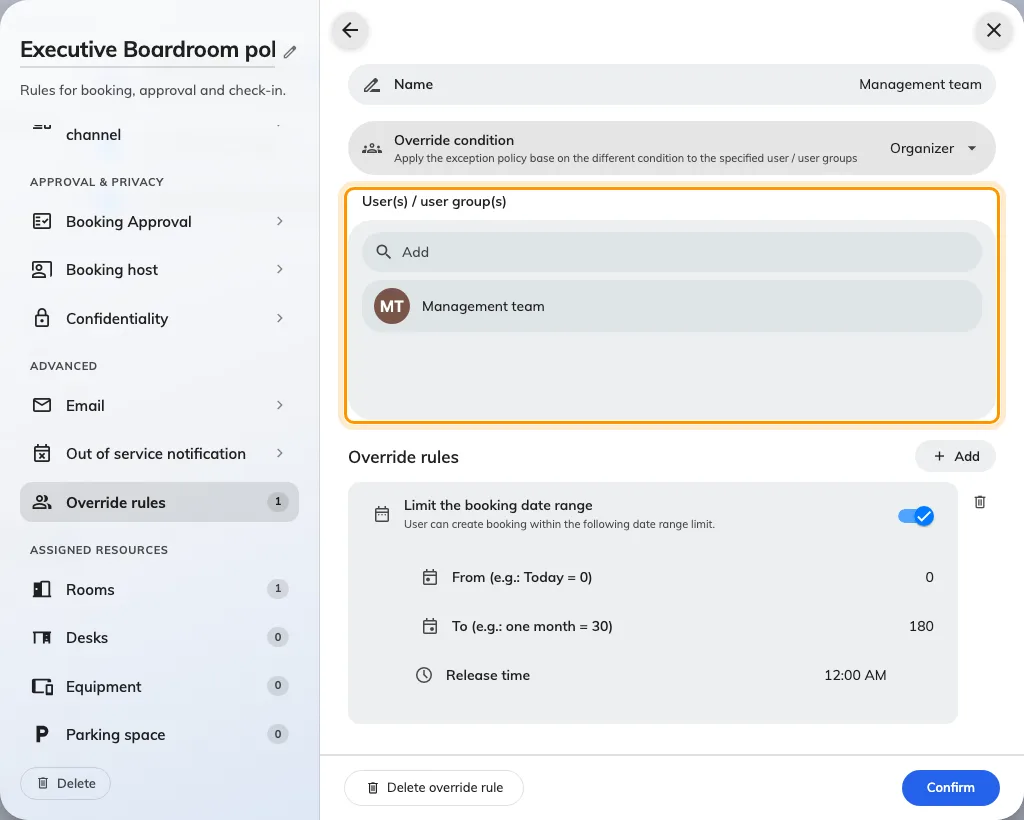
One rule: a name, the condition, and the group it applies to.
4. Give the rule its own date range
Under Override rules inside the rule, choose Add and pick Limit the
booking date range. The same control as the policy’s own page appears —
From (e.g.: Today = 0), To (e.g.: one month = 30) and Release time —
but what you set here applies only to the people in this rule. With the policy
at To 60, give the management team To 180: six months of horizon against
everyone else’s two.
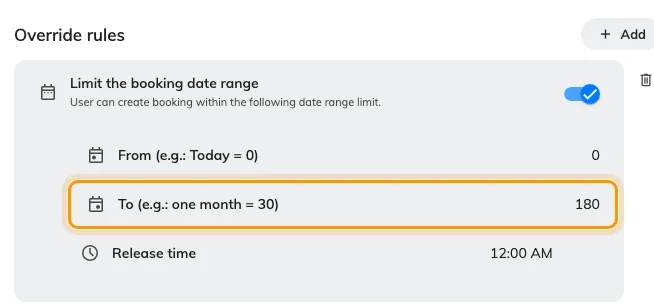
The rule's own window: To 180 for the management team.
Two details are easy to misread:
- Only the settings added to the rule change. Everything not listed in the rule follows the policy unchanged — a rule with just the date range in it alters nothing else about how these people book.
- Adding the row with the toggle off removes the window entirely for these people, rather than leaving the policy’s. A ceiling still applies — the system-wide maximum of 365 days — but nothing shorter.
Save the policy when you are done.
5. Check it worked
Sign in to the user app as someone who is not in the group and try one of the rooms about three months out — the date is refused, or simply unavailable in the picker. Then try the same room and date as a member of the Management team group: the form accepts it without complaint.
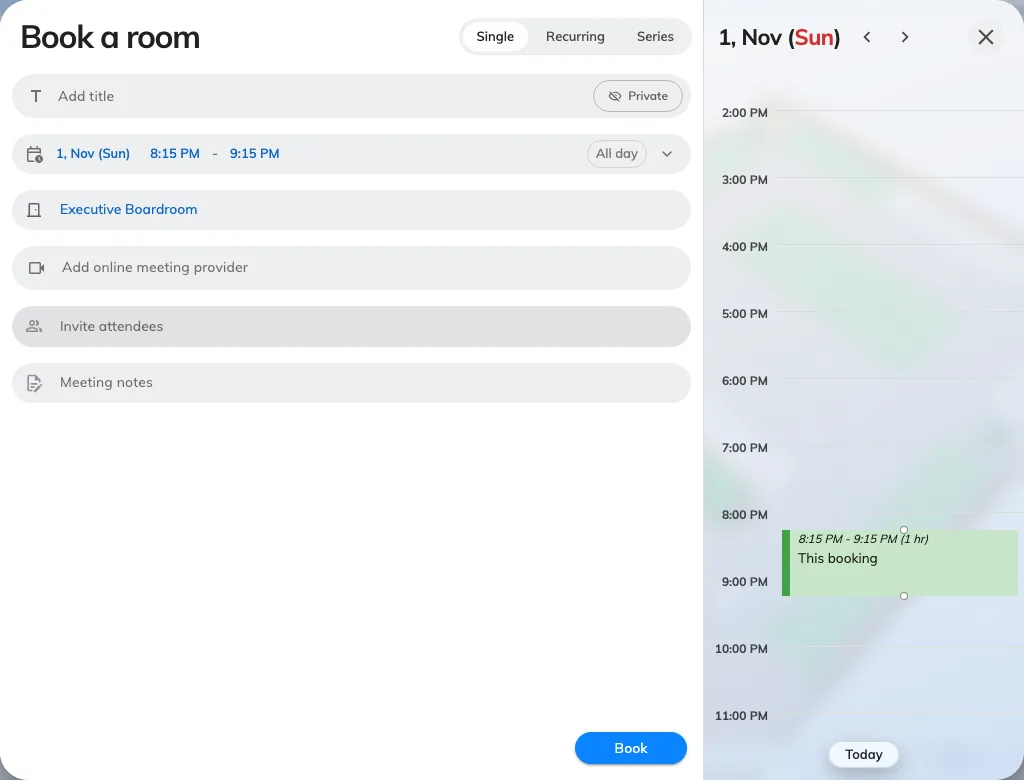
The same date that everyone else is refused, accepted for a manager.
If the manager is refused too, they are not in the group, or the rule’s date range row was never added — a rule with no settings in it overrides nothing.
A worked example: two groups, two kinds of room
Windows are counted in whole days, and the shortest window is To 1 — that is
“up to tomorrow”, which is how “24 hours ahead” is expressed. A campus that wants
professors to hold a lecture theatre four weeks out while students book a study
pod a day ahead sets it up as two policies, one override rule:
| Lecture theatres | Study pods | |
|---|---|---|
| Policy | Lecture theatres, applied to every theatre | Study pods, applied to every pod |
| The policy’s own window | To 1 — everyone, students included, may book a theatre for today or tomorrow only | To 1 — a pod is booked a day ahead at most |
| Override rule | Professors group, Organizer, with Limit the booking date range set to To 28 | none |
| Result | A professor books a theatre four weeks out; a student is refused beyond tomorrow | Everyone, professors included, books a pod a day ahead |
Two things the example shows. The override rule carries the longer window and
the policy the shorter one, never the other way round — a rule of To 28 on a
policy that already says To 28 changes nothing. And a group gets a different
window on a different kind of room only through that room’s own policy: the
professors’ rule lives on the theatre policy, so it does not touch the pods.