

Require approval before a room is booked
Make bookings for a room wait for a named person to approve them, instead of confirming straight away. About five minutes, once the room has a policy.
1. Open the policy that covers the room
Approval is a policy setting, not a room setting. It applies to every room on that policy, so before you change anything, check what else the policy covers.
If only one room should need approval and it currently shares a policy with twenty others, give it a policy of its own instead. Attach it on the room’s Policy tab.
Open Booking policySelect the policy, then open it for editing. Its settings are split into pages down the left; approval lives on Booking Approval, the fourth one.
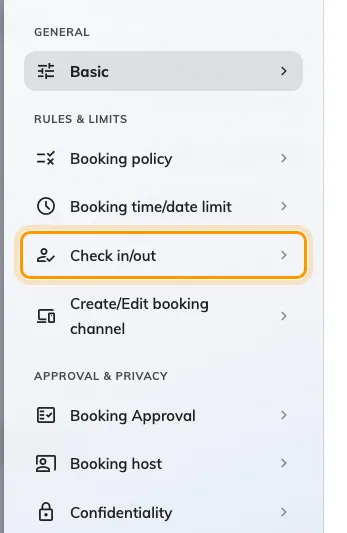
Booking Approval, the fourth page of the policy.
2. Turn on Booking approval
The page is empty apart from one switch. Turn on Booking approval and the rest of the settings appear below it — until then there is nothing to configure.
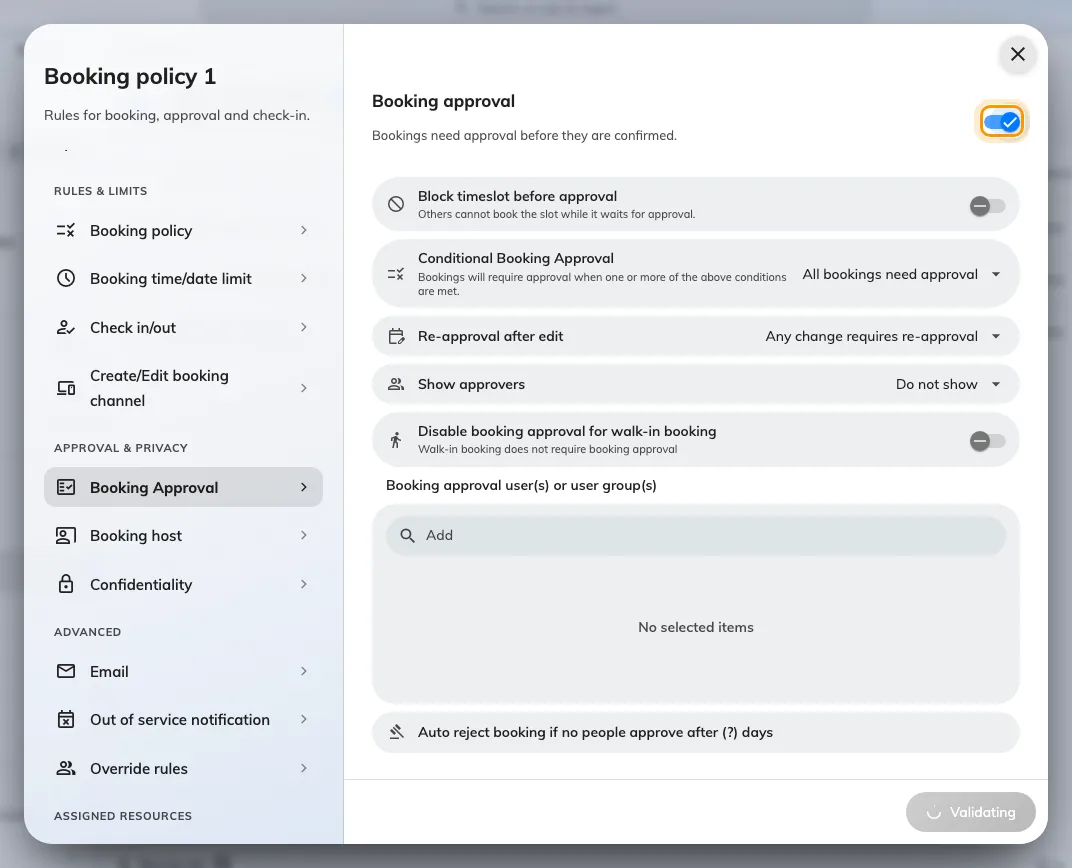
Everything below appears only once Booking approval is on.
3. Decide whether the slot is held while it waits
Block timeslot before approval is the one choice on this page with real consequences, and it is off by default.
- Off — the slot stays open while the request waits. Someone else can book the same time before the approver gets to it, and then the request cannot be approved at all.
- On — the slot is held from the moment the request is made. Nobody else can take it, but a request nobody answers keeps a popular room locked until the auto-reject deadline in step 6.
Turn it on for rooms people compete for, which is usually the same set of rooms you made need approval in the first place. Leave it off where a clash is unlikely and you would rather not have rooms held by forgotten requests.
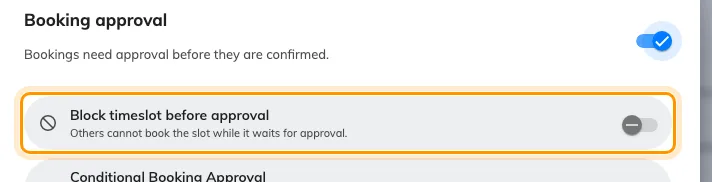
Off, two people can queue for the same slot. On, the slot is held.
4. Name the approvers
Booking approval user(s) or user group(s) is who gets asked. Anyone named here can decide, and the first decision is final — there are no approval levels and no second signature.
Name a user group rather than individuals wherever one exists. Approval named on a person stops the day they change role, and the failure is silent: requests simply sit there until they auto-reject.
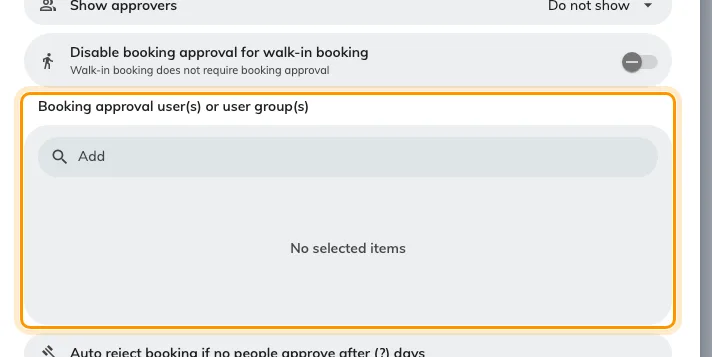
Approvers for this policy. Prefer a user group over named people.
Anyone with the Booking manager permission can also approve these requests from the admin console, whether or not they are named here. They are not emailed about them, so treat them as a safety net rather than as your approvers.
Use Show approvers to decide whether the person booking sees who will decide. Showing them cuts the “who do I chase?” messages; Do not show is the right answer where the approver is someone senior you would rather not have contacted directly.
5. Narrow what actually needs approving
Approval that fires on every ten-minute booking gets ignored, and then it is worse than nothing. Two settings keep it meaningful:
Conditional Booking Approval switches from All bookings need approval to Need approval by condition, then lets you pick what trips it — a minimum duration, all-day bookings, recurring bookings, bookings outside business hours, bookings for far more people than the room seats, and a few more. Any one condition being met sends the booking for approval.
Duration is the usual choice: a half-hour catch-up goes straight through, a full-day workshop gets looked at.
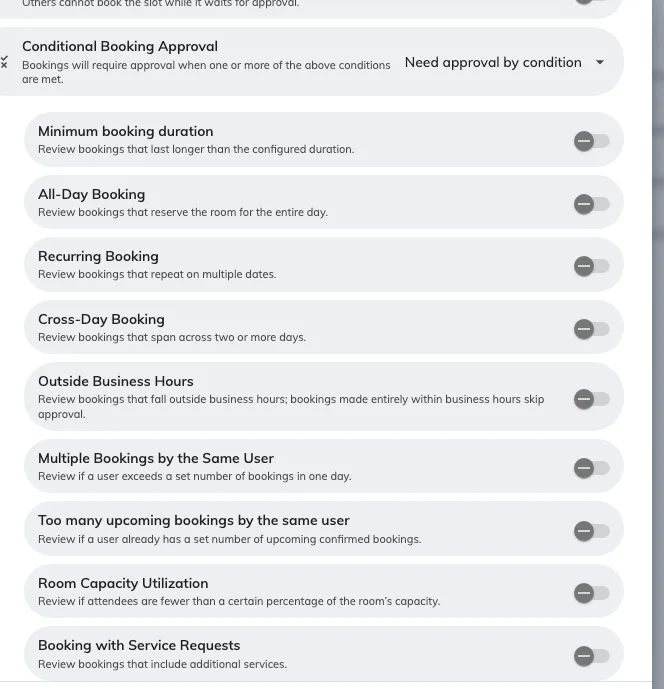
Pick what sends a booking for approval. Any one condition is enough.
Disable booking approval for walk-in booking lets someone standing at the panel take a free room now without waiting for a person who is not there. Leave it on unless the room is genuinely restricted.
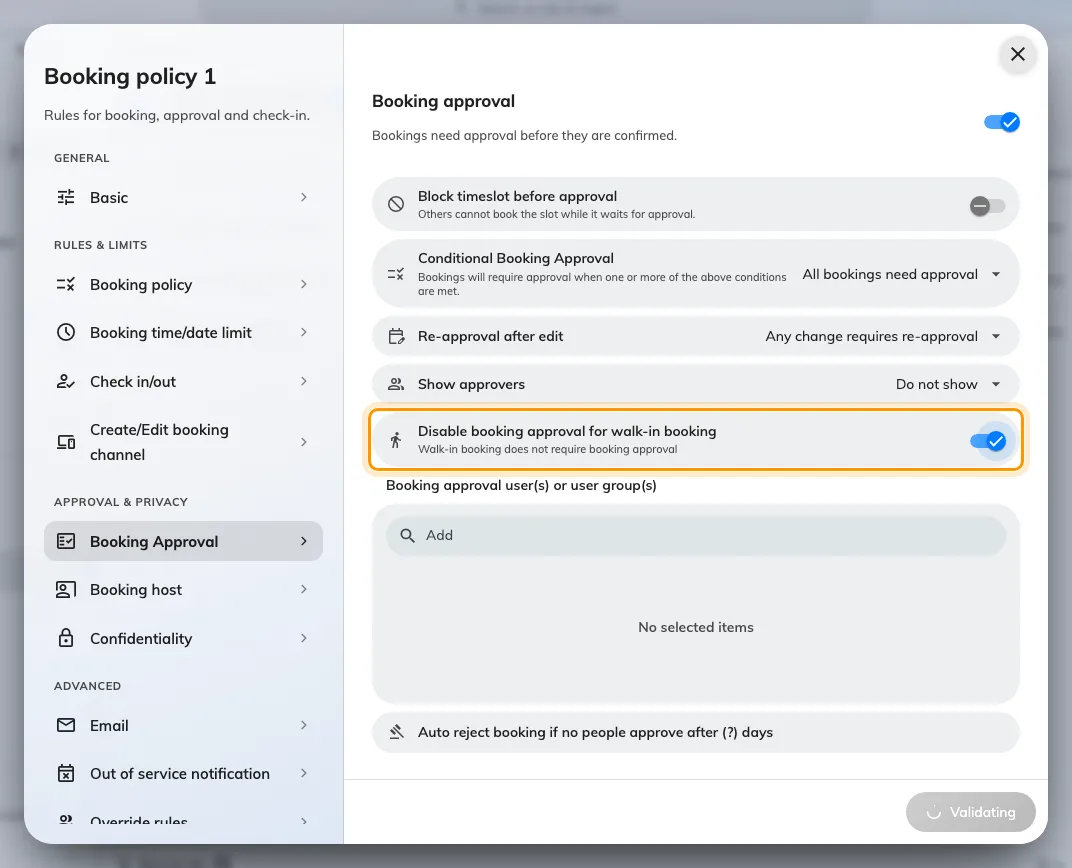
Disable booking approval for walk-in booking, on the policy's Booking Approval page.
6. Decide what an edit does, and what happens if nobody answers
Re-approval after edit decides whether an approved booking goes back into the queue when the organiser changes it:
- Any change requires re-approval — the default, and the most work. Fixing a typo in the title sends the whole booking back to the queue.
- Only time or resource changes require re-approval — usually the better answer. Renaming a meeting does not need a second look; moving it does.
- Edits never require re-approval — once approved, it stays approved.
Auto reject booking if no people approve after (?) days is the deadline. Set it. Without it, a request nobody answers waits forever, and with Block timeslot before approval on it holds the room while it waits.
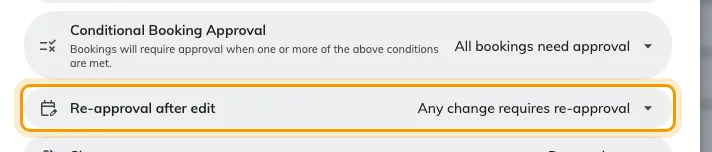
What happens when an approved booking is edited.
7. Give the approver something to judge
An approver looking at a name, a room and a time has no basis for a decision. Add the questions that make one possible — expected headcount, purpose, catering — as fields on the booking form, and attach that form to the room on its Policy tab. The approver sees the answers next to the request.
Open Booking form8. Check it worked
Book the room as an ordinary user. You should see Booking created, waiting approval rather than a confirmation, and the booking should show as Waiting review in the list.
Then check the approver’s side: the request should be waiting for them, and they should have had an email about it. If the booking confirmed itself instead, the room is on a different policy from the one you just edited — the most common mistake here, and the reason step 1 says to check what the policy covers.