

Close the office on public holidays
Holidays sit on a Booking hours schedule and close the whole day, whatever the week timetable says. Sync a country's public calendar, import an .ics file, or add dates by hand — and know which of the three survive the weekly refresh.
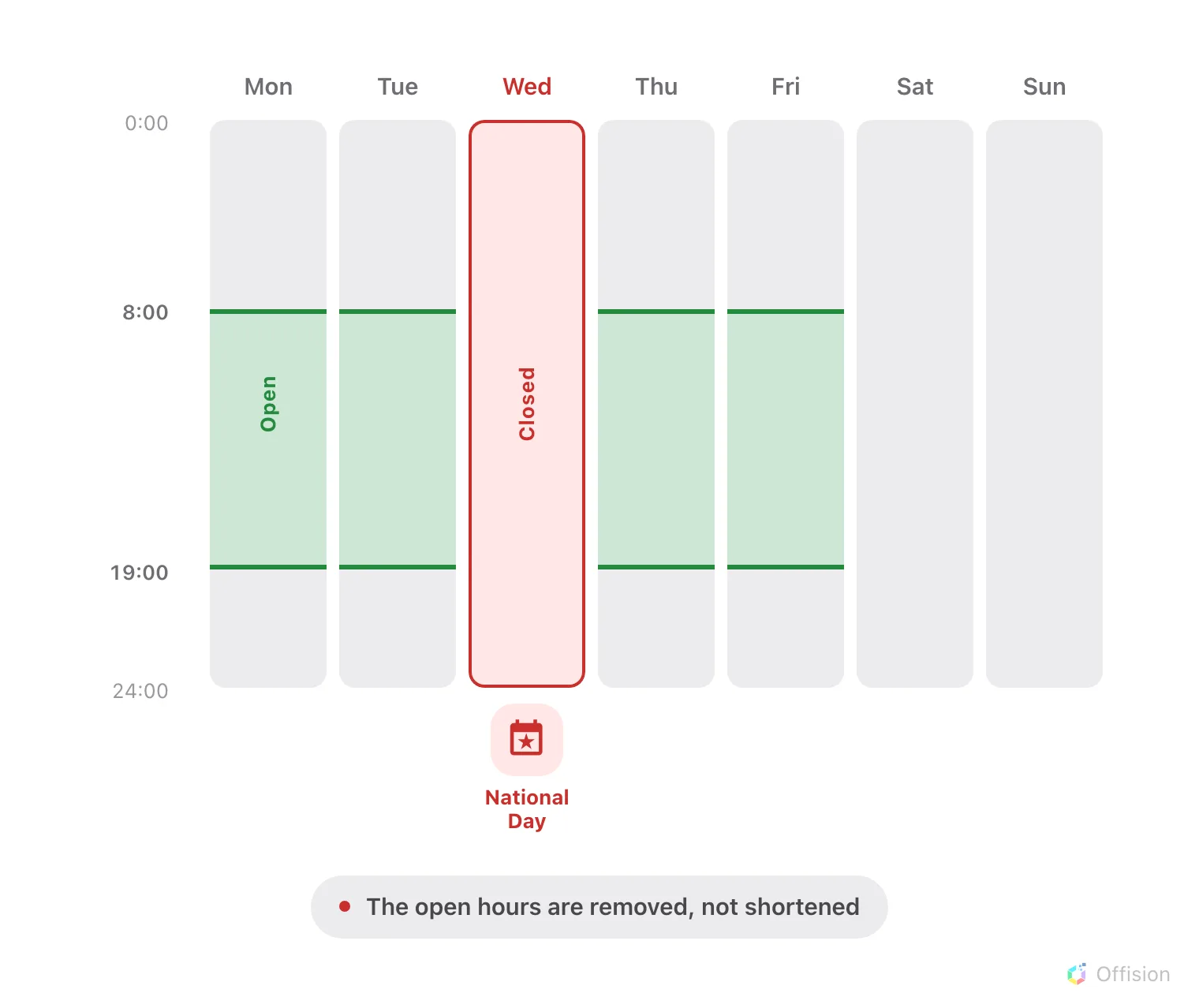
A holiday closes the whole day. The hours drawn on the week timetable for that weekday simply do not apply.
1. Open the Holidays page
Holidays are not a screen of their own — they are a page inside the schedule’s editor, next to the week timetable they override.
Open Booking hoursSelect the schedule in the list, choose Edit, and open Holidays — the second entry in the editor’s page rail, between Settings and Suggested time slots.
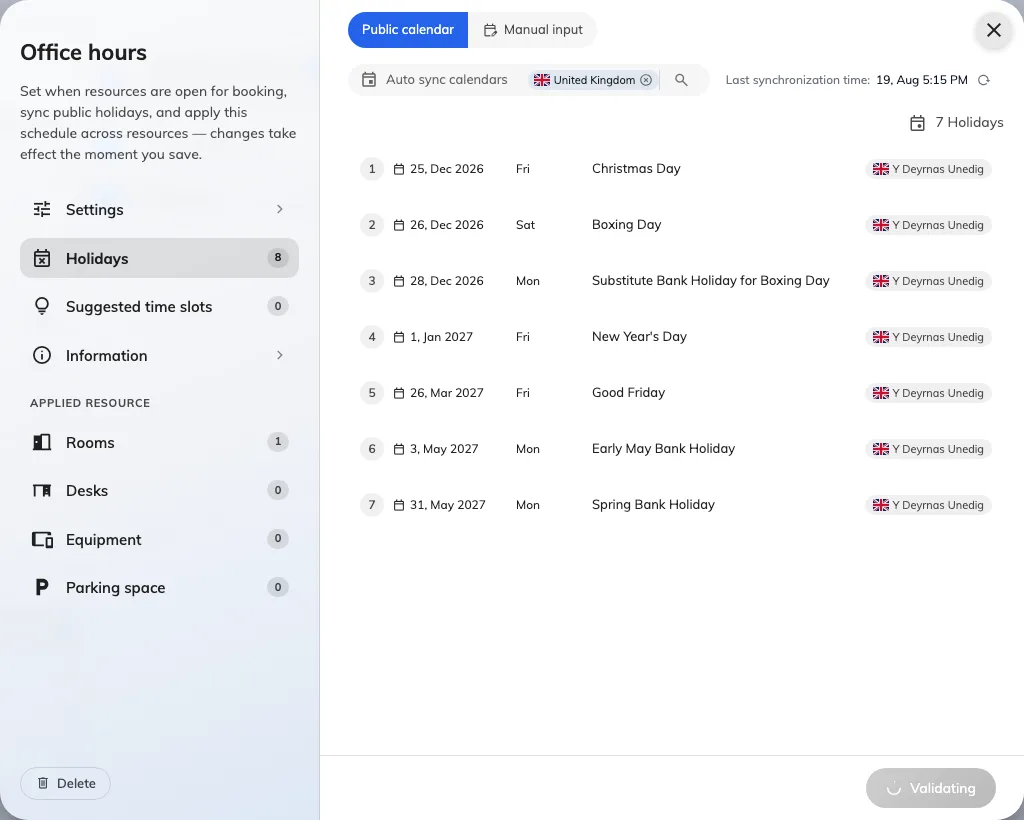
The Holidays page of a Booking hours schedule.
The page has two stacked layers: Public calendar, which subscribes to a country’s holidays, and Manual input, which holds dates you enter or import yourself. A schedule may use either, or both at once.
2. Sync a country’s public holidays
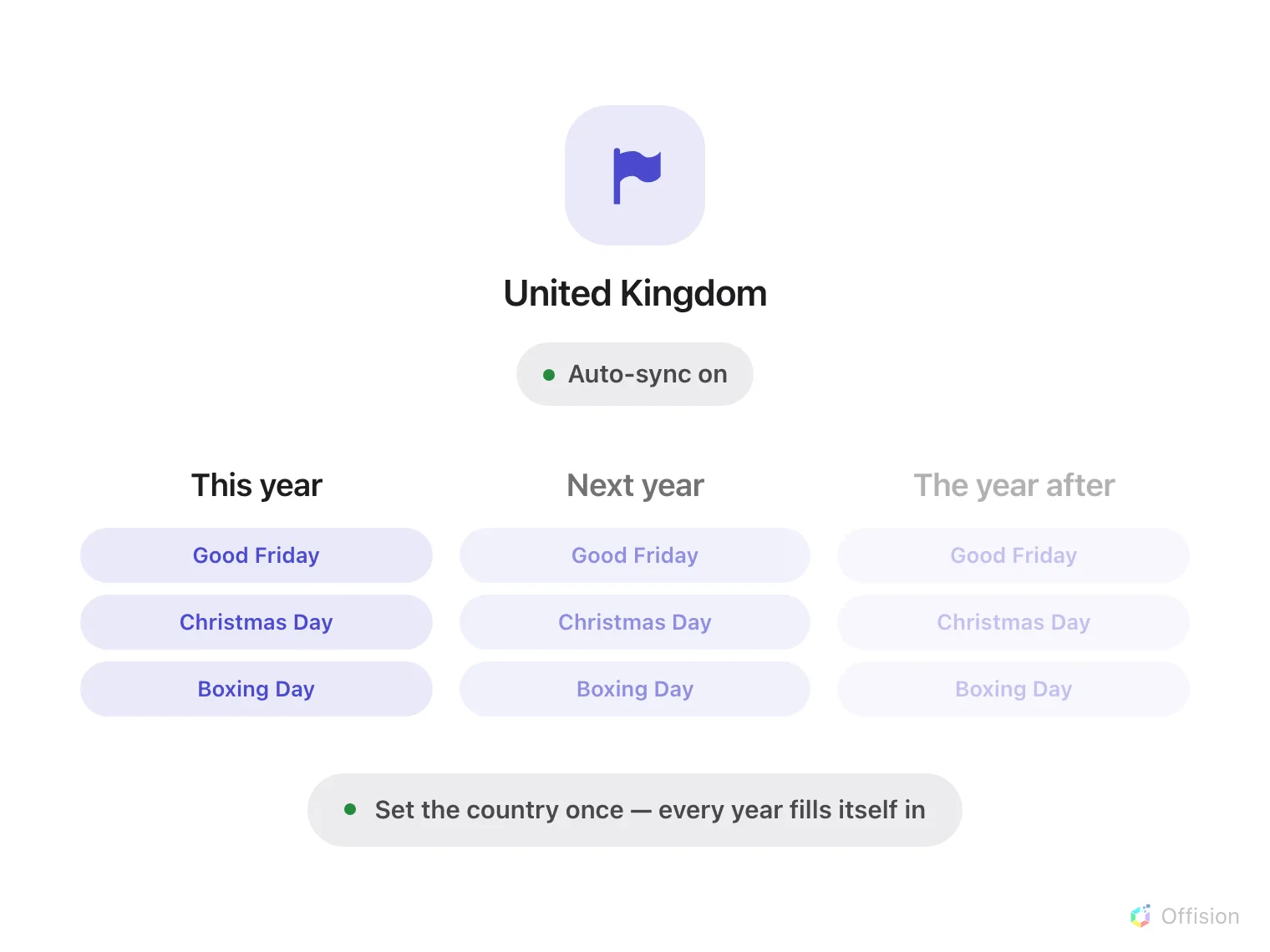
Choose the country once. The same holidays stand in every year that follows, without anyone entering them.
Under Public calendar, pick the countries whose holidays this schedule should follow, then choose Select public calendar and load.
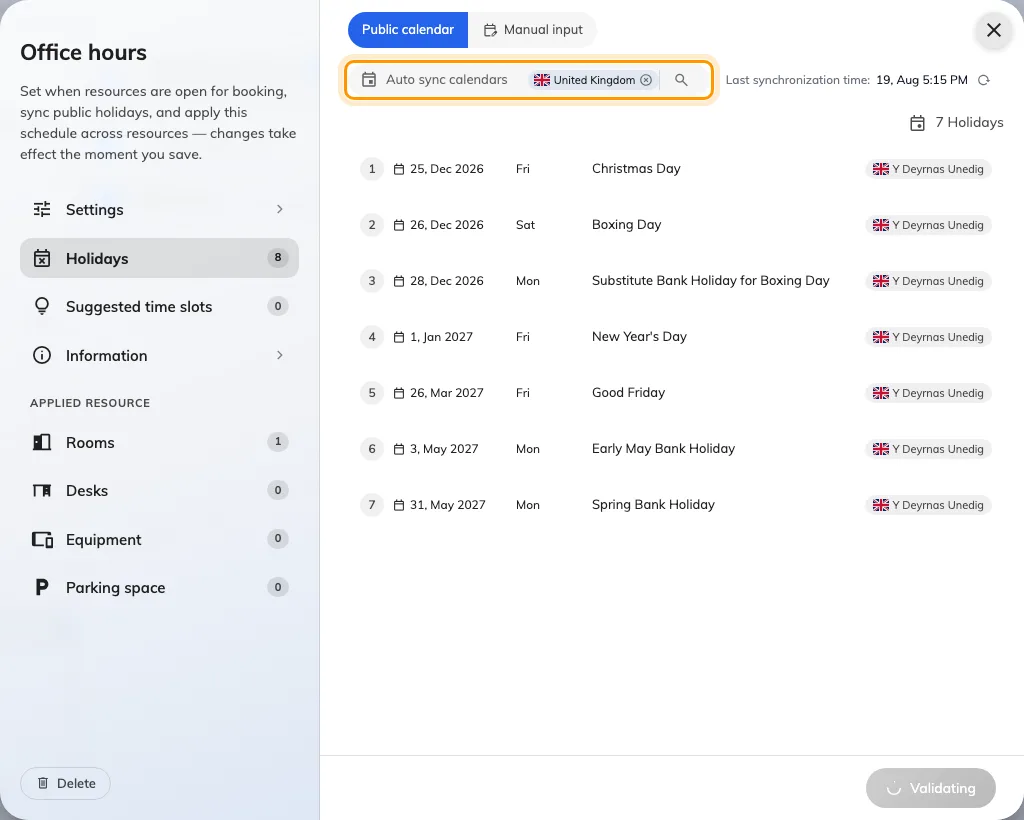
The public calendar picker, where a country's holidays are subscribed to.
The loaded dates appear under Auto-synced public holidays, each marked Synced. They are read-only here: the schedule re-fetches them, so an edit would not survive.
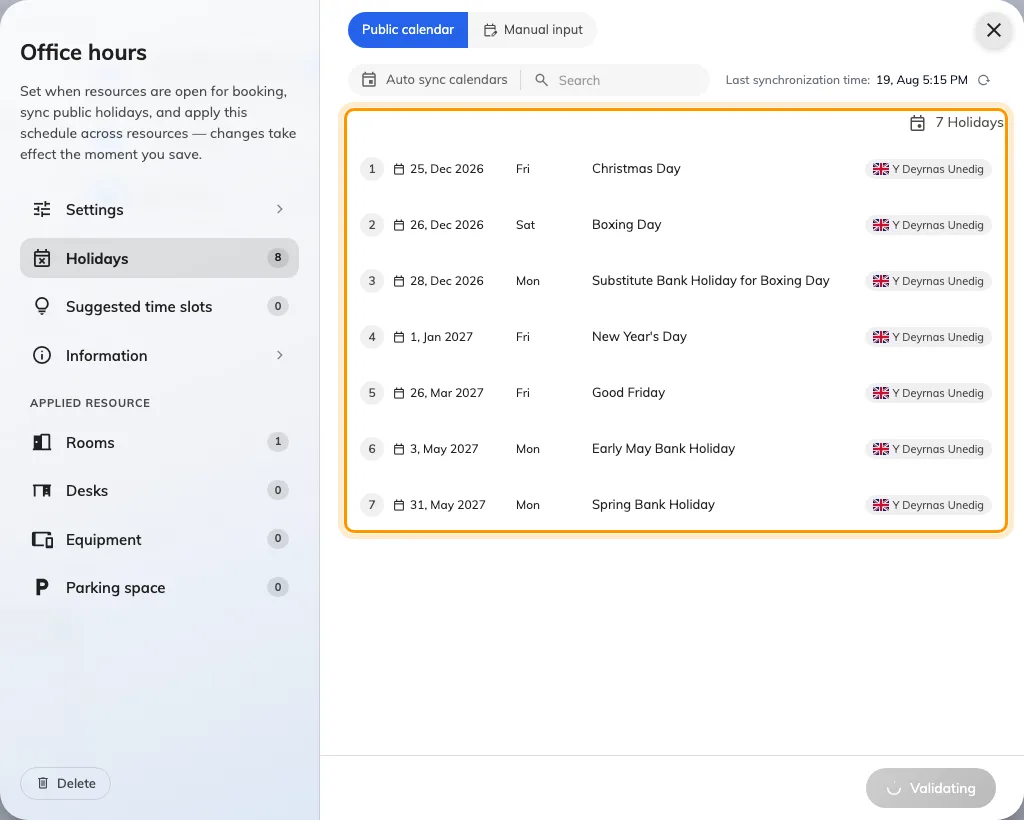
Synced holidays, listed with the country they came from.
Three countries worth comparing, because the language of the names differs:
| Country | What the holiday names look like |
|---|---|
| United Kingdom | English only — Christmas Day, Boxing Day. There is no other language to fall back to |
| Taiwan | Traditional Chinese alongside English — 農曆新年初一 / Chinese New Year’s Day |
| Japan | Japanese alongside English — 元日 / New Year’s Day |
A name arrives in the local language only where the country has one the product maps to. Everywhere else the English name is used in every locale, which is correct rather than broken — it is the only name the source publishes.
Only national holidays are loaded. Regional and observance days are left out, so a country with local variation still needs those dates adding by hand.
3. Import an .ics file
For a company calendar no country list covers — a shutdown week, a founder’s
day — use Import (.ics) under Manual input and upload an .ics file.
You are asked which language the file’s event names are written in, so they land in the right locale, and then whether to Merge with existing or Overwrite existing. Merge keeps the dates already entered; overwrite replaces the manual list outright. Neither touches the synced layer.
4. Add a date by hand
Under Manual input, add the date and give it a Holiday name in each language you publish. This is also how you correct a synced calendar: you cannot edit a synced row, but you can add the date the calendar missed.
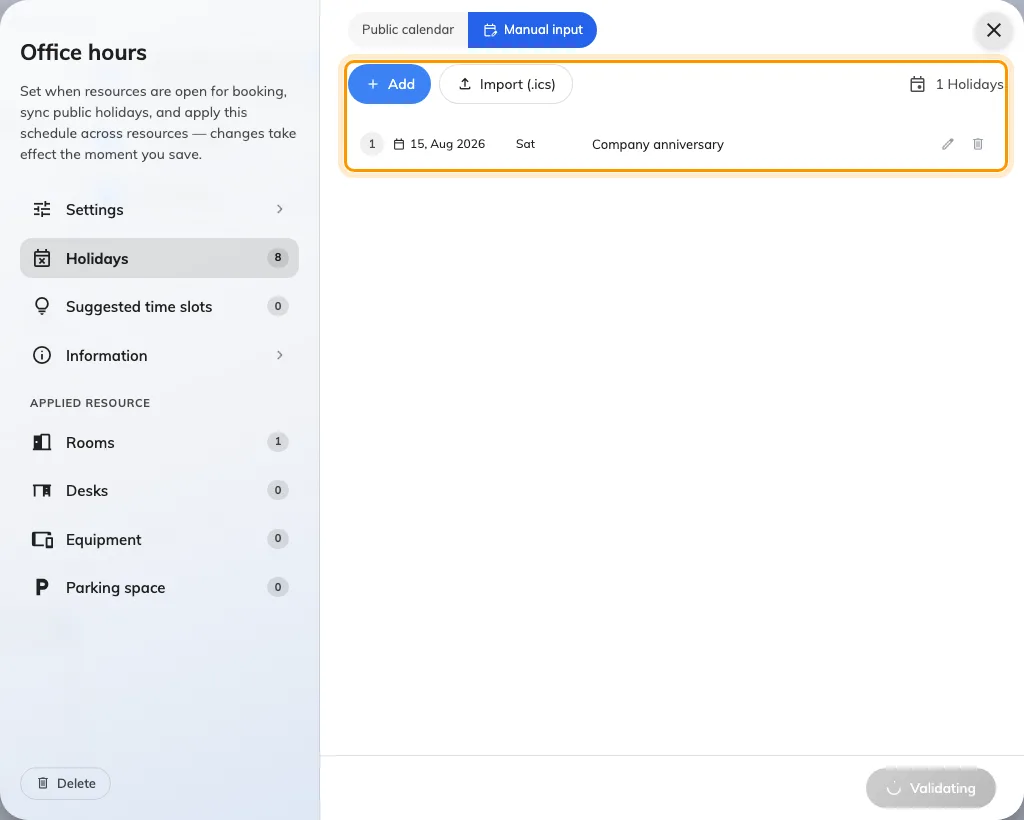
Manual input, where dates are typed in or imported from a file.
Synced holidays reach about a year ahead. Anything further out is not missing — it simply has not been fetched yet, and arrives on its own.
5. Forbid booking on the closed day
Closing the day is only half of it. A holiday blocks nothing until the room’s booking policy has Allow booking out of business hours turned off — exactly the pairing that makes the week timetable bite.
6. Check it worked
Try to book one of the schedule’s rooms on a holiday you just added. The booking should be refused with This time is outside business hours. Then look at the room panel: on a holiday it names the holiday rather than only saying the room is closed, which is how you confirm the right date was matched.
The date is matched in the schedule’s own time zone, not the visitor’s — so if a room reads as open on a holiday, check the schedule’s time zone before checking the holiday list.
What this does not control
- Half-days. A holiday is a whole date and carries no hours of its own. A morning-only closure is drawn on the week timetable, not here.
- Other schedules. Holidays belong to one schedule. Visiting hours, service hours and working hours are separate schedules with their own holiday lists, each on its own screen.
- Suggested time slots. Suggestions are weekday hints and are shown on a holiday too. Only real bookings are refused. Fixed time slots do respect holidays — a closed day offers no slots at all, see restricting bookings to fixed time slots.
- What a holiday costs. The quota policy has a Holiday column that reads these dates, but the rate itself is set on the quota policy.