

Trace what happened to a booking
Every create, edit, check-in and cancellation a booking has ever had, on one screen. Ask the caller for the booking reference, paste it in, read the trail, and download it as a spreadsheet. About five minutes.
Somebody’s meeting moved and nobody admits to moving it. The booking log is where that gets settled: every create, edit, check-in, extension and cancellation a booking has ever had, each one stamped with who did it and which part of Offision they did it from.
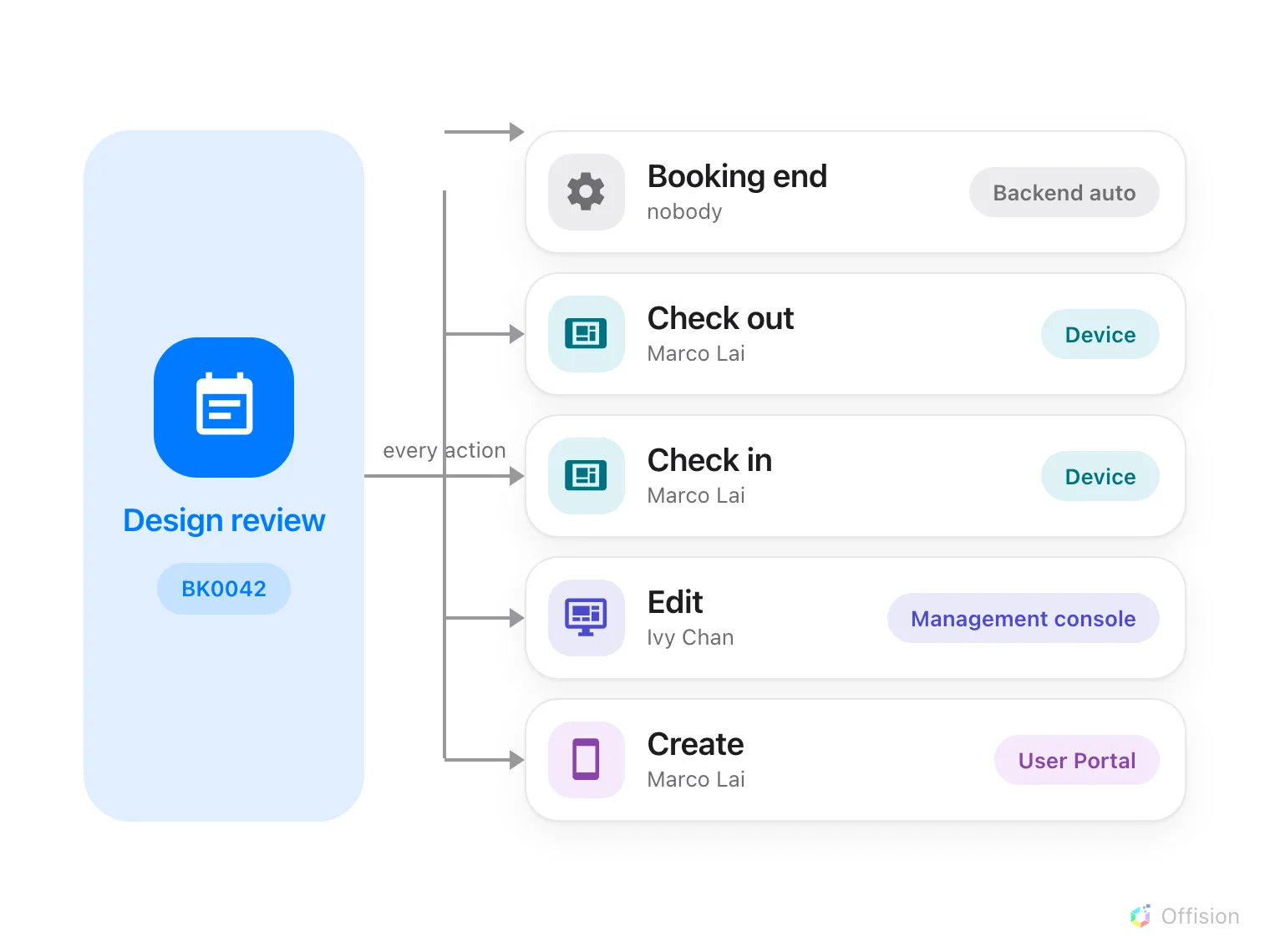
One booking reference gathers every action, wherever it came from — a person in the app, an administrator in the console, a room panel, or Offision itself.
1. Open the booking log
In the Booking module the log sits in the list down the left — but it is not one of the pinned entries, so choose Show more before Booking log appears.
Open Booking logIt opens on the whole estate, newest action first, with no date filter applied. That first view is everything Offision has ever recorded about every booking, so it is not somewhere to browse — it is somewhere to look one thing up.
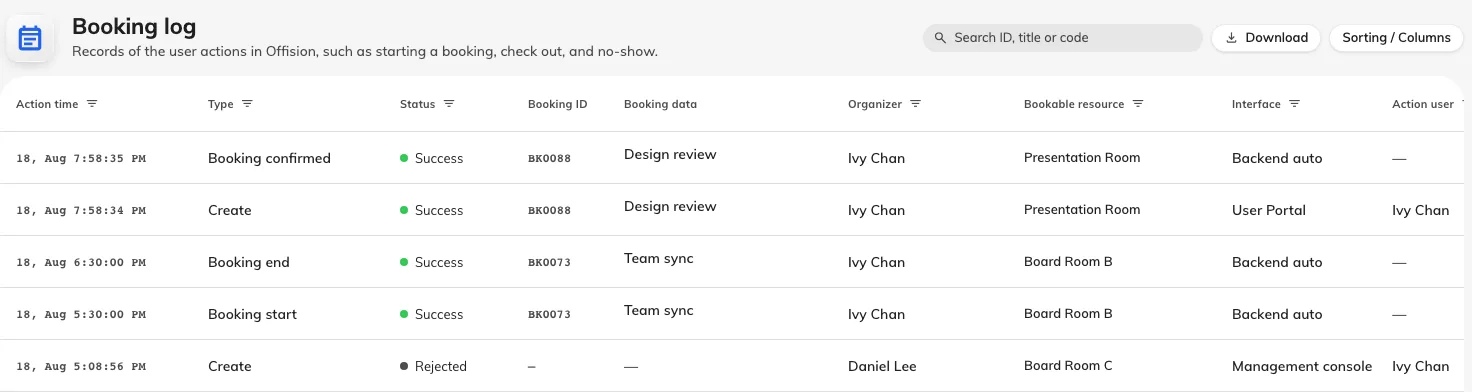
The log at rest: one row per thing that happened, newest at the top.
2. Ask for the booking reference
Every booking carries a reference: BK followed by its number, padded to four
digits — BK0042. It is fixed for the life of the booking, and past 9999 it
simply runs longer. Nothing ever renumbers.
The reference matters because the person who booked can see it too. It is a row near the bottom of their booking’s details in the Offision app, under Booking ID. So the first question to ask a caller is not “which meeting?” — it is “what does the booking ID say?”. That one string replaces a conversation about which Tuesday and which big room, and it is the only handle that still works after the booking has been deleted.
It is the organiser’s copy that carries it. Open a colleague’s booking and the app shows a short card with the room and the organiser and no reference, so ask the person who made the booking, not whoever forwarded you the invitation.
3. Find the booking
The search box at the top right is labelled Search ID, title or code, which undersells it. Three different things go in, and it works out which you meant:
| What you type | What it finds |
|---|---|
BK0042, bk 42 or just 42 | The booking with that reference |
42 | Also a booking whose check-in PIN is 42 |
| Anything else | Bookings whose title contains it |
Type at least two characters and the matches appear beneath. A repeating booking is listed as the series, with its individual dates indented under it. Choose one and it becomes a chip in the search box: the table below is now that booking’s trail and nothing else. Clear the chip to go back to the estate.
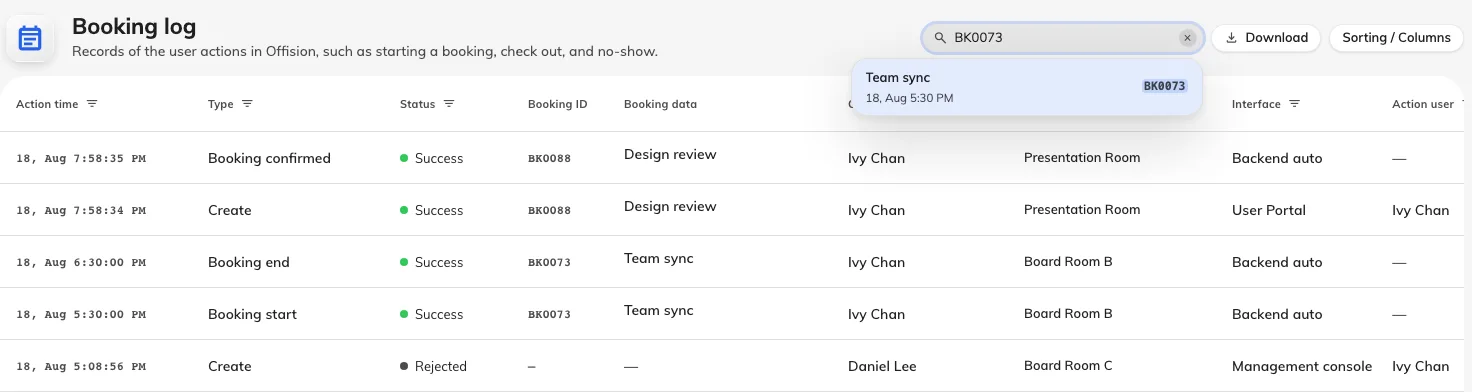
Pasting in a reference. The matching booking appears — choose it to scope the log to it.
Two things save typing:
- Clicking any reference in the table scopes the log to that booking, so you can follow a row you noticed into its full history without going back to the search box.
- A deleted booking still has a trail. Search its reference and it appears marked Booking no longer exists; choose it anyway and the log shows everything up to and including the deletion. This is usually the booking being asked about.
4. Read the trail
One row is one thing that happened. Rows are newest first, always — no column sorts, and that is deliberate for a log. Narrowing is done with the filters, and every column header carries its own: a date range on Action time, tick-lists on Type, Status and Interface, and people, resource and device pickers on the rest.
Four columns carry most answers:
- Action time, to the second — enough to put two near-simultaneous changes in order.
- Type — what was done. Create, Edit, Delete, Check in, Check out, Extend, Approved / Rejected.
- Status — how it ended. Success carries a green dot and Error a red one; Rejected and Running carry a neutral one. Rejected is the case worth reading: somebody tried and a rule said no. Which rule is in Description.
- Interface — where the action came from, and the column that usually settles the argument.
| Interface | The action came from |
|---|---|
| Management console | An administrator, in the admin console |
| User Portal | The person themselves, in the Offision app |
| Device | A room panel |
| Visitor APP | A visitor, on their own device |
| Outside Access | Somebody with no Offision account |
| External calendar | A Microsoft 365 or Google Workspace sync |
| Third party API | Another system, through the external API |
| Workflow | An automation you built |
| Backend auto | Offision itself |
Backend auto is the one to know. A booking nobody touched still grows rows — Booking start, Booking end, Mark as no show, Rejected by system, Synchronize from external calendar. This is why a trail is nearly always longer than anyone’s memory of the booking, and why “I never touched it” and a five-row history can both be true.
Selecting a row opens the same fields as a panel on the right, which is quicker than widening columns when you only care about one row.
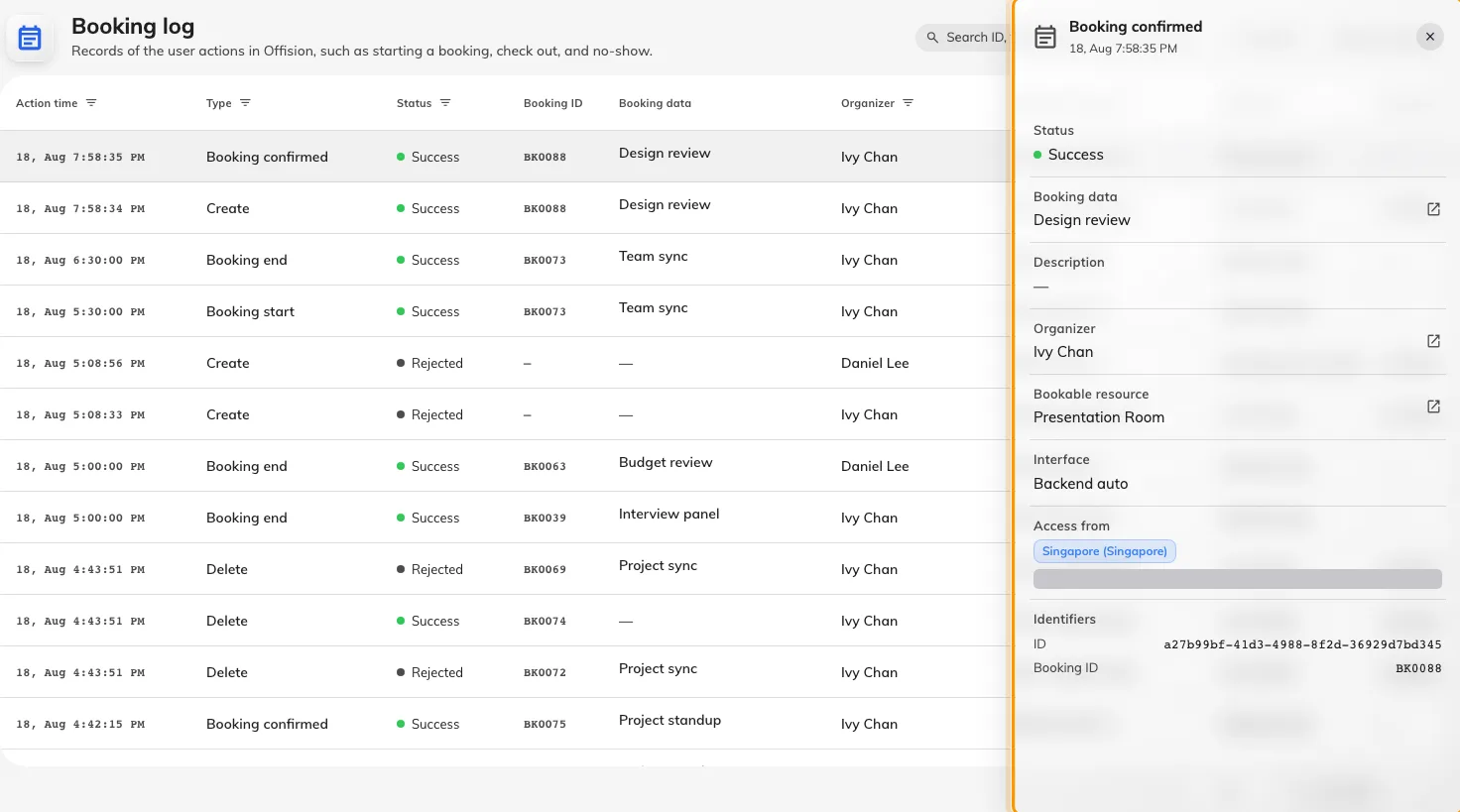
One row, read as a panel.
5. Show the columns an investigation needs
Six columns are hidden until you ask for them, under the Sorting / Columns pill. Two of them are the ones you actually came for.
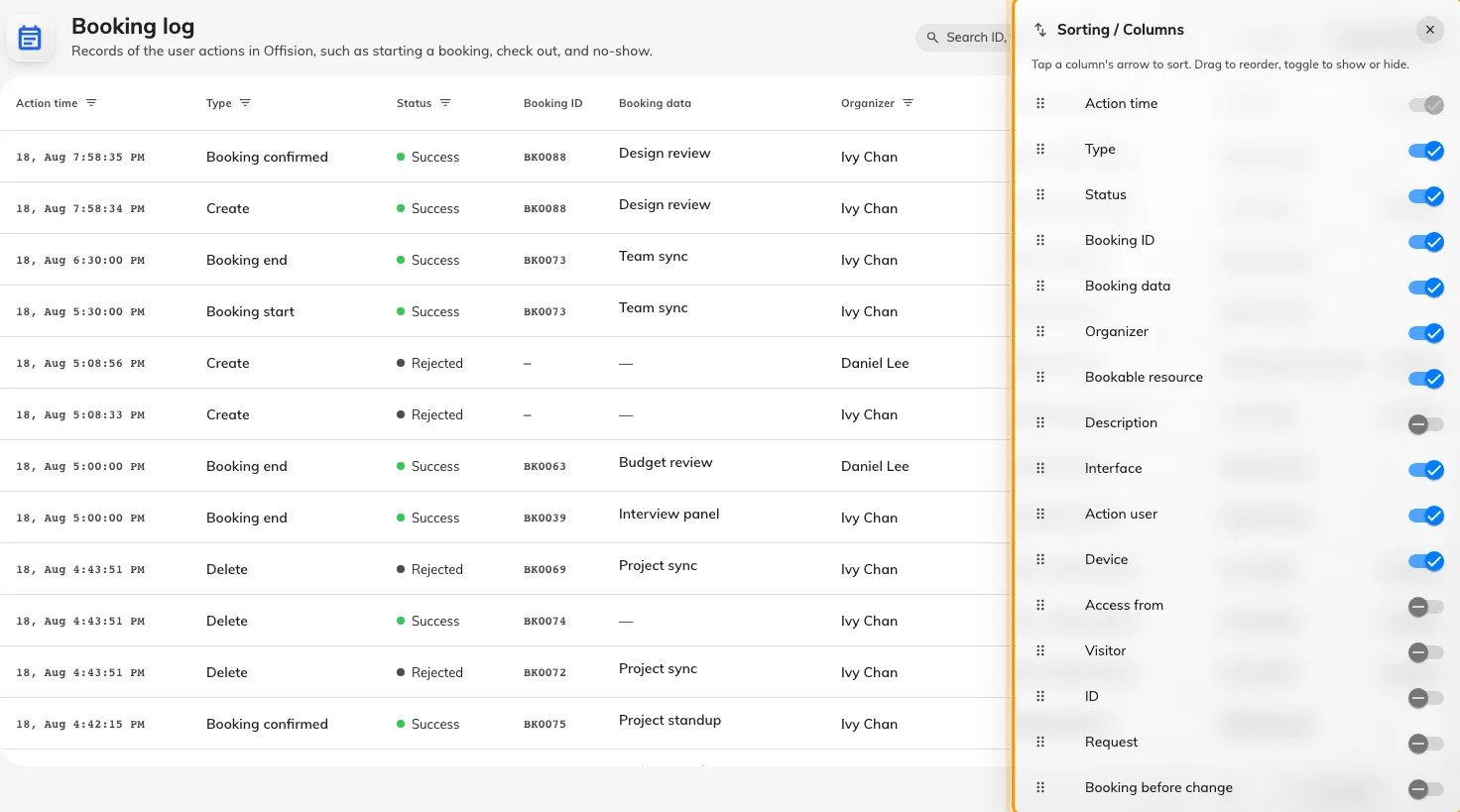
The columns chooser. Drag to reorder, tick to show.
| Column | What it adds |
|---|---|
| Booking before change | The booking as it stood before this row changed it — the only way to see what an edit actually edited |
| Access from | The city, country and IP address the action came from |
| Description | The full sentence, and the rule that refused a rejected row |
| Visitor | Who the visitor was, when a visitor did it |
| Request, ID | The raw instruction and the row’s own id — what support will ask for |
Ticks and drag order are remembered against your account, so the layout follows you to another machine.
6. Download it
Download opens a period picker — This week, Last month, Last 30 days and so on, or a custom range on the two-month calendar. Its confirm button also reads Download. The file covers the dates you pick plus whatever filters are still set, including a booking chip, so scoping to one reference first gives you that booking’s history and nothing else.
To send just a few rows instead, select them and use Download in the bar that floats up from the bottom.
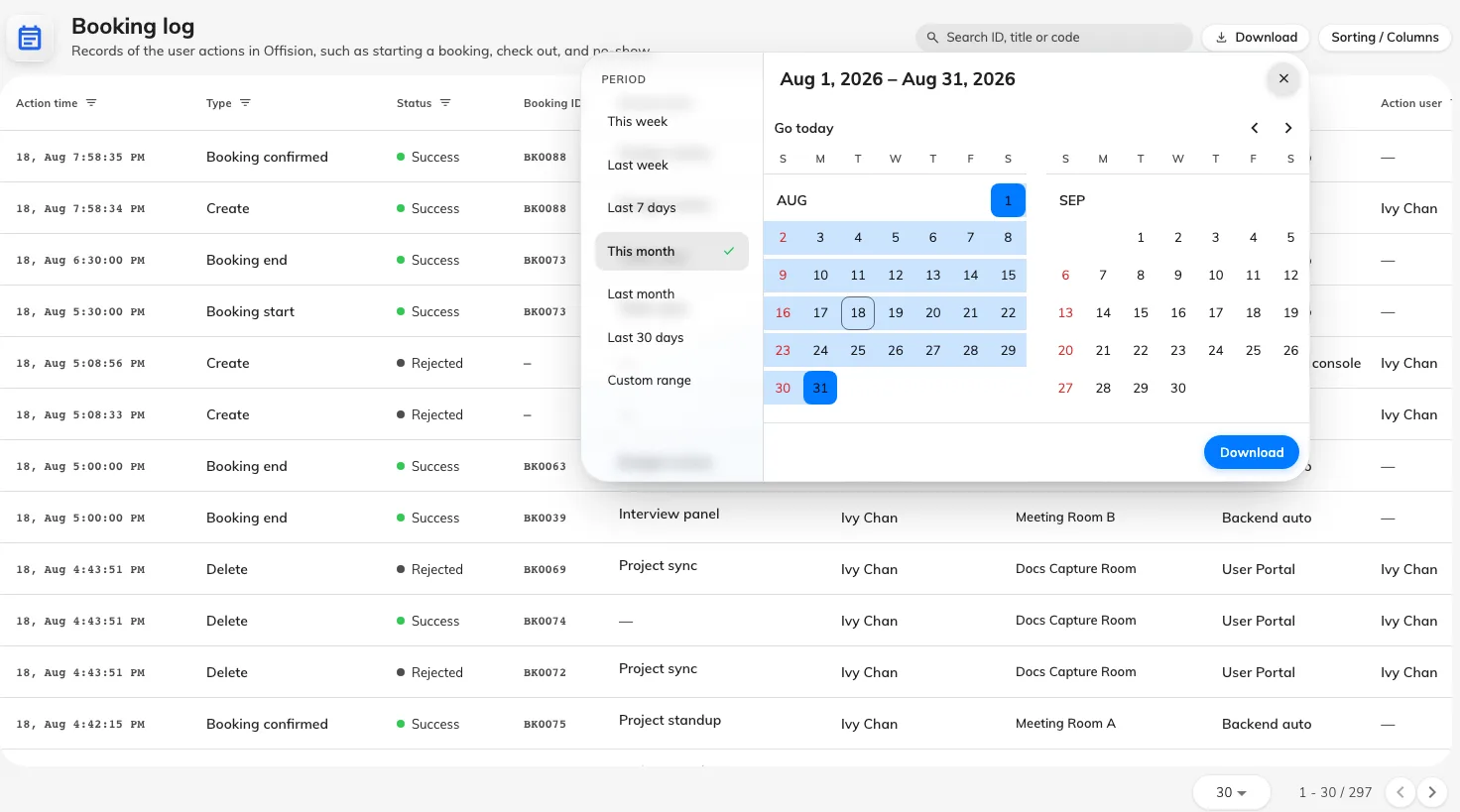
Choosing the period to download.
7. Check you have the right booking
Open the file and confirm two things. The Booking ID column should read the same reference the caller gave you, on every row. And the oldest row — the last one — should be a Create. If it is not, the period you chose starts after the booking was made: clear the date range and download it again.
What the booking log does not show
- Sign-ins, passwords and user administration. Those are in the audit trail, kept in system settings, not here.
- What happened to a room. The log records what happened to bookings — a room taken out of service is not a row in it.
- Why an approval went the way it did. The decision appears as Approved / Rejected; the approver’s comment lives with the approval.
- Anything you can change. This page is read-only, and nothing in it can be undone from here. The one repair that exists lives elsewhere — a booking’s own history, opened from the booking, offers Force change state — see What a booking’s status means.