

Keep large rooms for large meetings
Two people take the twenty-seat boardroom and the workshop has nowhere to go. Give every room a capacity, then send the underfilled bookings for approval — and know which head count that rule reads, because it is not the one the booking form asks for.
Two people book the twenty-seat boardroom for a catch-up, every week, and the team that needs twenty seats cannot get in. Offision answers this by routing the underfilled bookings to a person instead of refusing them.
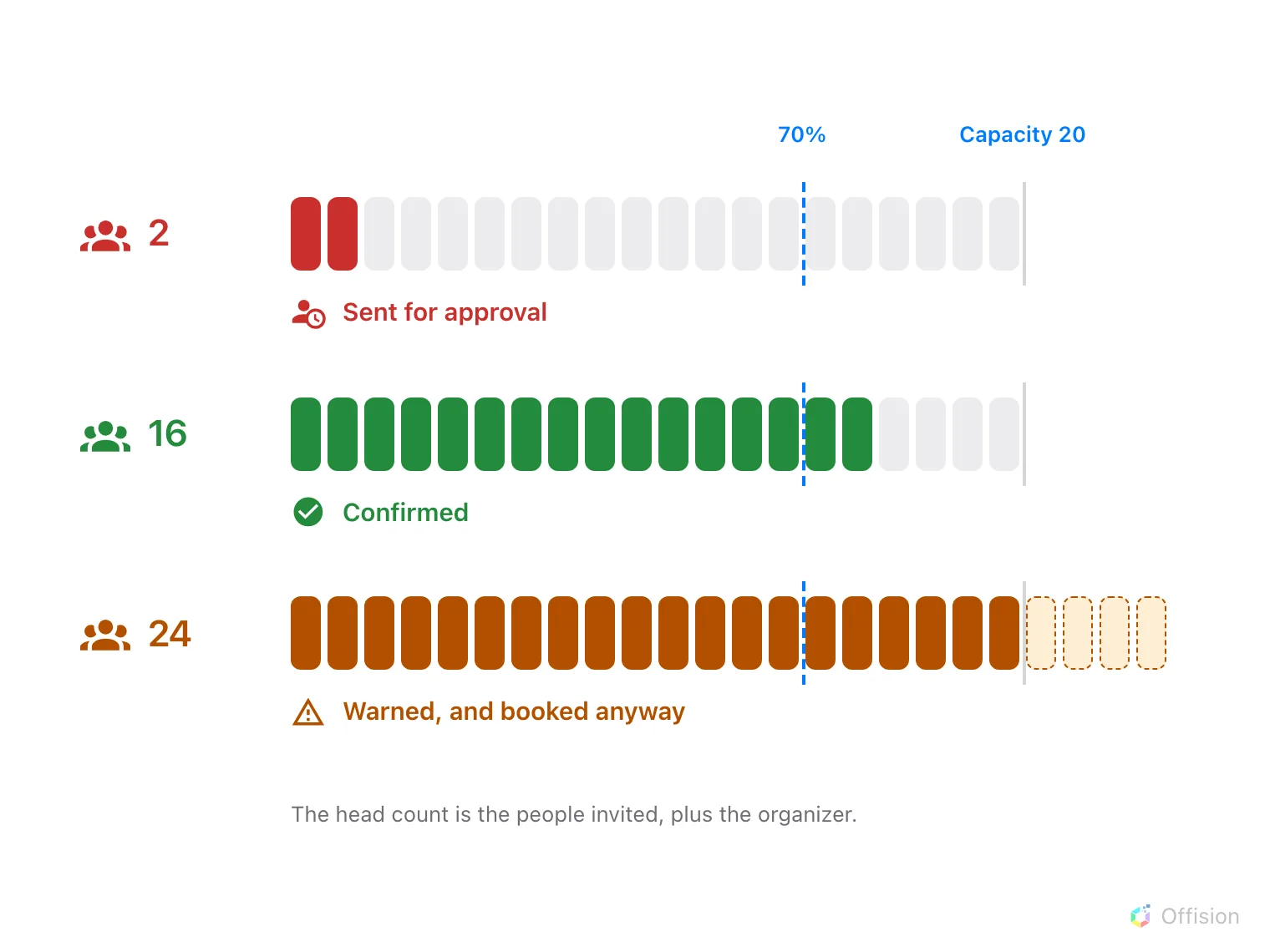
Approval is triggered by the room being too empty. A room that is too full is warned about, never refused.
1. Give every room a real capacity
Capacity is the number every rule and every report on this page divides by, so a room without one is invisible to all of them. Set it on the room itself — see Add a room — and check the rooms you inherited from a calendar sync, which arrive with a default rather than a measured figure.
Two properties of that number are worth knowing before you tune a percentage:
- Only rooms use it. The field also appears on Others, but nothing on this page reads it; desks, equipment and parking spaces have no capacity at all.
- Several rooms booked together are summed. Two ten-seat rooms taken as one booking are a twenty-seat room as far as the rule is concerned.
2. Send the underfilled bookings for approval
Open the room’s Booking policy and go to its approval page.
Open Booking policyTurn approval on, then set Conditional Booking Approval to Need approval by condition — the switch itself is explained in Require approval before a room is booked. Turn on Room Capacity Utilization, and a Percentage field appears under it. Any booking whose head count comes to less than that share of the room’s capacity goes to the approver; everything else confirms as usual.
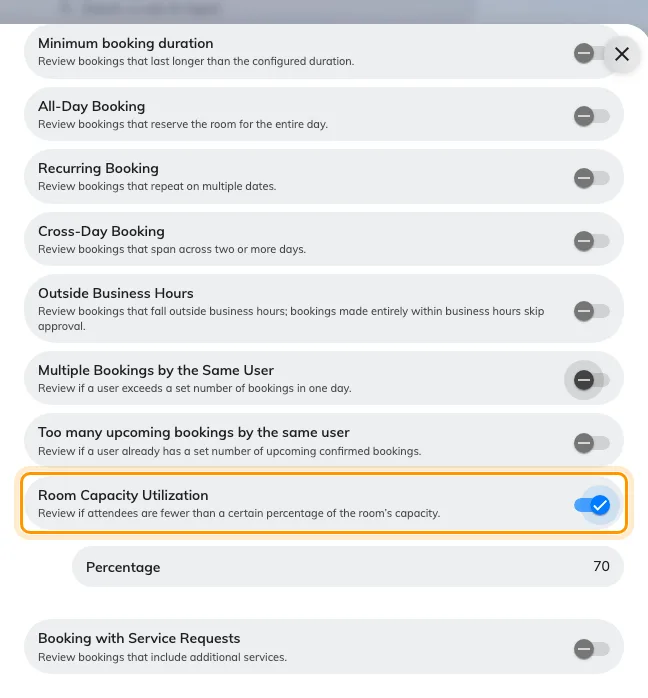
Room Capacity Utilization, and the percentage it compares against.
The field arrives at 70, which sends almost anything short of a full room for a decision. Watch the queue for a fortnight before moving it: too high and every ordinary meeting needs an answer, too low and nothing is ever caught.
3. Give the approver something to decide with
The pending list prints a percentage beside each request. Open it and it shows Total people against Room capacity, a bar, and which band the request falls in — Good usage at 70 % or more, Moderate usage from 40 to 69 %, Low usage below 40 %.
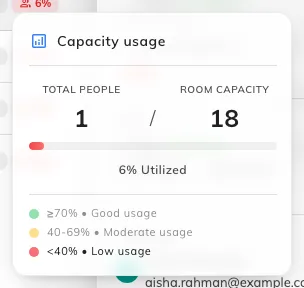
Total people against room capacity, and the band the request falls in.
The bands are fixed and are not the percentage you set in step 2, so a request can read Low usage without having been sent here by the capacity rule — it may have arrived for a different reason, or because approval is on for everything.
4. Check it worked
Book the large room for yourself, invite nobody, and save. It should land in the approval queue with a low band, and the person you named as approver should have mail about it.
Help people pick the right room in the first place
Approval is the backstop. Most of the work is done before anyone submits:
- Filter and sort by capacity. The room picker offers a Capacity filter, and the room list can be sorted by it.
- Let the suggestions size the room. Once a booking has attendees, suggested rooms are already restricted to ones at least that big.
- Ask for the head count. Number of room users can be shown on the booking form and made mandatory — see Booking form settings. It is what the room owner and the setup crew read, even though the approval rule does not.
What this does not do
- It never refuses a booking. The capacity warning is advice; the rule’s only power is to route the booking to a person.
- It only catches empty rooms, never full ones. There is no setting that sends an over-capacity booking for approval, or stops it.
- A room with no capacity is never caught, whatever the percentage.
- A room layout is not a capacity. A theatre layout seats more people than a boardroom one, but choosing it changes no number here — see Offer a room layout when booking.
- It says nothing about who actually turned up. Everything on this page is the plan, not the meeting — see Check whether the room was actually full.