

Export the bookings you are looking at
Turn the management calendar's bookings into a spreadsheet: pick a period from a named range, choose the columns — organizer, host, check-in times, your own form fields — see the sheet before you commit, and download it as XLSX, XLS or CSV.
The analytics pages answer questions about bookings. This one hands you the bookings themselves — one row each, the columns you choose — for the finance system, the facilities meeting, or somebody who simply wants a list.
1. Open Export
Export sits on the calendar header, beside the view menu.
Open Management calendarThe dialog has your choices down the left and a live sheet on the right — the real columns, with real rows in them, redrawn as you change your mind.
There is a second way in. Search the calendar and an Export appears beside the result count, opening the same dialog with your period, your keyword, your resources and your statuses already applied. One chip does not travel: Organizer. A file taken with an organizer picked is wider than the list you were looking at, so narrow by organizer in the spreadsheet rather than expecting the export to have done it.
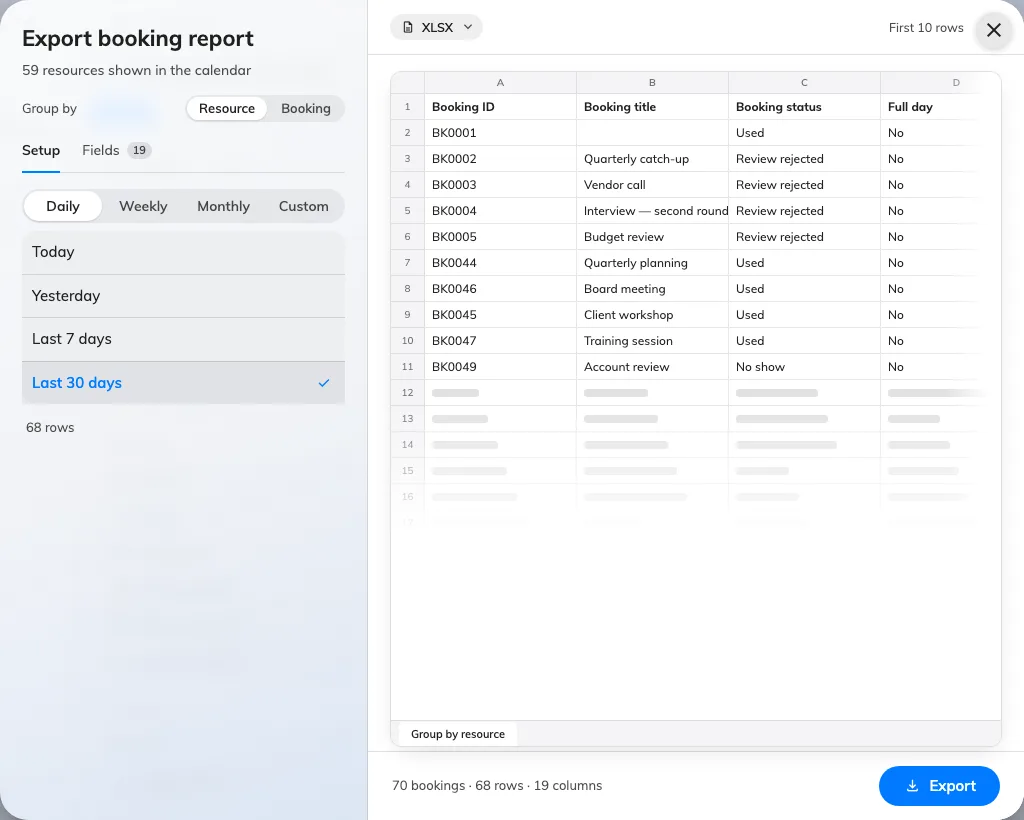
Export booking report: choices on the left, the sheet they produce on the right.
2. Choose what a row is
Group by at the top decides the shape of the file, and with it which columns are on offer:
- Resource — one row per resource per booking. A meeting holding three rooms is three rows. This is the one for room-by-room reporting.
- Booking — one row per booking, however many resources it holds, with Number of resources and Resources columns in place of the single resource, floor and building.
3. Choose the period
Pick the grain first — Daily, Weekly, Monthly, Quarterly or Custom — and the named ranges under it narrow to the ones that make sense:
| Grain | Ranges |
|---|---|
| Daily | Today, Yesterday, Last 7 days, Last 30 days |
| Weekly | This week, Last week, Next week |
| Monthly | This month, Last month, Next month |
| Quarterly | This quarter, Last quarter, Next quarter — calendar quarters, January to March and so on |
| Custom | Custom range, two dates of your own |
Both directions are offered on purpose: the same dialog reports on what happened and hands somebody a list of what is coming.
4. Choose the columns
Fields lists every column, grouped: Booking, Resource, Time, Check-in, Organizer, Host, Attendees, and Form fields for the extra questions your own booking form asks. Each has a switch, and the sub-line counts how many of the total are on.
Drag a row to reorder it — the sheet is written in the order you leave them in. Default puts the selection back; All turns everything on.
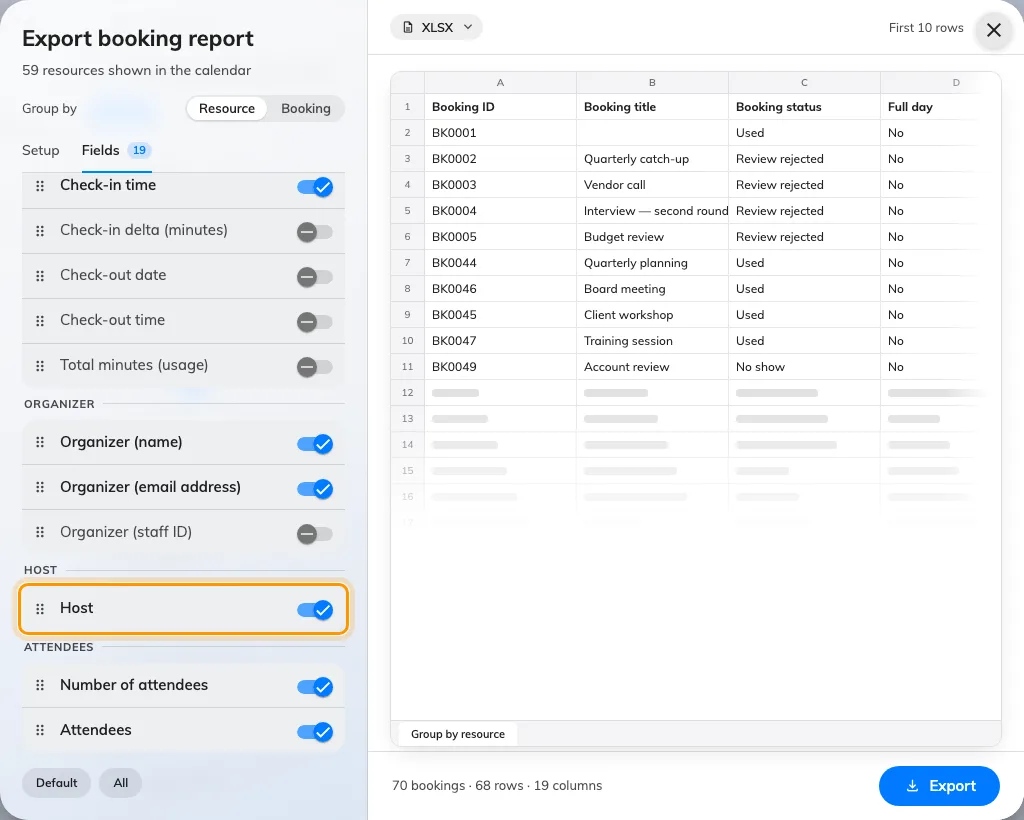
The Host column, in a group of its own between Organizer and Attendees.
Some useful columns start switched off, because most files do not want them: Organizer (staff ID), Check-in delta (minutes), Check-out date and time, Total minutes (usage), Notes and Series ID.
A faster way to drop a column you can see: click its header in the sheet on the right.
5. Pick the format and export
The format chip sits on the sheet itself — XLSX, XLS or CSV. The footer counts what you are about to get, as bookings and as columns. Export downloads it.
XLS carries a ceiling of its own: the old sheet format holds 65,535 rows, so a bigger export is refused up front and asks you to choose XLSX instead.
Your column choice and order are remembered, per grouping, so the next export of the same shape opens the way you left it.
What this does not cover
- A feed. This is a file somebody downloads, not an integration. To keep a reporting tool in step, see Get booking and usage data into your BI tool.
- A whole round trip. The columns here are a report’s, not the import template’s, so an exported sheet cannot simply be fed back in. The exception is Series ID, which deliberately carries the import sheet’s own header so a repeating booking can be exported, edited and imported again — see Import bookings from a spreadsheet.
- Rates and rankings. Usage rates, no-show rankings and heat maps are the reporting pages’ job — see Which report answers which question.
- Visits. Visitor invitations export from their own calendar — see Export the visits you are looking at.