

Check-in settings reference
Turn check-in on for rooms and desks, and every field that shapes it — requiring check-in, the window that opens and closes it, the clock deadline that all-day desk bookings need instead, checking in from the app, GPS and IP conditions, who besides the organiser may press the button, and the occupancy-sensor automation on the same page.
Every field below is on one booking policy, on its Check in/out page under Rules & limits, in four groups down that page — Check in/out, During the booking, Sensor and Check-in restriction. For how the pieces fit together, read How check-in and no-show work first.
Open Booking policyRequiring check-in, and the window
| Setting | What it does | When to change it |
|---|---|---|
| Require check-in | Off, Offision checks the booking in for the organiser and holds the resource for the whole slot. On, a booking nobody claims becomes a no-show and the resource is handed back | Turn on where people compete for the space |
| Can check-in before (in mins) | How early the window opens, counted back from the booking’s start. Default 15 | Widen where people arrive well ahead of their slot |
| Can check-in after (in mins) | How late a check-in is still accepted — and the same number that releases the resource. Default 15, clamped to the booking’s own end, so a 10-minute booking has a 10-minute window | Shorter frees resources faster, and strands anyone delayed |
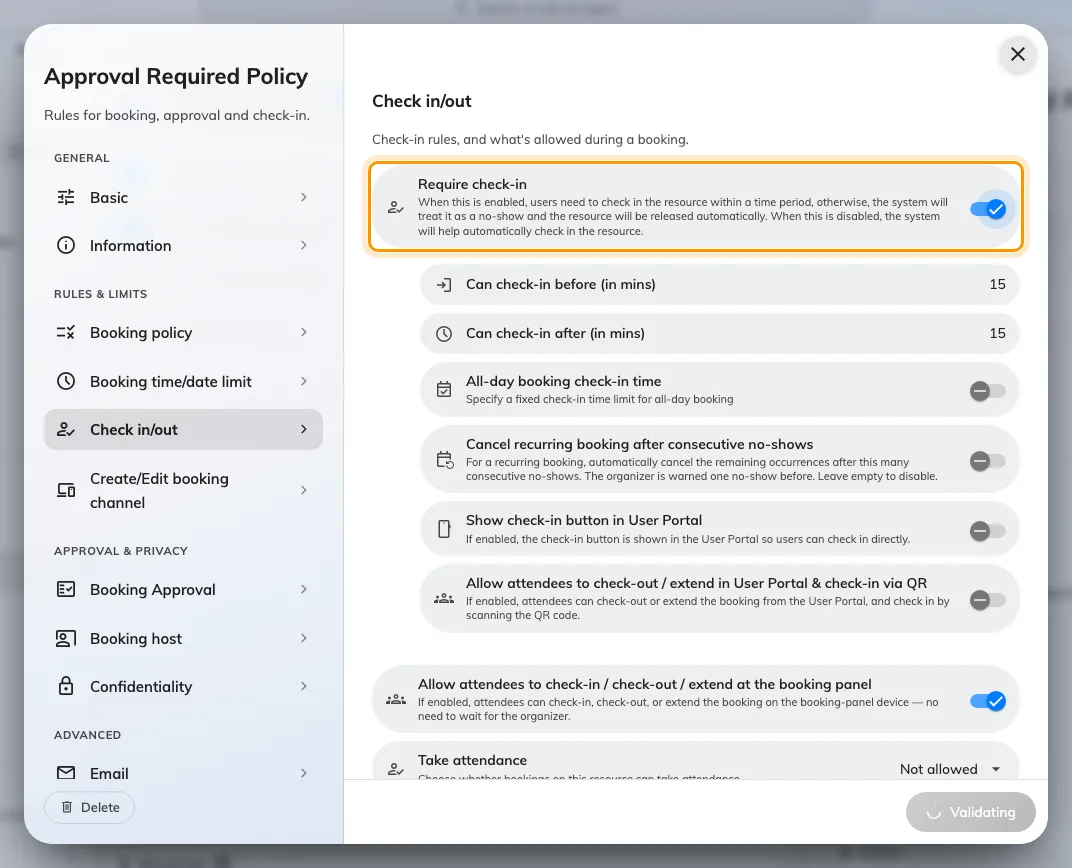
Require check-in, the switch every other setting here hangs off.
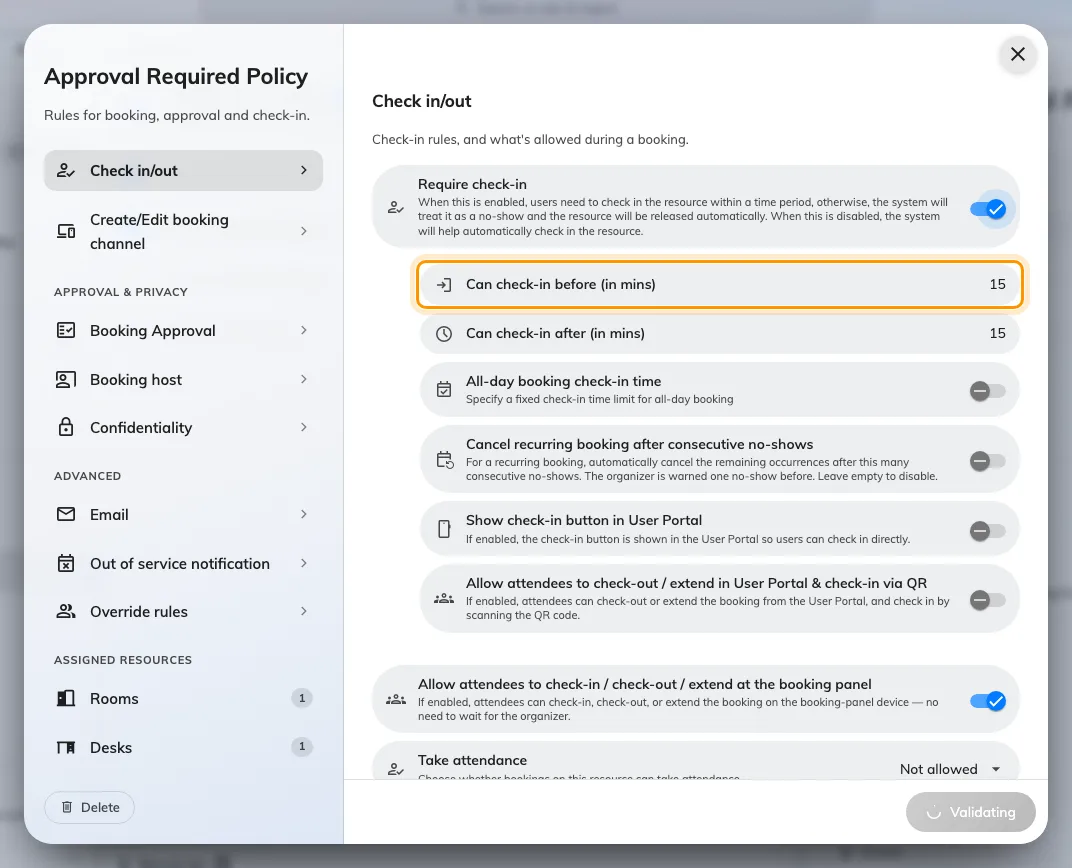
Can check-in before: how many minutes ahead of the start the window opens.
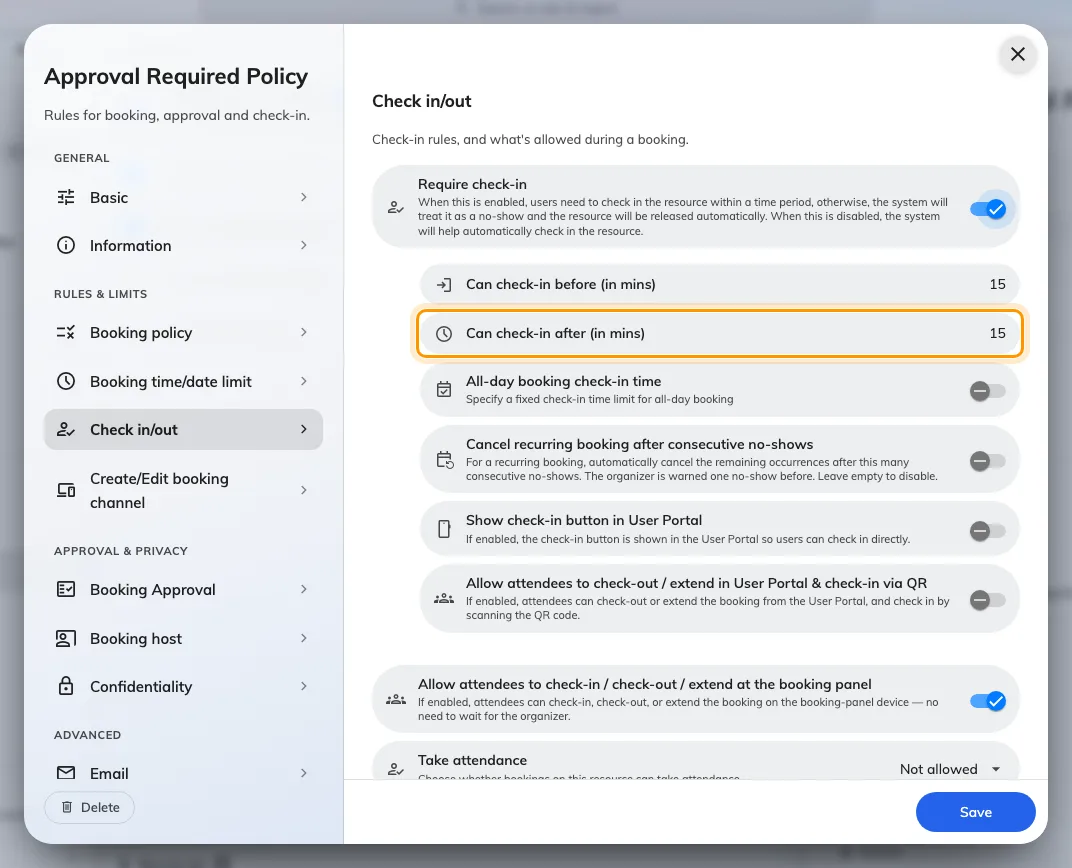
Can check-in after, which is also the no-show deadline.
All-day bookings, and desks
An all-day booking starts at midnight, so a window measured in minutes from the start has expired before anyone is awake. These two fields replace it with a clock time — which is why a floor of hot desks needs them and a floor of meeting rooms does not.
| Setting | What it does | When to change it |
|---|---|---|
| All-day booking check-in time | Switches an all-day booking from the minute window to a fixed clock deadline | Turn on wherever all-day bookings are used — desks especially |
| Check-in time limit | The deadline itself. Default 09:15. It can only ever fall later than the ordinary window, never earlier | Set it to the hour by which a desk left unclaimed should go back in the pool |
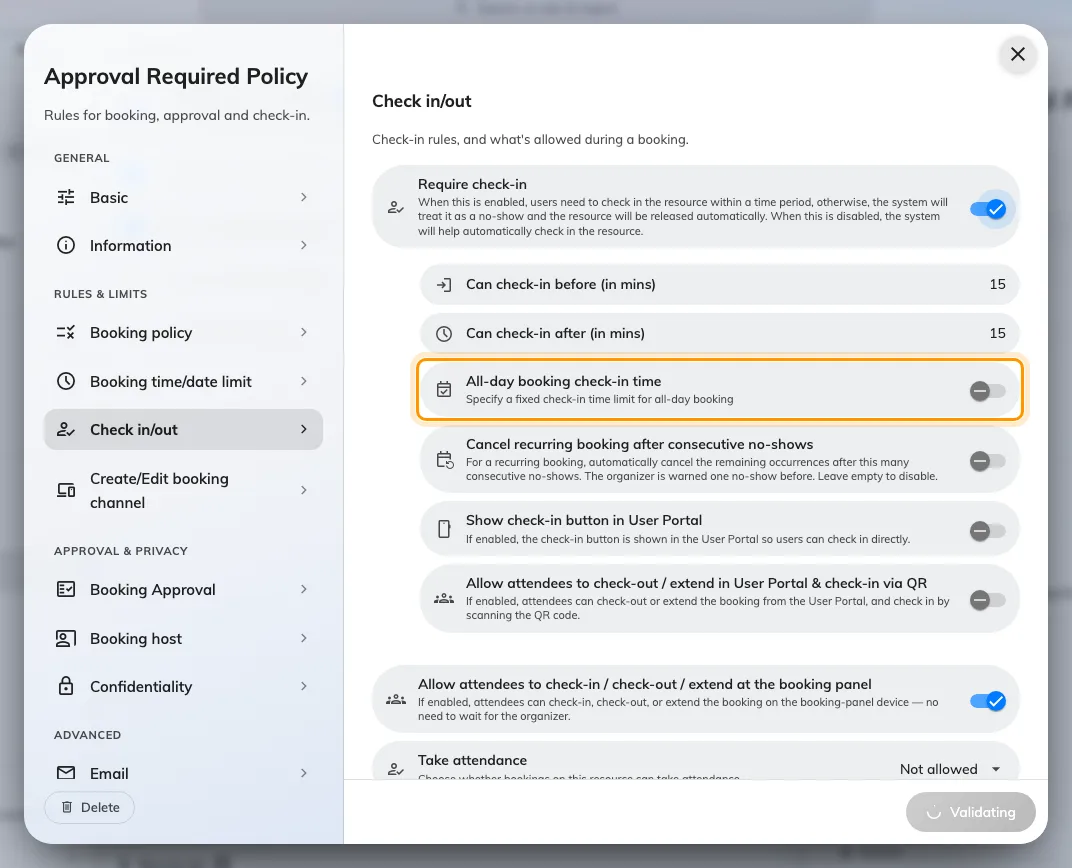
All-day booking check-in time replaces the minute window on an all-day booking.
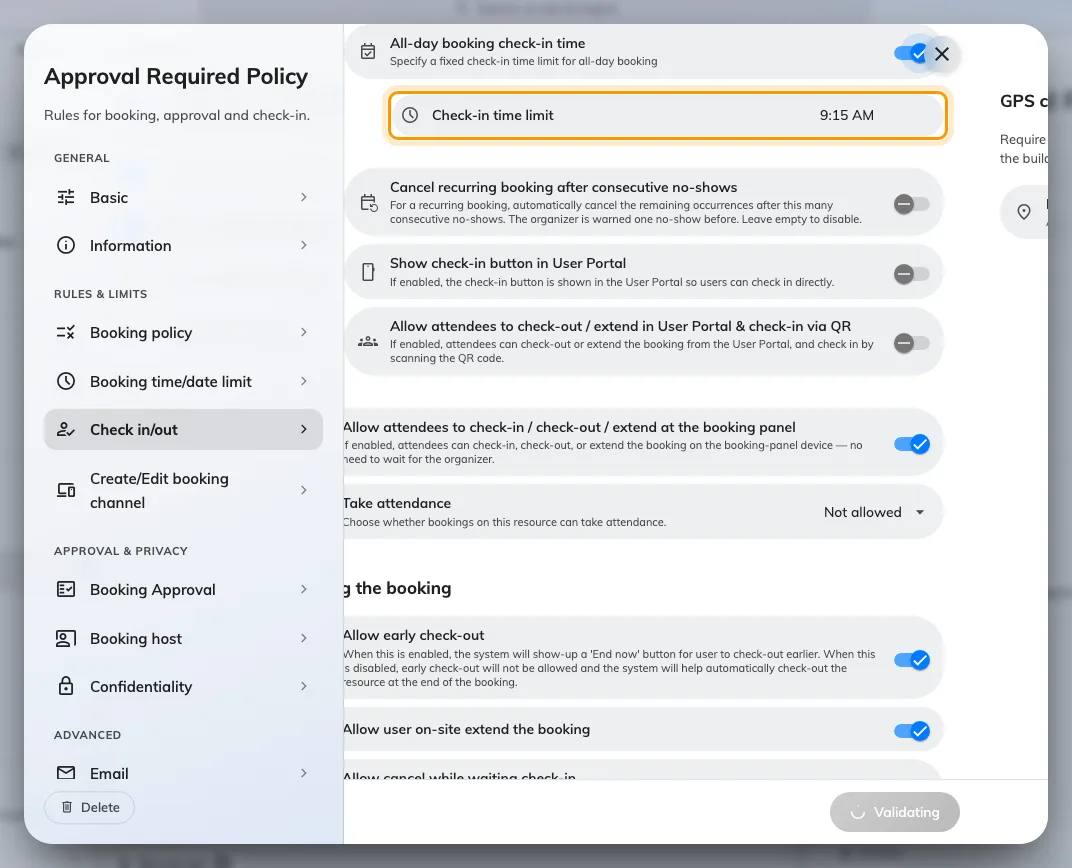
Check-in time limit: the clock deadline itself, and the setting a floor of hot desks turns on.
Which desks this policy covers, and the other five settings a desk floor sets differently, are in Set the rules a hot-desk floor needs.
Repeating bookings
| Setting | What it does | When to change it |
|---|---|---|
| Cancel recurring booking after consecutive no-shows | Cancels the remaining occurrences once a series has been abandoned. Any occurrence that is not a no-show resets the count | Turn on for standing meetings nobody attends any more |
| Consecutive no-shows before cancelling | How many in a row it takes. The organiser is warned one no-show before it happens | Two is aggressive on a fortnightly series and forgiving on a daily one |
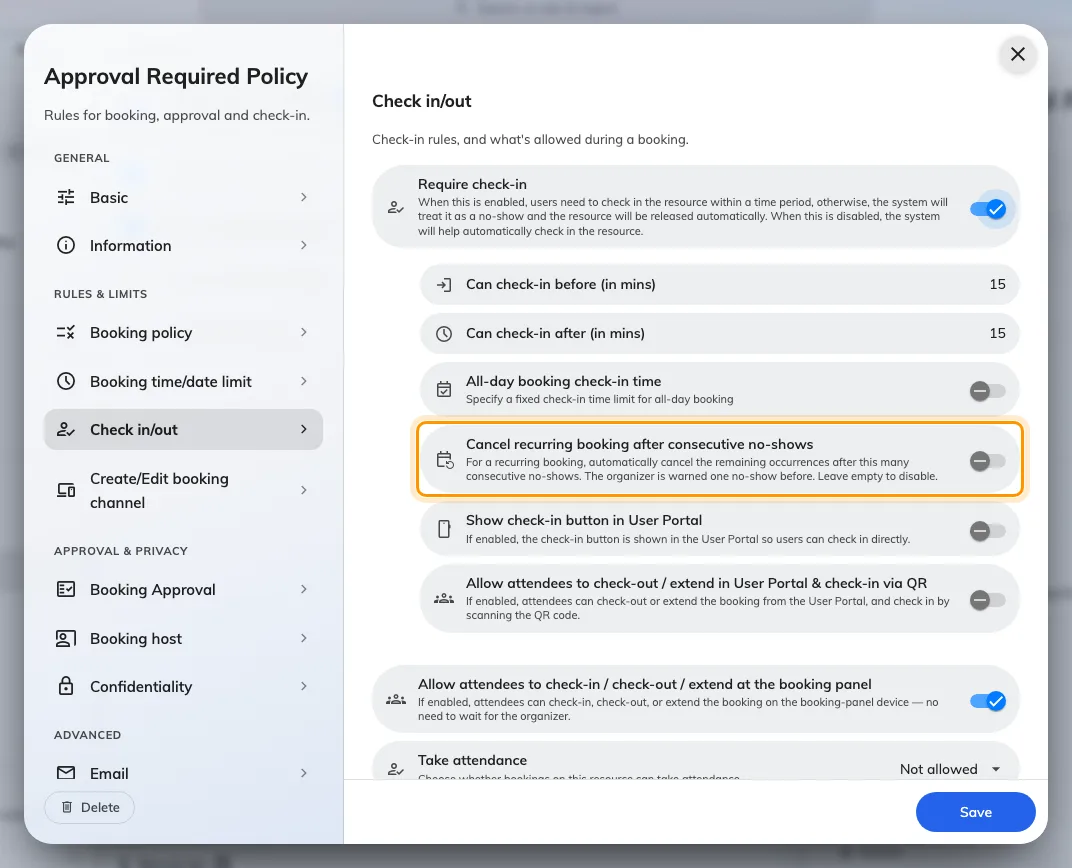
Cancel recurring booking after consecutive no-shows, for the standing meeting nobody attends.
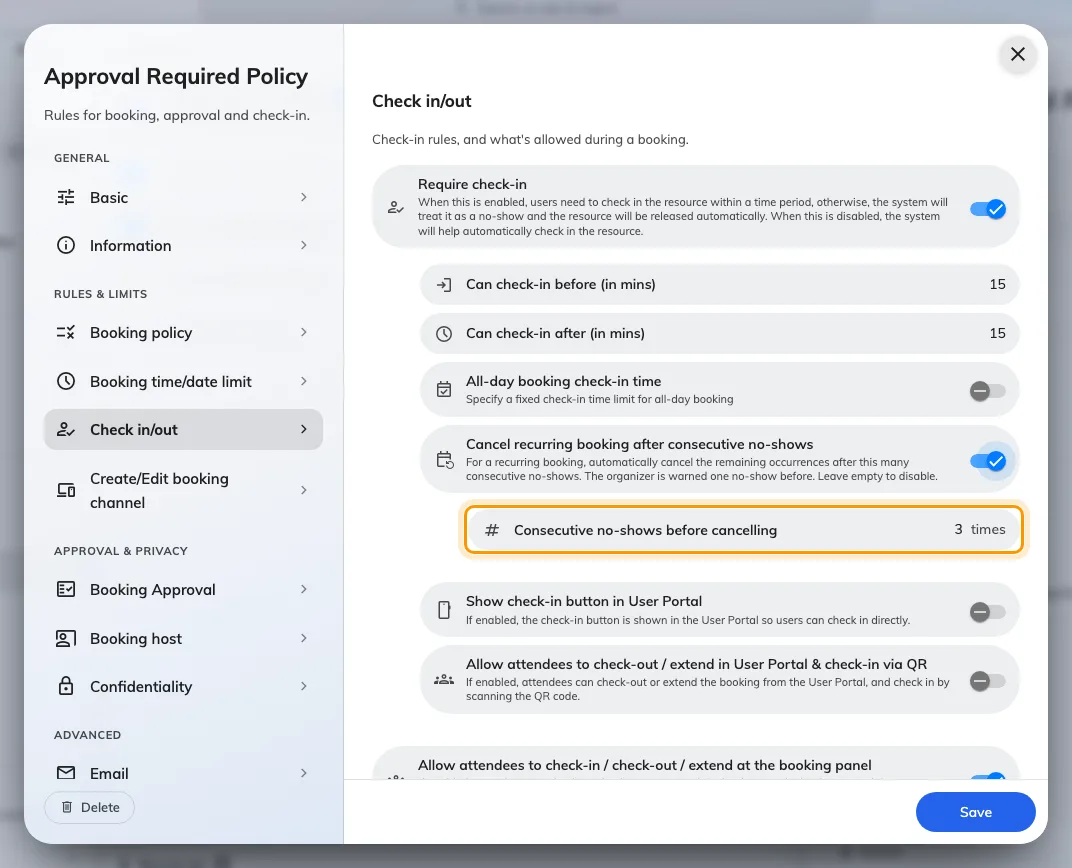
How many no-shows in a row it takes. The organiser is warned one no-show before.
Checking in from the app
| Setting | What it does | When to change it |
|---|---|---|
| Show check-in button in User Portal | Puts a check-in button in the app, so nobody has to touch the panel. The screen warns that this makes no-show figures unreliable, since it can be pressed from anywhere | Turn off where check-in must prove somebody was there |
| Allow attendees to check-out / extend in User Portal & check-in via QR | Extends those actions from the organiser to attendees. Note the asymmetry: in the app an attendee may check in only by scanning a QR code | Turn on where the organiser often sends somebody else |
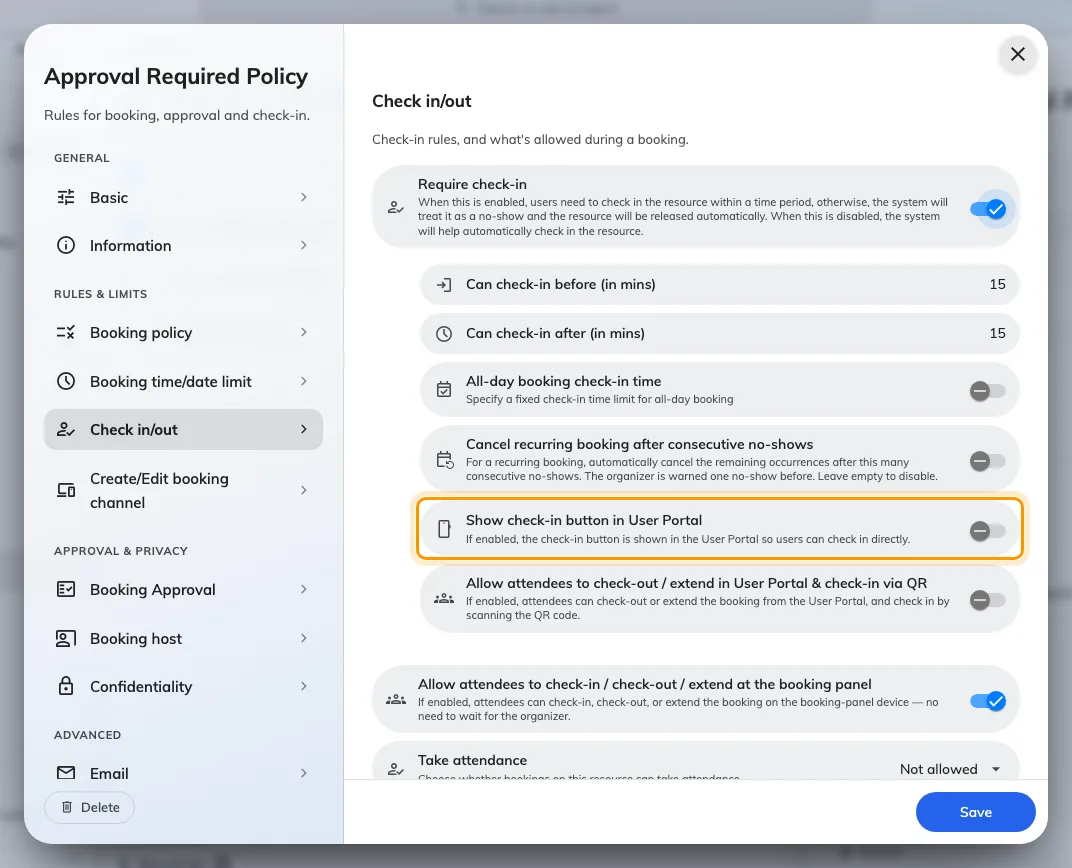
Show check-in button in User Portal, with the warning it raises about checking in from anywhere.
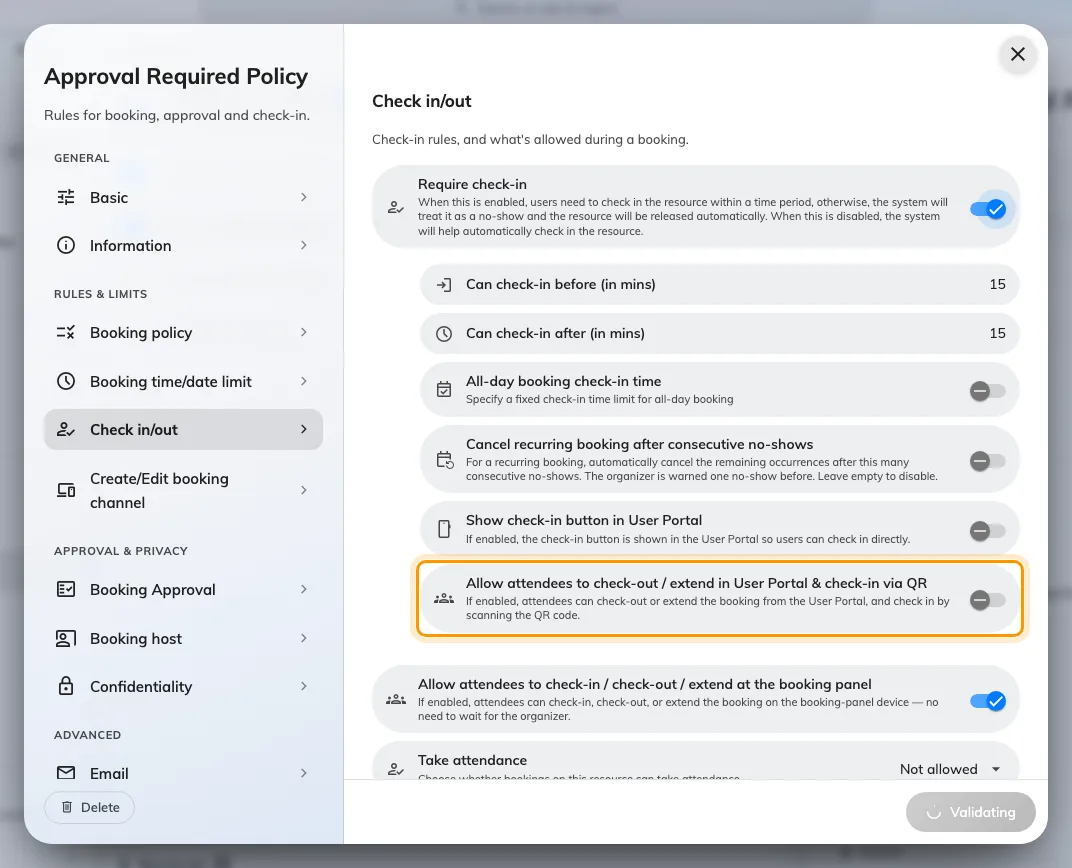
In the app, attendees get check-out and extend — and check-in only by QR code.
Proving they are there
Two independent conditions on an app check-in. Both answer the warning above; neither is a check-in method of its own.
| Setting | What it does | When to change it |
|---|---|---|
| GPS check-in | The row under the app switch. It opens a sub-page and reads back its own state, so the rule is visible without opening it | — |
| Require GPS check-in | On the sub-page. Applies to check-in, check-out and extend from the app | Turn on where people hold a resource from home |
| Allowed distance | The radius, measured from the building’s location, not the resource’s. Default 200 m, minimum 50 m. A resource whose building has no location cannot be checked into at all once this is on — the sub-page names those | Widen on a campus; keep it tight on one floor |
| IP restriction | At the foot of the page under Check-in restriction, nothing to do with the sensor above it. Accepts app check-in only from the addresses listed | Use to force check-in onto the office network without asking for location |
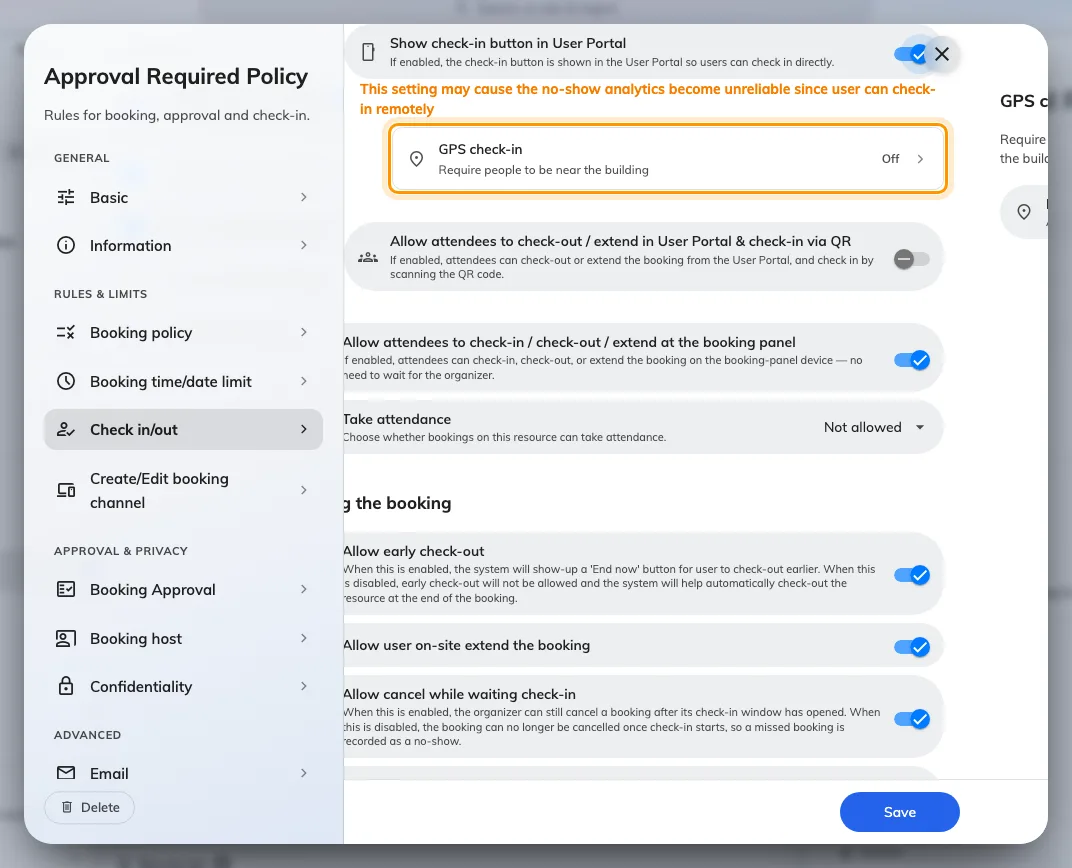
The GPS check-in row reads its own state, so the rule is visible without opening it.
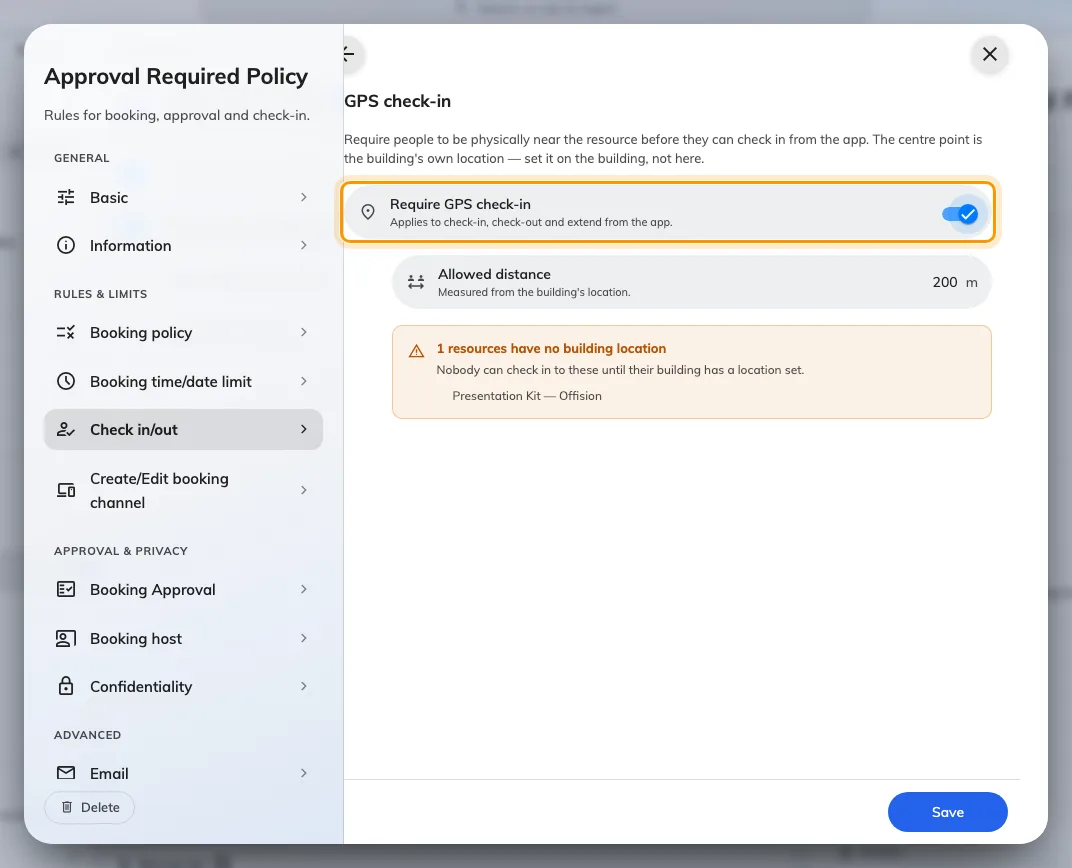
Require GPS check-in, on the sub-page behind that row.
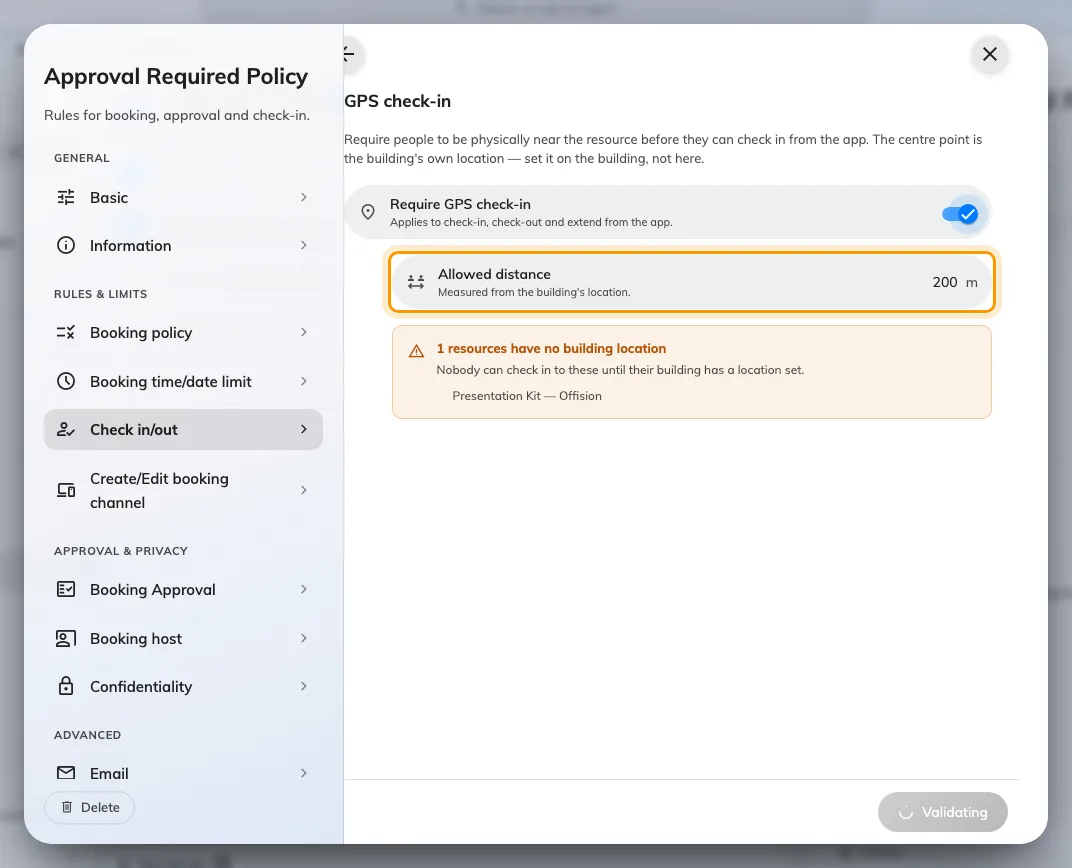
Allowed distance, measured from the building's own location rather than from the resource.
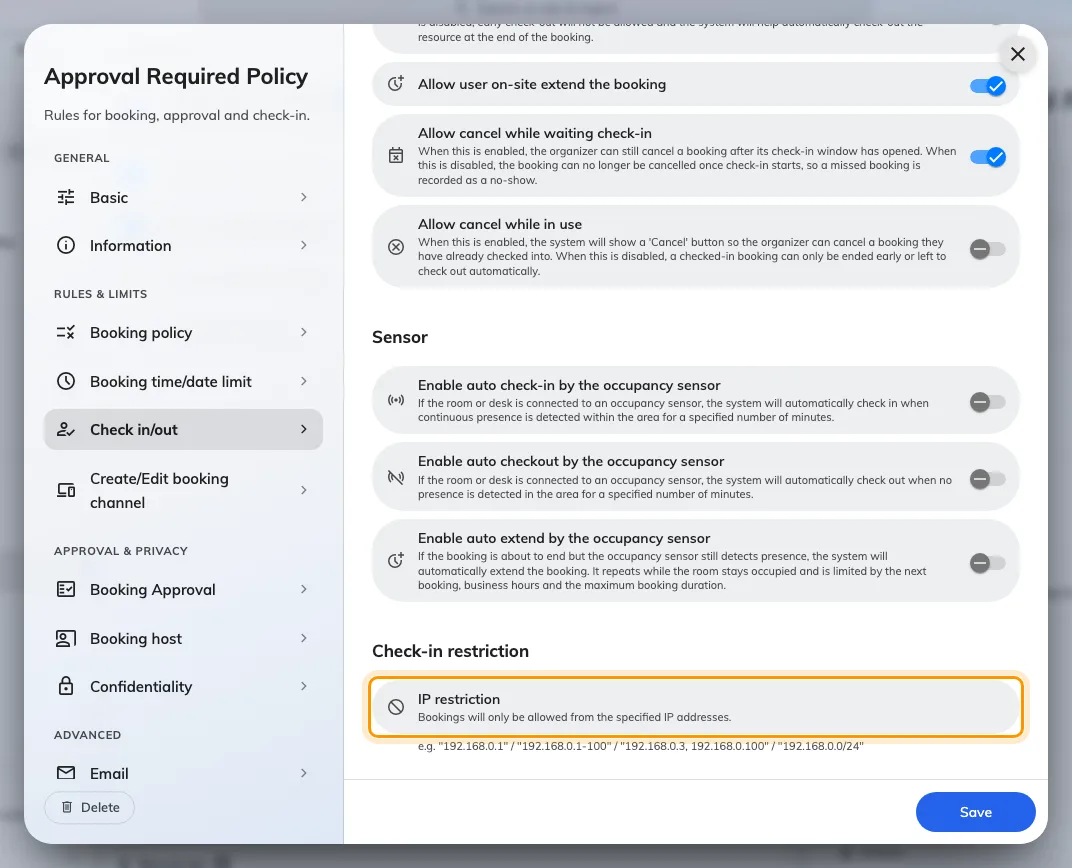
IP restriction, at the foot of the page and nothing to do with the sensor above it.
Who else may act on a booking
| Setting | What it does | When to change it |
|---|---|---|
| Allow attendees to check-in / check-out / extend at the booking panel | The panel’s version of the permission above, and a separate switch from it | Turn off where only the organiser should end a meeting |
| Take attendance | Whether bookings here record who attended: Not allowed, Optional, Always required | Set Always required where headcount is reported on |
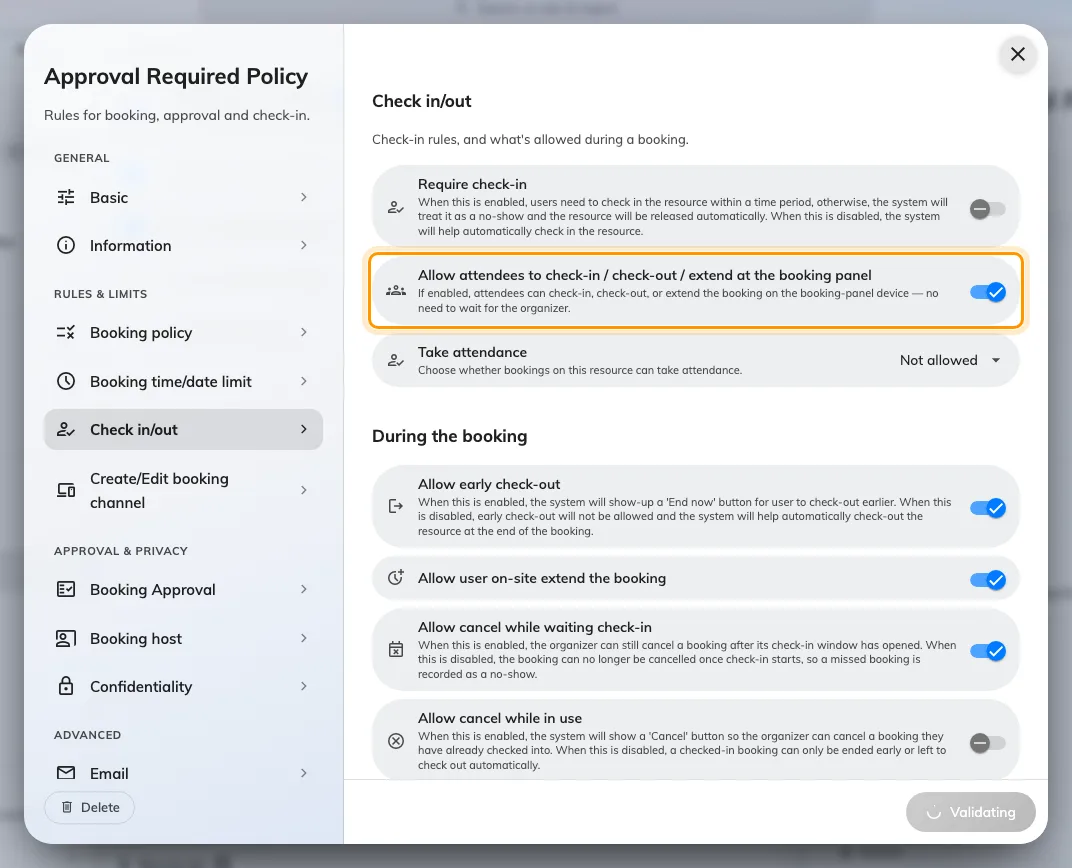
The panel's version of the attendee permission — a separate switch from the app's.
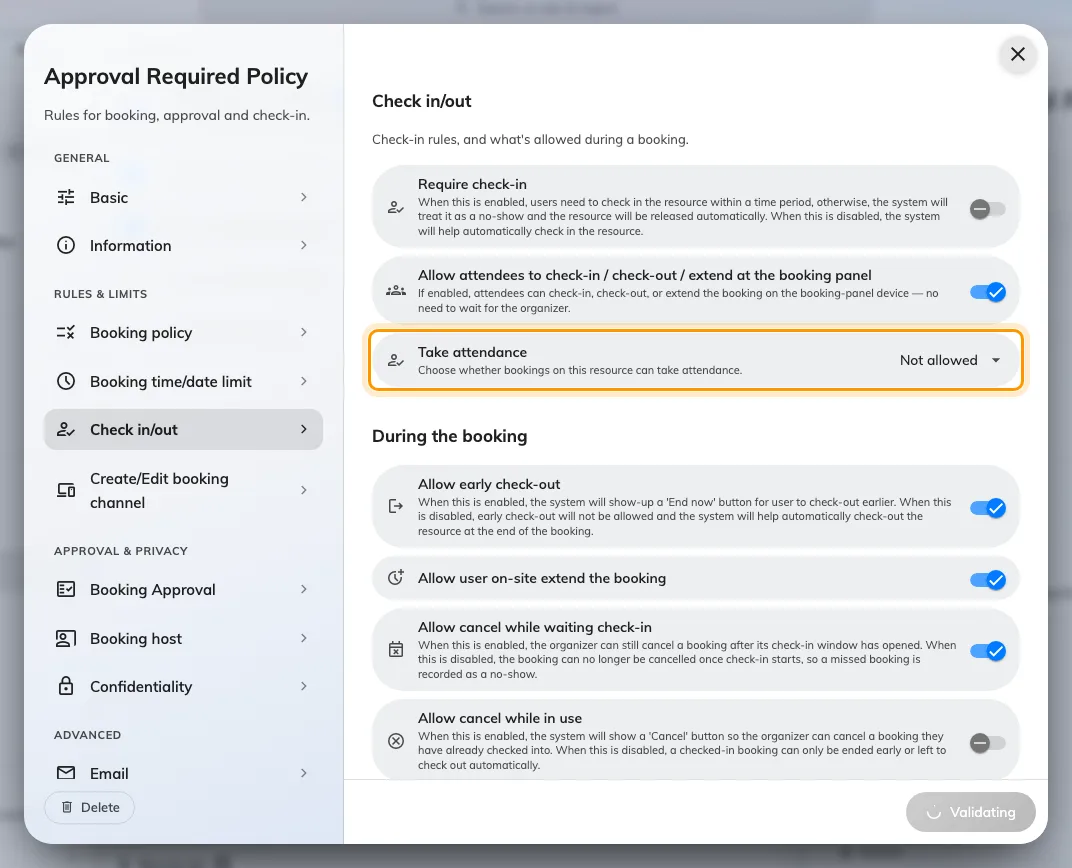
Take attendance: Not allowed, Optional, or Always required.
Ending early, and cancelling
| Setting | What it does | When to change it |
|---|---|---|
| Allow early check-out | Shows End now, so a resource is freed when the meeting really ends. Checking out moves the booking’s end to that moment. It also gates the occupancy sensor: off, the sensor cannot release an empty room either | Leave on unless the full slot must be held |
| Allow cancel while waiting check-in | Whether the organiser may still cancel once the window has opened. Off, the booking is committed from that moment and a missed one is recorded as a no-show. On by default | Turn off where a late cancellation would hide the no-show |
| Allow cancel while in use | Whether a booking somebody already checked into may be cancelled. Off, it can only be ended early or left to check out on its own | Turn on where people walk away from a meeting they started |
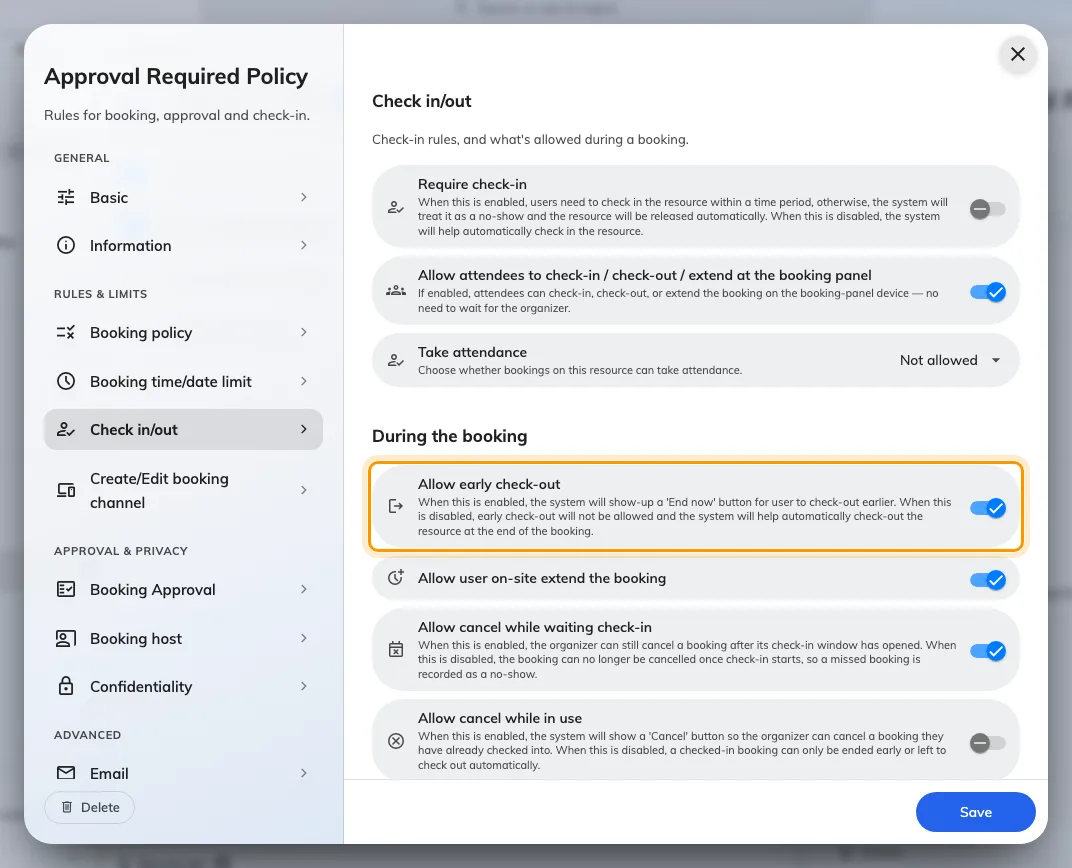
Allow early check-out, which puts End now in front of people.
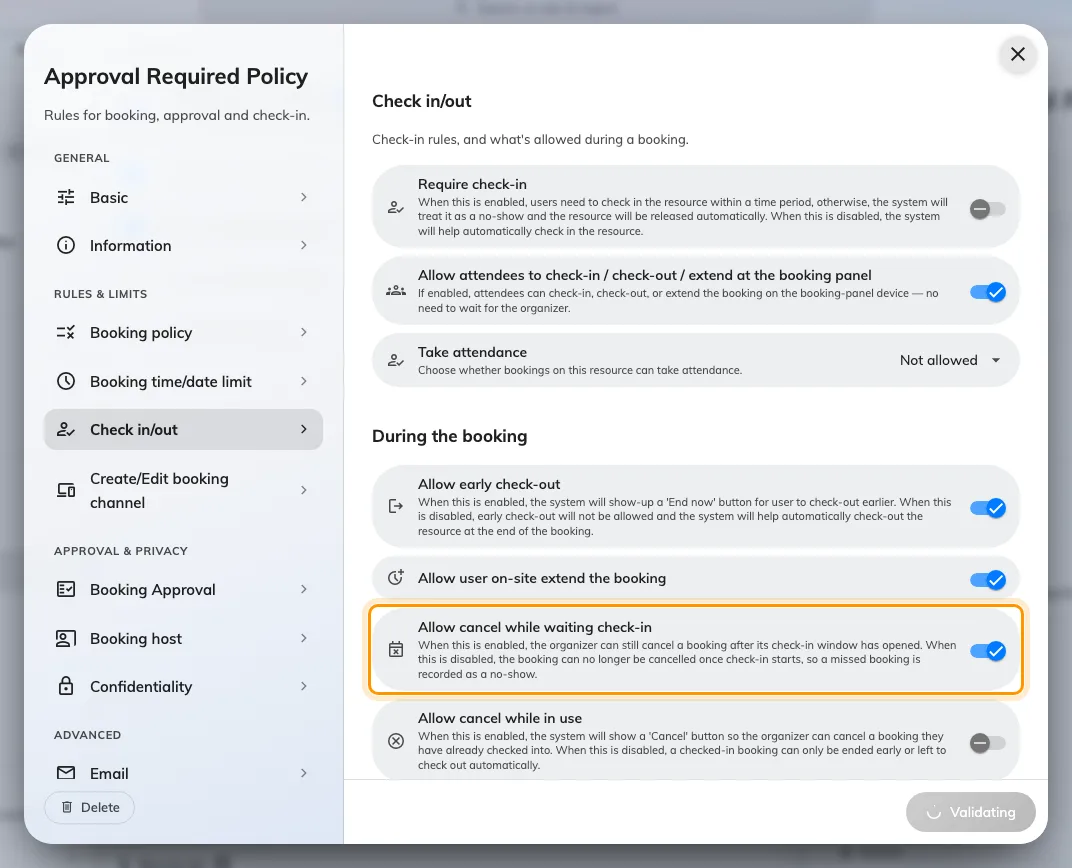
Allow cancel while waiting check-in: whether a booking is still cancellable once its window has opened.
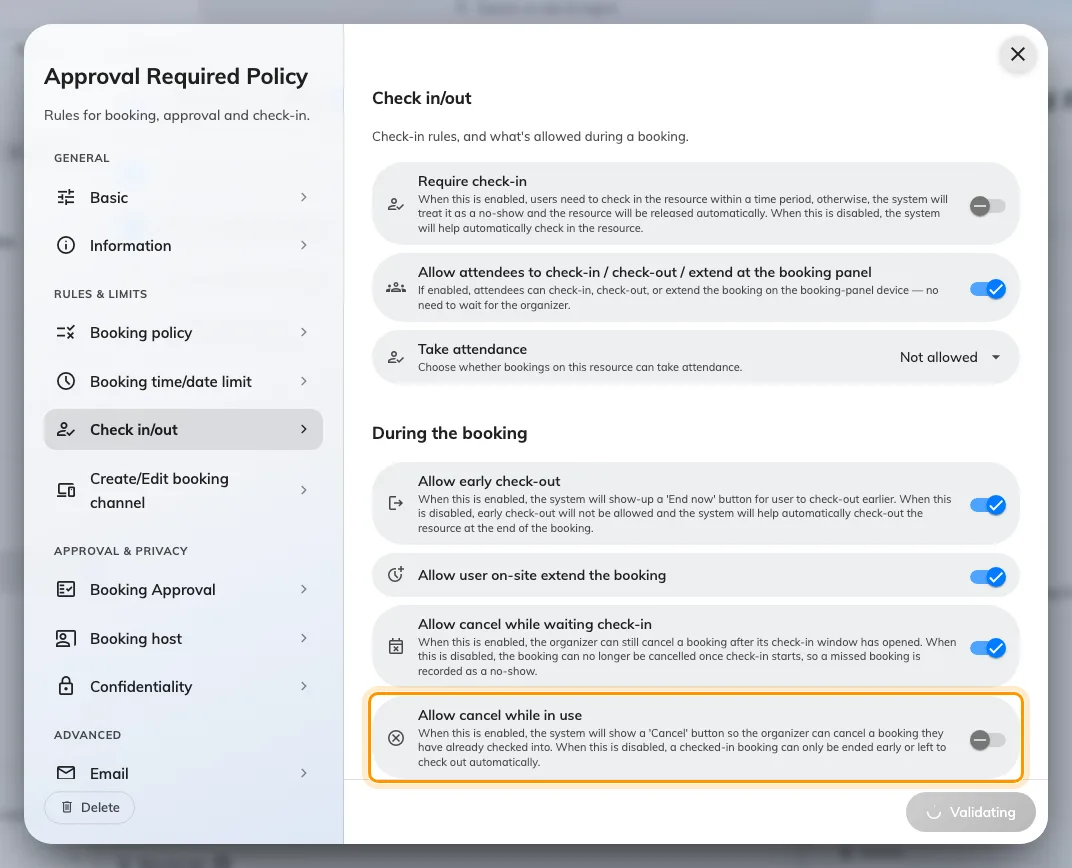
Allow cancel while in use, for a booking somebody already checked into.
By occupancy sensor
A sensor can check a booking in when somebody arrives, release it when the room empties, and keep it while a meeting overruns. Those ten fields sit further down this same page under Sensor, each with a figure of its own, in Let an occupancy sensor check in, check out and extend a booking.
What this does not control
- A no-show does not delete your appointment. See the three calendar views.
- Checking in moves the start to now — except on an all-day booking, and except where an earlier meeting still holds the room, when it lands at that meeting’s end instead. See How check-in and no-show work.
- The methods — QR code, staff card, user passcode, booking pin, face identification — are set once for the whole organisation, not here. Open Check-in method
- Whether a panel shows the button is per panel, on its configuration. Open Panel configurations
- The two reminder emails — waiting for check-in, and no-show — are switched on for the whole organisation, in Booking settings — Reminders.
- Walk-in bookings never require check-in. Somebody standing at the panel claiming a free resource has already proved they are there.
- The booking release schedule on this same policy is a different feature: it decides when a future period opens for booking, and has nothing to do with releasing an unattended resource.
- Quota is not refunded by a no-show — see Booking rules reference.