

Booking form reference
The screen that decides what people are asked when they book — every built-in field you can switch off, reorder or rename, and every setting on a field you add yourself.
This is the screen where a booking form is built: the built-in fields you switch off, reorder and rename, and the fields you add yourself. Which of your forms a given booking ends up using is decided elsewhere — see which form a booking uses.
Open Booking form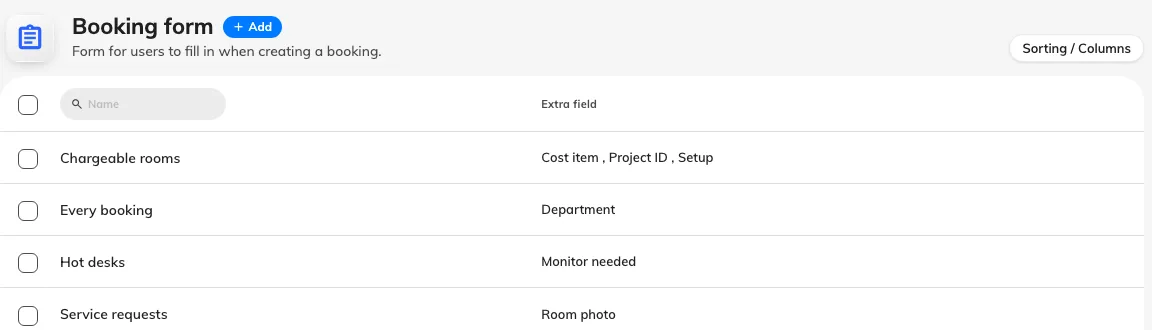
One row per form, with the fields it adds beside it.
The form itself
The editor opens on Settings, and these three sit above the field list.
| Setting | What it does | When to change it |
|---|---|---|
| Name | Names the form in the list and on each resource that uses it | Name it after the group of resources it serves, not after its fields — the fields change, the group does not |
| Branch management | Limits the form to one branch of the organisation | Only on a multi-branch site where each branch runs its own forms. It appears only where branch management is licensed |
| Default display form | Makes this the form people see before they have picked a resource | Turn on for the one form whose questions apply almost everywhere. At most one form per site can hold it |
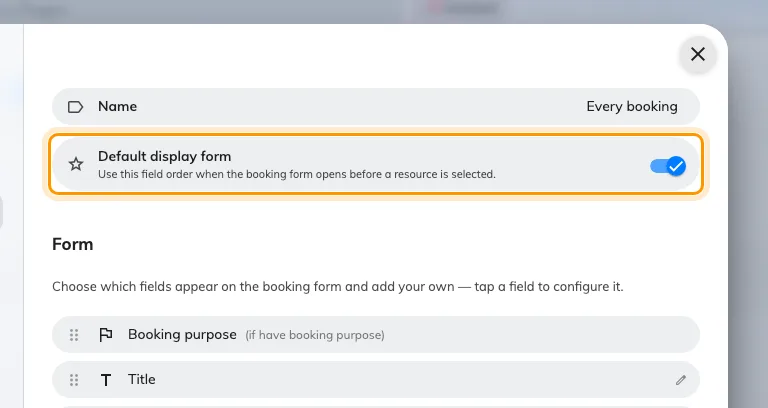
Default display form, on the one form that holds it.
The rest of the editor’s rail is one page per kind of resource — rooms, desks, equipment, parking, other — each carrying a count of the resources assigned to this form. That is where a form is attached to the space it serves.
Below the settings sits the field list: every built-in field and every field you have added, in the order they appear on the booking form. Drag to reorder, select a field to configure it, and choose Add field for one of your own.
Built-in fields
These exist on every form. Some can only be reordered; the rest open a small editor when selected.
| Field | What you can change | Notes |
|---|---|---|
| Booking purpose | Order only | Appears only when the resource has booking purposes |
| Title | Where it appears, Allow private booking, and its own name | The subject of the booking |
| Period | Order only | |
| Resources | Order only | |
| Number of room users | Show manual participant count, and Require manual participant count | Appears only when the resource is a room. Required only bites while the field is also shown, and is enforced everywhere — the panel, the mobile app and the booking API, not just the web form |
| Online meeting | Where it appears | |
| Service | Order only | Appears only where booking services exist |
| Organizer | Order only | Appears only where a delegated user exists — see Set up user delegates. Reads Booking by on a desk |
| Attendee | Where it appears, and an Alias name | |
| Host | Where it appears, and its own name | Needs the resource policy to allow inviting a host and this row’s switch for that kind of resource. A hidden Host is never required, whatever the policy says |
| Visiting purpose | Order only | Appears only with visitor management |
| Notes | Where it appears, and its own name | The free-text body of the booking |
Where a field appears
Five switches, one per kind of resource: Show when room booking, Show when desk booking, Show when equipment booking, Show when parking booking and Show when other booking. Notes, Online meeting and Host carry all five.
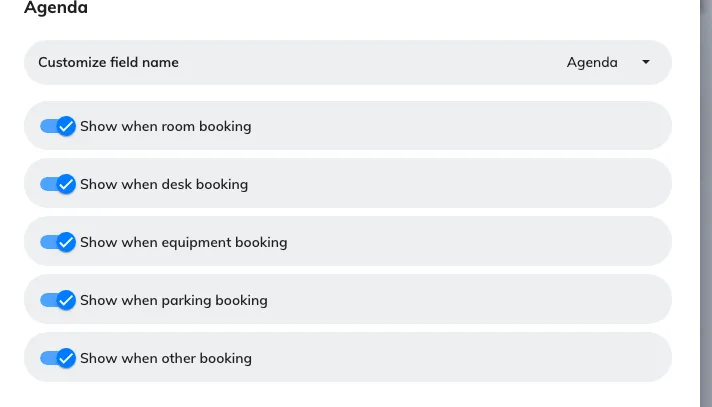
Notes, with all five kinds of resource to choose from.
Title and Attendee are the exception: desk, equipment and parking still appear in their lists but are fixed off, because a title and a guest list only make sense for a room or an “other” resource. So a desk booking never asks for either, whatever the rest of the form says. Host has no such restriction — all five are live, and all five start on.
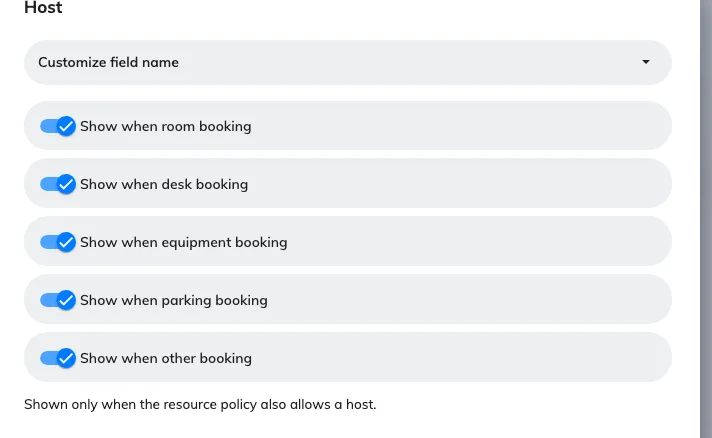
The Host field: the same five switches, plus its own name. The resource policy still has to allow a host.
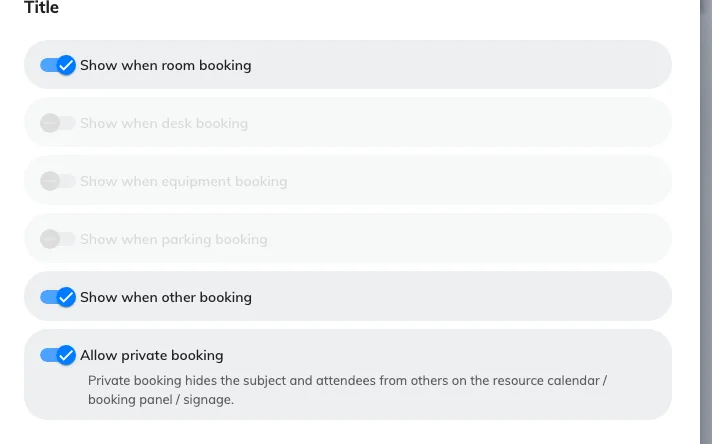
The Title field: where it appears, and whether a booking may be private.
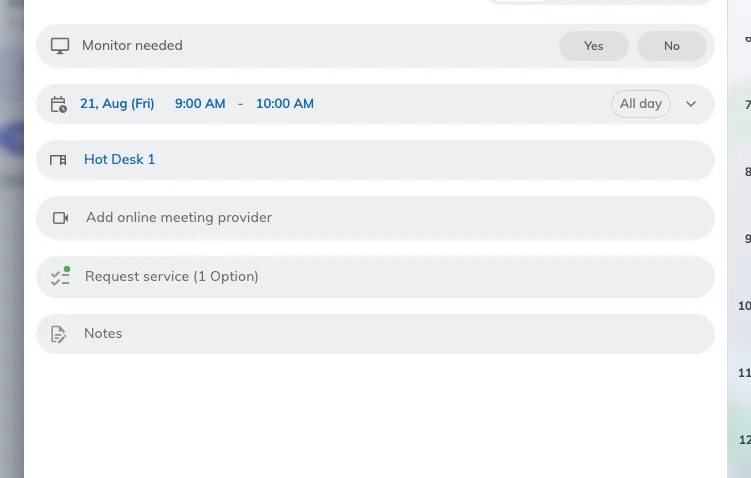
The same site, booking a desk: no title, no attendees.
Allow private booking
On Title. It lets the person booking hide what the meeting is about — the subject, the notes and the attendee list — from everybody else. It does not hide the booking. On the form it arrives as a Private control beside the title; which screens it comes off, and who can still read it, is What a private booking hides.
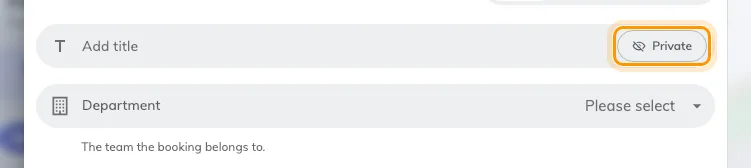
What the switch produces: the person booking decides, one booking at a time.
Alias name and Customize field name
Two labels for one job — they replace the wording of a built-in field without changing what it does. Attendee calls it Alias name; Title, Notes and Host call it Customize field name. Use them where your organisation’s word differs from ours: Guests rather than Attendee, Agenda rather than Notes.
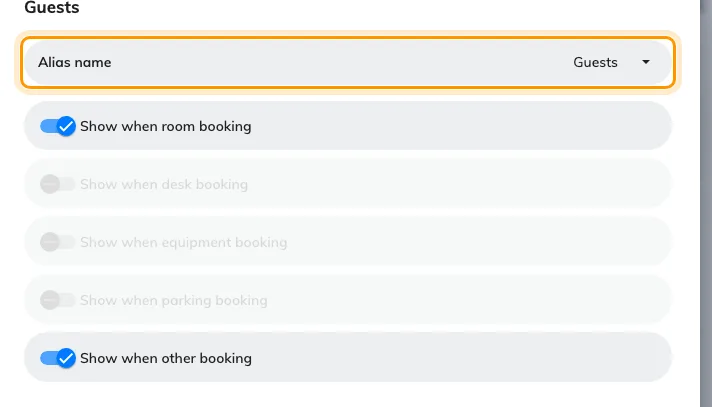
Attendee, renamed.
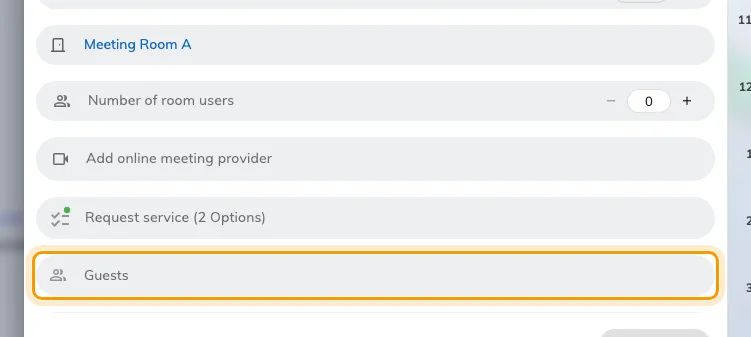
The renamed field on the booking form. It still invites attendees.
Fields you add yourself
Every field you add carries the same settings. Building one end to end is Ask for a cost item and project ID on every booking.
| Setting | What it does | When to change it |
|---|---|---|
| Name | What the person booking sees | Always fill it in for every language your site uses |
| Description | A one-line hint under the field | Use it for the rule people get wrong, not to restate the name |
| Icon | The mark beside the field | Pick something recognisable; it is how people find the field in a long form |
| Field type | What kind of answer is accepted — see the table below | |
| Select option | The choices, for Select and Multiple select | For a short fixed list. A long or shared list belongs in a data set |
| Data set | Which reusable list backs an Autocomplete field | |
| File type | Limits an upload to images, PDFs, or both | |
| Required | The booking cannot be saved without an answer | Turn on for anything you intend to reconcile or report on later |
| Show in email | Puts the answer in booking confirmation emails | |
| Show in User Portal (Resource schedule) | Colleagues viewing that resource’s schedule can read the answer | Leave off for anything commercially sensitive |
| Show for service staff | The answer reaches the people fulfilling service requests | |
| Show for service manager | The answer reaches service managers |
Three of those appear only for the field type that uses them: Select option for Select and Multiple select, Data set for Autocomplete, and File type for the two upload types.
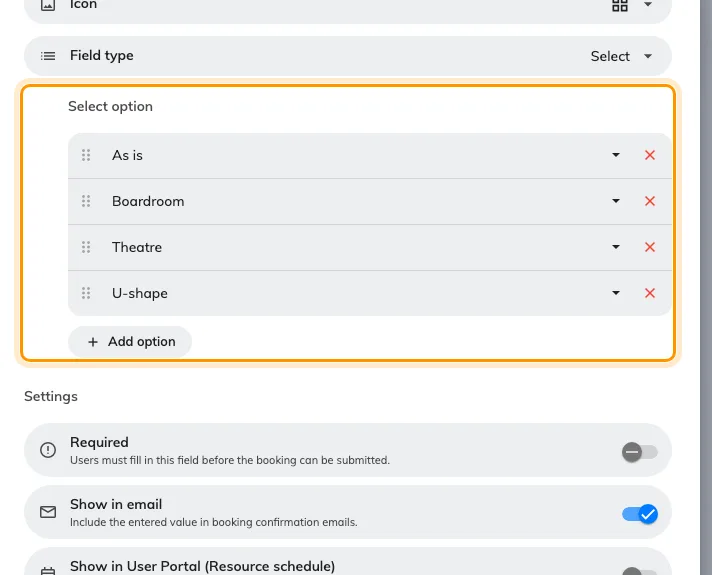
A Select field, with its options listed on the field itself.
Required and Description are what the person booking actually meets: a mark against the field they cannot save without, and the line of guidance under it.
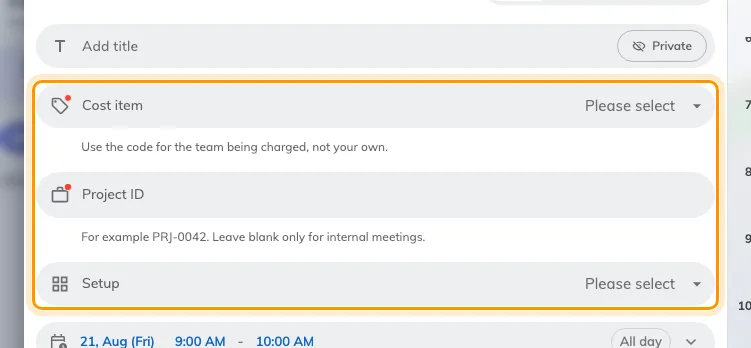
Three added fields. The two with a red mark cannot be left blank.
Whatever the four Show switches say, the answer always reaches the booking’s own detail, the approval screen, and the booking export — one column per field.
Field types
| Field type | Accepts |
|---|---|
| Text | One line of free text |
| Rich text | A formatted paragraph |
| Number | A number. Drops leading zeros and prefixes, so not for identifiers like PRJ-0042 |
| Phone number | A telephone number |
| Date | A calendar date |
| Time | A time of day |
| Date & time | Both together |
| Yes / No | A single switch |
| Select | One choice from the options set on the field |
| Multiple select | Several choices from those options |
| Autocomplete | One entry from a data set, searched as the person types |
| Upload file | One file, of the accepted types |
| Upload multiple file | Several files |
A Select renders as a row of pills only while it has three options or fewer and they are short enough to fit one row; a fourth option, or a label long enough to overflow, turns it into a dropdown. That is decided from the options themselves and there is no switch for it. The width is judged on what the labels actually occupy, so a Chinese or Japanese option counts about double an English one of the same length.
What this does not control
- Which form a booking gets. Three routes decide that, and none of them is on this screen — see which form a booking uses.
- Who may book at all. Team spaces and resource policies, not the form.
- Whether the Host field appears at all. Two gates decide it, and this screen is only one of them: the resource policy has to allow a host as well.
- Whether a reviewer can read your fields. The resource policy carries its own switch for that.
- The resource’s own description. It belongs to the resource, not the form, and whether it prints beside the picker is a UI customization setting — see Show a room’s description on the booking form.
- Visitor forms. Visiting has its own form builder, and the two never share fields or data sets.