

Limit booking times to business hours
Bookings only stay inside opening hours when two settings are set together — a Booking hours schedule on the room, and a policy that forbids out-of-hours booking. Either half alone does nothing.
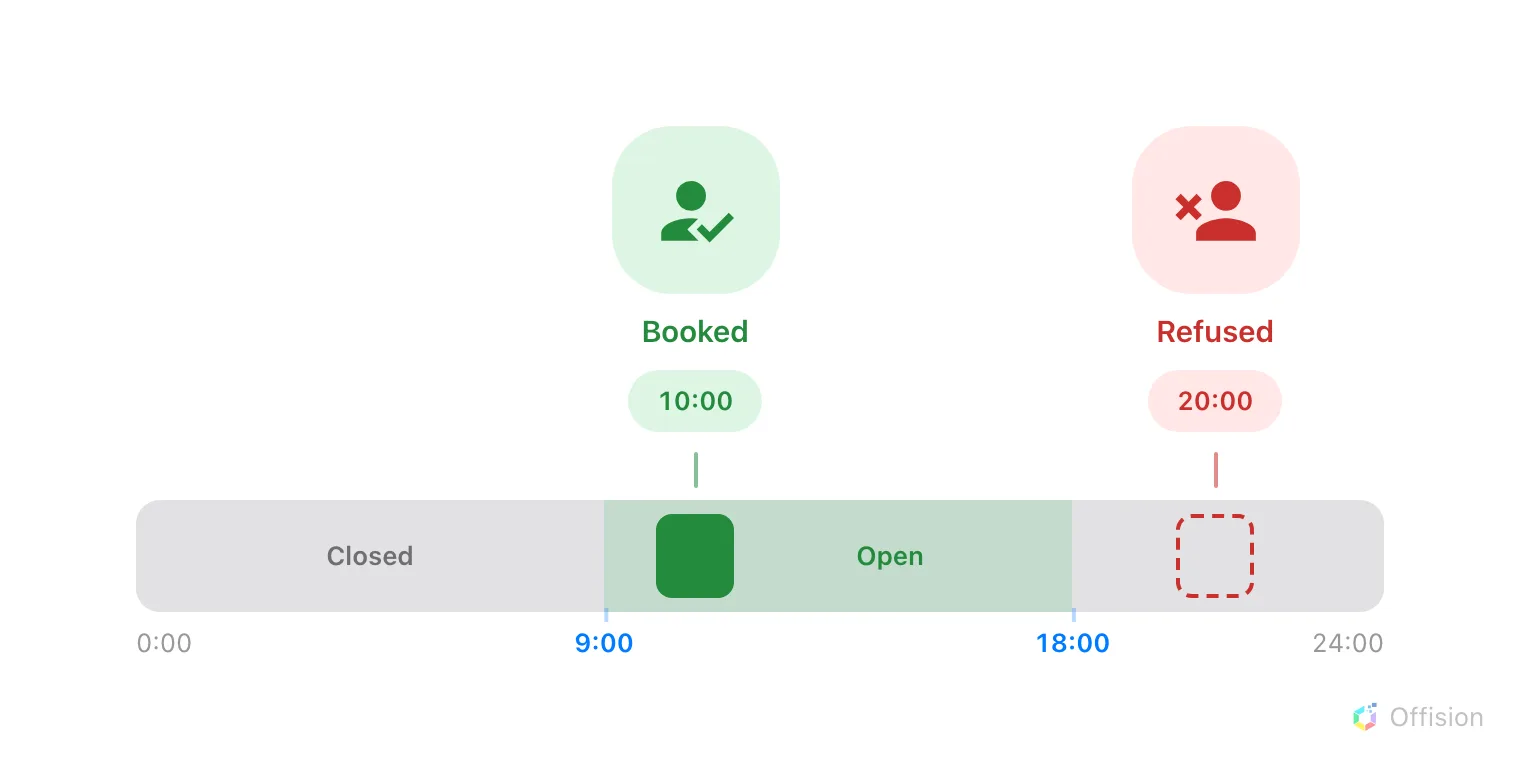
A booking has to land inside the room's open hours — outside them it is refused before it is ever created.
1. Create the schedule
A schedule holds the opening hours for a set of resources: which days are open, the open time ranges on each day, the time zone they are counted in, and the holidays on which the whole day closes.
Open Booking hoursChoose Add, name the schedule, and set its Time zone — the hours you draw are read in that zone, not in each user’s. Then drag on the Week timetable to draw an open period on each working day; click a drawn period to fine-tune its start and end.
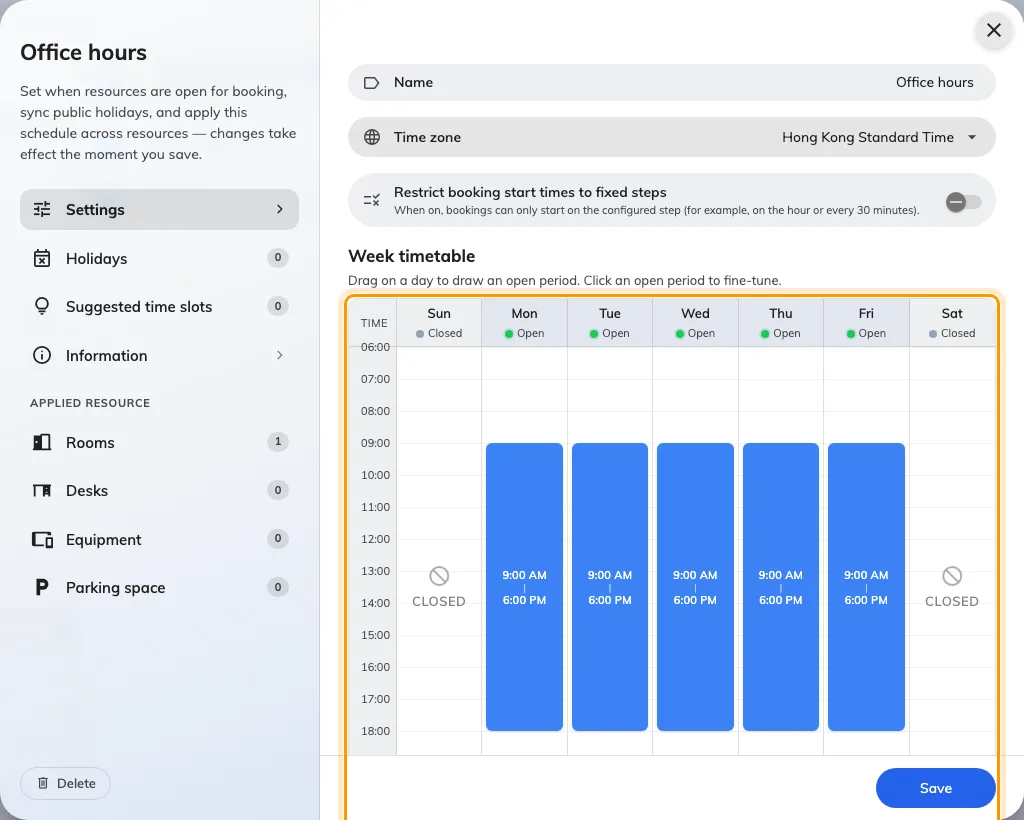
A schedule open in the editor, with the week timetable drawn Monday to Friday.
The Holidays page of the same editor closes whole days, whatever the week
timetable says for them. You can add dates by hand, import an .ics file, or
auto-sync a country’s public calendar so next year’s holidays arrive on their
own — see closing the office on public holidays.
2. Apply it to the rooms
A schedule does nothing until resources carry it. In the same editor, the pages under Applied resource list your rooms, desks and equipment — tick the ones this schedule should govern.
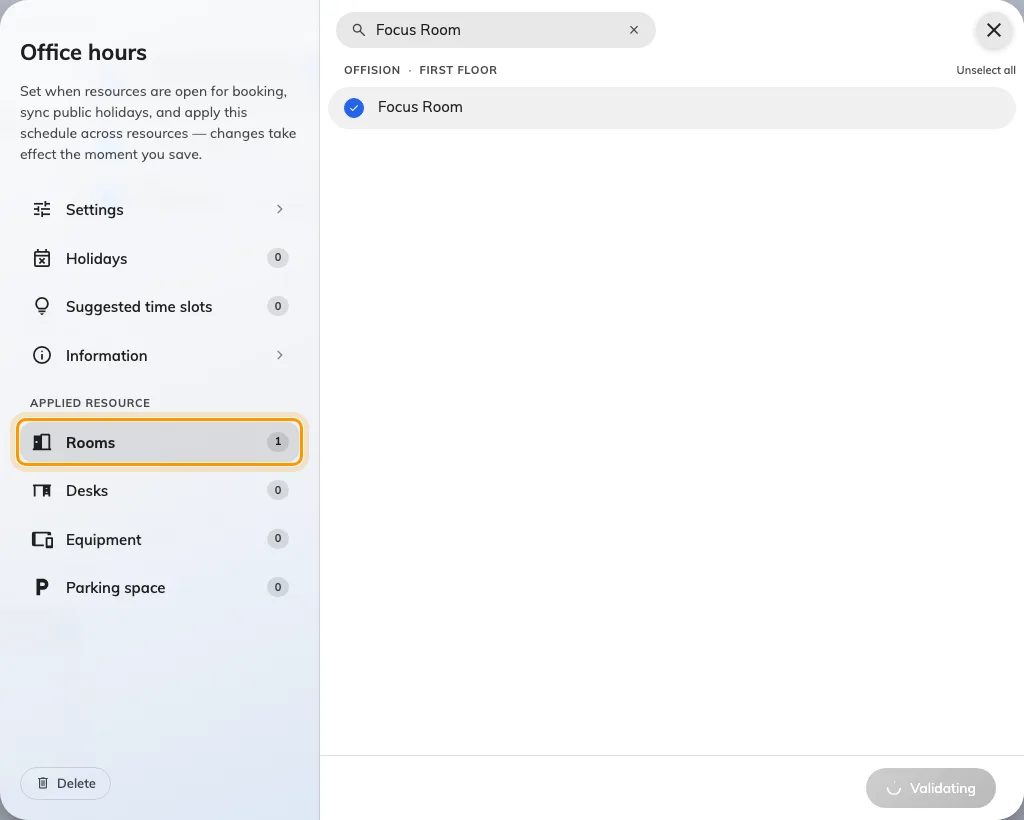
The Applied resource pages, where the schedule is attached to rooms.
The same link can be made from the other end: each room’s own form has a Business hour field. Both write the same setting, so use whichever end you are already on — but check it, because a room with no schedule is untouched by everything below.
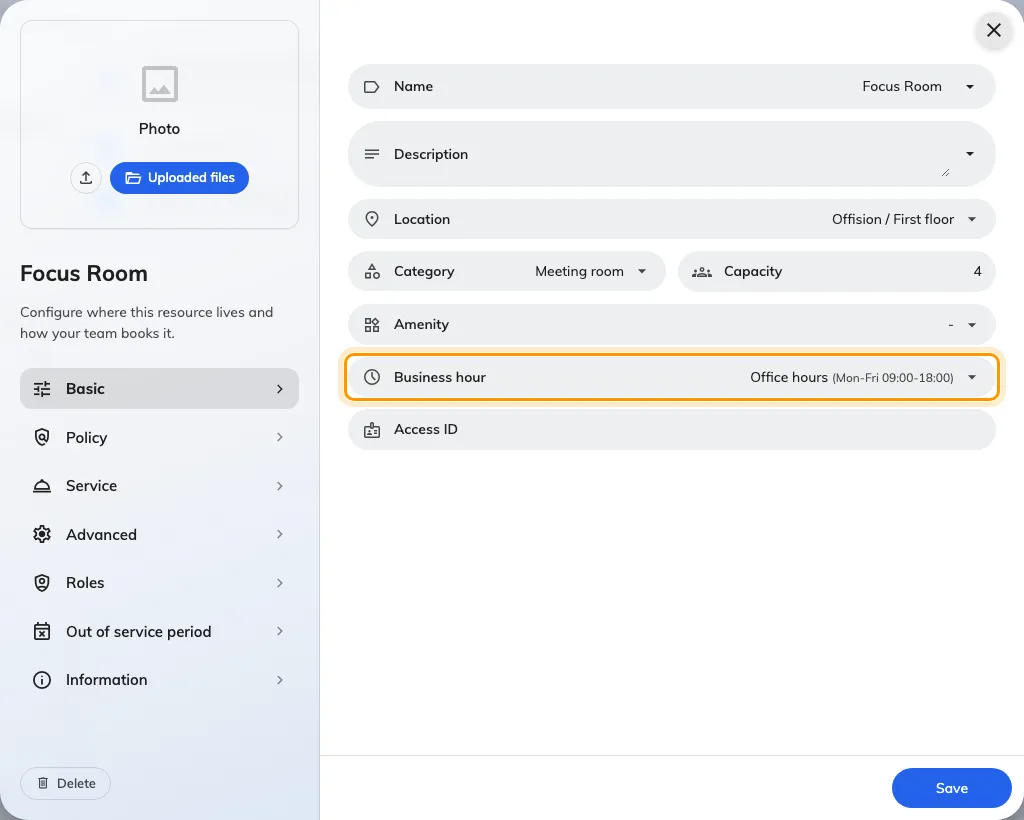
The room's own form, with the Business hour field carrying the schedule.
3. Forbid out-of-hours booking on the policy
The schedule alone only describes the opening hours; the booking policy is what makes them binding.
Open Booking policySelect the policy those rooms use and choose Edit in the panel on the right. In the editor’s page list choose Booking policy — the second one — and turn off Allow users to create out-of-business-hour booking.
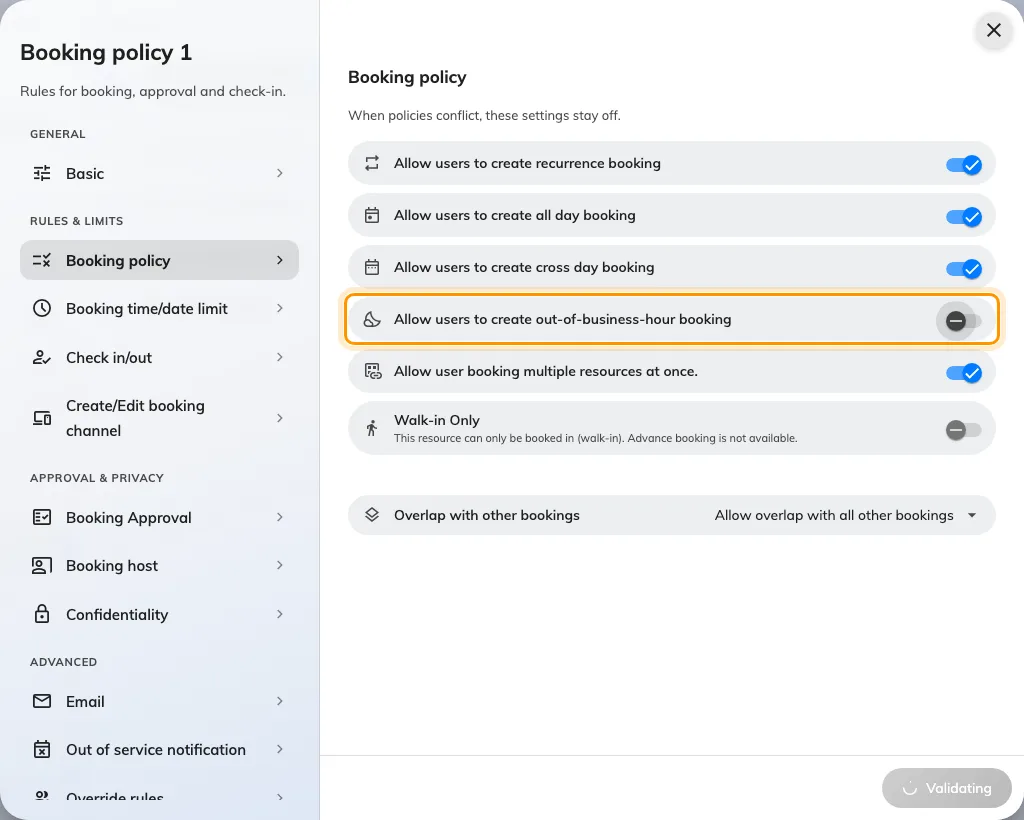
The Booking policy page, with out-of-hours booking turned off.
Two details worth knowing before you rely on it:
- A booking must fit inside one open period. Where a day is drawn as two ranges — say 9:00–12:00 and 13:00–17:00 — a 9:00–17:00 booking is refused, because it crosses the closed hour between them.
- A booking that holds several resources must fit the hours of every one of them. And where one group of people should be exempt — security, facilities — the policy’s Override rules page can switch this back on just for them.
4. What people see when booking
Once both halves are in place, a booking placed outside the hours does not save. The form refuses with the room’s name and its open hours — the same refusal for a closed evening, a weekend or a holiday:
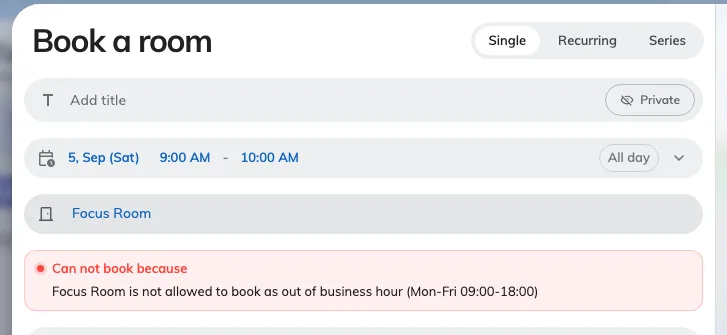
A booking placed outside the room's hours, with Book unavailable.
Suggested times do not play along, and it is worth knowing: the blocks offered when booking are not cut to the room’s open hours or its holidays, so a block sitting on a closed evening is still proposed and the booking is then refused on save. Keep a suggestion grid inside the hours the room actually opens. Suggestions stay suggestions either way — to make the offered times the only times, see Fixed time slots.
A schedule is no longer the only place suggestions can come from. Where a room has none of its own it falls back to a company-wide grid, which is also what the booking form offers before any room has been picked — see Suggested times. Setting them here still wins for the rooms on this schedule.
5. What the room panel shows
Outside its hours the panel by the door goes grey and reads Out of business hour, with the room’s weekly Open time underneath — and on a holiday, the holiday’s name. The booking and walk-in buttons are gone while it shows.
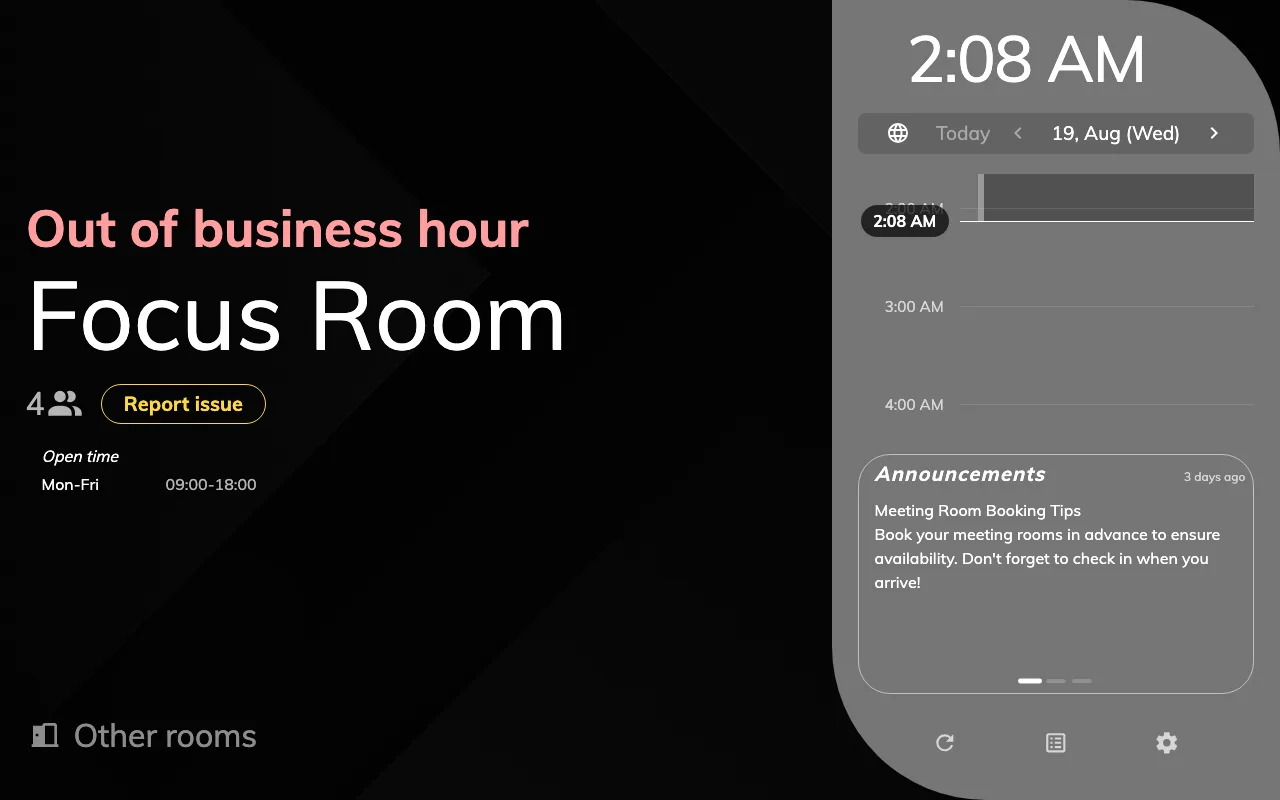
The panel outside business hours: no booking buttons, and the open hours on display.
The panel flips at the exact minute the schedule opens or closes. Inside the open hours it behaves as usual, with one difference: booking from the panel can only run up to closing time, so the offered durations shrink as the end of the day approaches.
6. Check it worked
Sign in as an ordinary user and try to book the room outside its hours — a weekend day, or eight in the evening. The form should refuse with the message above. If the booking goes through instead, one half of the pair is missing — the room is not on the schedule, or its policy still allows out-of-hours booking.