

Checking in by QR code, and proving you are there
One scan does different things depending on what the room is doing. GPS is not a way of checking in — it is a condition on checking in from the app.
There are two different QR codes
They look the same and behave differently, which is most of the confusion here.
The code on the panel’s screen changes with the room. Its caption reads Scan to check-in while a booking is waiting, Scan to extend / check-out while one is running, and Scan to book while the room is free.
The printed sticker on a door or a desk is a fixed code for that resource, and it does all four jobs on its own — check in, walk in, extend, check out. Producing and placing those is a job of its own: see Print and put up resource stickers.
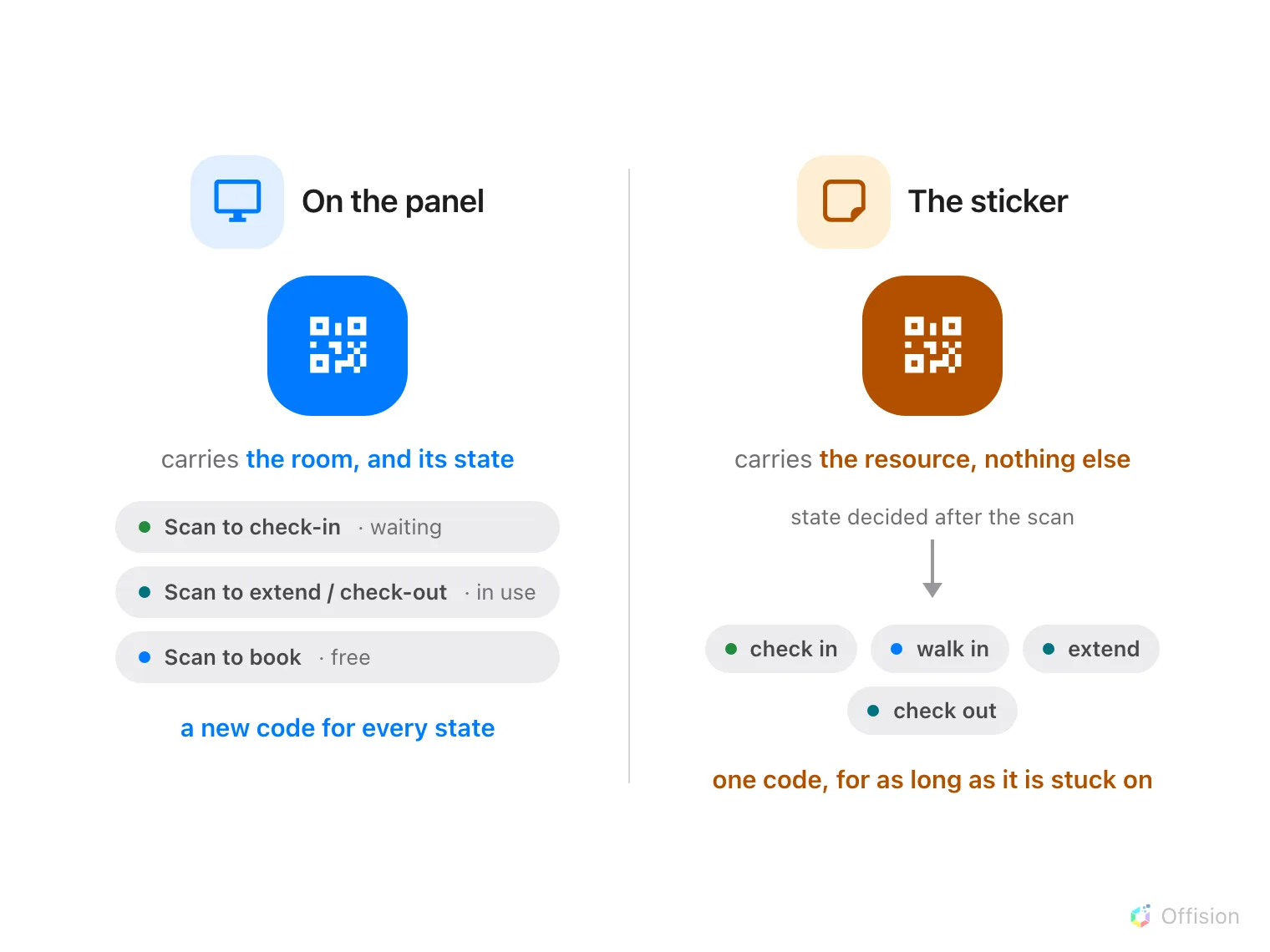
The panel's code carries the room's state; the sticker's carries only the resource, and the state is worked out after the scan.
Scanning either of them does not mean “check in”. It means “tell me about this resource, and do the obvious thing” — and the obvious thing depends on the room and on who is holding the phone. Every outcome is walked through in Check in and out by scanning the sticker on a desk or room.
GPS is a condition, not a method
Turning on Require GPS check-in does not add a way to check in. It adds a test that app check-in has to pass first: the phone must be within Allowed distance of the building.
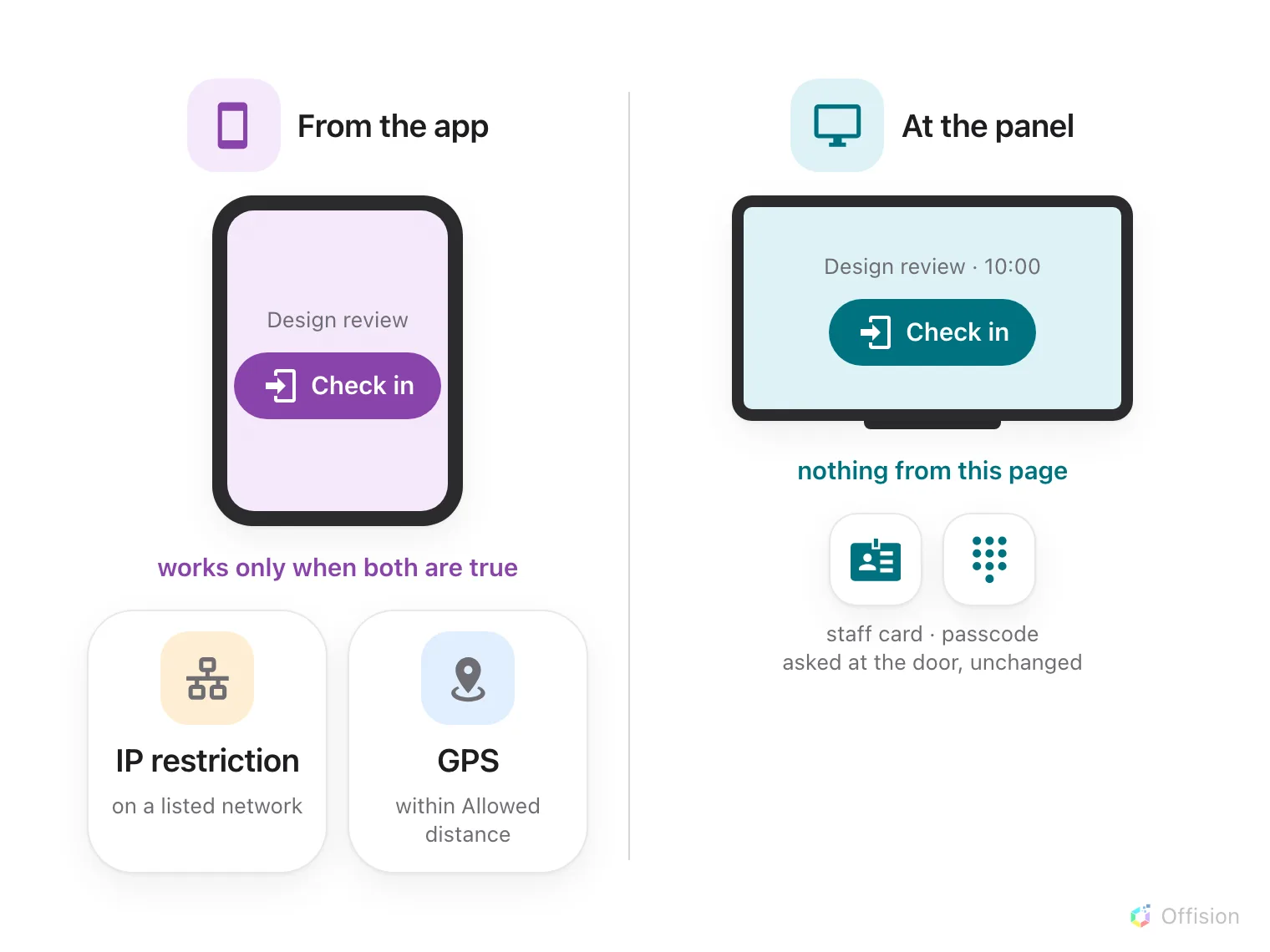
Both settings are conditions on the app's Check in button. The panel's own methods are not asked about network or place.
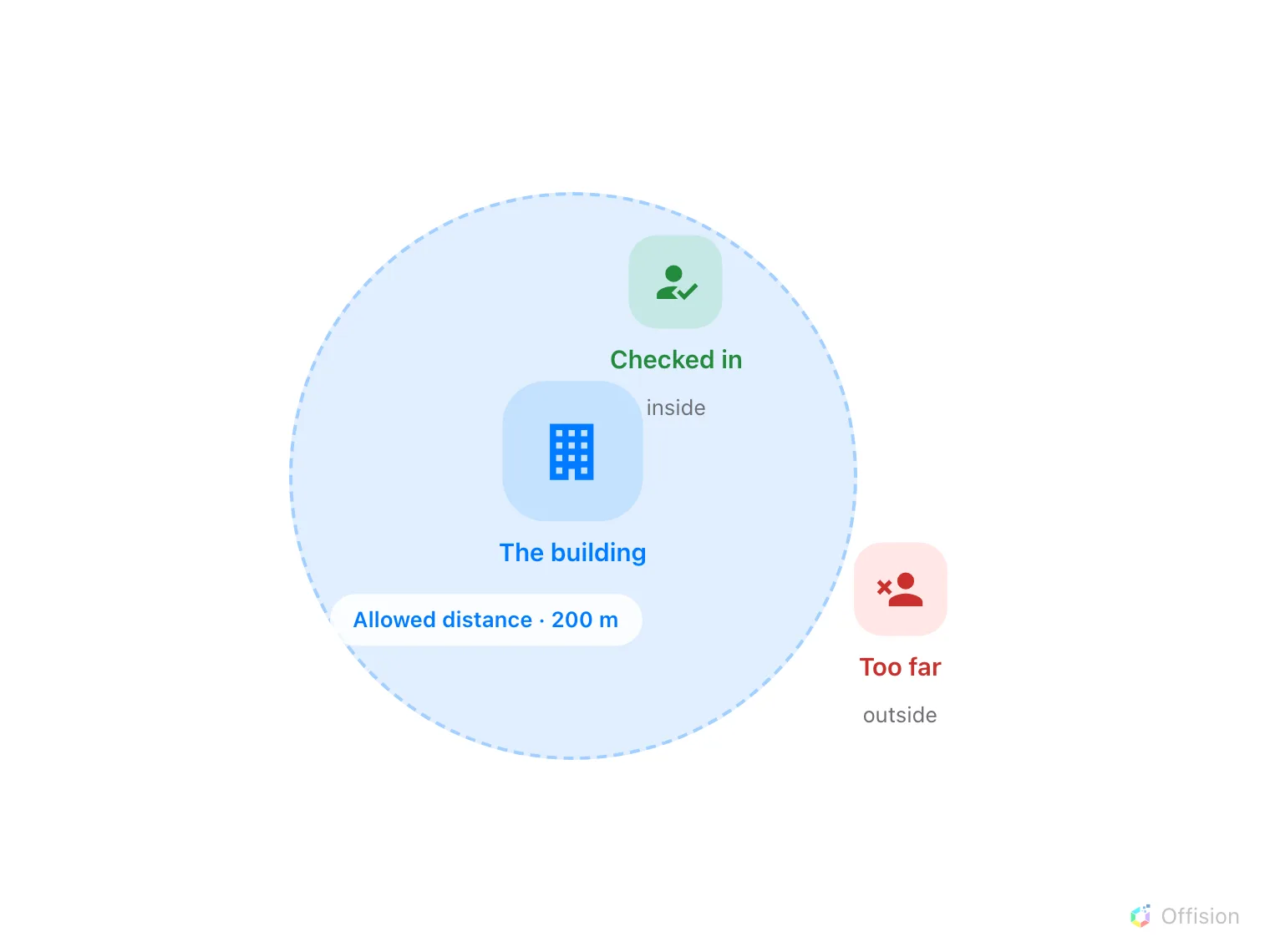
The circle is drawn around the building, not the room — so a building with no location refuses everybody.
Three consequences follow from where that circle is centred:
- It is the building’s location, not the room’s. Every resource in a building shares one circle.
- A resource whose building has no location cannot be checked into at all once this is on. The settings page counts them for you and names them, because this fails closed rather than falling back.
- The radius is a floor, not a preference. It cannot be set tighter than 50 metres, and defaults to 200 — a phone’s idea of where it is has a margin, and a circle drawn inside that margin refuses people who are standing in the room.
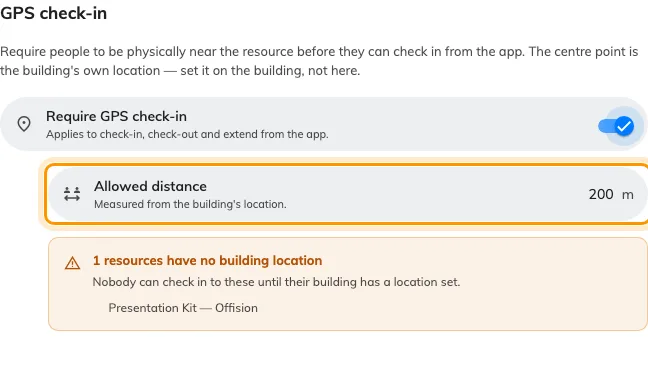
The policy's GPS page: the switch, the radius, and the resources it would refuse.
There is no proceed-anyway. Outside the circle the dialog offers nothing but Try again; the confirm button only appears once the phone is inside, which is the whole point — a bypass would make the setting decorative.
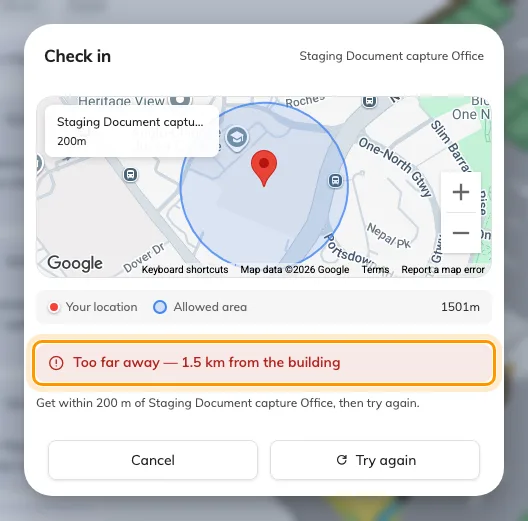
Outside the circle: the distance is stated, and there is nothing to confirm — only Try again.
What the mobile app actually adds
The screens are the same ones as in a browser — the mobile app is a shell around them. What it supplies is the two things a browser on a phone cannot reliably give: a camera for scanning, and a location the operating system will vouch for. That is why GPS check-in is dependable in the app and unavailable in some browsers.
If a check-in fails there, the useful question is which of the two was refused — camera permission or location permission. They are separate prompts and either can be off.
Forcing on-site check-in without GPS
User Portal check-in IP restriction accepts app check-in only from the addresses you list. It is cruder than a geofence — it proves which network, not which place — but it needs no permission prompt, no location hardware, and works inside Teams. Many organisations find it enough.
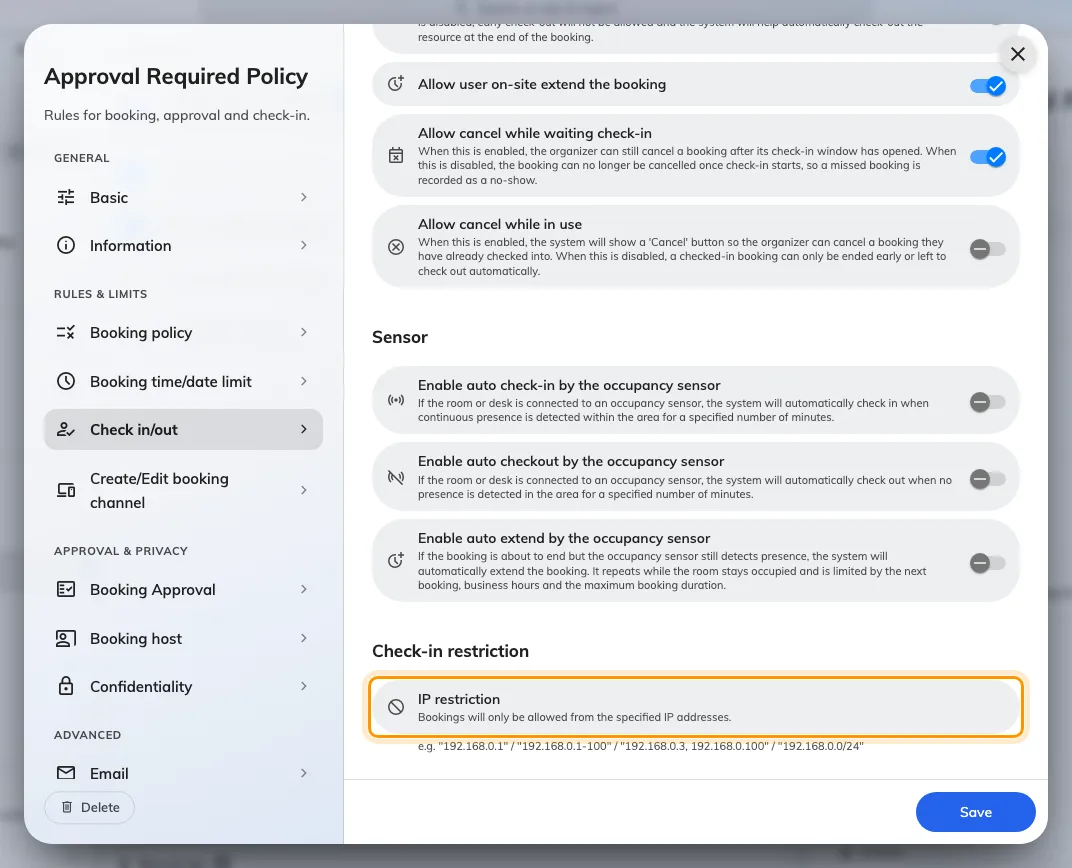
On the policy's Other page: single addresses, ranges, lists or a subnet.
What it does not control
- The panel’s own methods. Staff cards and passcodes are asked for at the door, and are unaffected by any of this — see Checking in at the booking panel and Check in by tapping a staff card.
- Whether the app shows a check-in button at all. That is Show check-in button in User Portal, and it is also the setting that makes no-show figures questionable — see What counts as a no-show.
- Whether attendees may do this. The app grants attendees check-in by QR only, under a separately named policy toggle from the panel’s.
- The check-in deadline. Scanning inside the window checks you in; scanning after it finds the booking already gone — see How check-in and no-show work.