

Check in by tapping a staff card
Turn the method on, get a card number against every person, and connect the reader. One tap then does whatever the room needs, with no second screen.
A staff card is the quickest way in and out of a room: nothing to type, nothing to scan, no phone. It is also the only credential most people are already carrying, which is why it is usually the method that actually gets used.
It is also the only one that does the whole job in a single gesture. The card says who you are and the panel does whatever the room needs next, without asking a second question.
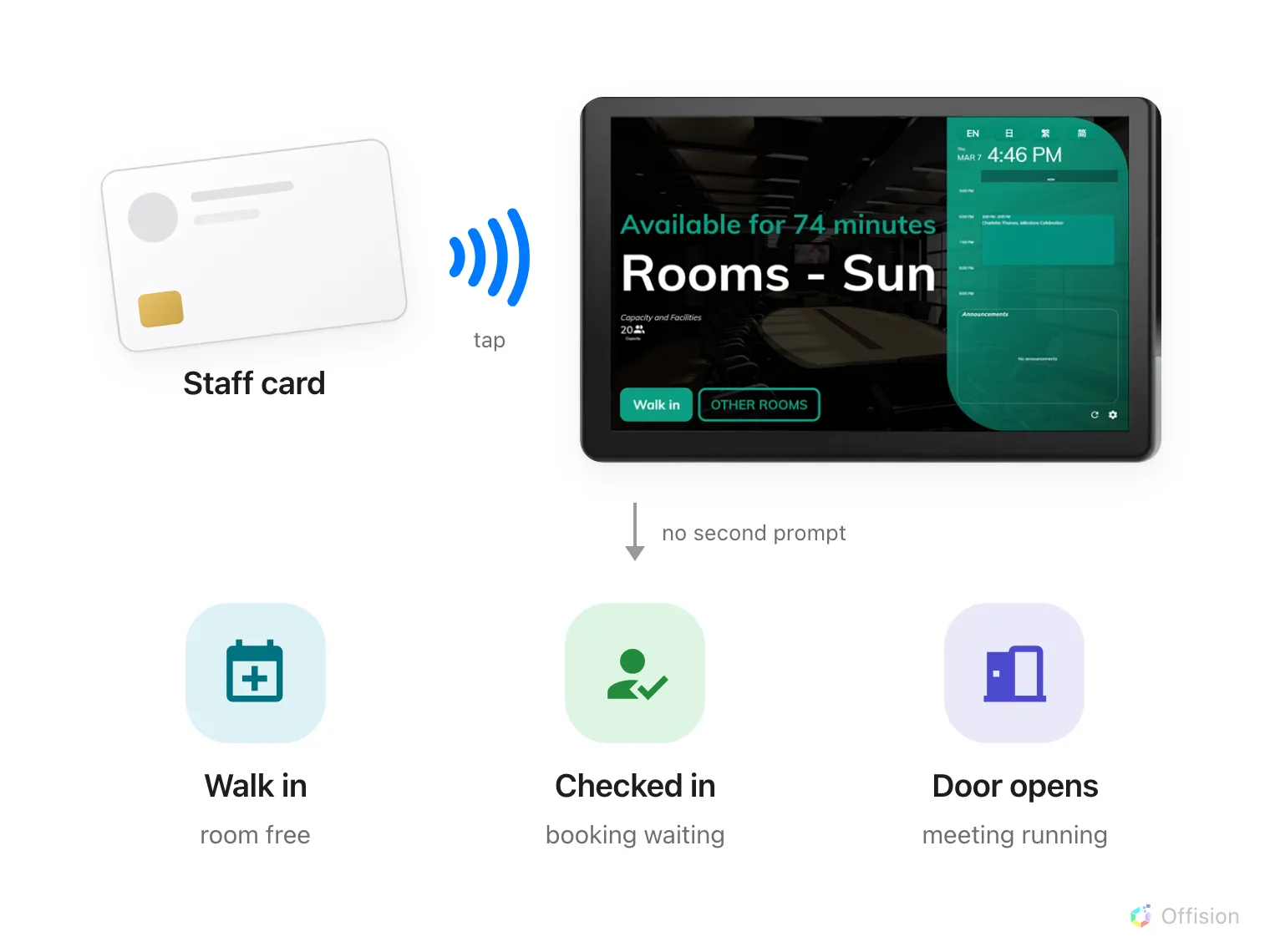
One tap. What it turns into follows the room, not a menu.
There are four things to set up, and they live on four different screens.
1. Turn on Staff Card for the organisation
Check-in methods are set once for everybody, on User identify settings. Turn on Staff Card — “Tap staff card on card scanner to validate identity”.
Open Check-in method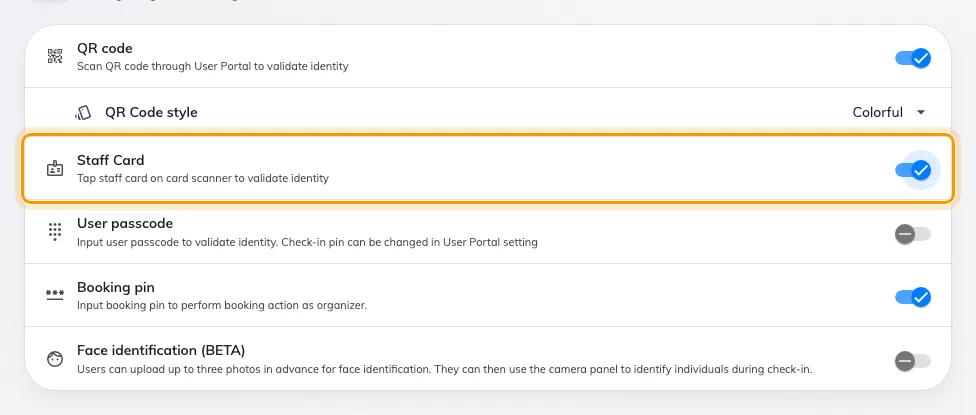
Staff Card, beside the methods that need a phone or a keypad.
At least one method has to stay on; the page refuses to save with none. Leaving QR code on alongside cards is worth doing anyway — it is what a visitor with no card falls back to.
2. Decide whether this panel follows the organisation
Open the panel’s configuration and go to its Check-in method page. The first switch there is Override the system user identification settings.
Leave it off and the panel uses what you just set. Turn it on and the panel’s own list replaces it, Staff Card included — which is how one lobby panel ends up accepting only cards while the rest of the building accepts everything. The booking pin is the exception: it is set once for the organisation and cannot be overridden on a single device.
Open Panel configurations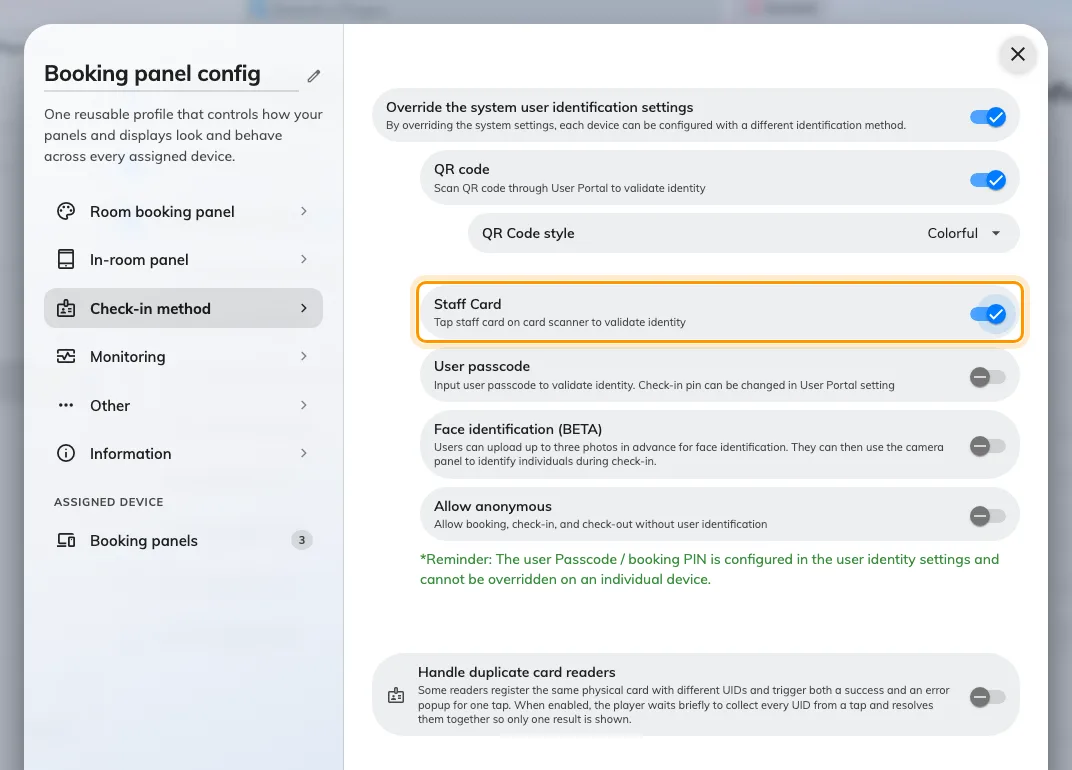
With the override on, this panel's methods replace the organisation's.
A configuration is shared by every panel assigned to it, so saving raises a confirmation listing the devices about to change. Read it before agreeing.
3. Give people a card number
A tap is only an identity if the number on the card is stored against somebody. Every person has three slots — User card 1, User card 2 and User card 3 — and a card number belongs to one person across the whole account.
That work lives in Directory, not here, because a card belongs to the person rather than to the room:
- One at a time, from either the Access cards page or the person’s own record — Issue an access card to someone.
- Five hundred at a time, from a spreadsheet — Import card numbers in bulk.
- What the seven card types are and which of them you issue — How access cards work.
4. Connect the reader
Whether a panel needs anything plugged into it depends on what the panel is.
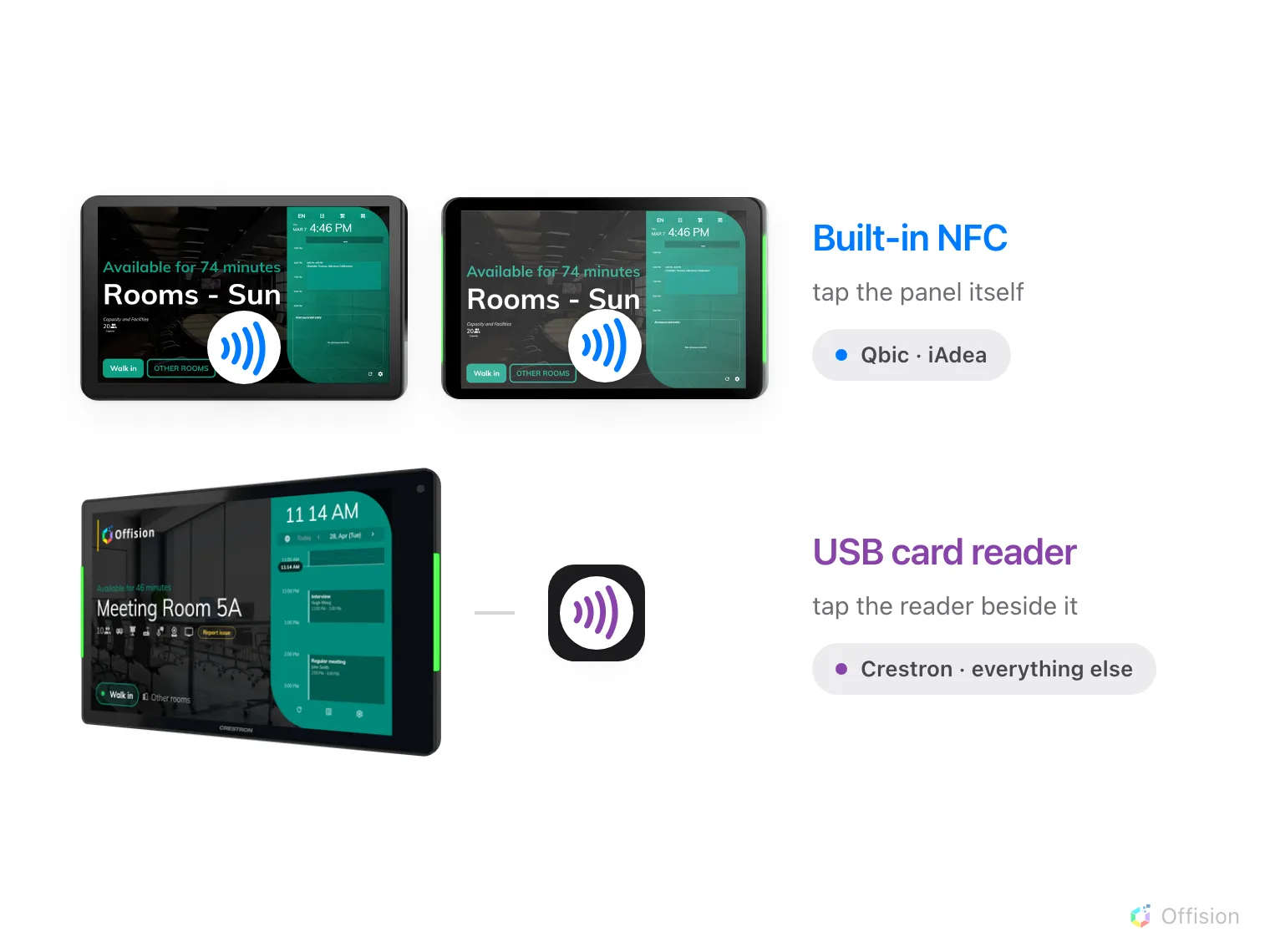
Qbic and iAdea read the card themselves. Everything else needs a reader.
| Panel | Reads a card by | Where people tap |
|---|---|---|
| Qbic Android panels running the Offision app | Built-in NFC | The panel itself |
| iAdea Android panels running the Offision app | Built-in NFC, including HID Global cards | The panel itself |
| Everything else | A USB reader | The reader |
Not every Qbic and iAdea panel is ordered with the reader, and the HID version is a separate part number. Which models have it, whether yours needs the H version, and where the tap spot sits on each of them is in Which booking panel hardware Offision supports.
A USB reader needs no driver and no setting. It behaves as a keyboard: it types the card number and presses Enter, and the panel treats that as a tap. Any reader that works that way will do — which is most of them, and is worth checking on the box before you buy a hundred.
5. Let cards act on the room
The last switch is on the room’s policy: Allow access by registered user cards — “Allow user check-in, check-out and extend booking by registered user card.” It is what tells the panel that cards may act on this particular resource, and it is separate from everything above.
Open Booking policy6. Check it worked
Book the room in your own name, wait for the check-in window to open, and tap your card at the panel. The booking should check in with no further tapping and the panel should show it in use.
Then try the other two states, because they are the ones nobody tests: tap on a free room and you should get the walk-in form; tap during your own meeting and you should get the extend and check-out choice — or the door, if Card scan opens door during meeting is on for that panel.
If nothing at all happens when you tap, work through Tapping a staff card does nothing.
What this does not control
- Who may book the room. A card gets somebody into a booking they already have; it does not give them the right to make one.
- Whether attendees may use it. Only the organiser may act on a booking unless the policy says otherwise — see Checking in at the booking panel.
- Opening the door. A panel wired to a lock unlocks alongside check-in; a panel with no access hardware still checks people in perfectly well. See Connect an AXIS door lock.
- Whether check-in is required at all. That is Require check-in on the resource’s policy.