

Which form a booking uses
A booking form is composed from the built-in fields plus your own, and a site runs several. Three routes decide which one a given booking gets, which is why a form can change halfway through and take a filled-in answer with it.
A booking form can change while somebody is filling it in. They open it, answer a question, pick a room — and the question is gone. Nothing has broken: the form they started on was not the room’s form, and the moment the room was chosen it was replaced.
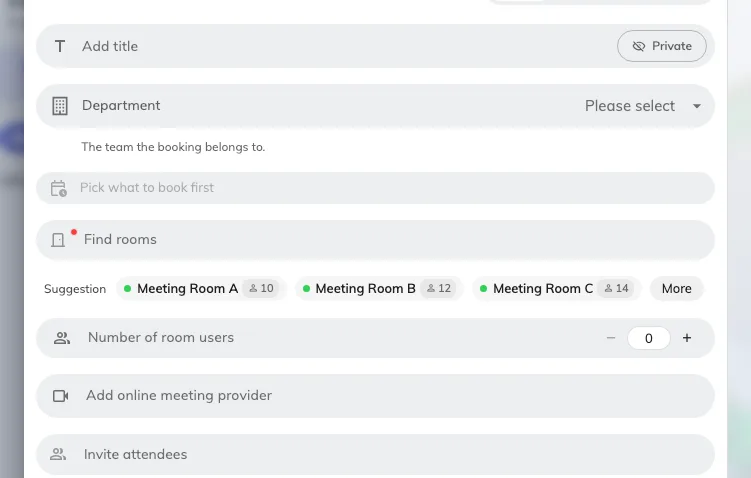
Before a room is picked: the questions come from the default display form.
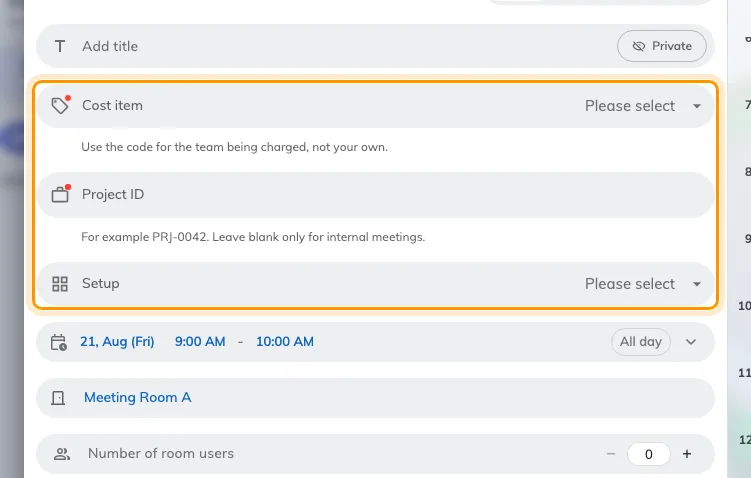
After: the room's own form has taken over, and it asks different questions.
A form is something you compose
Start from the built-in fields, switch off the ones your organisation never asks, drag the rest into the order you want, rename the ones whose wording does not fit, and add fields of your own.
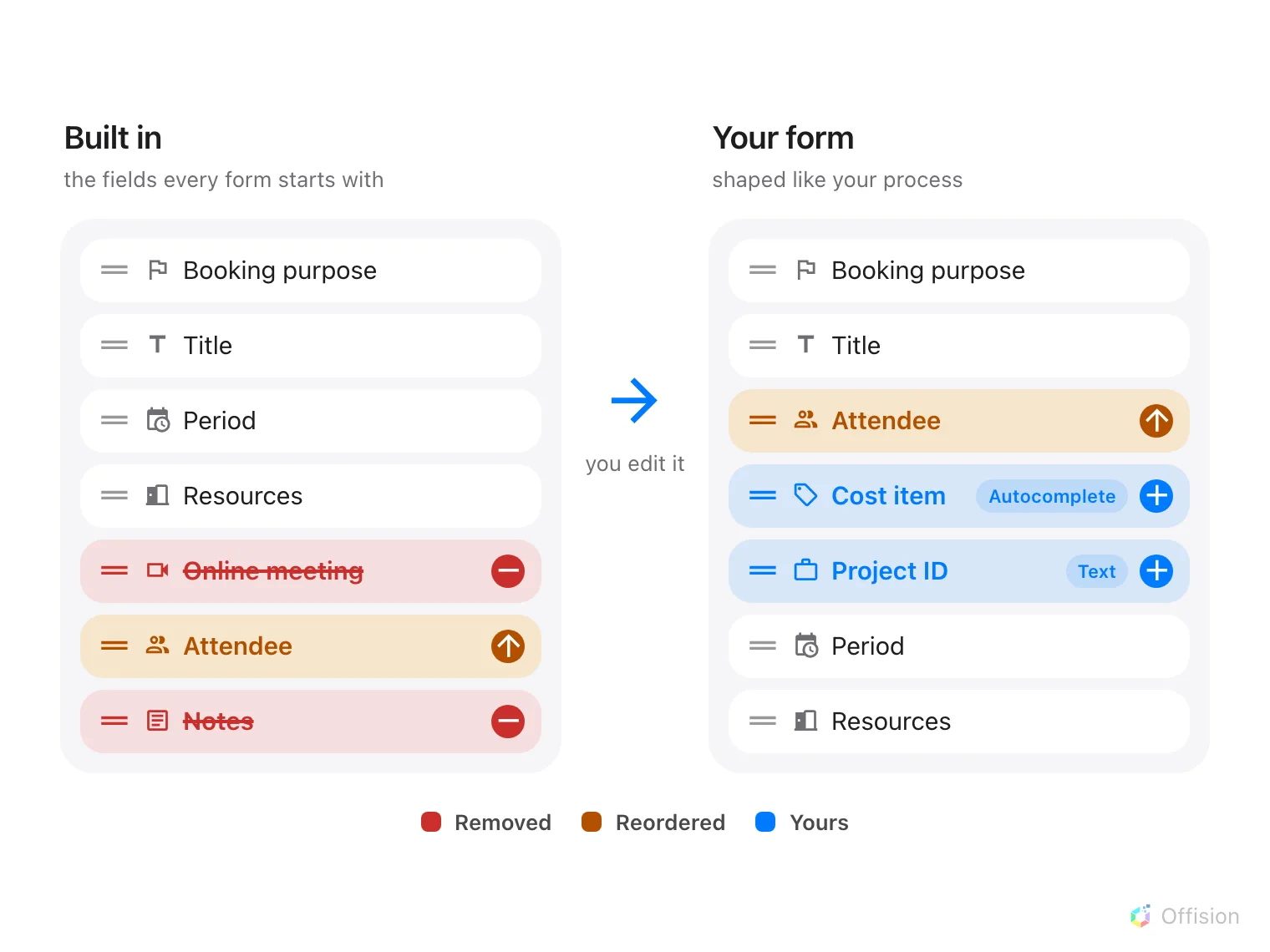
Drop the fields you do not ask for, move the ones that matter to the top, and add your own.
A form is then assigned to resources, and a site can have as many forms as it has kinds of space — one for chargeable meeting rooms, one for hot desks, one for everything else. Every field on each of them is documented in the form fields reference.
Open Booking formThree routes, tried in order
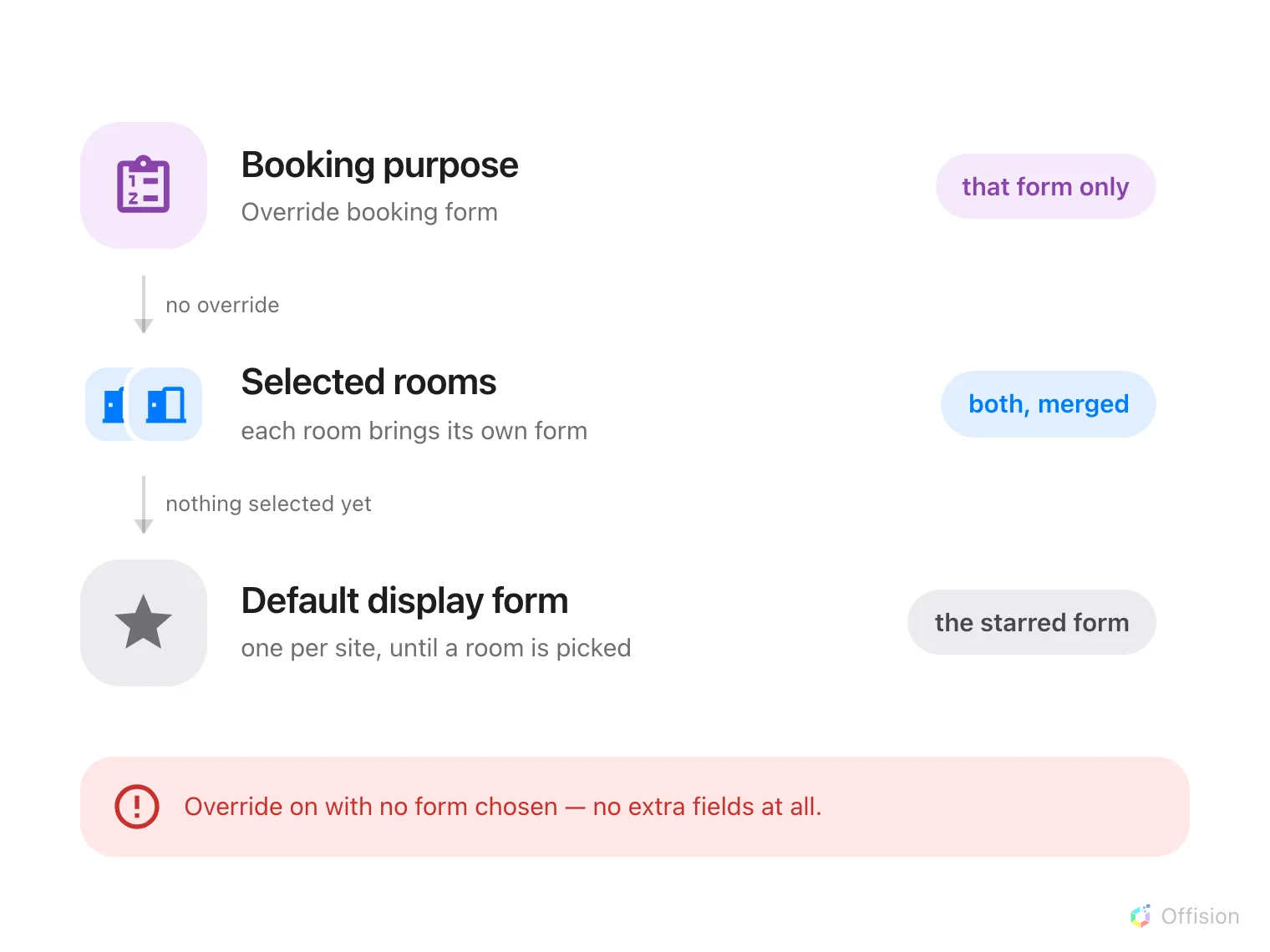
A booking purpose override wins outright; otherwise the selected resources decide; otherwise the default display form.
A booking purpose carrying Override booking form wins outright. That form replaces everything else, and it is set on the purpose rather than on the form.
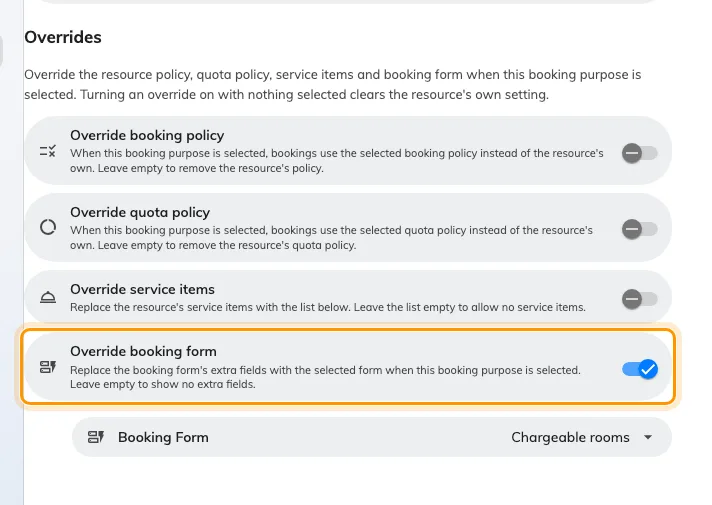
A booking purpose, with Override booking form turned on.
Otherwise the selected resources decide. Selecting several merges their forms rather than picking the strictest, so a booking spanning a room and a parking space asks everything either of them asks, each question once.
Otherwise the default display form. At most one form per site can hold it, and it is what somebody sees before they have picked anything. That is the switch behind the two screenshots at the top of this page — and the reason an answer already typed in can vanish.
The answer the form decides is also what gets kept. A booking saved with an answer to a field its form does not have — from an old form, another client or an import — drops that answer rather than storing it, and a stored answer left over from an earlier form goes the next time the booking is edited.
Open Booking purpose settingWhat this does not control
- Who may book at all. Team spaces and resource policies decide that — see the booking rules reference. Nothing here changes who can reach a resource.
- Whether approval is needed. That is the resource policy, not the form.
- Whether the Host field appears on its own. The form’s Host row switches it per kind of resource, but the resource policy has to allow a host as well.
- What a panel or signage shows as the booking’s title. A field can be promoted into the panel title, but that is set on the player configuration.
- How the form looks. Which fields it has is decided here; how much of a room’s own description prints beside them is a separate setting per form — see Show a room’s description on the booking form.
- Visitor forms. Visiting has its own form builder on its own screen, and the two never share fields or data sets.