

Colour-code the calendar by booking purpose
Give each booking purpose its own colour and its own card lines, so a client meeting is visibly not a stand-up — on the grid people book from and on the console's own calendar. About fifteen minutes.
Somebody scanning a shared floor wants one thing: which of these is a meeting they can interrupt, and which is a client in the building. On a calendar where every block is the same colour, the only way to find out is to open them.
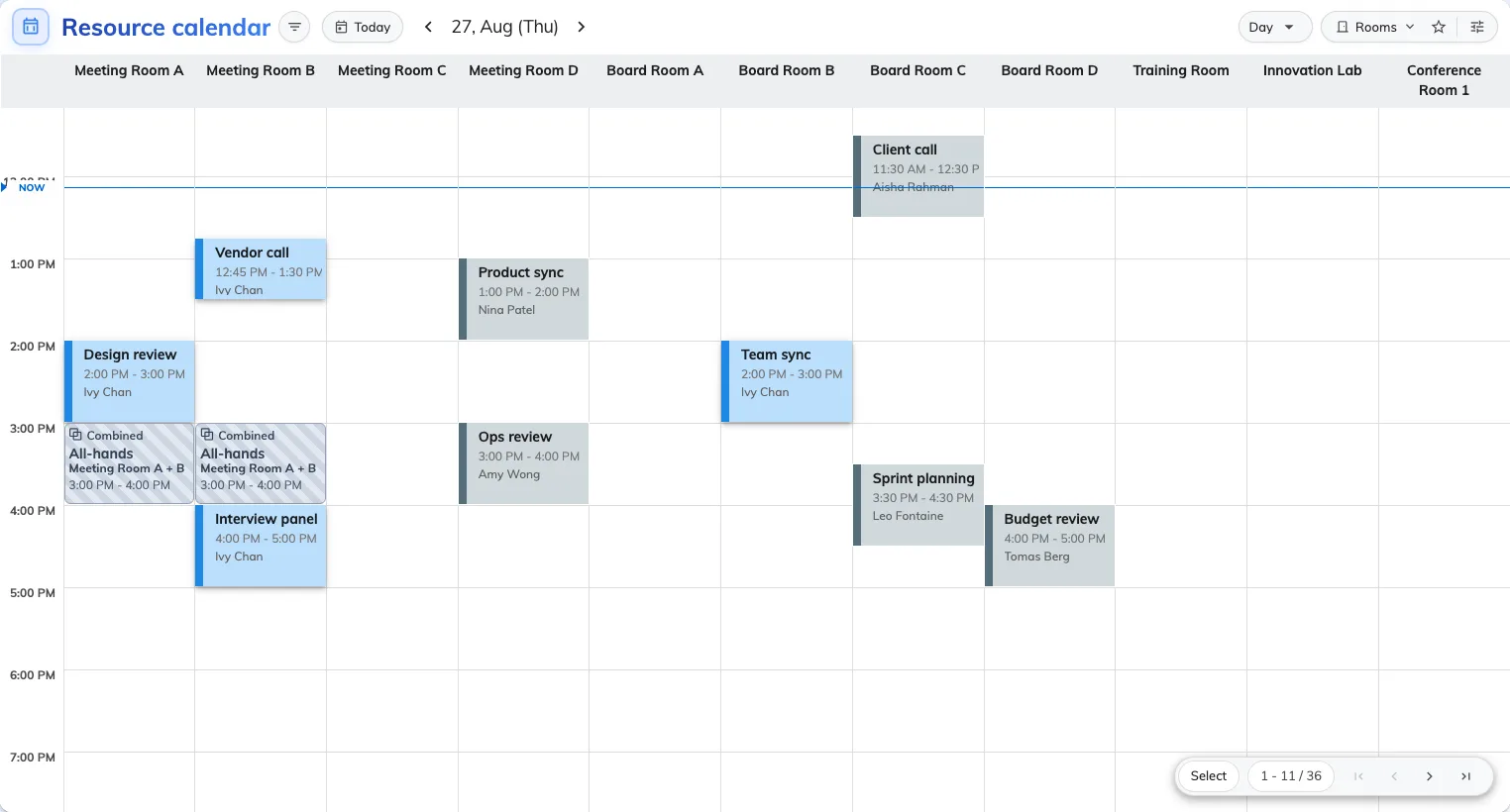
Before. Nothing here says what kind of meeting anything is.
Giving each booking purpose its own colour fixes that in one pass, and it is the only colour setting that reaches a colleague at all — see What decides how a booking looks.
1. Check the purposes you want to colour exist
Open Booking purpose setting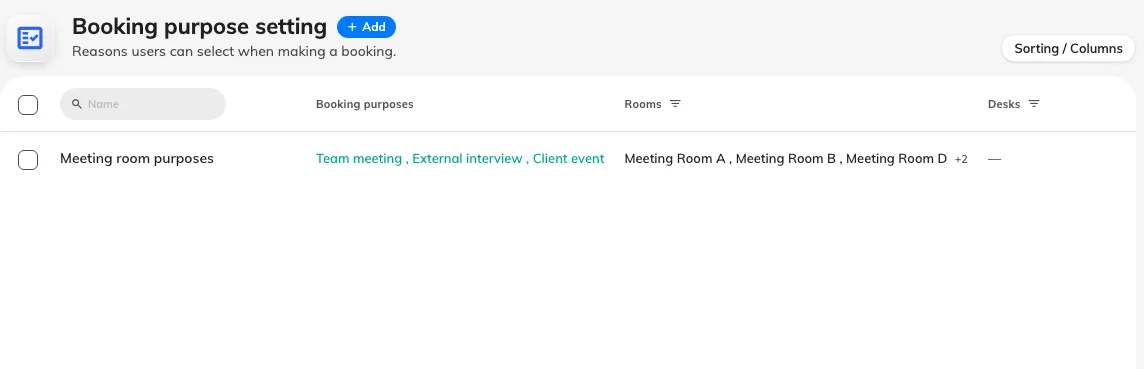
The purposes list. Every row here can be given a card of its own.
If the list is empty, start at What a booking purpose changes — with no purposes, the section you are about to use has nothing to offer and its Add button stays greyed out.
2. Set the colour everything else falls back to
Open Resource calendarUnder Booking card, Color is the colour of a booking with no purpose. Pick something deliberately quiet here — it is the background your coloured purposes have to stand out against, and on the grid people book from it paints only the viewer’s own bookings anyway.
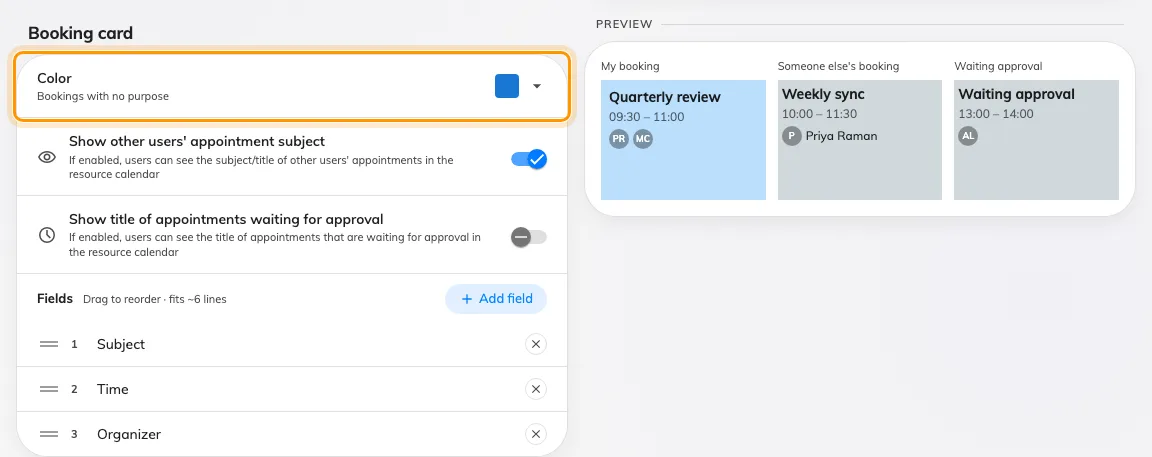
Booking card, with Color — what a booking with no purpose is drawn in.
3. Give one purpose a card of its own
Below the booking card is Booking purpose card. Add creates one override, and the new card’s heading is the picker — click the purpose name to change which purpose this card is for. There is no labelled dropdown to hunt for.
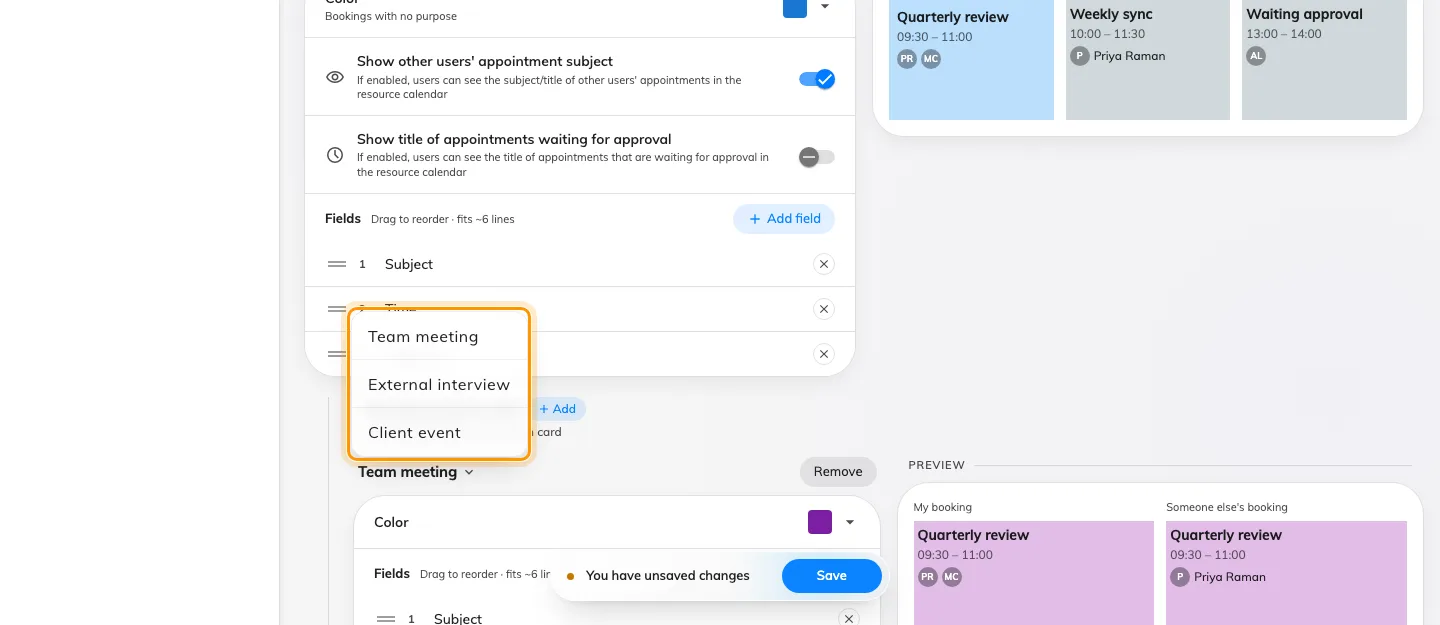
The card's own title opens the purpose list. A purpose already taken by another card is not offered.
A new card starts as a copy of the booking card above it — the same fields, in the same order — so you are editing a departure rather than filling in a blank. Set its Color, and the preview beside it redraws as you choose.
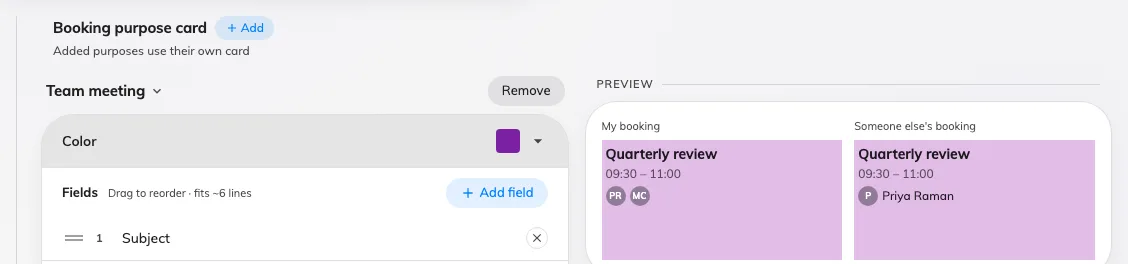
One finished purpose card, with its sample drawn beside it.
Repeat for each purpose that has to stand out. Purposes with no card of their own use the booking card, so there is no need to add one per purpose — add the ones people need to spot from across the room, and leave the rest.
4. Choose what that purpose’s card prints
Each purpose card carries its own Fields list, so a colour is not the only thing that can differ. Add field offers what is not already on the card, under Booking and People — and a third group, Custom fields, wherever your own booking forms have fields this card can draw. Drag the rows to reorder them; the order you leave is the order the card prints, and a new field always joins the bottom rather than rearranging what is already there.
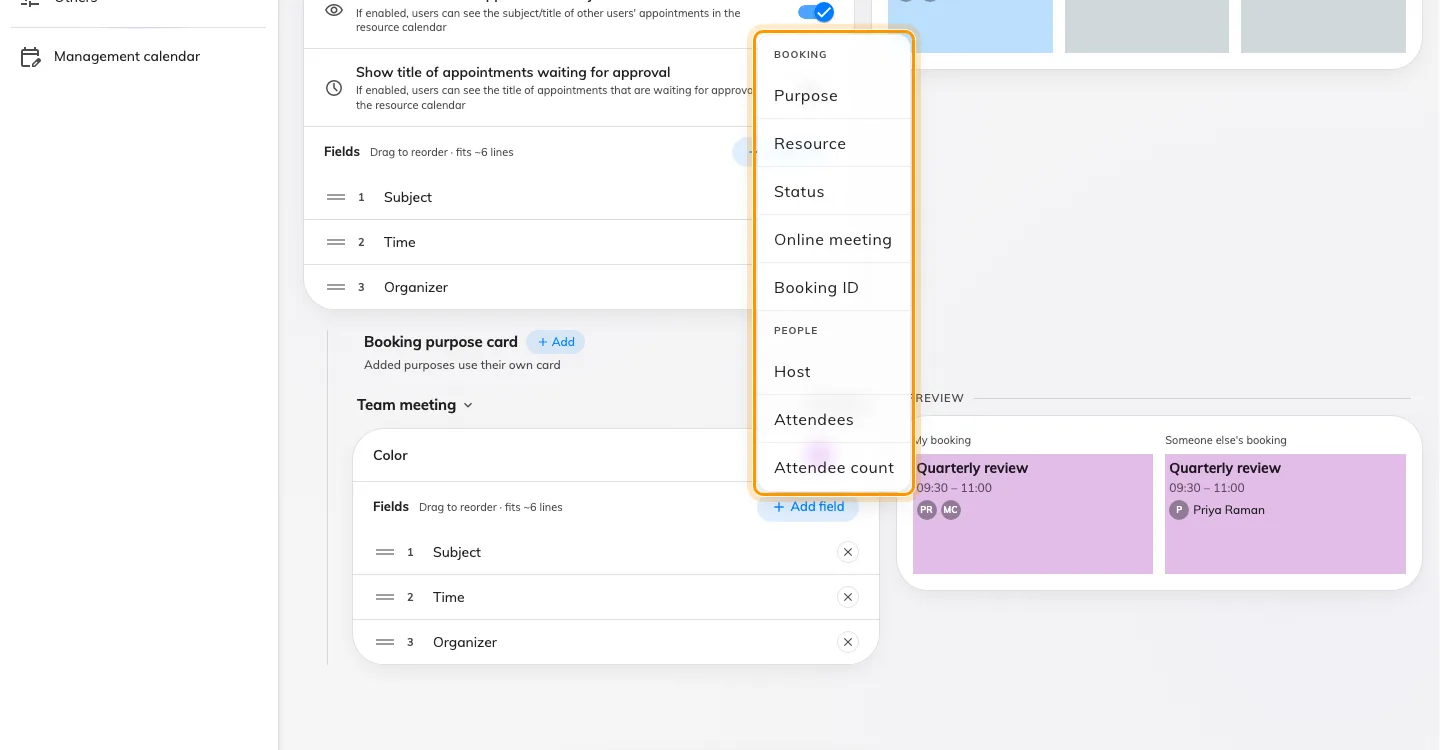
Add field offers only what the card has not got. Fields already on it are absent from the menu.
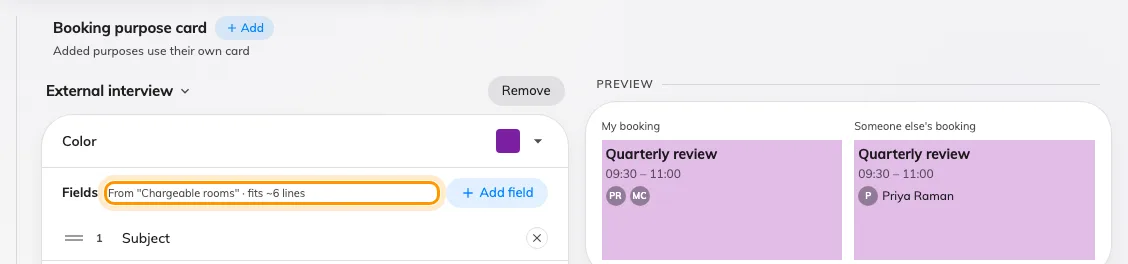
A purpose that swaps the booking form says so, and offers that form's fields only.
Leave the card with nothing on it and it falls back to the booking card’s lines rather than printing an empty block — an empty list means “no departure”, not “show nothing”.
Save from the footer at the foot of the page. Nothing reaches anybody until you do.
5. Do the same for the console’s calendar
The management calendar is configured separately, on its own page, with the same Booking purpose card section. It is worth spending the five minutes: this is the screen a booking manager lives in.
Open Management calendarTwo differences to expect. Every block on the console takes the purpose colour whoever booked it — a manager reads the whole estate, not just their own bookings — and the left edge of every block is the booking’s state, which no colour you pick here can change.
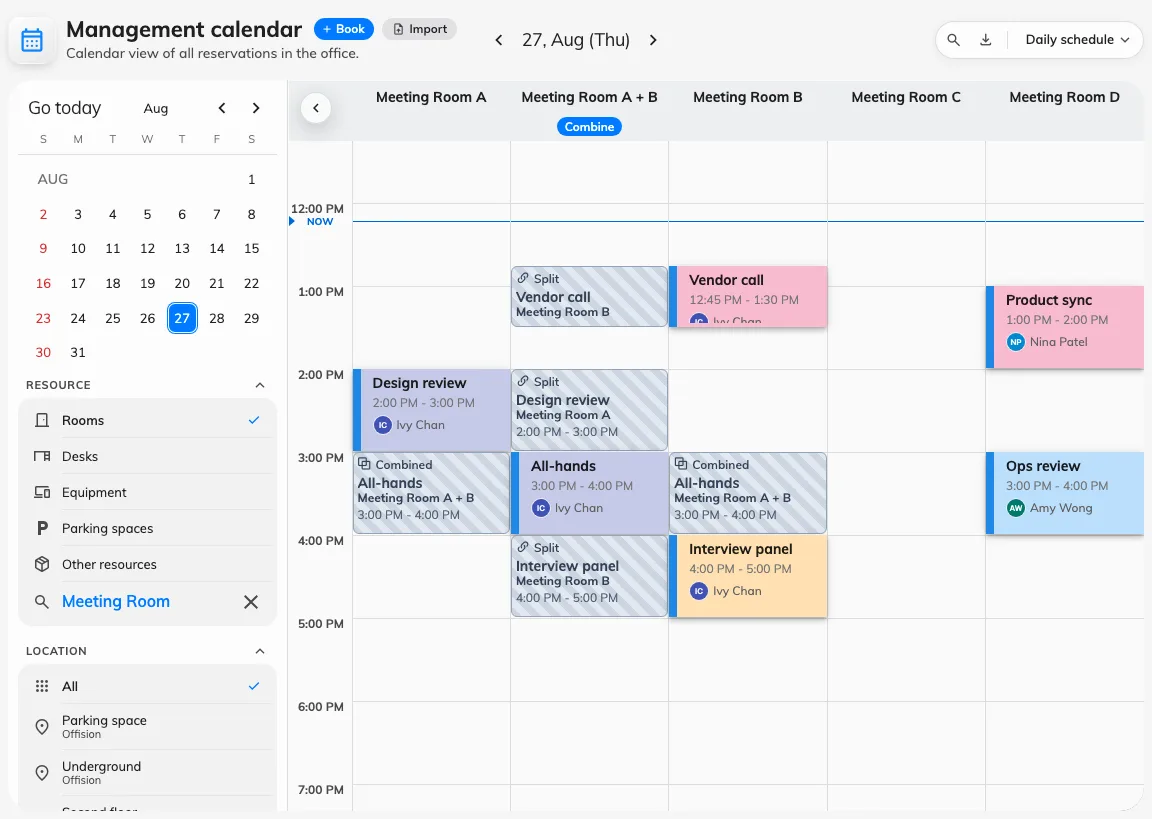
The console's calendar, colour-coded. The left edge still carries the booking's state.
6. Check it worked
Open the booking calendar in the user portal on a day that has bookings of at least two of the purposes you coloured.
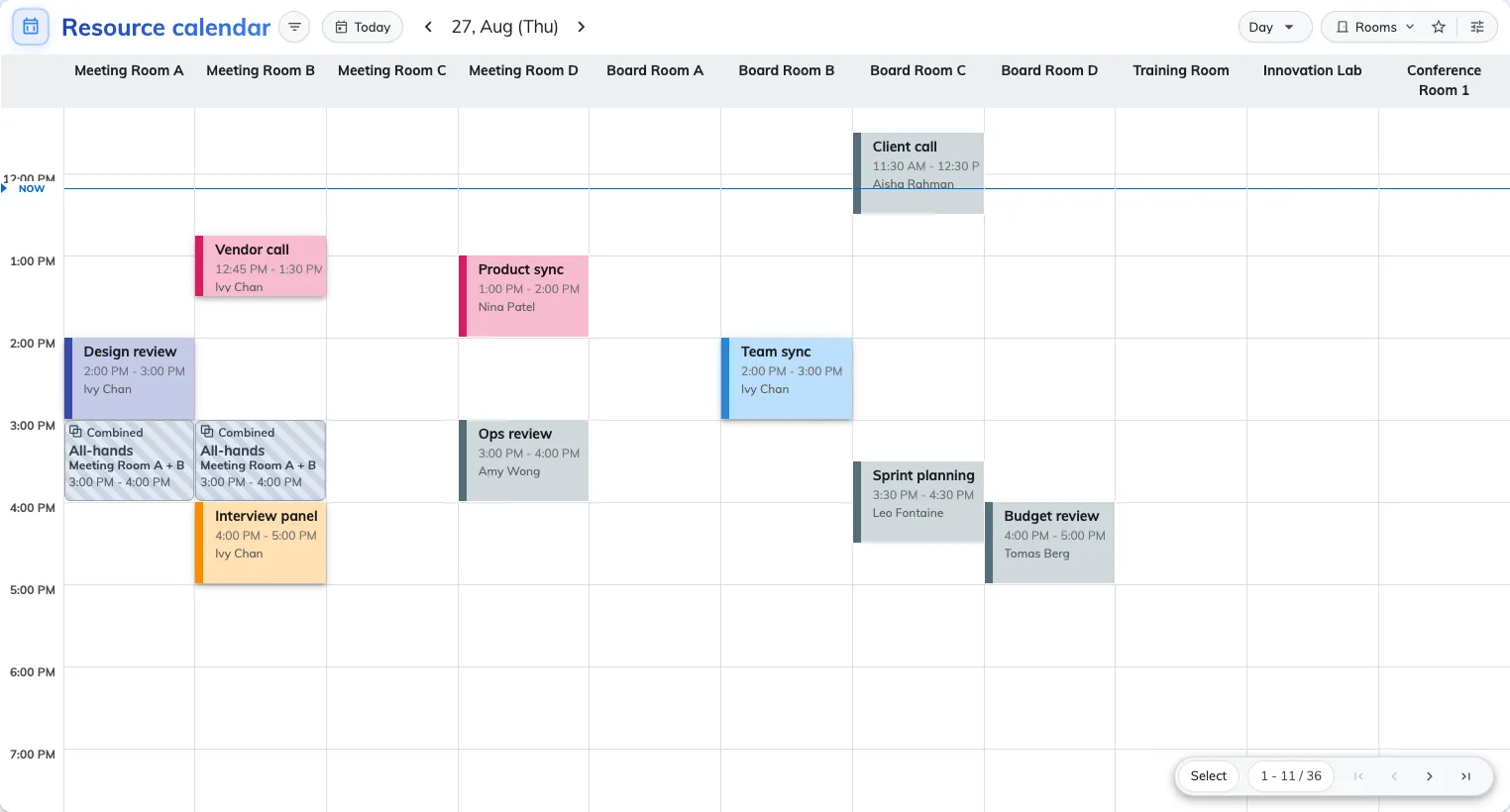
After. The same day as the first figure, with each purpose carrying its own colour.
Three things worth checking before you call it done:
- A booking of a purpose you coloured carries that colour for a colleague as well as for you. That is the test the whole exercise rests on.
- A booking with no purpose is still quiet.
- Your own booking that is waiting for approval is blue-grey even though its purpose has a colour. That is correct and deliberate — not confirmed yet outranks what kind of meeting it is.
What this does not control
- Which purpose a booking gets. That is asked on the booking form, and can be defaulted per resource — not here.
- Anything outside the two calendars. Room panels have Design by purpose of their own, in the panel configuration; boards, emails and reports do not print the purpose at all.
- The status stripe on a console block. Deliberately not settable.
- The field tables themselves. Every field on both screens is listed in the UI customization settings reference.