

Approve or reject a booking request
Someone has asked to book a room you approve for. Where the request is waiting, what happens when you decide, and what the organiser is told.
1. Find the request
You are told three ways, and any of them gets you to the same place:
- An email, Booking approval request. Its link opens the request directly.
- A notification in the app.
- A count on the Booking approval list, which is where requests pile up if you have been away.
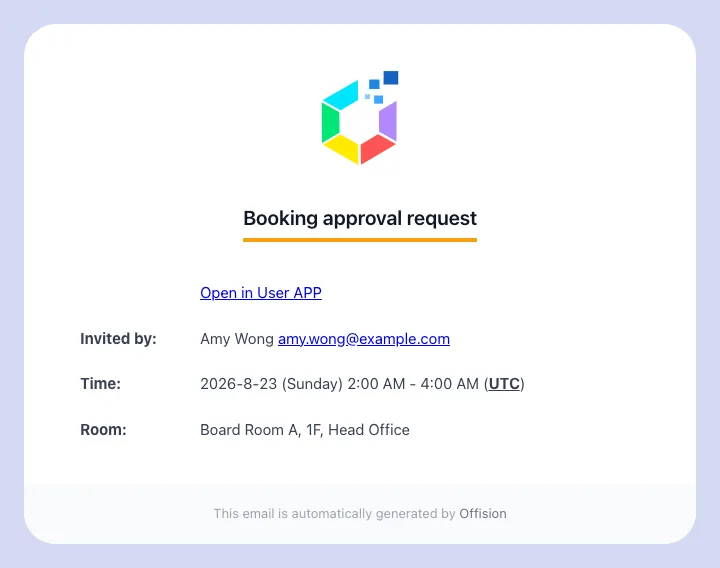
The email an approver receives.
2. Decide, from wherever you already are
Most approvers work from the Booking approval list in the app. It has two tabs: the requests still waiting for you, and Approval History — everything already decided, including anything the system auto-rejected.
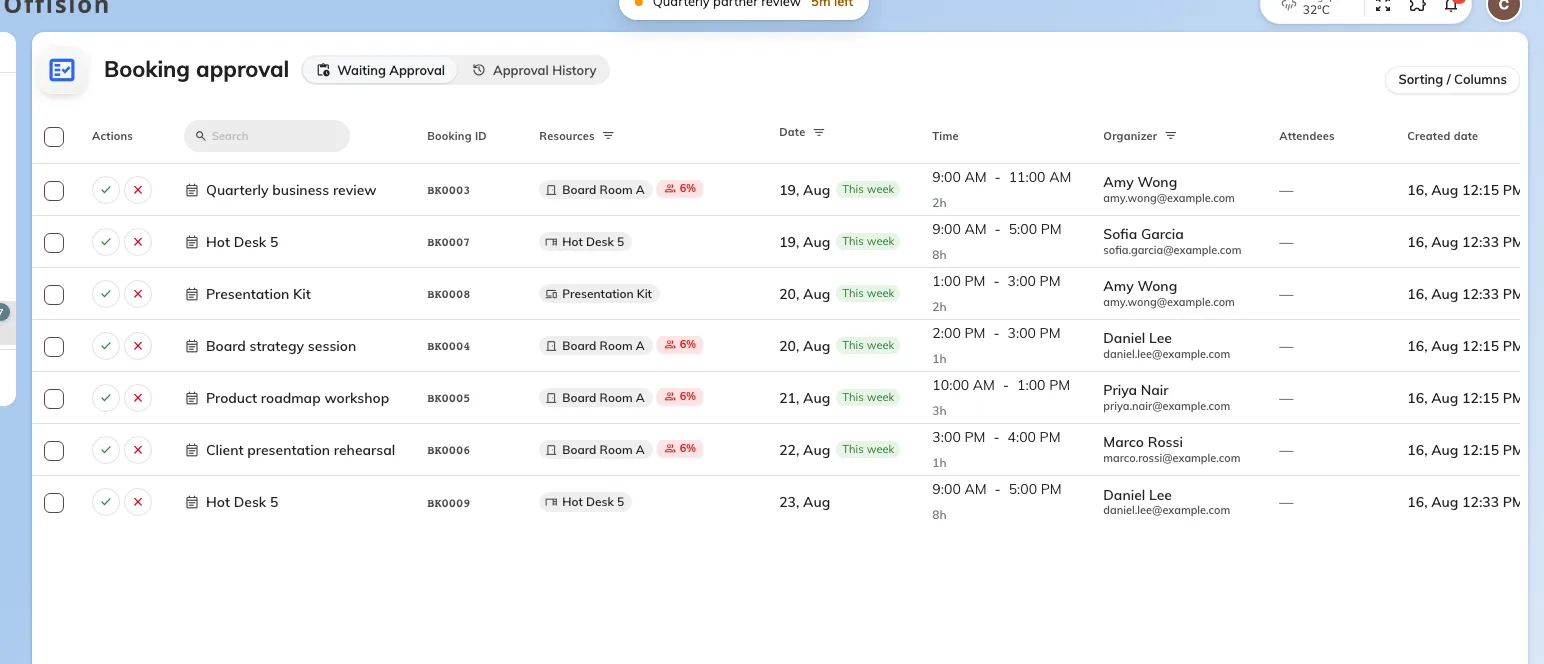
The Booking approval list, with what is waiting for you.
Open a request to see who asked, for which room and when, and the answers to whatever the booking form asked them. Then Approve or Reject.
3. Approving
Approve, and the room is booked. The organiser is emailed that the booking is approved, and it starts behaving like any other booking.
Two things can interrupt it:
- Cannot approve — something else has taken the slot since the request was made. This is what happens on a policy that does not hold the time slot while it waits. Reject the request and tell the organiser to rebook.
- A conflict with another booking you can also approve — you are offered to reject the clashing one at the same time. Read that prompt carefully; it rejects someone else’s booking.
4. Rejecting
Rejecting asks for a Reason for rejecting, and it is required. That reason goes to the organiser in the rejection email — it is the whole difference between a rejection people accept and a rejection they escalate.
You can also Suggest an alternative: a different time, a different room, or both. It arrives with the rejection, so the organiser can rebook without another round of messages. Use it whenever you are rejecting because of when rather than whether.
5. If you administer Offision
Booking managers get the same requests as a full page in the admin console, with Waiting Approval and Approval History tabs, sortable columns, and Approve all / Reject all for clearing a backlog.
Open Booking Approval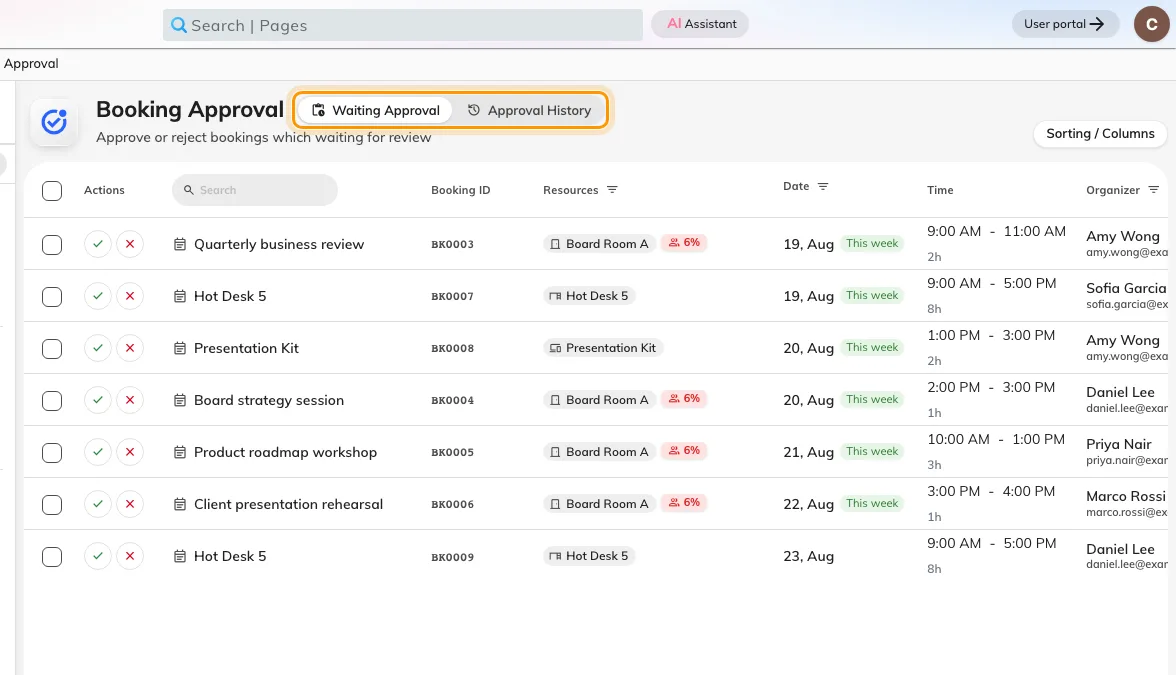
The admin queue: waiting requests, and everything already decided.
Select a row and the request opens over the list, with Approve and Reject on it.
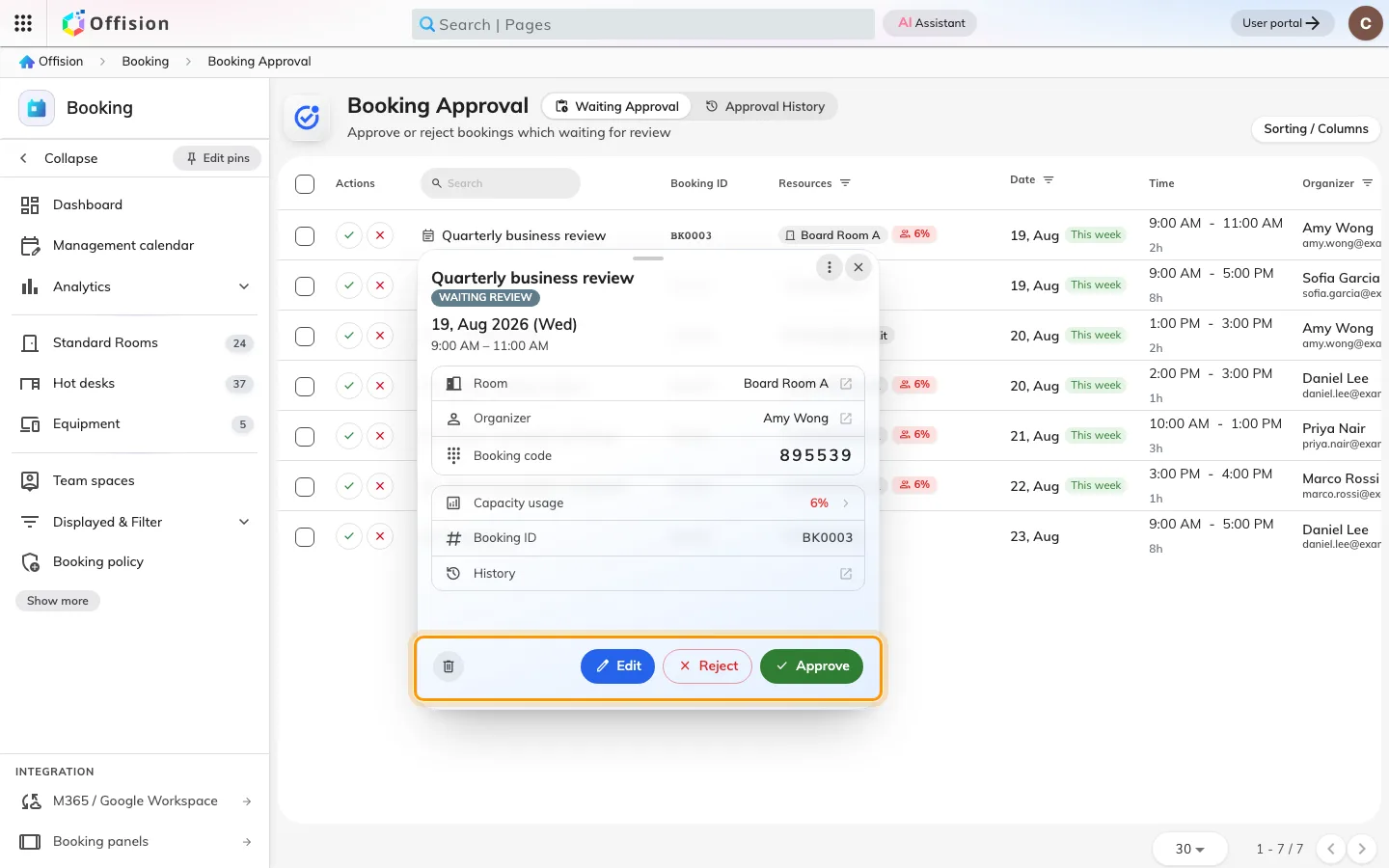
The request opens over the list. Decide from here.
This page needs the Booking manager permission. If you approve bookings but do not administer Offision, you will not have it, and the app list in step 2 is your queue — not a lesser version of this one.
6. What the organiser sees
Until you decide, their booking reads Waiting review and is not confirmed. Approve, and they get the ordinary booking confirmation. Reject, and they get Booking rejected, carrying your reason and any alternative you suggested.
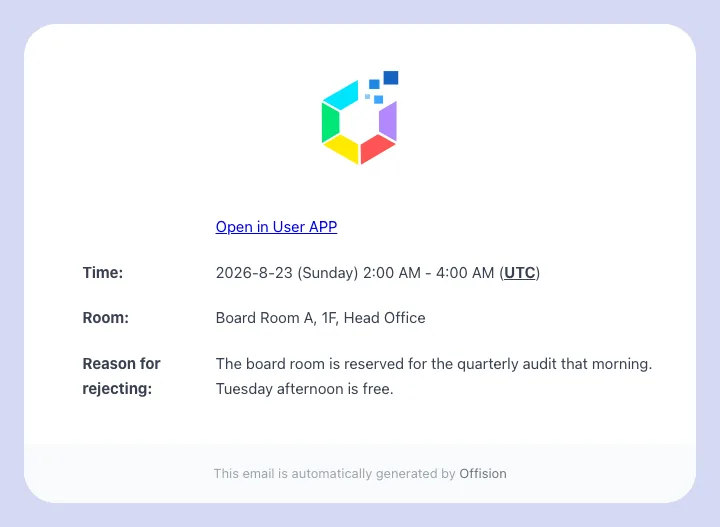
The rejection the organiser receives, with your reason.
Requests do not wait indefinitely. Each policy can set a number of days after which an unanswered request is rejected automatically; the organiser is told it was Auto rejected: no approval before time was up. If that phrase is turning up in Approval History, requests are reaching nobody — check that the approvers on the policy are still the right people.