

Give a department a shared booking budget
A user group quota policy gives a whole team one pool to book from, with a cap so one person cannot drain it — and it is not the same as putting that group on a user quota policy.
A department that keeps taking the good rooms is the usual reason to reach for quota. A user group quota policy gives the whole team one budget to share, so the department is limited as a department rather than person by person.
One shared pool, not one budget each
The difference between the two user tabs is the whole point of this page, and nothing on screen says it:
- Put a group on a User Quota Policy and every member gets their own balance. Ten people on 50 each is 500 spent by whoever turns up.
- Put the same group on a User Group Quota Policy and they get one balance between them. Ten people on 500 shared is 500 total, and the first person to book has all of it.
The second is what a department budget means. It also brings a problem the first one does not have, which is step 4.
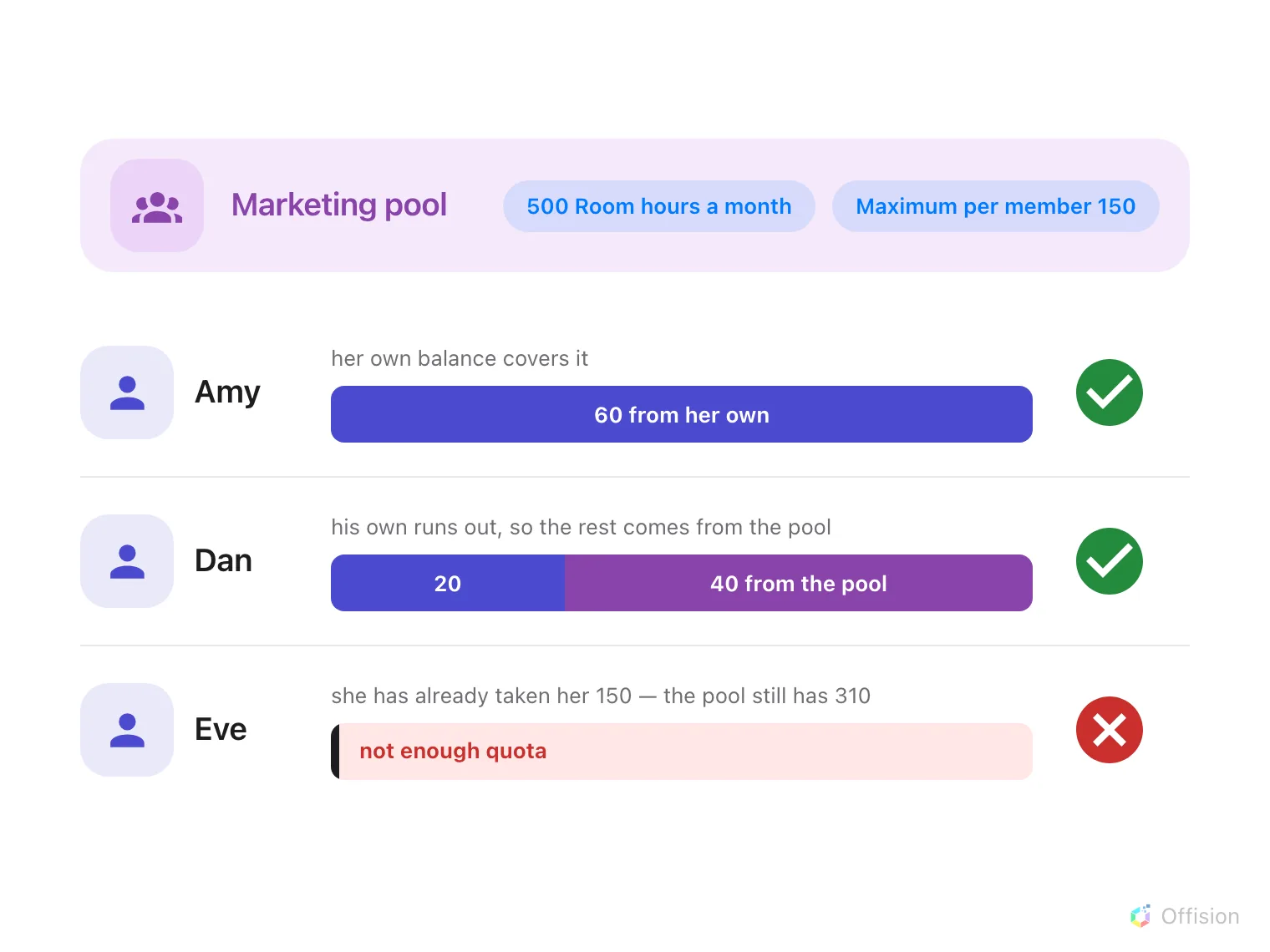
A booking drains the person's own balance first and only then the department pool — and a member who has taken their per-member maximum is short of quota even while the pool still has plenty.
1. Open Quota settings
In Booking, open Settings. Quota settings is under Booking rules — if it is not in the sidebar, choose Show more first, because it is not one of the pages pinned by default.
Open Quota settings2. Add a user group quota policy
Go to the User Group Quota Policy tab, the third one, and choose Add. Name it after the department, then pick the Quota unit it grants.
3. Decide what the department gets, and how often
Choose Grant a set amount and put the department’s budget in Distribute amount — this is what the whole group gets for one period, not what each member gets.
Then set Quota period. A department budget is usually Monthly. For Weekly, Biweekly, Quarterly and Yearly the form also asks for a Start counting date — every period is measured from it, and the form previews the next few so you can check them. Align that to your term or your financial year rather than to the day you happen to be creating the policy. Nothing carries over — an unspent period is gone.
Unlimited quota is the other option, and it is not pointless here: combined with step 4 it gives a department no total ceiling but a firm per-person one.
4. Stop one person taking it all
Switch on Limit per member and set Maximum per member.
Without it, one person booking a fortnight of workshops in January leaves the department with nothing until February. Turn it on the moment a pool has more than a handful of people in it, and set it above a fair share — the cap is there to catch hoarding, not to ration normal use.
A member who reaches their cap is simply short of quota. Everybody else can still draw on what is left.
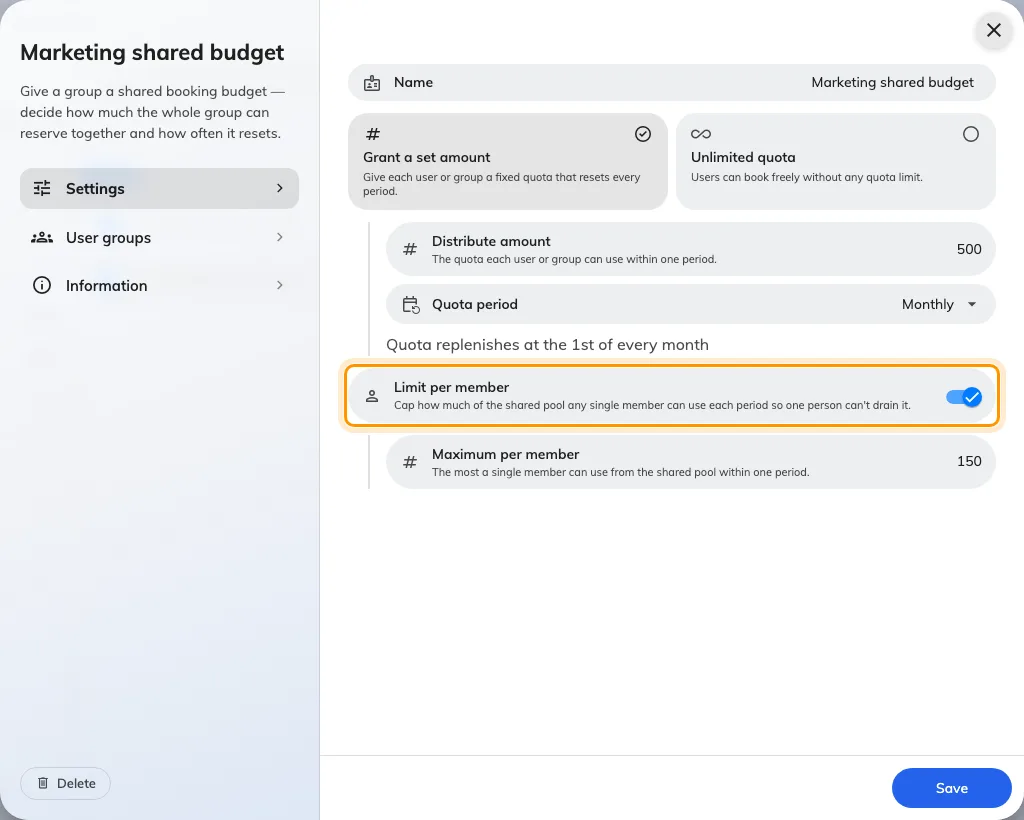
The shared amount, the period it resets on, and the cap on any one member.
5. Name the groups that share it
On the User groups page, add the department’s group. More than one group here share a single pool between all of them — which is how two teams that work together get a joint budget rather than two.
Save.
6. Check it worked
Ask somebody in the department to open a booking on one of the charged rooms. The booking form shows Charge, the amount, and what they have left; if the pool is exhausted or they have hit their own cap it turns red and says Not enough quota, and the booking will not save.
Then open Quota usage history and confirm the charge was recorded against the group policy rather than against the person.
Open Quota usage history