

Turn a layout choice into a setup job
Link a layout to a booking service so choosing it orders the setup, blocks the room while the furniture is moved, and puts the work in front of the crew.
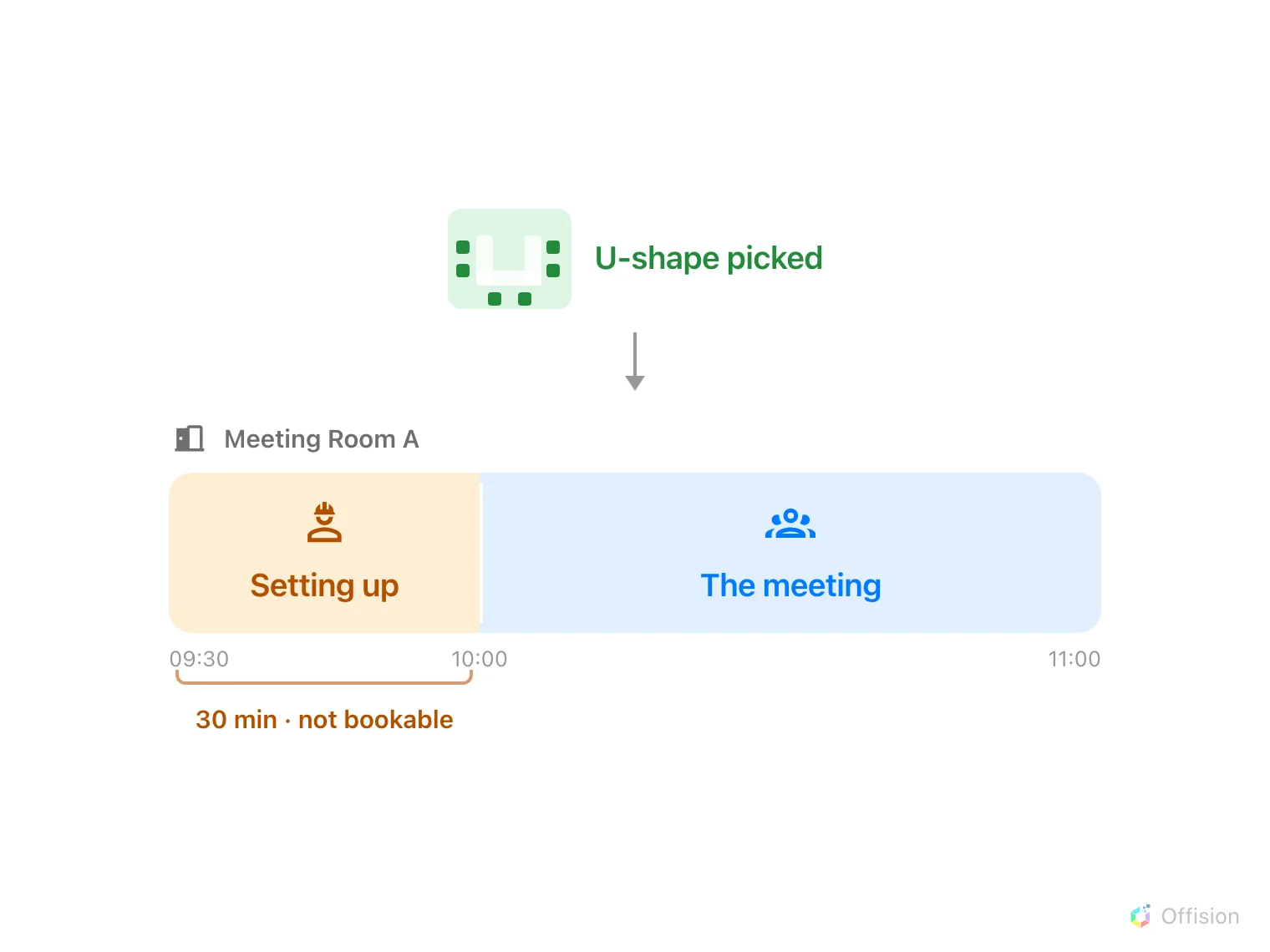
The half hour before the meeting belongs to whoever moves the furniture.
On its own, a layout is a note on a booking: it says how the room should be arranged and stops there. Linking it to a service is what turns it into work. The service arrives on the booking as if the organiser had ordered it, lands in the same queue as tea and cleaning, and costs the same room time.
1. Link the layout to its service
Open the layout, then the option, and turn on Linking Bookings Service — “When user selects the layout, will auto create the booking service for preparation”. A Layout service picker appears under it. Choose the service that means “somebody moves the furniture”.
Open Room Layouts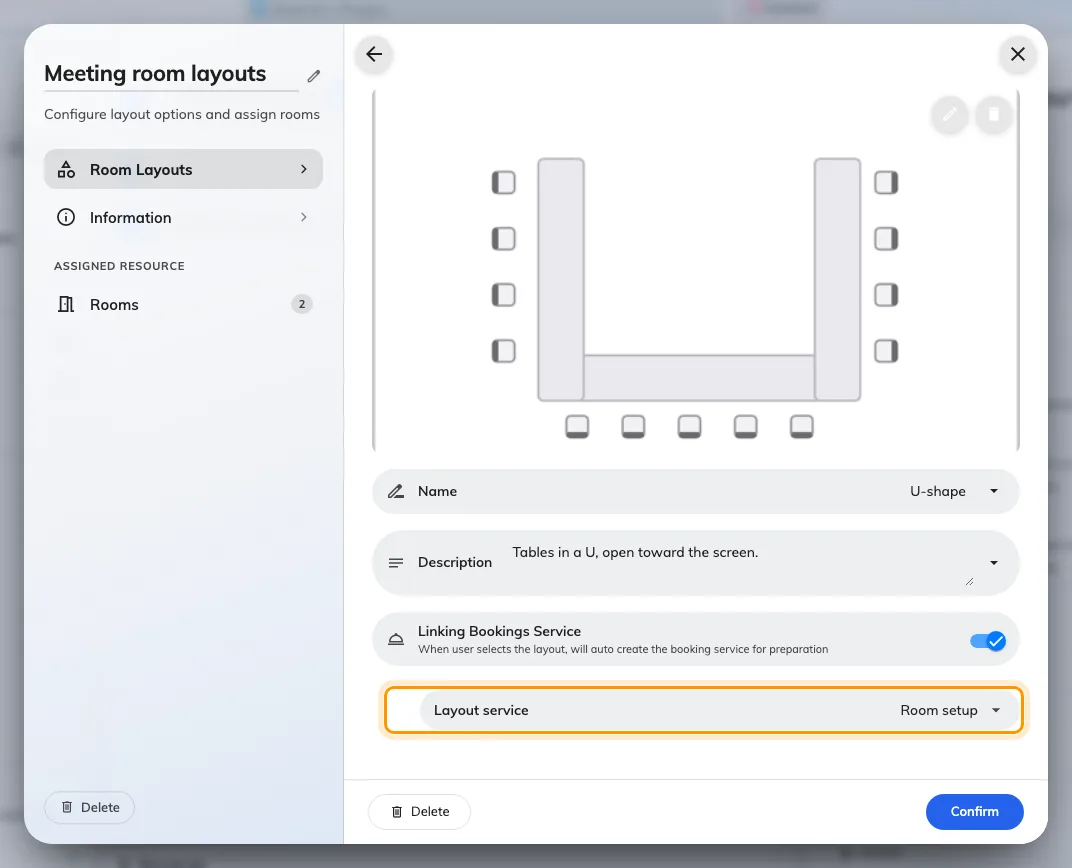
U-shape, linked to the Room setup service.
Only a booking service can be linked. The picker offers services from the Booking Service page and nothing else, because the choice is made when the booking is made — an in-use service is something people call for during a meeting, and there is nobody to ask at the moment a layout is picked.
Do this per layout, not per set. A layout that needs nothing moved — the way the room already stands — is better left unlinked, so an ordinary meeting does not raise a job for the crew.
2. Cover the uploaded plans too
If the set has Allow user-upload layout on, an upload has no option behind it, so nothing tells Offision which service it needs. That is what the Layout service field beside the upload toggle is for — set it, or a plan somebody drew themselves arrives with no work attached at all.
Use the same service. An uploaded arrangement usually takes longer to build than a preset one, not less.
3. Understand what the setup time costs
This is the part worth being deliberate about, because it is the single most common reason a room looks free and refuses a booking.
The linked service carries a preparation time, and that time is taken out of the room, not out of somebody’s diary. Thirty minutes before means the room cannot be booked by anyone else for those thirty minutes. The person booking sees it as a Setup time pill beside the layout, before they commit.
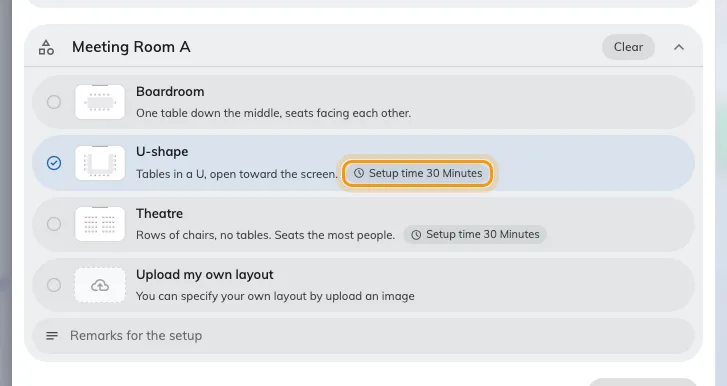
What the layout will cost the room, shown while they are still choosing.
So the booking can be refused for reasons that have nothing to do with the meeting itself: the half hour before it is already taken by another meeting, the service’s own last order time has passed, or the setup would fall outside the hours the crew works. Where back-to-back meetings are normal, turn on Continuous booking exemption on the service — see Set up a service people order with a booking for what it does — or every meeting in a busy room costs half an hour of unbookable time whether the furniture needs moving or not.
4. Know what else a linked service drags in
A layout’s service is merged into the booking’s services, which means everything that service does now happens because somebody picked a picture:
- Its staff get the job, and its auto-assign policy decides who.
- It emails them if the service is set to.
- It can send the booking for approval. A service that requires approval pulls the whole booking into the approval queue — including bookings whose organiser only wanted a room.
The layout’s detail panel says all of this before you commit to it: each option carries the name of its service, the preparation minutes it will cost, and an Approval Required tag if the service asks for one.
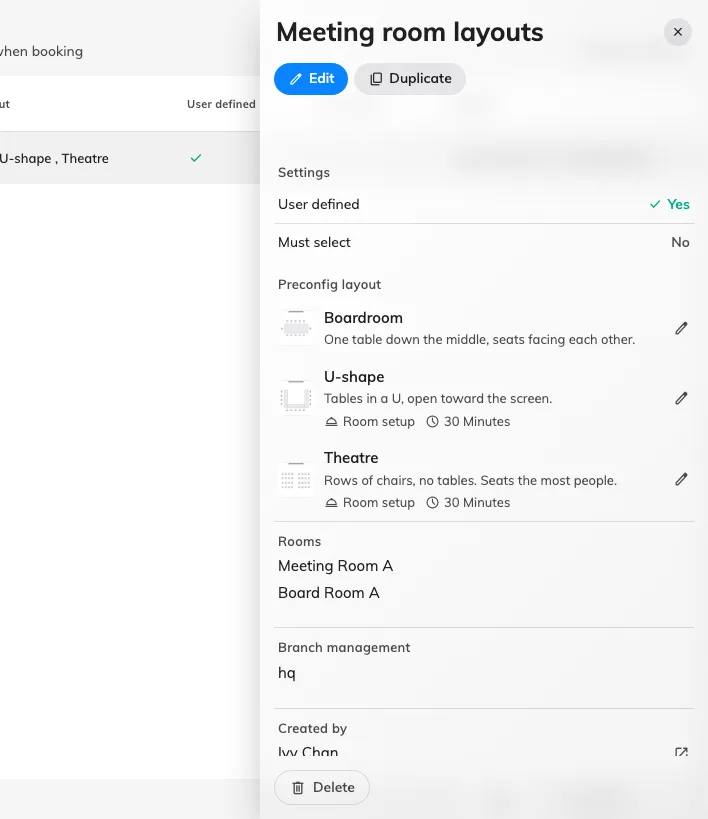
Two layouts carry a service and its setup time; one carries nothing.
5. Check it worked
Book one of those rooms as an ordinary user, pick the linked layout and save. Two things should be true:
- The request appears under Service › Service requested, against that booking, assigned to the setup staff.
- The room shows the preparation block before the meeting on the management calendar — and a second booking that would start inside it is refused.
What this does not control
- What the crew sees. The request tells them a room needs setting up and when; it does not carry the layout’s picture. To see which arrangement was asked for they open the booking, where the layout shows on the resource.
- The service’s own options. A layout orders the service with none of its options answered — so a service linked to a layout should not be one that needs the organiser to choose something. The exception is a booker who also ordered the same service by hand: their answers win, and the layout does not order it twice.
- How many services one layout can order. One, and only its own. A layout that needs the room set up and catering ordered needs the catering asking for itself on the booking form.
- What a booking purpose overrides. A purpose with its own service list replaces the room’s, so a booking made under one may not get the services you expect alongside the layout’s.