

Import bookings from a spreadsheet
Bulk-create bookings from an Excel file on the management calendar: download the tenant's own template, fill one row per booking, fix what the preview flags, then book everything at once — and re-import whatever was skipped.
One row per booking, one file for the lot: the management calendar’s Import takes an Excel sheet and turns it into real bookings, with every rule — clashes, quotas, booking windows — still enforced. It is the fastest way to load a term’s recurring meetings, and the way to bring your booking history’s future half with you when moving in from another system.
1. Open the calendar and press Import
Import sits beside Book at the top of the management calendar.
Open Management calendar
Import, next to Book on the management calendar.
The dialog that opens has pages down the left: Import, Import IDs, and — when your tenant uses booking purposes — Purpose IDs.
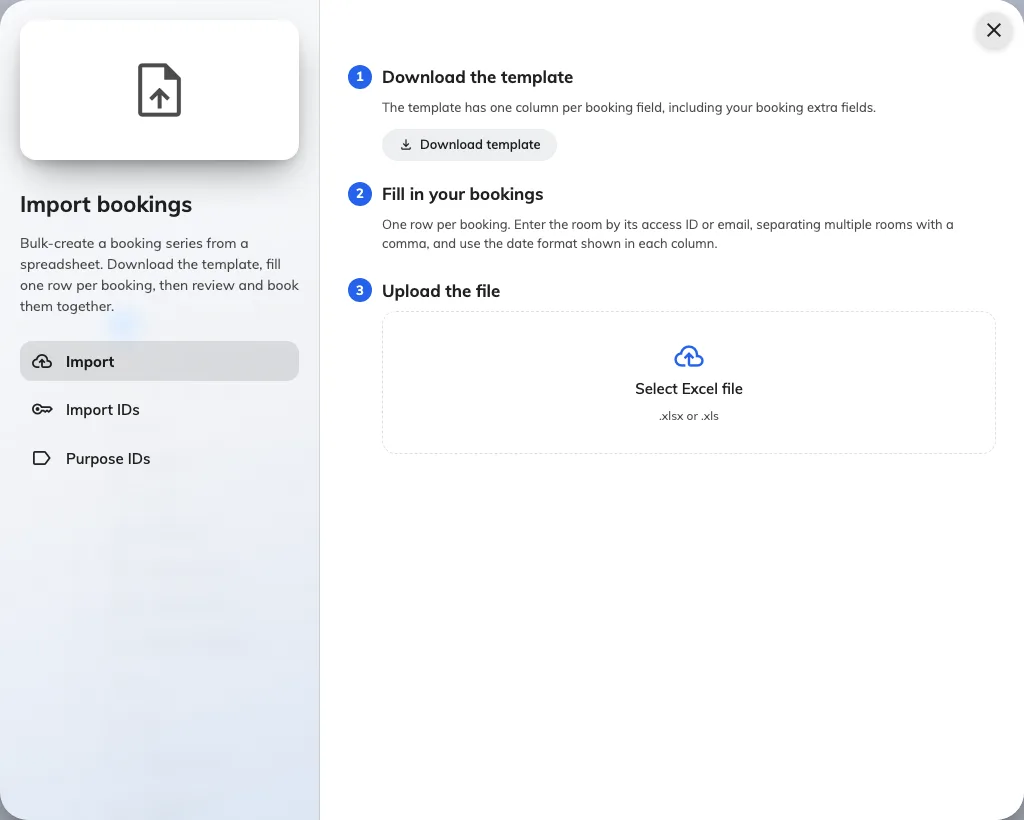
The Import page: download the template, fill it in, upload it back.
2. Check every room has an import ID
The sheet names a room by its Access ID or its email address — never by its display name. The Import IDs page lists every bookable room with both, each with a copy button, and Download takes the whole table as its own Excel file to keep beside the template while you fill it in.
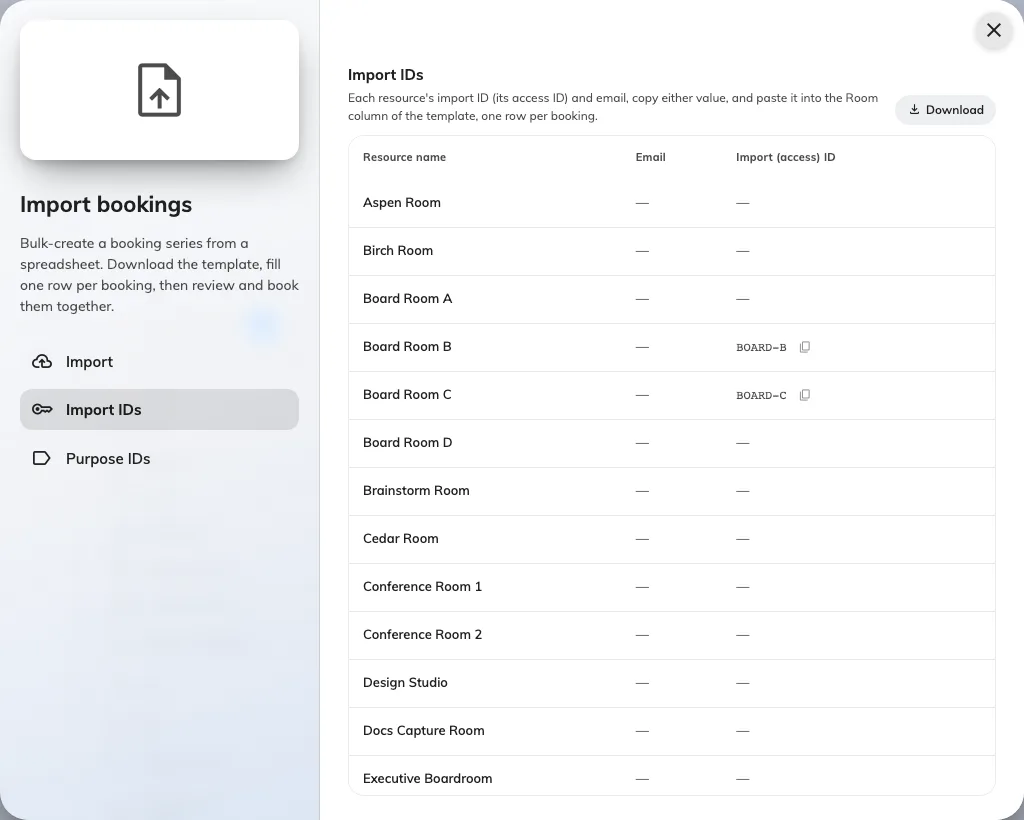
Import IDs: every room's access ID and email, ready to copy.
A room with no Access ID and no email cannot be named in the sheet. Point at its row and a pencil appears — it opens the resource form so you can give it one without leaving the dialog; the field is Access ID, on the resource’s basic page.
If your tenant asks for a booking purpose, the Purpose IDs page does the same job for purposes. A purpose’s Import ID is set on the purpose itself; the row’s pencil opens it too.
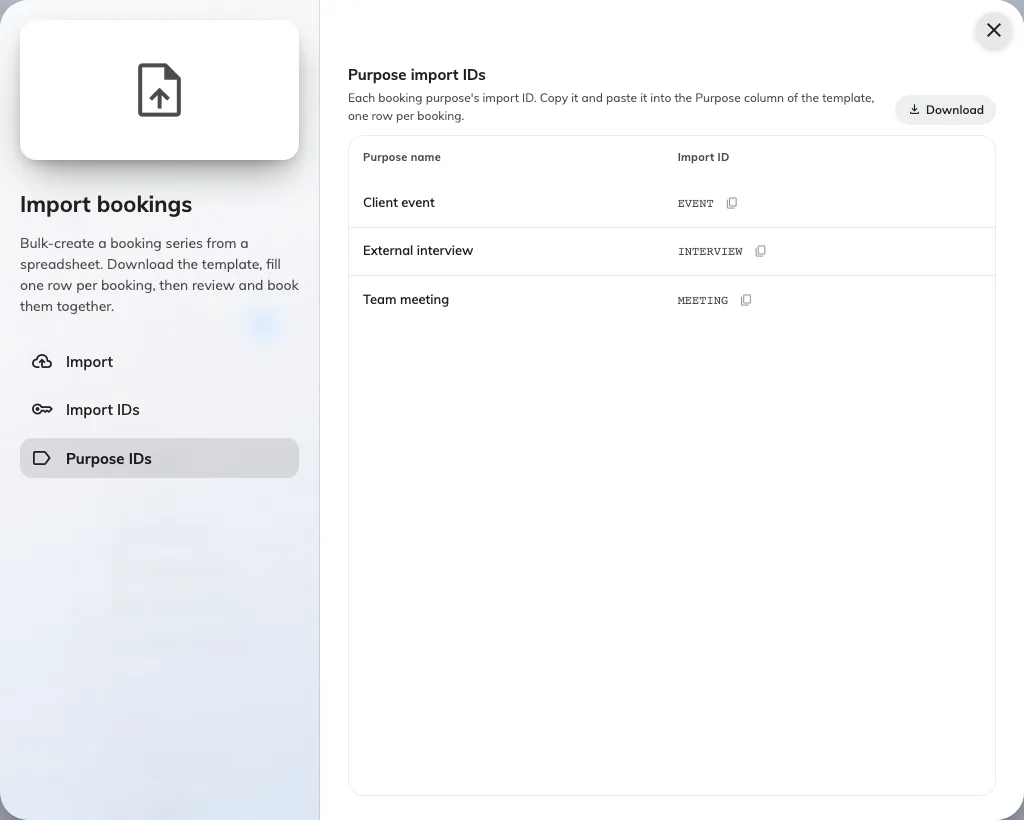
Purpose IDs: the code the Purpose column expects.
3. Download the template
Download template builds the file from your own tenant — your purposes, your booking form’s extra fields — so the columns below are the general shape, not necessarily your exact sheet. It arrives with one sample row showing the expected formats.
| Column | What goes in it |
|---|---|
| Purpose import ID | Only present when your tenant has booking purposes. The purpose’s import ID, from the Purpose IDs page. Leads the sheet |
| Subject | The booking’s title |
| Start / End | YYYY-MM-DD HH:mm |
| Room import ID | The room’s Access ID or email. Several rooms on one booking: separate them with commas |
| Attendees | Email addresses, comma-separated |
| Organizer | A user’s email address. The booking is made in their name, under their permissions |
| Host | One email address, or several separated by commas. Present only where a room passes all three tests below |
| Number of room users | A number, for rooms that count occupancy |
| Meeting notes | The booking’s notes — the same field the booking form shows, under the same name (if your form calls it Remarks, so does the column). Each line becomes a paragraph; leave it blank for none |
| Series ID | Optional. Rows sharing a Series ID become one booking series; blank rows stay standalone |
| One column per extra field | The header carries the format it wants — YYYY-MM-DD, HH:mm, yes/no, 123, or the option names |
Extra fields that take a file or formatted text cannot ride in a spreadsheet and are simply not in the template — set those on the booking afterwards if you need them.
4. Fill in your bookings
One row per booking. Three habits keep a big sheet importable:
- Do not reorder or delete columns. The file is read by position — which is also why a template downloaded before 4.5.15 no longer lines up: Host now sits straight after Organizer, pushing everything after it one across. (4.5.14 moved Meeting notes the same way, after Number of room users.) Download the template again rather than editing an old sheet.
- Blank rows are skipped, and every message you see later names the row by its real Excel row number — so leaving gaps is safe, shuffling is not.
- Give repeating meetings one Series ID each (
Q3-PLAN,STANDUP), so they arrive grouped as a series instead of as loose bookings.
5. Upload it and fix what it flags
Drop the file on Select Excel file (.xlsx or .xls). The dialog reads it
and answers with one line — ready and need attention counts — and then
lists only the rows with a problem, each showing just the field that failed:
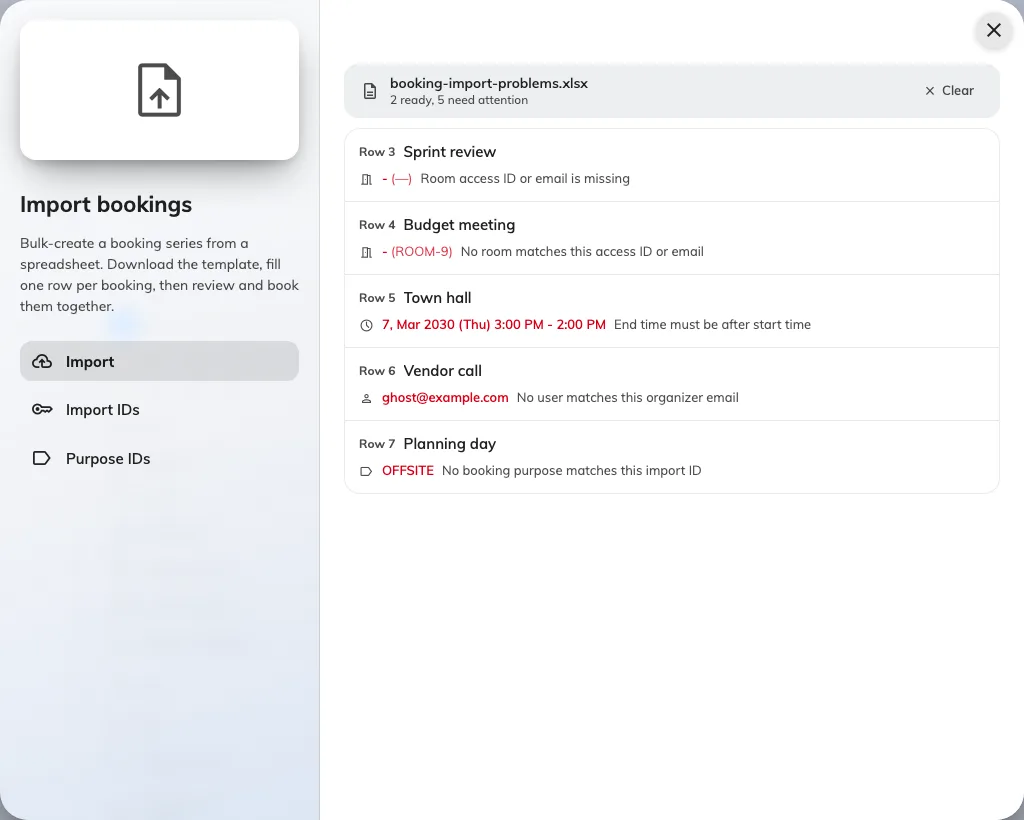
Only the problem rows are listed, each with the one field that failed.
| What it says | What it means |
|---|---|
| Room access ID or email is missing | The Room column is empty on that row |
| No room matches this access ID or email | At least one of the row’s room keys is not on the Import IDs page |
| Start or end time is missing or invalid | A time cell is empty or not YYYY-MM-DD HH:mm |
| End time must be after start time | The two cells are swapped, or equal |
| No user matches this organizer email | The Organizer address does not belong to a user who can book |
| No user matches this host email | A Host address does not belong to a user who can be named as host |
| No booking purpose matches this import ID | The Purpose cell does not match anything on the Purpose IDs page |
| Duplicate of an earlier row (same room and time) | Two rows would create the same booking; only the first is kept |
The form’s own columns, after the base ones, are checked against the form of the room each row books. A cell that does not fit turns the row red and blocks it — Required, Not in the data set (an Autocomplete key it does not know), Not one of the options (a Select) or Invalid value. A field the room’s form lacks shows amber, Not in this room’s form, and is dropped. An Autocomplete cell takes the entry’s key, in any case, and books the entry itself.
Fix the sheet in Excel and upload it again — Clear discards the current file. A sheet whose only lines are amber waits on Continue; one with nothing to flag moves straight on.
6. Review and book
The clean rows land in the booking form’s series overview — grouped by Series ID, each row checked against the server for the things a spreadsheet cannot know: clashes with existing bookings, quotas, booking windows and the rest of the booking rules. A row that fails any of them shows as a conflict; the overview names the person it clashes with when that is the reason, but it does not say which rule refused the others — open the row if you need to know.
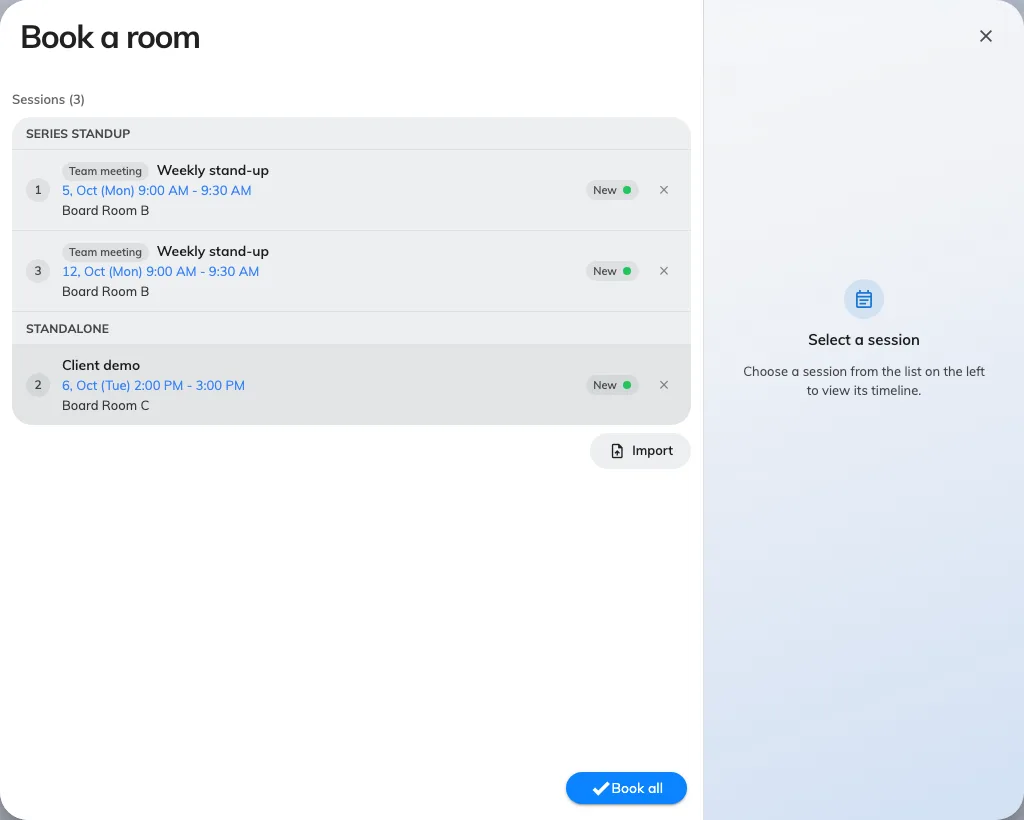
The imported rows, grouped by series and checked against the estate.
Two ways to finish:
- Book all — books everything, and stops if anything cannot be booked.
- Skip conflicts & book — books what it can and sets the rest aside.
7. Collect the leftovers
After Skip conflicts & book, the Bookings created dialog counts what was Booked and what was Bypassed, with the reason on each skipped row — and its own instruction: Fix the skipped rows and import them again.
Download takes the skipped rows as a spreadsheet in exactly the template’s columns, plus one trailing Import result column carrying the reason. Fix the cells, and the same file goes straight back into step 5 — the result column is ignored on the way in. Export all takes every row, marked Success or not, as the import’s record.
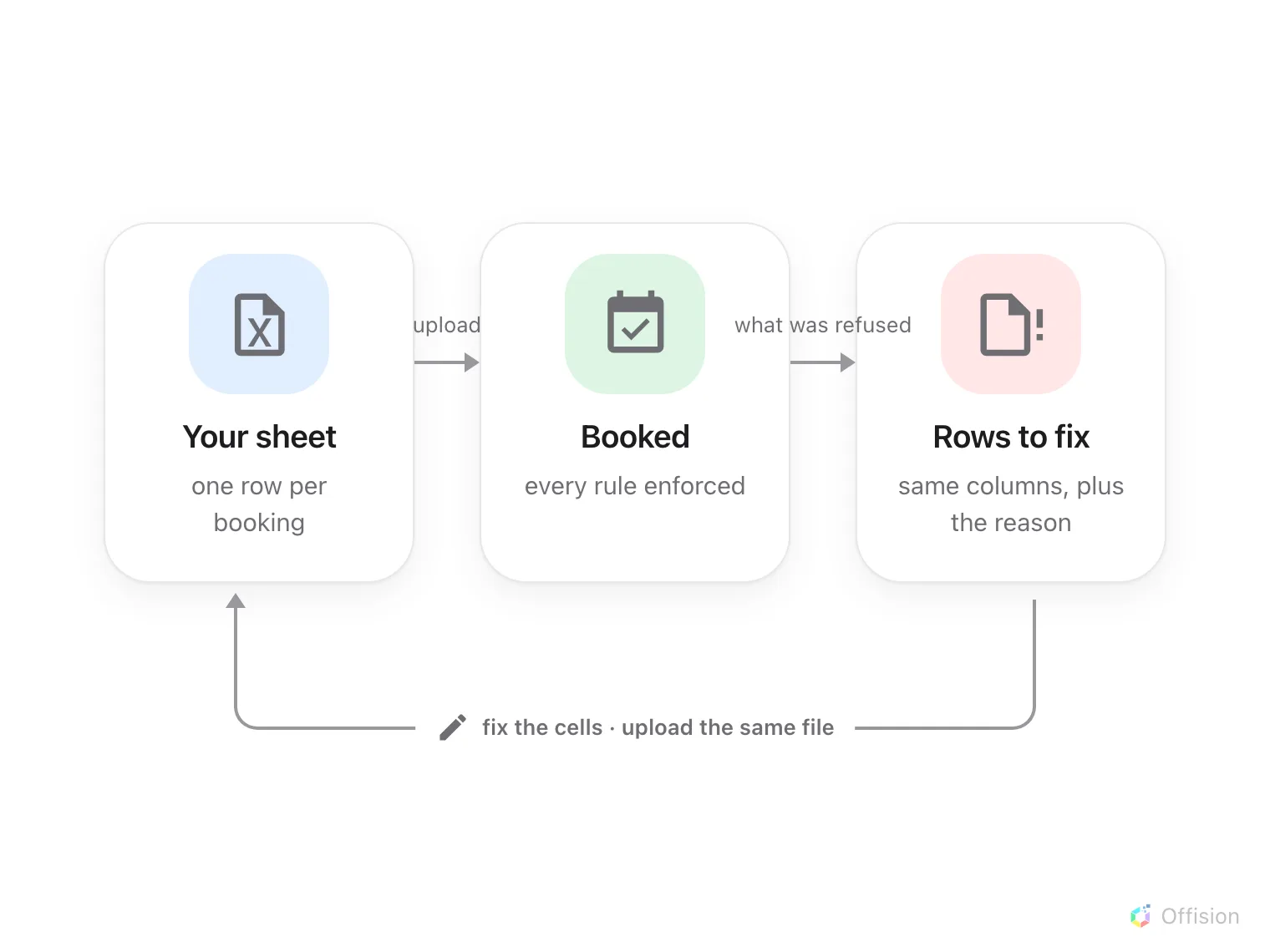
Whatever cannot be booked comes back as a spreadsheet in the same columns, so fixing and re-importing is the same file going round again.
8. Check it worked
The new bookings are on the calendar behind the dialog — filter to one of the imported rooms and look at the week you loaded. A booking made for a room that requires approval arrives as a request, not a confirmed booking — see Approve or reject a booking request.
What this does not cover
- The export button is a report, not a round-trip. Export on the same toolbar writes a booking report whose columns are not the template’s; only its Series ID column carries this template’s header, so a series can go out and come back. Keep the sheets you imported. See Export the bookings you are looking at.
- Employees can import too, from the Offision app, once Import bookings is on in UI customization › User booking form — the same checks, minus the Organizer column. The booking form’s Multiple page keeps its own Import.