

Connect an AXIS door lock relay
Put the door of a meeting room under Offision, so the panel outside it can let people in. About thirty minutes, most of it on the AXIS device's own settings page.
An AXIS I/O relay box turns the electric strike on a meeting-room door into something Offision can release — so the panel outside the room opens the door for whoever has the booking, and locks it again behind them.
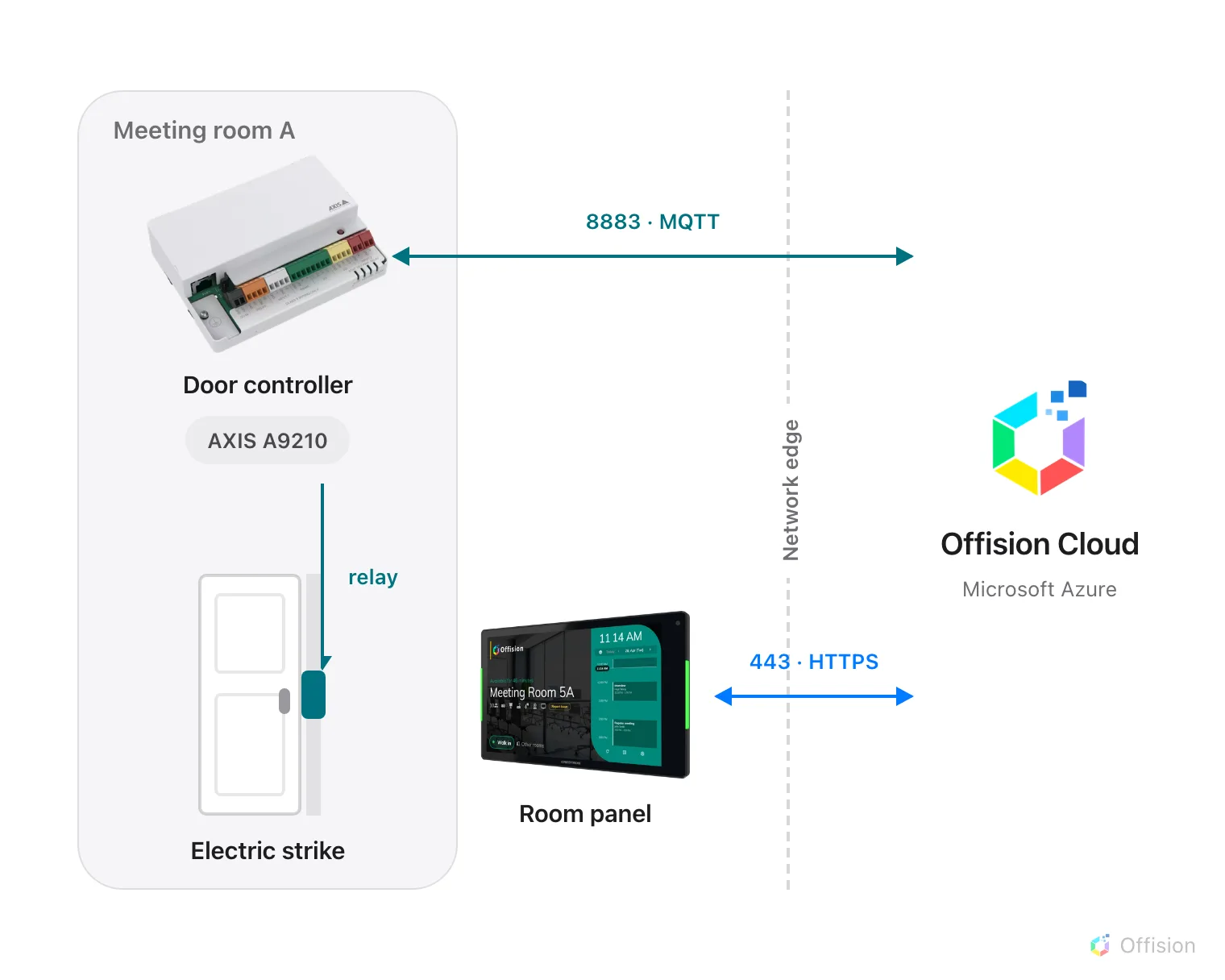
Both devices dial out to Offision. The door opens because a command comes back down the connection the controller opened — no inbound port, no VPN.
What to have ready
- An AXIS I/O relay device (an A9210 or similar) powered up and reachable on your network
- The electric strike already wired to the device’s RELAY port
- The device’s own web address and administrator password
- A booking panel already paired to the room, because the lock is paired to a panel
- About thirty minutes, most of it on the device’s settings page
1. Add the door lock in Offision
AXIS is in the marketplace, and also on the platform integration page. Either opens the same dialog. The tile is marked Beta.
Open Integrations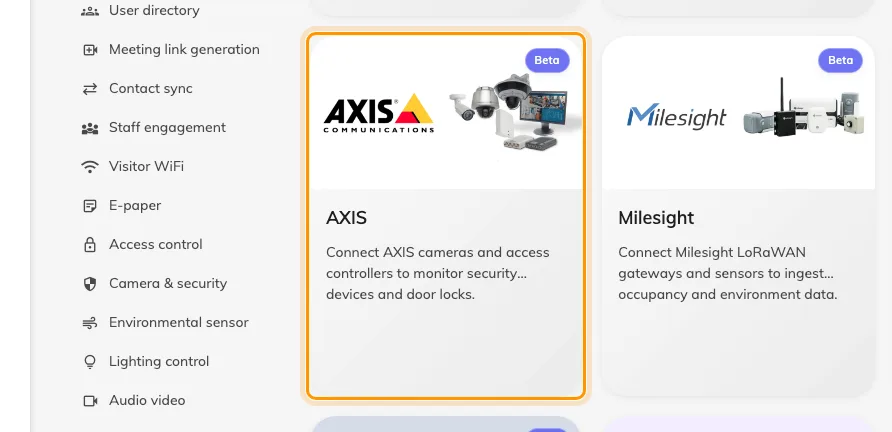
The marketplace, with the AXIS tile.
The dialog opens straight on devices — there is no AXIS account to connect and no API key to paste. Down the left are three sections, one per device type: AXIS camera, AXIS door lock and AXIS relay. Choose AXIS door lock, then Add.
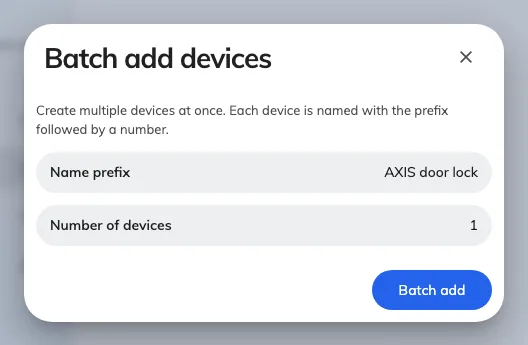
Batch add devices, with the type already fixed to AXIS door lock.
Batch add devices asks for two things: a Name prefix and a Number of devices. Name the prefix after the door rather than the hardware — you will be picking it from a list later, and Meeting Room A door is easier to recognise than A9210-2. Choose Batch add.
Note what this form did not ask for: no IP address, no port, no credentials. Offision does not reach into your network to find the device. The device finds Offision.
2. Open Config guideline
Open the device you just created and go to Config guideline in the rail down the left.
Offision registered the device with its cloud broker as it created it, and minted the three values the next steps paste into the AXIS device — a Client ID, a Username and a Password.
If this page shows a single Enable MQTT action instead of three numbered steps, this device has MQTT switched off. Choose it, and the steps appear.
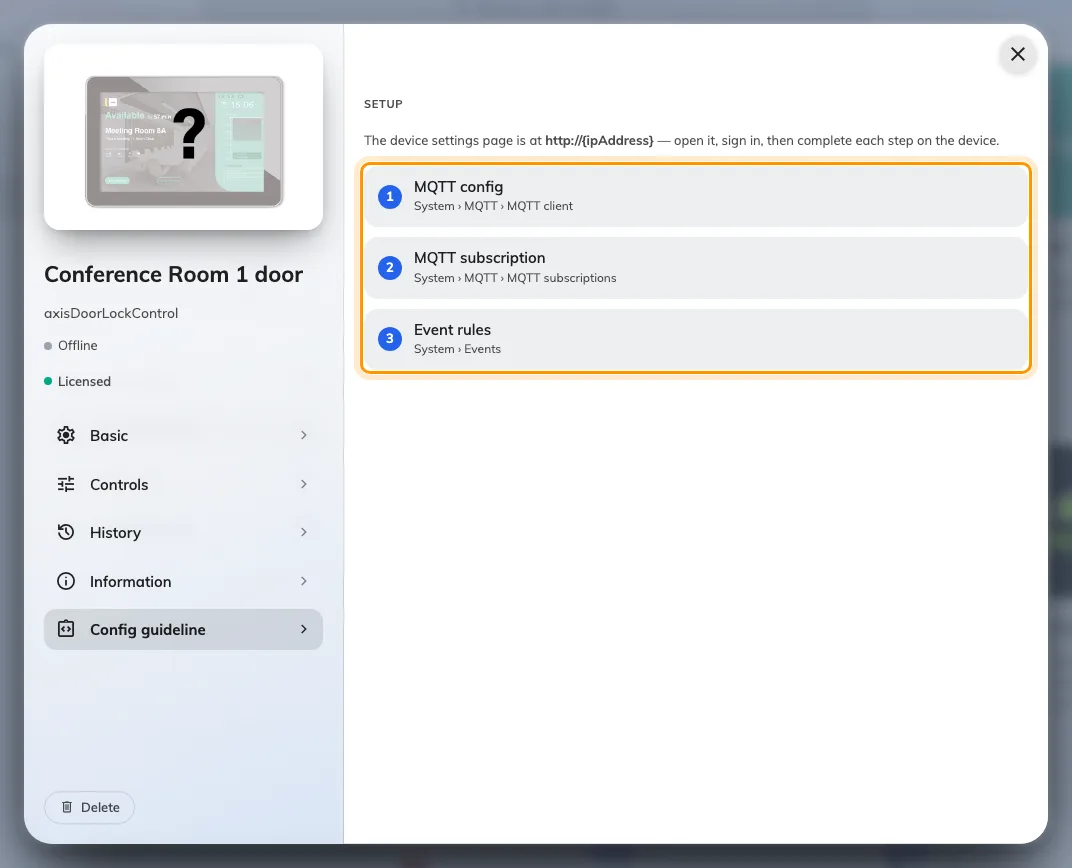
Config guideline, with the three setup steps.
Keep this page open — you will come back to it three times to copy a value.
3. Enter the three screens on the AXIS device
Each of the three numbered steps on Config guideline is one screen to fill in on the device’s own settings page — the MQTT client, one subscription, and four event rules. Every value has a copy button beside it, and the whole set, field by field, is in What to enter on the AXIS device.
Do all three before moving on. A device that has done only the first reports Connected and still never opens a door.
4. Pair the lock to the room panel
Go to Devices › Booking panel › Devices and open the panel outside that room. Choose Door locks in the rail down the left of the panel dialog.
Open Booking panel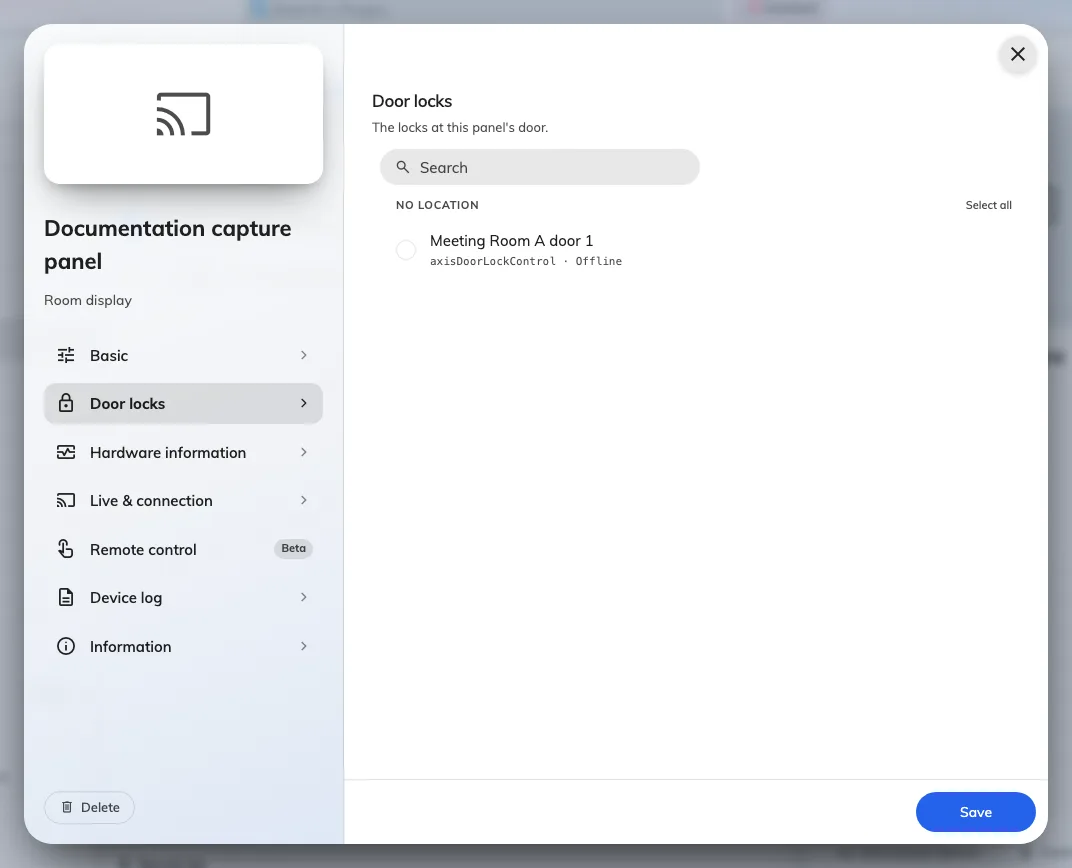
A panel's Door locks page, listing the door lock for that room.
Tick the lock for that door and save. A lock is paired to a panel, not to a room — so a room with two doors and two panels is two pairings, and moving a panel means checking its locks moved with it.
The rail entry only appears when you are editing an existing panel. If a panel is still being created, save it first and reopen it.
Then, in Devices › Booking panel › Panel configurations, open the configuration those panels use and turn on Show open door button on its function page. The open duration, the card-tap behaviour and the visitor permission sit alongside it, and each is described in Every switch that puts a button on the panel.
That setting alone gives you the button only while the room is in use. On a free room, or one still waiting for its check-in, the panel shows nothing until Booking operators open door any time is on as well — and that one sits on the configuration’s Check-in method page beside Booking operators, not on the function page.
5. Check it worked
Both directions, and they are genuinely separate paths:
- The door. Press Open door on the panel. The strike releases, and locks again once the open duration has passed.
- The state. Watch the device in Offision while you do it. Its tile should flip to unlocked and back on its own.
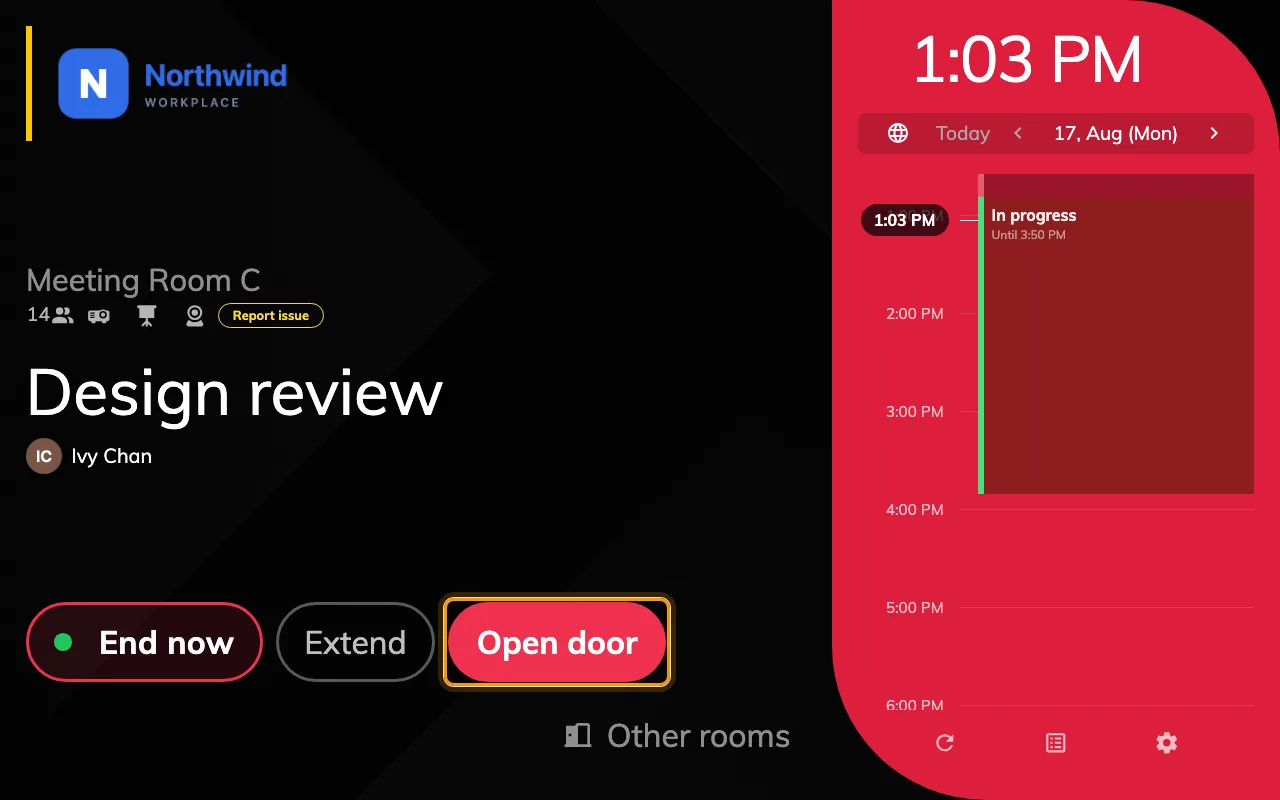
Open door on the panel, beside the buttons that end and extend the booking.
Check both. Feedback and control are independent — the tile can be perfectly correct on a device whose relay has never once moved, because the two directions travel through different rules. Testing only the tile is how a door that never opens gets signed off.
6. Open it from the console
Open the device again and choose Controls in the rail. Control holds a single Door tile. Choosing it throws the relay, and the tile’s lock icon and tint carry the state, read back from the relay rather than echoing the last command.
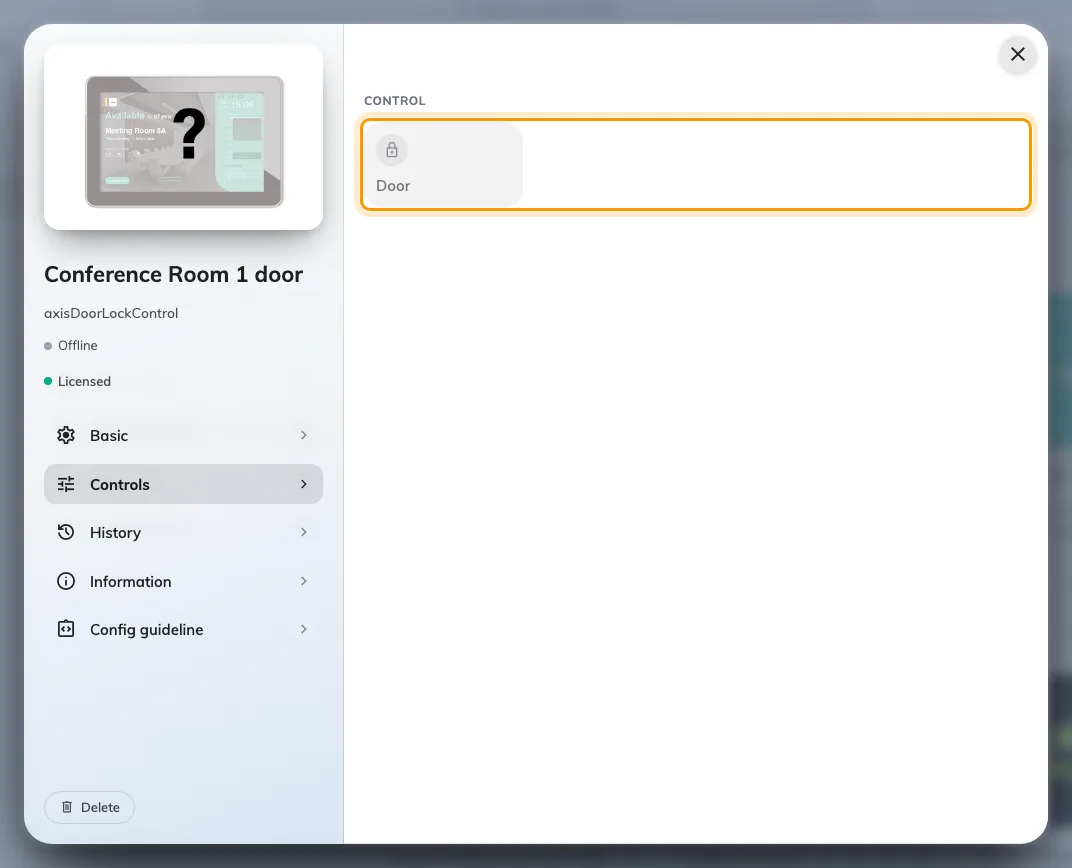
The Controls page of a door lock, with the Door tile ringed. It is greyed until the device connects.
When it goes wrong
| What you see | Usual cause |
|---|---|
| Device says Connected, nothing ever happens | The subscription filter lost its trailing /#, or Use default topic prefix was left on |
| The rule looks right, the relay never moves | The rule has a filter topic set — it can never match, so it never fires |
| Unlock leaves the door locked, lock leaves it open | Rule Duration is not 00:00:00, so the device flips the relay back itself |
| Nothing at all, not even a log entry on the device | The rule is driving O1 instead of RELAY, or RELAY is configured as an input |
| The tile shows the right state, the door never opens | The feedback rules are fine and the control rules are not — the tile proves nothing |
| No door lock found on the panel’s Door locks page | The device was created under a different organization unit |
| A lock is listed but cannot be ticked | It is a relay port whose function has not been set to Door lock |
| The panel has no open door button | Show open door button is off in the panel configuration that panel uses — or the room is free, and Booking operators open door any time is off |
| It worked for weeks, then stopped connecting | The password expired — Regenerate password on Config guideline, then paste it into the device again |
| The lock is not in Devices › Access control | It never will be — that list holds doors read from an access control server, not devices |