

Import card numbers in bulk
Download what you already hold, fill in the numbers, and upload it back. What each preview verdict means, why some rows never appear, and the one checkbox that changes what an empty cell does.
Handing out five hundred cards is a spreadsheet job. Access cards exports what you already hold, and takes the same file back with the numbers filled in.
Open Access cards1. Get the file
Export downloads every card slot in the account as an Excel file — a row per person, blank where they hold no card. That download is the template: it already has everybody’s address in it, spelt the way Offision spells it, which is the thing the import matches on.
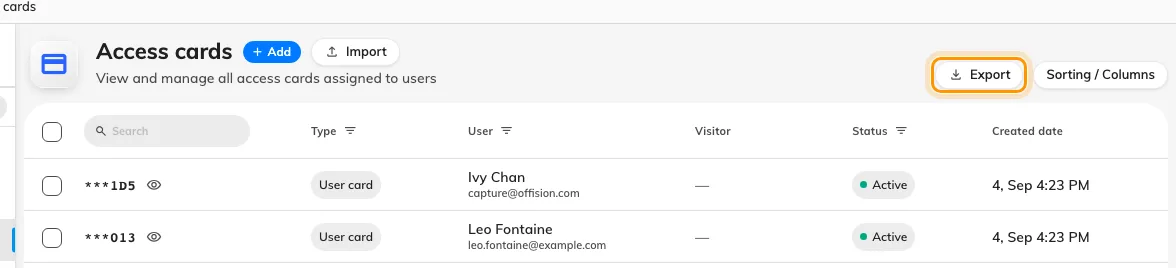
Export first. The file that comes back is the file to send back.
Only two columns matter and they are read by position, not by heading: Email address first, Card number second.
2. Choose a mode
Import opens on the two modes, and they are not interchangeable.
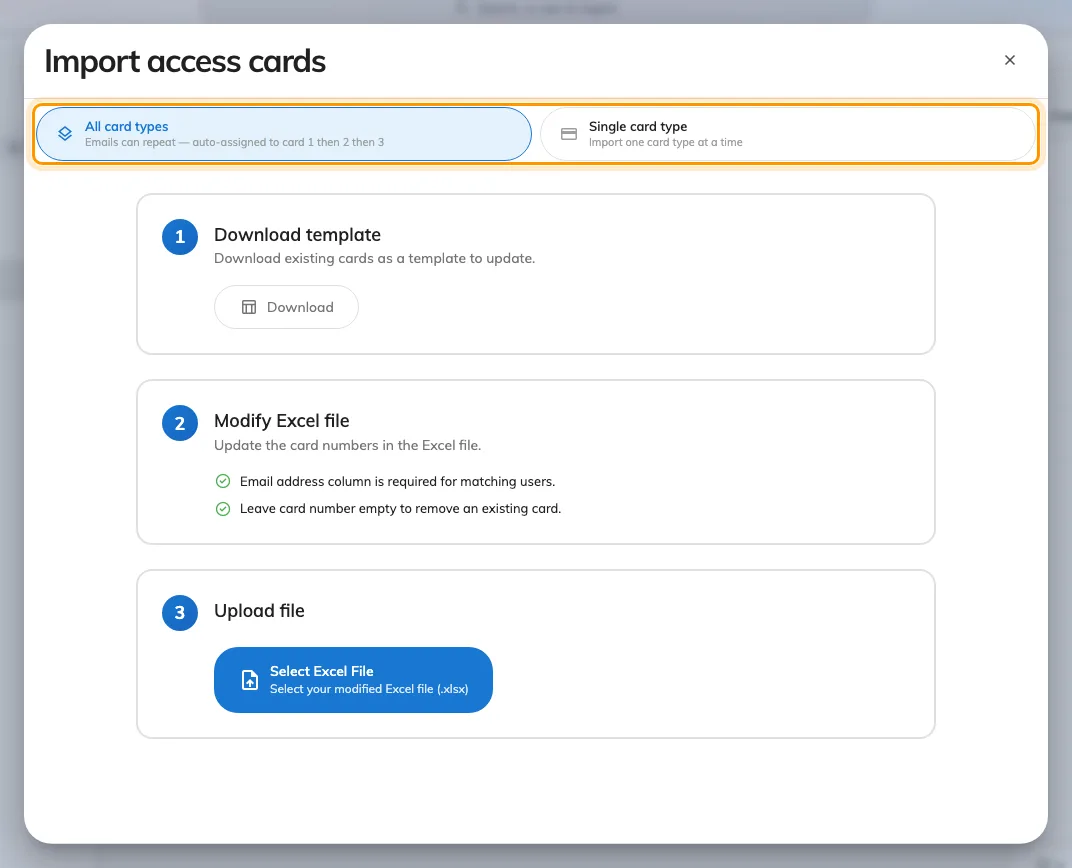
Download, fill in, upload — and the mode decides how a repeated address is read.
| Mode | Reads the file as |
|---|---|
| All card types | An address may repeat; the numbers fill card 1, then 2, then 3 |
| Single card type | One row per person, all writing the one slot you pick |
Pick Single card type for the ordinary case — one card each, going into Access card 1. All card types is for people carrying more than one.
3. Read the preview before you commit
Nothing is written until you say so, and the preview is the part worth reading.
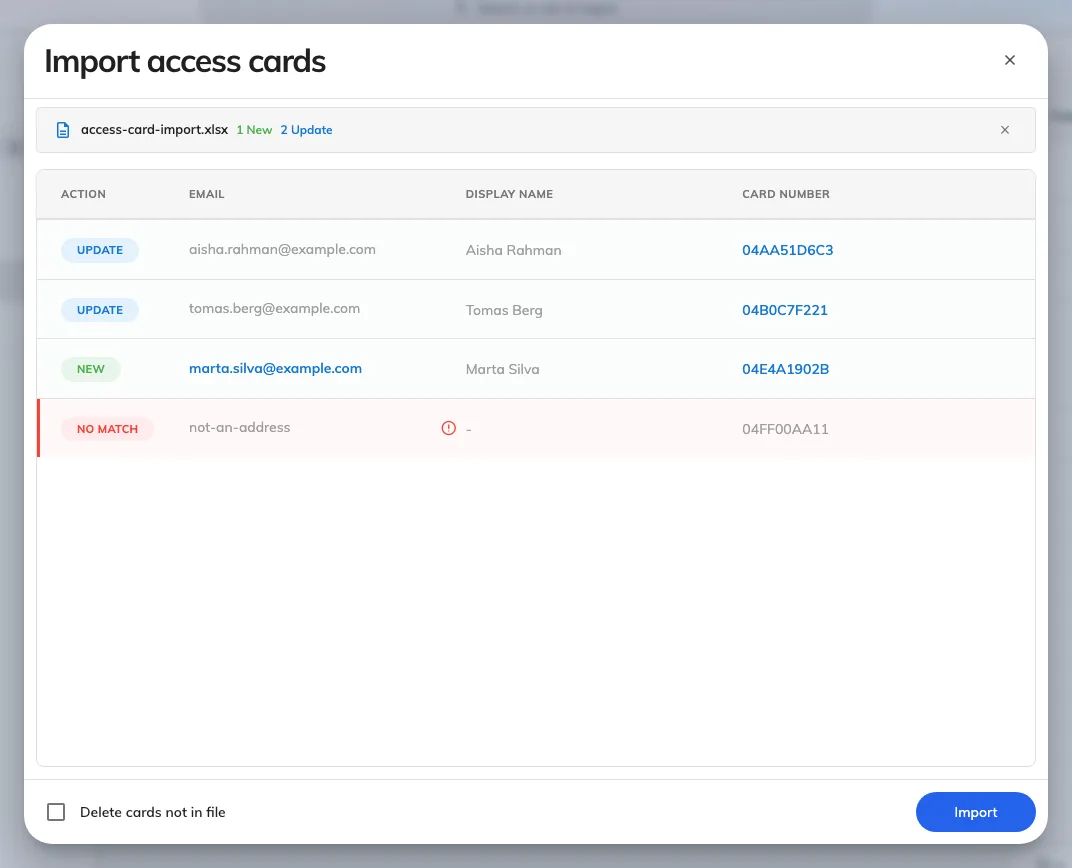
Single card type: a verdict per row, and only rows that would change anything.
| Verdict | Means |
|---|---|
| New | The person holds nothing in this slot yet |
| Update | They hold a different number, and it will be replaced |
| Delete | Their card will be removed |
| No match | The address is not one Offision can read, so the row is skipped |
| Not in file | They hold a card and the file never mentions them |
Rows that change nothing are not listed at all. Neither is a well-formed address the account simply does not hold — it is skipped in silence rather than reported. So a preview shorter than your spreadsheet is normal, and a preview with fewer rows than you expected is worth checking against the addresses in the file rather than against the count.
Two things stop the import outright, and both name the offending rows: the same number twice, and the same address twice in a mode that does not allow it.
4. Deleting, which is the part to be careful with
Delete cards not in file, at the foot of the dialog, is off unless you turn it on — and it changes two behaviours at once, not one.
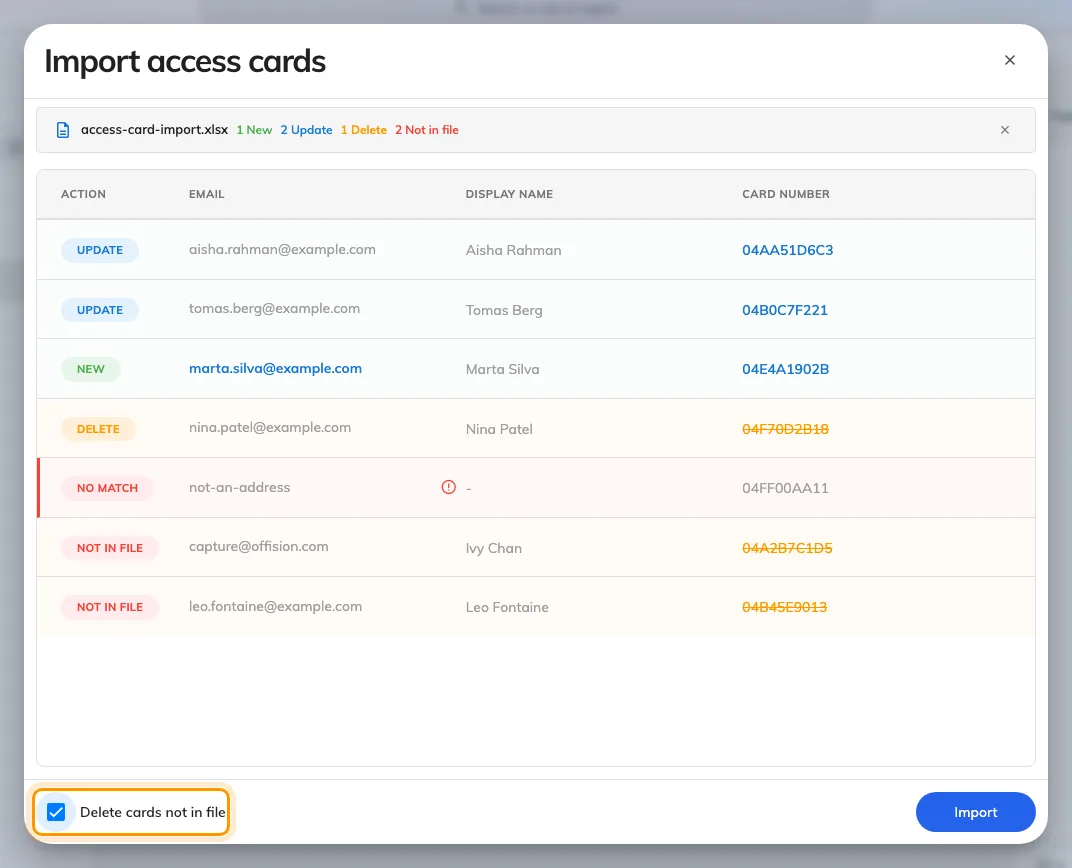
The same file with the checkbox on: two verdicts appear that were not there before.
- An empty card cell starts removing that person’s card. With the checkbox off, an empty cell does nothing at all.
- Everybody absent from the file who holds a card is marked Not in file and will lose it.
That second one is why a partial file and this checkbox are a bad combination: a spreadsheet holding one department, uploaded with Delete cards not in file ticked, takes the cards off everybody else in the company. Leave it off unless the file you are uploading is the complete list — and read the preview’s Not in file rows before you commit, because that is exactly what they are telling you.
5. Check it worked
Search two or three of the numbers on Access cards and confirm they came back against the right people. Then tap one card at a panel: an import that wrote the wrong column looks perfectly healthy in the list and fails at the wall.