

Issue an access card to someone
Get the number off the card, store it against the person from either the Access cards page or their own record, and tap once to prove it. Two minutes, and the same steps take a card back.
1. Read the number off the card
Do this before anything else, because the number you need is usually not the number printed on the card.
Tapping a card at a panel that already works is the quickest way to see the real number: the panel’s own console shows it, and Read a card number at the panel is the walkthrough. The other way is a USB reader plugged into your own machine, which types the number into whatever field has focus.
2. Store it against the person
Two screens do this, and they write the same thing. Use Access cards when you are working through a stack of cards, and the person’s own record when you are already in it.
From the Access cards page
Choose Add, and fill in three things: the Card number, which slot it fills under Type, and the User who will hold it.
Open Access cards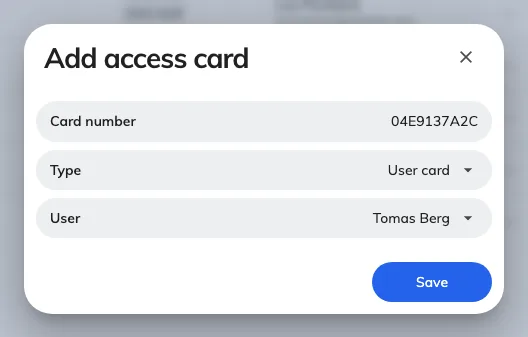
Three fields: the number, the slot it fills, and who holds it.
The type list here is longer than the three slots on a person’s record — it also offers User mobile pass and External sync card, which normally arrive on their own. Leave it on User card unless you know why you are changing it.
From the person’s own record
Open the person and go to their Access cards page. It carries three slots — User card 1, User card 2 and User card 3 — plus a read-only External synchronized card underneath once something has filled it. Type the number in and save the record; nothing is written until you do.
Open Users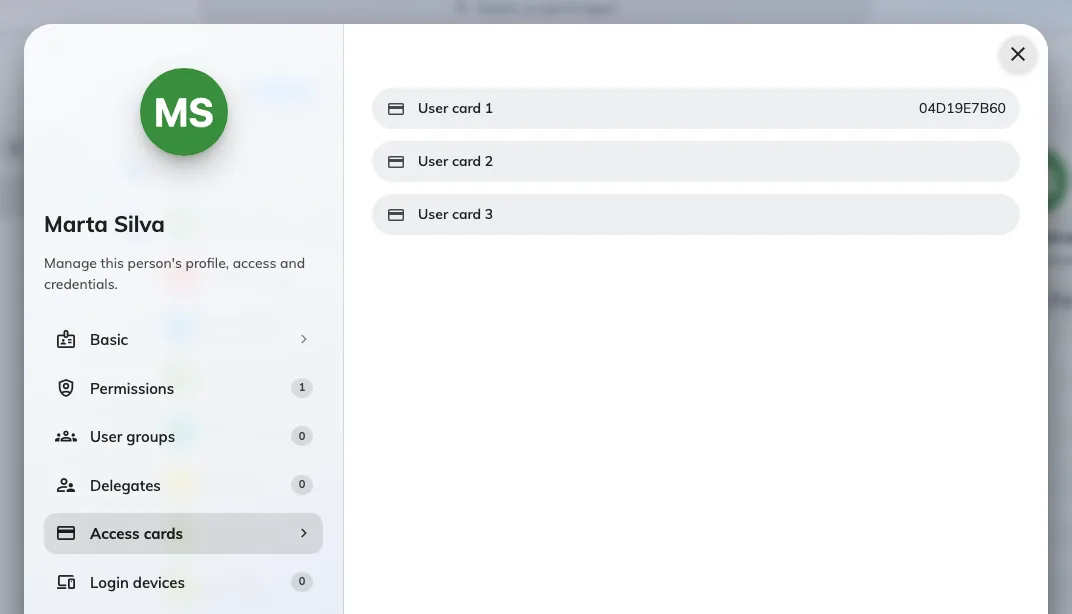
Three slots per person. Most people only ever need the first.
Three slots exist because one person can carry more than one card — an office badge and a car-park fob, or a replacement issued before the old one came back. Any of them identifies them equally.
3. Check it worked
Search the number on Access cards. The search box covers the card number, the holder and the visitor, so typing the number should return exactly one row against the right person. The number itself is masked to its last three characters; the control on each row reveals it.
Then tap the card at a panel. If nothing happens at all, work through Tapping a staff card does nothing.
When the number is already in use
A card number belongs to one person across the whole account, so a number somebody else already holds is refused as you type it.
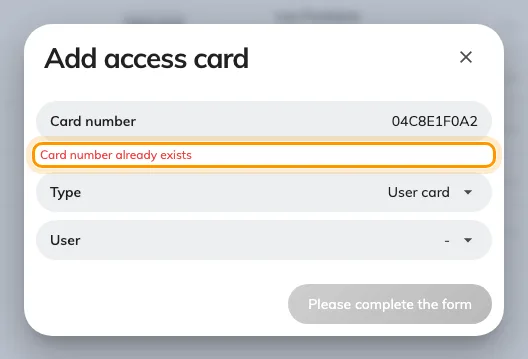
Checked as you type, against every card in the account.
Search the number first: it will show you who is holding it. Usually that is the last person the card was issued to, and the fix is to take it off them rather than to invent a new number.
Giving a person a number they already hold in a different slot is not a clash — it moves the card to the new slot rather than making a second one.
Taking a card back
- One slot on a person’s record — clear the box and save. An empty slot deletes the card.
- One card from the Access cards page — select the row and use Delete on the panel that opens.
- A lot of them — tick the rows and use Batch delete, or hand back a whole spreadsheet of them at once with Import card numbers in bulk.