

Cancel a booking
Giving a room back: the choice between calling the meeting off and keeping it without the room, what a repeating booking asks before it deletes anything, what cancelling does to the calendar invitations and your quota, and why it is not the same as ending a meeting early.
Cancelling gives the room back. The booking leaves your calendar and everyone else’s, the room shows free again from that moment, and quota is returned only where the resource’s refund rules allow it. Where the room or your own calendar is synced with Outlook or Google, the meeting is withdrawn there too — so the people you invited are told by the calendar system, not by you.
1. Open the booking
Click the booking wherever you can see it — My bookings on the home screen, My calendar, or the resource calendar. They all open the same card, and Cancel is along the bottom of it. Edit a booking shows that card.
2. Choose Cancel
Where the booking holds a room, or is one of several made together, Cancel opens a menu. Otherwise it starts the cancellation straight away — at step 3 if the booking repeats, at step 4 if it does not.
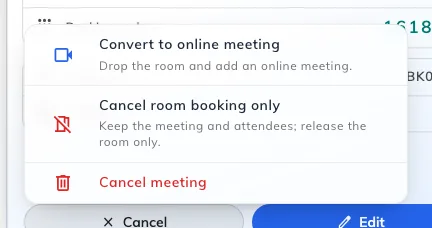
The cancel menu on a room booking. Only the last row calls the meeting off.
| Convert to online meeting | Drop the room and add an online meeting. The meeting stands and everyone keeps their invitation; it just stops being in a room. Offered when your company has an online meeting provider connected and the booking has no meeting link yet |
| Cancel room booking only | Keep the meeting and attendees; release the room only. The room goes back into the pool and the meeting carries on without one. Offered on bookings that hold a room |
| Cancel meeting | Calls the whole thing off |
The first two are the reason this is a menu rather than a button. A meeting that has moved online does not need the room, and giving it back is worth doing even though the meeting itself is going ahead — which is a different intent from cancelling, and easy to miss when the obvious button says Cancel.
Cancel room booking only asks you to confirm first: “Remove the room and keep the meeting? Attendees will be notified.” Convert to online meeting does not — it opens the booking form instead, with the room taken off and the online meeting switched on, and nothing changes until you save it there.
3. If it repeats, choose what to cancel
Cancel meeting on a repeating booking asks the scope first, under Delete recurring booking — “Choose what to delete”.
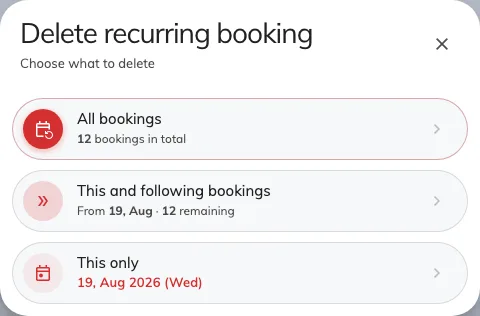
The scope question. Each choice says how many bookings it covers.
| All bookings | The whole series, from the first to the last |
| This and following bookings | This one and everything after it. Earlier dates are left standing |
| This only | Just this date. The rest of the series is untouched |
A Series booking — several bookings made together rather than one repeating pattern — asks the same question in two words on the menu itself: Cancel this only, or Cancel all in serial, which confirms with the count first: “Cancel all 12 upcoming bookings in this series? Attendees will be notified.” Only the ones that have not started yet are cancelled; sessions already held stay in the record.
A booking that holds several resources — a row of desks taken with Book together, or a room and the equipment on it — asks nothing extra. It is one booking, so cancelling it once releases every resource on it at the same moment. See Book several desks together.
4. Confirm
The last step is a plain confirmation, headed Delete, whose wording repeats the scope you chose — Confirm delete this booking only, Confirm delete this and following bookings, or Confirm delete all bookings. Delete carries it out; Cancel here closes the dialog and leaves the booking alone.
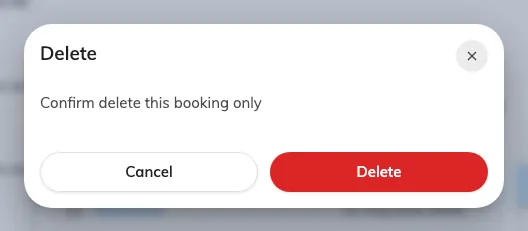
The confirmation, worded for the scope chosen in the previous step.
Nothing is cancelled until this point. Read the wording rather than the button: it is the only place that tells you whether you are about to remove one date or a year of them.
5. Check it worked
The booking should be gone from your calendar, and the room free in the resource calendar for that period. Attendees are notified, and so are the people who look after that room where an administrator has asked for it.
Where the room is synced with Microsoft 365 or Google Workspace, check the meeting has also gone from Outlook or Google Calendar. That withdrawal is the calendar system’s own, so it can lag the app by a moment.
What cancelling is not
Three other things also free a room, and none of them is this.
| End now | Ends a meeting that is under way early and hands the room back for the time left. The booking still happened and still counts as used. Use it to end an active meeting; cancellation during use is a separate room-policy permission |
| Extend | The opposite — pushes the end time out while the meeting is running |
| Being released for a no-show | Where a room requires check-in, nobody checking in releases it automatically. That is counted, and cancelling is not: see What counts as a no-show |
Cancelling ahead of time is therefore the tidy option: it gives the room back early enough for somebody else to use it, and it leaves nothing against your name.
Quota refunds depend on the resource. Cancellation returns quota only when refunds are enabled and the refund deadline is met. See Quota refund settings.
When there is no Cancel button
Cancel reaches one step further than Edit: a booking can be past the point of editing and still be cancellable, and from 4.5.14 how far it reaches is the room’s decision rather than a fixed rule.
| Why it is missing | What to do instead |
|---|---|
| You are not allowed to manage this booking | You must be its organizer, their delegate, a permitted saved host, or a booking manager in the console. Check the host permission in the resource policy |
| The meeting has finished | There is nothing left to give back |
| Check-in has opened, and the room does not allow cancelling from then on | Let it run, or check in and use End now. The room sets this |
| You have checked in, and the room does not allow cancelling a meeting under way | Use End now — from the card, or at the room panel |
| It is too close to the start | A room can stop people editing or cancelling in the run-up to a booking. Ask whoever looks after that room |
Both check-in rules are per-room, and the shipped defaults keep the behaviour people are used to: you may cancel while the booking is waiting to be checked into, and not once you have checked in. Whoever looks after the room can change either, in the resource policy reference. Where cancelling while in use is allowed, Cancel joins Extend and End now on the card of a meeting already under way.
You can also cancel at the room panel outside the door, where the booking’s details carry a Cancel booking button, and from a lobby board.