

Edit a booking you already made
Reopening a booking in the form you made it with: where the Edit button is, what a repeating booking asks before it lets you through, why an edited booking can go back to waiting for approval, and when Edit is not offered at all.
A booking is not fixed once it is made. Edit reopens it in the same form you booked it with, so the time, the room, the people and everything else your company put on that form can still be changed — and everyone invited is told about it for you.
1. Open the booking
Every screen that shows a booking opens the same card when you click it: My bookings on the home screen, My calendar, and the resource calendar all lead to it.
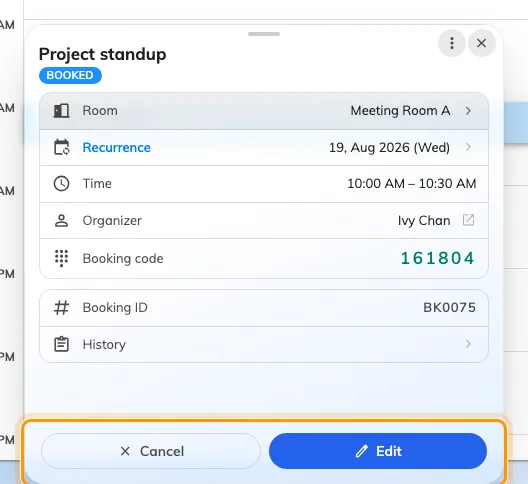
A booking's card. Cancel and Edit sit along the bottom.
The card is where a booking is read and acted on — joining the online meeting, checking in, requesting a service. The two buttons along the bottom are the ones this article and Cancel a booking are about. If they are not there at all, skip to the last section.
2. Choose Edit
Edit opens Edit Booking — the whole booking form, with everything you originally chose already filled in. A repeating booking asks one question on the way there; that is the next step.
One thing is fixed: you cannot change a booking between Single, Recurring and Series after the fact. That choice is made when the booking is created, and the switch is not on the form in edit mode. To change it, cancel the booking and make it again.
3. If it repeats, choose what the change applies to
A repeating booking asks first, under Edit recurring booking — “Choose how the change applies”.
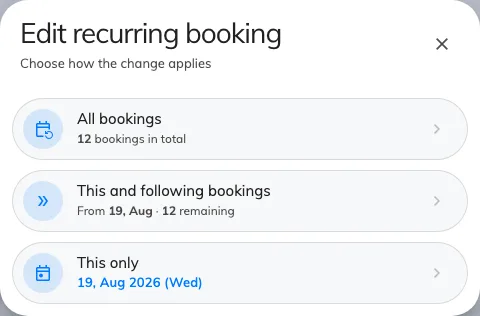
The scope question, with how many bookings each choice covers.
| All bookings | The whole series, from the first to the last |
| This and following bookings | This one and everything after it. The dates before it are left alone |
| This only | Just this occurrence, which then stops following the pattern |
Each choice carries the count or the dates it covers, so you can see what you are about to change before you commit to it. All bookings is sometimes locked, with “Master booking can’t be edited here” — the series as a whole is managed elsewhere, and you can still take either of the other two.
A Series booking is different: its sessions are separate bookings that were made together, so there is nothing to scope. Editing one opens the series editor with every session in it at once.
4. Change what you need
The form is the one from Book a meeting room, so nothing here works differently from when you made the booking: the timeline still shows what is free, the room picker still refuses a room you may not have, and the form still answers as you fill it in. Every field is described in the booking form reference.
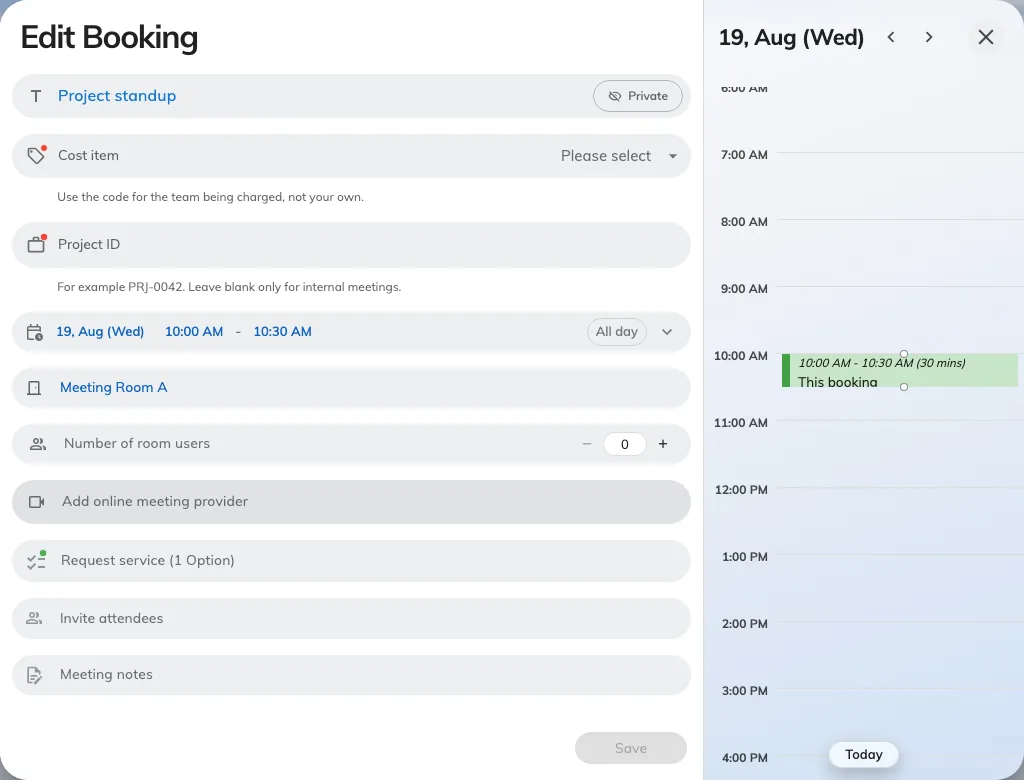
Edit Booking — the booking form, filled in with what you booked.
Two changes behave less obviously than the rest:
- Changing the room re-checks that room’s rules, not the old one’s. A move into a room with a shorter maximum duration, an approval requirement or a narrower booking window can be refused even though the original booking was fine.
- Adding attendees invites them. Removing one takes the meeting off their calendar.
5. Save, and read the answer
Save applies the change. What comes back matters more than it looks:
| What you see | What it means |
|---|---|
| Booking updated | Done. Everyone invited has been told |
| Booking created, waiting approval | The room needs the change approved. Until somebody approves it, you do not have the room |
Editing a series asks before it saves — “Save n changes?” — and lists what it will do, grouped into New, Updated and Cancelled, with the sessions you did not touch counted rather than listed. Removing a session row that is a real booking also asks first: “Cancel this booking on save?” Nothing is cancelled until you save.
An edited booking going back for approval is the surprise here, and it is a per-room setting — Re-approval after edit, which an administrator sets to any change, only time or resource changes, or never. Two things are always true whatever it is set to: editing a booking that was rejected always resubmits it, and a booking still waiting for approval stays waiting.
6. Check it worked
Open the booking’s card again. The card carries the booking’s state, and that is the thing to read — a change that came back waiting approval looks exactly like a successful edit on the calendar. Attendees get the update by mail, so a meeting changed this way needs no separate message.
Changing only the time, or only the room
Reopening the whole form is more than you need for a straight move, and both calendars let you drag instead:
- On My calendar, drag the booking up or down to change the time, or its edge to make the meeting longer — see Reschedule a booking on My calendar.
- On the resource calendar, drag it across to another room’s lane to change the room — see Compare room schedules and move a booking.
Both end in a short Edit Booking confirmation showing the change as before and after. Update applies just that, and More options hands the change to the full form described above with the new time or room already in it — so a drag is a shortcut into step 4, not a different way of editing.
When there is no Edit button
The card shows Edit only when all of the following hold. When one does not, the button is simply absent rather than disabled.
| Why it is missing | What to do instead |
|---|---|
| You are not allowed to manage this booking | You must be its organizer, their delegate, a permitted saved host, or a booking manager in the console. Check the host permission in the resource policy. Attendee check-in, check-out and extension rights are separate |
| The meeting is under way | An in-progress booking shows Extend and End now instead. Change it at the room panel, or end it and book again |
| The meeting has finished | Nothing to edit. Make a new booking |
| It is too close to the start | A room can stop people editing or cancelling in the run-up to the booking. Both Edit and Cancel disappear together at that point, which is how you tell this apart from the others |
The room panel outside the door never edits a booking either — it checks people in and out, extends, and cancels. Editing is done in the app.