

Keep the room when the sensor says it is empty
A meeting that goes quiet looks empty to an occupancy sensor, and the panel starts counting down to releasing the room. One tap on the countdown keeps the booking. This is what the badge means, how to suspend the release and how to turn it back on, on both panel designs.
A workshop where everybody is stood at the whiteboard, a long call taken from one corner of the room — both of these look like an empty room to an occupancy sensor. Where the room is set to hand itself back when it empties, the panel does not do it silently: it counts down first, and invites you to stop it.
The badge is the room’s notice period
On a room that has an occupancy sensor and a no-presence duration set, the panel carries a badge in its top corner for as long as the booking is in use. While the sensor can still see somebody it reads Auto check-out on.
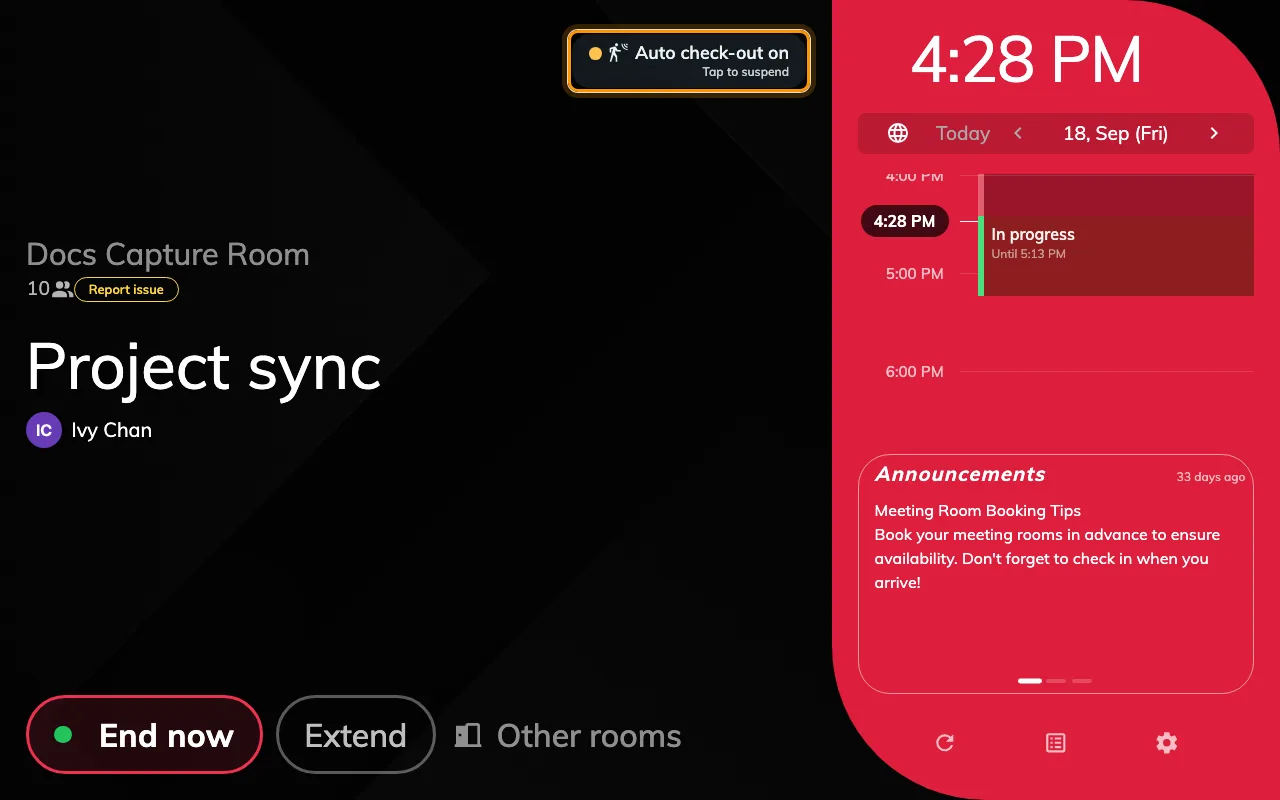
The room is in use and the sensor can see somebody: the badge is armed, with no clock.
When the sensor stops seeing anyone, the badge starts a clock — Auto-release in, counting down to the moment the booking is checked out and the rest of its time goes back to whoever wants it.
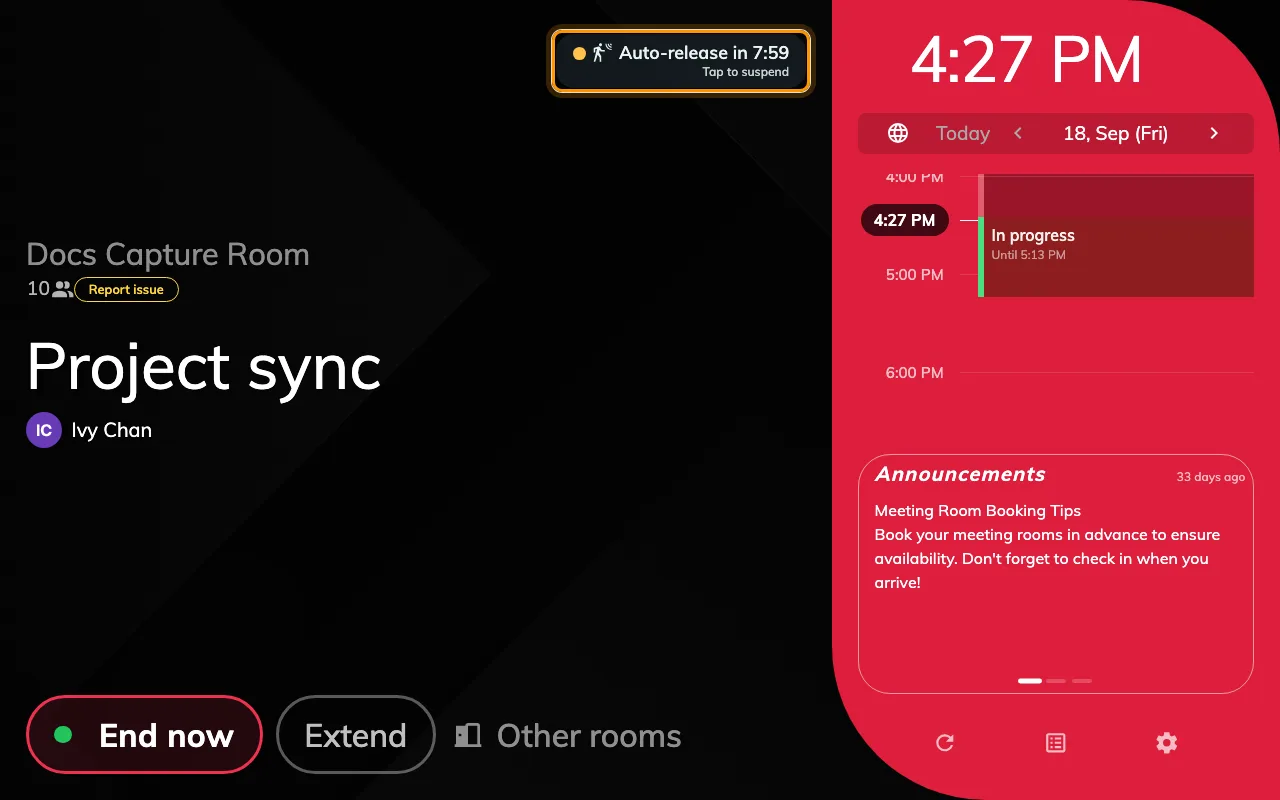
The sensor has reported the room empty: Auto-release in 7:59, and Tap to suspend underneath.
The clock is not the check-in deadline. That is a different countdown on a different screen — see Checking in at the booking panel. This one only ever runs on a booking somebody has already checked into.
Tap it to keep the room
The badge is a button. Tapping it while the clock is running suspends the release for this booking only — there is no confirmation, and nothing else to fill in. The badge changes to Auto check-out off.
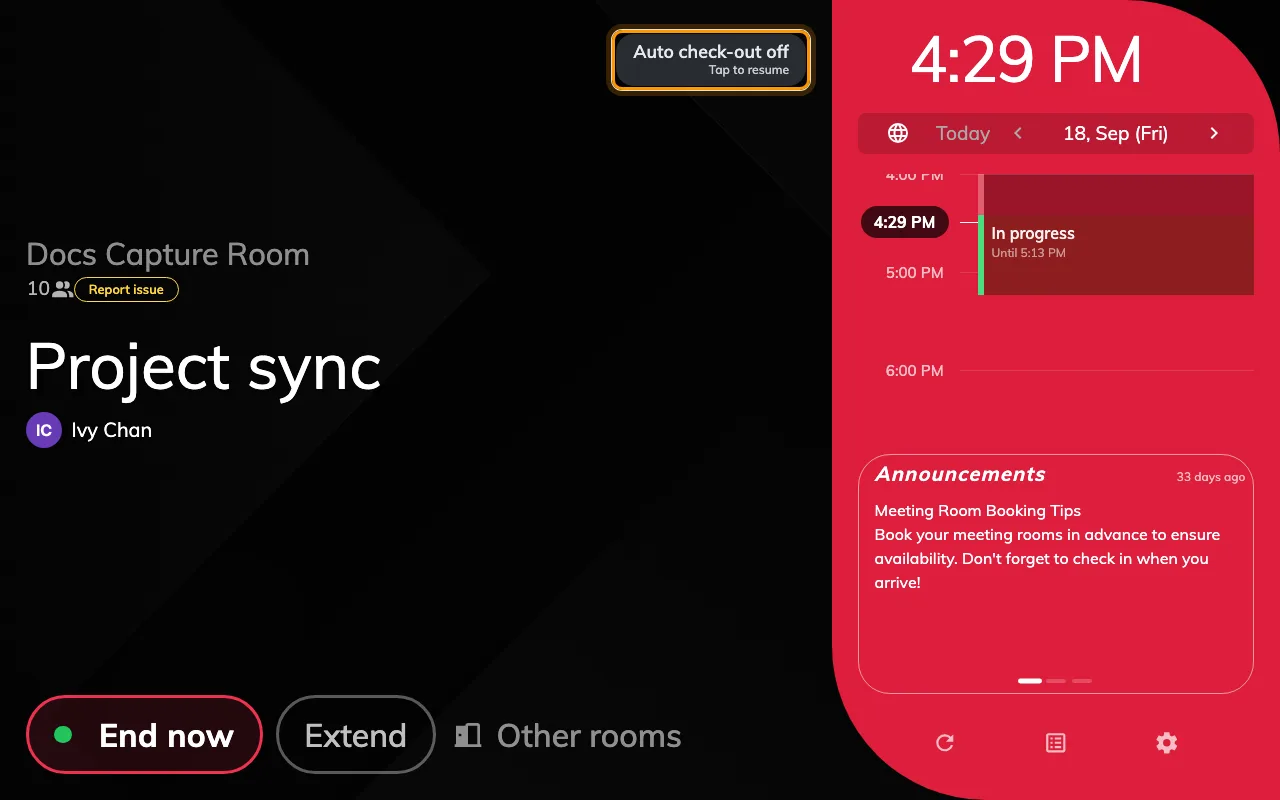
After the tap: Auto check-out off, and Tap to resume — the booking now runs to its end time.
Two things worth knowing about that tap:
- It lasts the whole booking. It is not a snooze. Nothing puts it back by itself, so the room will now hold until its end time however quiet it gets.
- You do not have to wait for the clock. The badge is there for the whole meeting, so a group that knows it is about to spend an hour at the whiteboard can switch the release off before the sensor ever gets it wrong.
Tap it again to hand the room back to the sensor. The badge returns to Auto check-out on and the next quiet spell starts the clock as before.
The Meeting assistant asks the same question differently
Where the room runs the Meeting assistant rather than the room booking panel, the countdown is not a badge in the corner — it takes over the screen and asks Still here?, with the remaining time underneath it and one button, I’m still here.
That button does exactly what tapping the badge does. The difference is that this design has no off state and no way back: once the release is suspended the question simply stops appearing, and it cannot be resumed from the panel. Somebody has to end the booking from the room panel, the app or the console instead.
What the tap does not switch off
Only the release. If the room is also set to check bookings in when somebody arrives, or to extend a meeting that overruns while the room is still occupied, both carry on as before — those read the same sensor but do not consult this switch.
The booking policy is untouched, too. The next booking on the room is governed exactly as it was, and nothing about the tap is visible to anyone who was not in the room.
Where it is turned on
Nothing on the panel turns this badge on. It appears because the room’s booking policy sets a no-presence duration, on the policy’s Check in/out page under Sensor: Enable auto checkout by the occupancy sensor, with Continuous no presence duration (in minutes) beside it. The room also needs an occupancy sensor bound to it — with no sensor there is nothing to report the room empty, and no badge.
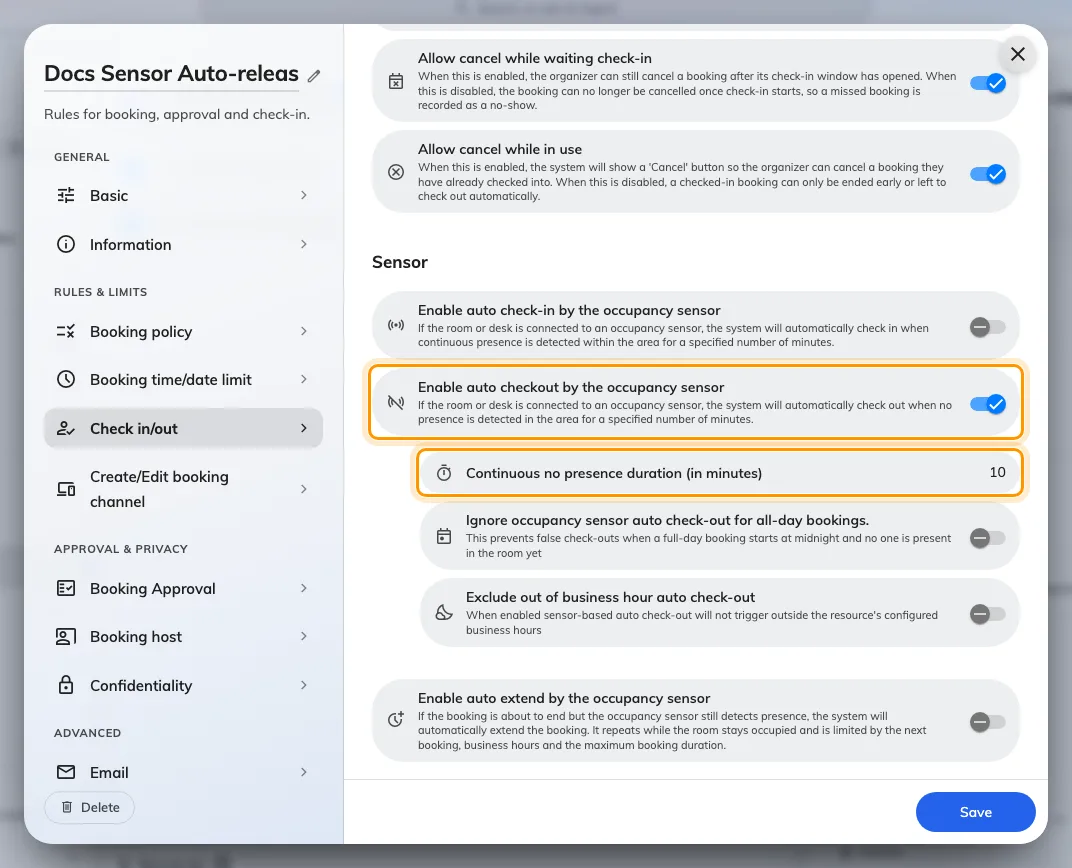
The booking policy's Others page, Sensor section: the switch that puts the badge on the panel, and the duration it counts.
Setting those up, and the other two sensor automations, is Let an occupancy sensor check in, check out and extend a booking.
Open Booking policy