

A booking panel keeps running when the network drops
The panel keeps showing the day it already has and keeps its own clock, so the door never goes blank. What stops is anything that needs the server — checking in, extending, ending early — and the panel says which connection is missing and recovers on its own.
A panel by the door is the most visible thing Offision runs, so on a site with an unreliable line the question is really about the worst case: what is on that screen when the connection is gone.
It keeps working as a display. The panel goes on showing the day it already has and goes on counting its own clock, so the screen does not blank, does not fall back to a loading spinner, and does not announce anything to the corridor. What stops is only what has to reach the server — and the panel says so rather than failing quietly.
What keeps working
The panel holds the day it last loaded, and nothing discards it when the connection goes. Today’s bookings stay on screen, along with who has the room next and the room’s status colour.
The clock is the panel’s own. That is what keeps the display honest through an outage: at the moment a booking starts, the colour still changes from green to orange or red, a countdown still counts down, and the screen saver and energy-saving schedule still come and go on time. A panel left alone through a two-hour outage looks, from the far end of a corridor, like a panel that never lost anything — because for the purpose of reading the room, it has not.
Anything the panel does by itself keeps working too: the language picker, waking the screen, and the panel’s own settings console behind its pass code.
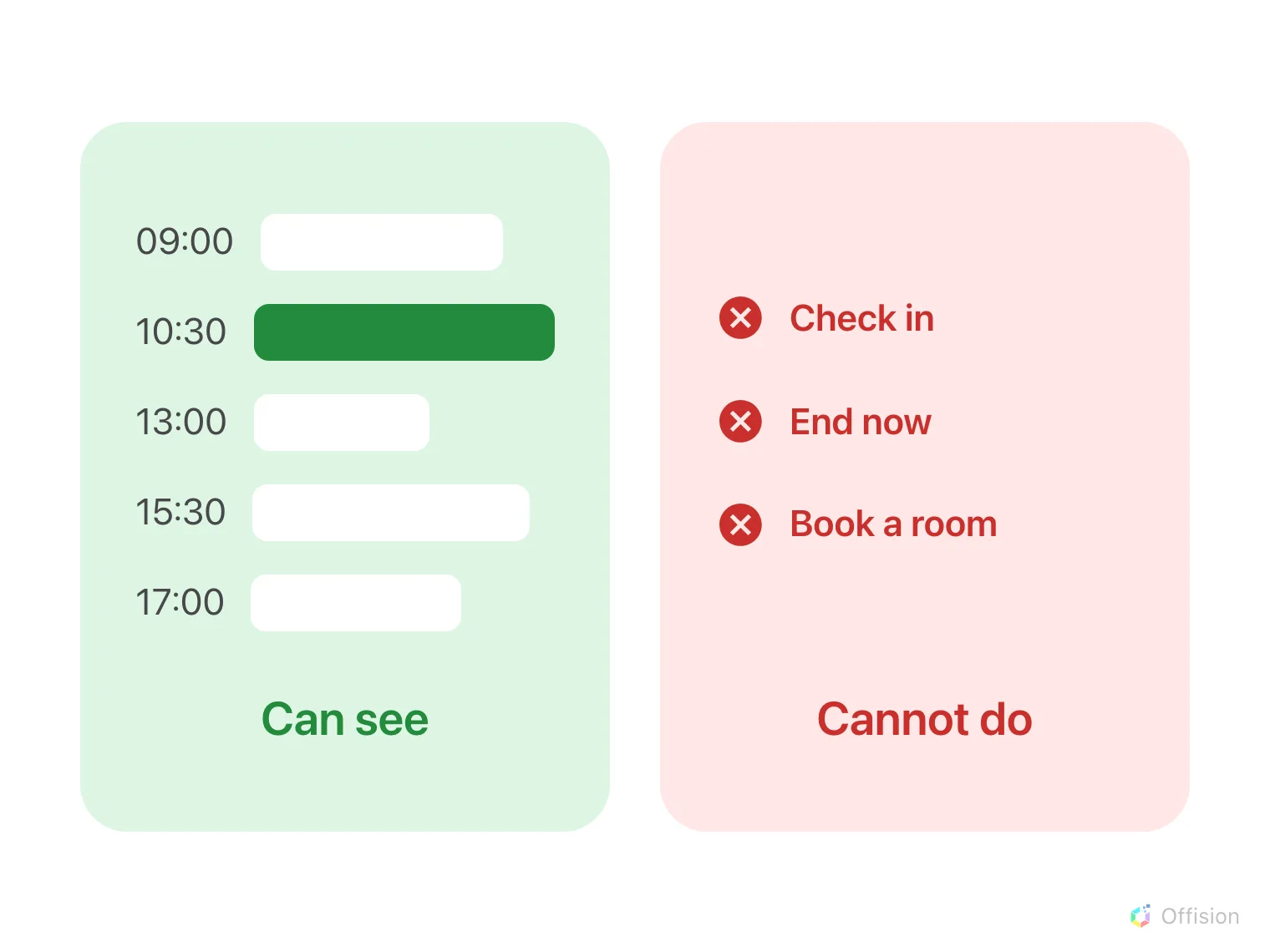
The day stays on the screen. What stops is everything a person would do at the panel.
What stops
Everything that has to reach the server: Check in, End now, Extend, taking a free room on the spot, and looking for another room in the building.
The buttons do not vanish and do not grey out. They stay where they are and still respond to a tap — and the tap then fails with Unable to connect to the server. Please check your internet connection, which clears itself after a minute. Somebody at the door is told why nothing happened instead of being left pressing a button that appears to do nothing.
Nothing is held and sent later. There is no offline queue: a check-in attempted during an outage is not stored on the panel and replayed when the link returns. That is a decision rather than a gap — a check-in records the moment the server hears it, so a replayed one would land at the wrong time and quietly corrupt the no-show reporting it feeds. Once the link is back, checking in again takes a second.
It says which connection is missing
About three seconds after the drop, a card appears on the panel with a struck-through Wi-Fi mark and a Reload action. It carries one of two messages, and the difference between them is the useful part.
| The panel says | What it means |
|---|---|
| No internet connection | This device has no network at all. Look at the room’s access point, its cable, its switch |
| Server connection error | The device has a network but cannot reach Offision. The panel end is fine; look at the server or the line out of the building |
So a panel on a flaky site tells whoever walks past which half of the problem to go and look at, without anybody opening the console first.
It comes back on its own
The panel keeps trying for as long as it takes — every five seconds for the first minute, then every minute, indefinitely, and immediately whenever the device sees a network again. When the server answers, the card retracts itself and the panel reloads its day. Nobody has to visit the panel, and nothing has to be reset in the console.
It also refuses to reload itself while it is offline, including the reload it would otherwise do when the date changes at midnight, and holds that until the network is back. A page that reloads with no network does not come back, and the panel is built to avoid exactly that.
Seeing it from the console
The corridor cannot tell you whether a panel is connected: the status colours have no offline state, by design. Connection status, in the booking panel’s device list, is where it shows.
Open Booking panel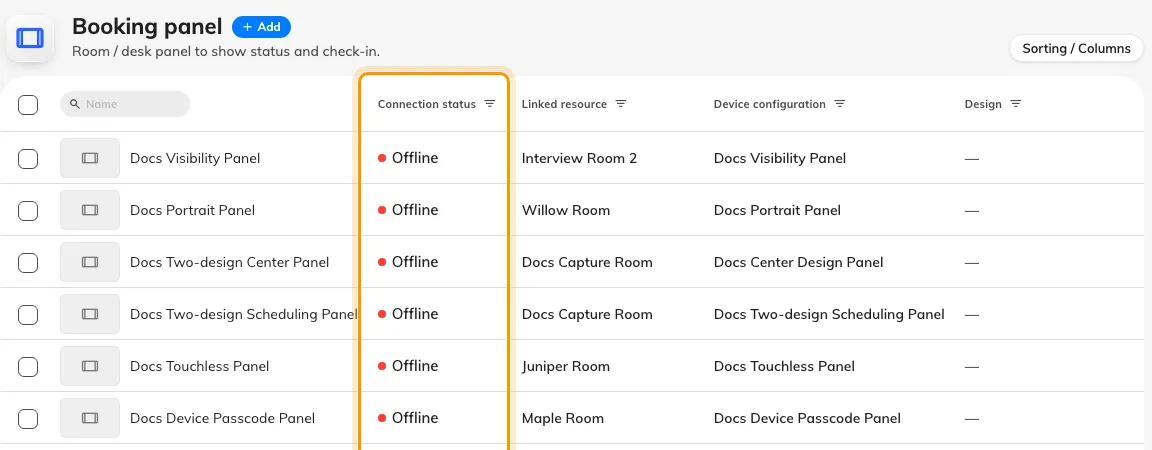
Connection status in the device list — the one place a lost panel is visible.
Offision can also email somebody rather than wait for a person to notice; see Know when a device goes offline.
What this does not cover
- A panel that never paired. A device showing its six-character code has no day to keep — see Connect a booking panel.
- A panel that is connected but stale. If the panel is online and the bookings are still wrong, the fault is between Offision and the calendar rather than at the door — see Put a Microsoft 365 or Google room on a booking panel.
- Releasing a panel while it is offline. Disconnect device is sent as it happens and is not queued, so it has to be done at the panel instead — see Reuse a panel.